Extend System Drive but Recovery Partition is in the Way Windows 11/10/8/7
| Workable Solutions | Step-by-step Troubleshooting |
|---|---|
| Fix 1. Merge non-adjacent unallocated space to C drive | This is exactly the same case with "cannot extend system drive because of recovery partition is in the way"...Full steps |
| To extend an existing partition without creating an unallocated space, you can use the 'resize2fs' command in Linux. This command allows you to resize the file system of a partition without deleting the existing data or creating unallocated space. For example, if you want to extend the root partition (/) by 5 GB, you would run the command 'resize2fs /dev/sda1 5G', where '/dev/sda1' is the device name of the partition you want to extend and '5G' is the amount of space you want to add. | Step 1. Locate the Target Partition; Step 2. Extend the Target Partition...Full steps |
Cannot extend c drive because of recovery partition
To resolve the issue, you can try using a third-party partition manager like Qiling or MiniTool to merge the unallocated space with the C-drive. This will allow you to extend the partition and create a single system drive. Alternatively, you can also use the built-in Disk Management tool in Windows, but it may not be able to merge the unallocated space if it's not contiguous. Be cautious when using third-party software, and make sure to back up your data before making any changes.
Users are experiencing issues extending their C drive due to a recovery partition, and are seeking ways to resolve this problem, such as deleting the recovery partition to free up space.
The user has a UEFI/GPT-based hard drive with a system partition, System Reserved partition, Windows C partition, Recovery Partition, and unallocated space. They want to merge the unallocated space with the C drive but are unable to do so because the "Extend Volume" option is greyed out due to the recovery partition being in the way. This issue can occur in Windows 11/10, 8, 7, and other versions, as well as in virtual machines and VMware.
If the recovery partition is blocking C drive extension, you can move it instead of deleting it. See the detailed method to move the recovery partition to the end of the disk.
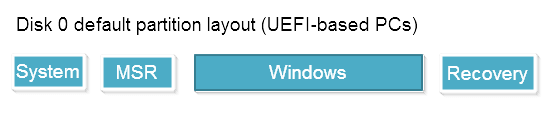
Can you delete the recovery partition to extend the C drive?
Then you might ask, what if I remove the recovery partition? We don't suggest you do that because it's not worth the risk. It's uncontroversial for two reasons.
1. The recovery partition is the last straw for restoring a crashed computer
The recovery partition, also known as the OEM partition, is a protected partition on a Windows computer that contains essential system backup and restoration files. It's not assigned a drive letter and has no executable functions, making it difficult to delete. However, users can rely on it to factory restore their computer in case of a failure or accident, as it contains the necessary files to return the system to its original state.
2. Third-party software can perfectly extend system C drive blocked by recovery partition
Qiling Partition Master is a reputable software for resizing and moving partitions, often used as an alternative to Windows Disk Management. It allows users to easily increase an existing partition by using non-adjacent unallocated space without affecting other partitions.
How to extend C drive across recovery partition without deleting
Qiling Partition Master's primary function, "Resize/Move", has been optimized to provide an excellent user experience. Its simple and direct operation sets it apart, but the software truly outshines its competitors with two key breakthroughs: resolving technical problems that plague other partition manager software.
1. Merge non-adjacent unallocated space to C drive
Windows Disk Management has limitations when it comes to extending system drives, particularly when a recovery partition is involved. Unlike third-party software, Windows Disk Management cannot handle non-continuous partitions, requiring users to delete other partitions to extend one, resulting in data loss. In contrast, third-party software can extend a partition without needing to move its space, as long as there is unallocated space available.
2. Extend an existing partition without creating an unallocated space
The software won't ask you to create unallocated space by shrinking other volumes, instead, it will allow you to transfer free space from one partition to another, such as from D to C or E to C.
Qiling Partition Master is easy to operate and allows merging free space to the C drive, even if it's blocked by a recovery partition. This can be achieved with just a few quick mouse clicks.
Step 1. Locate the Target Partition.
To extend a partition, start by locating the target partition and select "Resize/Move" to begin the process.

Step 2. Extend the Target Partition.
Add unallocated space to the current partition by dragging the partition panel rightward or leftward, then click "Proceed" to confirm.

Extra Option: Get Space from Another Drive
If there's not enough unallocated space on your disk, you can resize an existing partition to free up space. To do this, select the big partition with enough free space and choose the "Resize/Move" option.
To adjust the partition panel, drag it to the right or left to shrink the allocated space.
Step 3. Execute Operations to Extend Partition.
Drag the dots of the target partition into the unallocated space.
Then Click the "Proceed" button to keep all the changes.
Here Qiling Partition Master also provides a video guide for you to follow. Watch this guide and resize your partition accordingly.
Related Articles
- How Do I Clone HDD to SSD in Windows 11 and Make It Bootable? 2022 Complete Guide
- Format FS=NTFS Diskpart Has Encountered an Error
- How to I Permanently Shred Files? Your Complete Guide Is Here
- 3 Best Free Partition Manager For Windows 7/8/XP 32 Bit and 64 Bit
- PC Reset Stuck At 99%, What Should I Do? Your Answer Here
If your PC is stuck at 99% during the reset process, you can try to fix the issue by addressing system file problems or disk errors, which are common causes of this problem. - Fix Windows PC Won't Boot After Enabling Secure Boot
Many users who have upgraded from Windows 10 to Windows 11 have encountered issues with their PC not booting after enabling Secure Boot, which is a requirement for the OS upgrade. To resolve this startup problem, we have compiled 9 methods that can help, which will be presented in this article.
Products
Articles & Tutorials
- Data Recovery
- Data Backup
- File Recovery
- File Backup
- System Backup and Restore
- Disk and Partition Clone
- Technical articles
- Mobile articles
- Disk Master Help
- Windows Data Recovery Tutorials
- Windows Secure Delete Tutorials
- Windows Partition Management Tutorials
- Windows File Backup and Restore Tutorials
- Windows System Backup and Restore Tutorials
- Windows Disk Backup and Restore Tutorials
- Windows Clone Tutorials