How Do I Permanently Shred Files? Your Complete Guide Is Here
To permanently delete files that cannot be recovered, you can shred them instead of just deleting them. Shredding files uses an algorithm that overwrites the file with random data multiple times, making it impossible to recover the original file. This process is more secure than simply deleting files and is often used for sensitive information.
To permanently shred files in Windows 10/8/7, follow this guide. You'll learn how to securely delete files on your own, and it's a complete guide. Let's get started!
Be sure to back up all important files before shredding, as shredded files can't be restored.
Shred File Overview - What Does It Mean to Shred a File
In many antivirus software, the "shred" feature destroys the structure of a target file or document, making it unrecoverable.
In many cases, "shred" files doesn't mean to physically destroy them, but rather to overwrite the file on a hard drive, making its original contents unrecoverable. This is the primary function of most file shredder software, which uses algorithms to securely erase sensitive data, rather than physically destroying the files.
Shredding files is a process that permanently deletes files, making them unrecoverable.
To permanently shred a file on your computer or external hard drive, you can use a file shredder software or a secure deletion tool. These tools overwrite the file with random data multiple times, making it impossible to recover the original content. You can also use the built-in secure deletion feature in your operating system, such as the "Secure Delete" feature in Windows or the "Secure Empty Trash" feature in macOS.
How Do I Permanently Shred a File
To permanently delete a file, you'll need to use a professional file shredder instead of relying on "Shift+Del" or Empty Recycle Bin, as these methods can't ensure the file is completely deleted.
We've selected two top-recommended file shredder tools that can help you securely delete files in various locations on your computer or storage devices, catering to different purposes.
Let's see:
| Where to Shred Files | Recommended File Shredder Software & Tools |
|---|---|
| #1. Shred Files/Folders on Desktop& Recycle Bin | CCleaner |
| #2. Shred Files in Partition - Wipe All Data | Qiling Partition Master |
| #3. Shred Files in HDD/SSD - Erase Disk |
Note that some anti-Virus programs can also be used to shred files in a specific location. If you're interested, you can run one on your computer and experiment with it.
Here are two reliable file shredder software to help you shred files on your own. You can use either of them to securely delete files from your computer.
#1. Permanently Shred Files in Folders, Recycle Bin, Dekstop, or Partition
File Shredder: CCleaner
Applies to:You can permanently shred a single file or multiple files from various locations, including a folder, the Recycle Bin, the Desktop, or an entire partition.
How to Use:
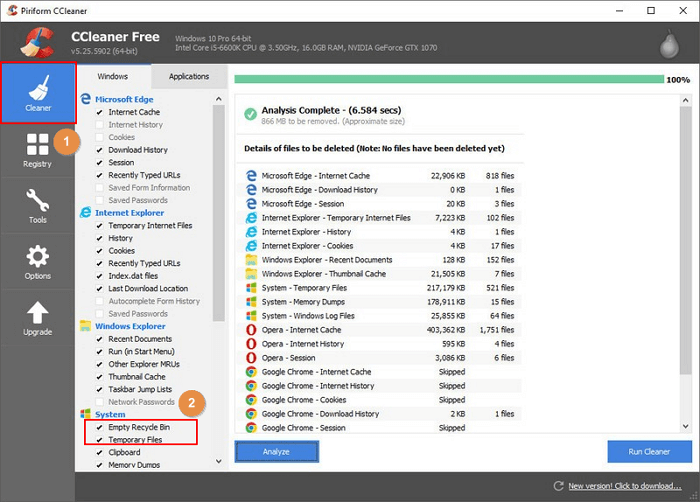
Step 1. To clean up your computer, click on the "Cleaner" tool and select the files you want to shred, such as "Empty Recycle Bin" and "Temporary Files", which often contain sensitive data.
If you don't want to shred some important documents, you can uncheck the boxes in the list.
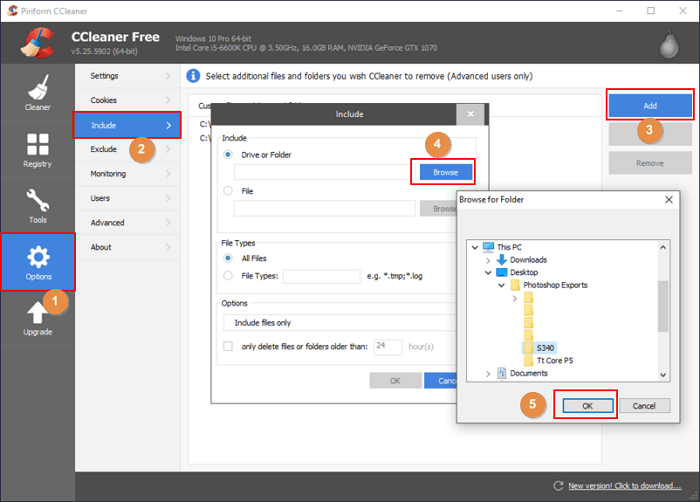
Step 2. To add a single file or folder to the "Include" section, go to "Options" and select "Include", then click "Add" and navigate to the desired file or folder on your computer desktop or hard drive partition using the "Browse" feature.
Click "OK" to confirm.
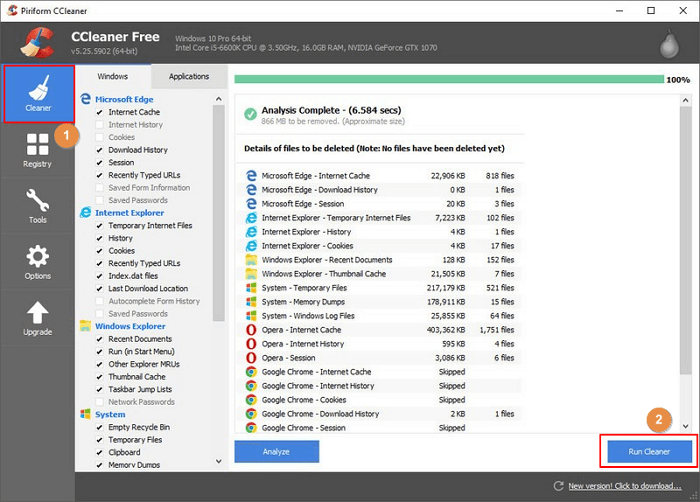
Step 3. To delete files on your PC, click on the "Cleaner" button and select "Run Cleaner" from the dropdown menu. This will initiate the shredding process for the chosen files.
#2. Shred Files in Partition - Wipe All Data
File Shredder: Qiling Partition Master
Applies to:To permanently erase all existing files in a partition or volume, you can shred all files and restore an SD card or external hard drive to its full capacity at once. This process will securely delete all data, making it unrecoverable.
How to Use:
We've set two options for you to wipe data. Choose the one you need.
Option 1. Wipe Partition
- In the Tools and utilities page, choose "Wipe Data".
- Open the secure erase program, select the partition you want to erase data from, set the time for which you want to wipe your partition, and click "Proceed" to begin the secure erase process.
- Check the message. Then click "OK" to wipe data.
Option 2. Wipe Disk
- In the Tools and utilities page, choose "Wipe Data".
- To securely erase data on your device, select the storage device (HDD or SSD) you want to wipe, choose the number of times you want to overwrite the data (up to 10 times), and then click the "Proceed" button to initiate the process.
- Check the message. Then click "OK".
#3. Shred Files in HDD/SSD - Erase Disk
File Shredder: Qiling Partition Master
Permanently shred all data on a whole hard drive with one action, erasing all files and resetting the HDD/SSD to its original state.
How to Use:
We've set two options for you to wipe data. Choose the one you need.
Option 1. Wipe Partition
- In the Tools and utilities page, choose "Wipe Data".
- In the new window, click the partition you want to erase data from, set the time for which you want to wipe your partition, then click "Proceed".
- Check the message. Then click "OK" to wipe data.
Option 2. Wipe Disk
- In the Tools and utilities page, choose "Wipe Data".
- To securely erase data on the selected storage device, select the HDD/SSD and set the number of wipe cycles to 10 or less, then click "Proceed".
- Check the message. Then click "OK".
You May Also Like - List Of File Shredder Software & Tools in 2022
In addition to the two recommended file shredder software, there are other tools you can use to shred files. Here are some additional file shredders you can try in 2022.
List of Referral File Shredder Software & Tools in 2022:
| Anti-Virus | File Shredder | File Shredder Software |
|---|---|---|
|
|
|
To Securely & Permanently Shred Files Is Easy, Follow to Free Up Space on Your Device Now
This page explains what it means to shred files and provides three methods using reliable file shredder software to securely delete files on various locations on your device.
- Shred single or multiple files in a folder, the recycle bin, or the Desktop.
- #2. Shred all files in a partition.
- #3. Shred all files in a hard drive or SSD.
As for the easiest file shredder tool, here is Editor's Pick:
- If you want to shred a single file or a folder, try CCleaner.
- To permanently shred a whole partition or an entire hard drive, let Qiling Partition Master help.
After following the steps to shred files on your storage devices or local hard drive in Windows 10/8/7, you've successfully freed up space by deleting sensitive data. You can now save more valuable files to the newly available space, utilizing the solutions provided to securely erase and recover the space for your important data.
Related Articles
- How to Clone WD SSD on Windows 10/11 [Full Guide]
- How to Format Write Protected SD Card [6 Ways]
- How Do I Reset Hard Drive on My Own? Here Is the Complete Guide
- Fix "Not Enough Space on the Disk in Windows Server"
- Download Partition Magic Freeware for Windows 10/11 Disk Partitioning [Don't Miss It]
Symantec no longer supports PartitionMagic, but reliable partition magic freeware is still available to help Windows users manage disk partitions on their computers. For Windows 10 and Windows 11 users, there are options available to apply and manage disk drives in simple steps. - [Fixed] EmuDeck Not Recognizing SD Card on Steam Deck
Encountering issues with EmuDeck not recognizing your SD card on your Steam Deck can be frustrating, especially when trying to enjoy more games on your device. To resolve this problem, continue reading to find solutions that can help you fix the issue and get back to gaming.
Products
Articles & Tutorials
- Data Recovery
- Data Backup
- File Recovery
- File Backup
- System Backup and Restore
- Disk and Partition Clone
- Technical articles
- Mobile articles
- Disk Master Help
- Windows Data Recovery Tutorials
- Windows Secure Delete Tutorials
- Windows Partition Management Tutorials
- Windows File Backup and Restore Tutorials
- Windows System Backup and Restore Tutorials
- Windows Disk Backup and Restore Tutorials
- Windows Clone Tutorials