How to Delete Partitions on SSD in Windows 11/10 [Step-by-Step Guide]
SSD, or Solid-State Drive, is a popular storage device that uses flash memory and integrated circuit sets to store data. It offers better performance and can significantly speed up read and write speeds. To fully take advantage of an SSD, it may be necessary to resize the partition or delete existing partitions, allowing for optimal use of the device's capabilities.
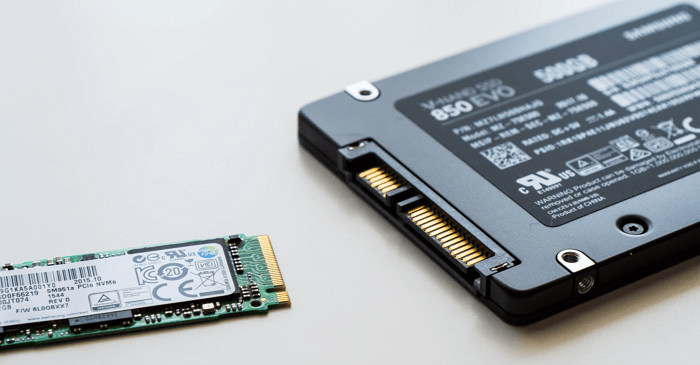
Deleting partitions on an SSD (Solid-State Drive) can free up unallocated space, allowing you to expand other partitions and potentially gain more free space by removing unwanted data.
Deleting partitions on an SSD is a straightforward process. If you're looking for a simple and safe way to manage partitions on your SSD, this article provides three methods to consider. Each method is accompanied by detailed step-by-step instructions to ensure a smooth and error-free experience.
How to Delete Partitions on SSD – Which Is the Best Way
There are three ways to delete partitions on an SSD, which include using Windows built-in tools such as Disk Management and Diskpart, as well as a professional third-party tool like Qiling Disk Master. These options can be compared and chosen based on individual needs, with the best option being selected from the table below.
| Comparison | |||
|---|---|---|---|
| Steps for Deletion | Three steps | Four steps |
More than five steps |
| Delete Partitions | Delete all partitions at the same time | Delete one partition at one time | Delete all partitions at the same time |
| Delete System Partitions | Delete partitions, including OS | Unable to delete OS | Able to delete EFI partition |
| Operation Difficulty | Easy – for all users | Medium – for experienced users | Difficulty – for experts |
While all three methods, Qiling Disk Master, Diskpart, and Disk Management, can delete partitions, Qiling Disk Master stands out for its powerful features and user-friendly interface. It allows for easy deletion of one or more partitions, including the OS partition, making it a convenient option. In contrast, Diskpart is more challenging to operate but offers more advanced functions than Disk Management, which is more limited in its capabilities.
- Important
- There are two things you should do before deleting partitions on an SSD:
- 1. Deleting partitions on an SSD will completely erase all data and files, so it's crucial to back up files to an external hard drive beforehand.
- 2. To delete partitions on an SSD, you need to have administrator privileges on the computer. Make sure you're logged in as an administrator before proceeding.
To delete partitions on an SSD, start by backing up all data on the drive to prevent any loss. Next, open the Disk Management tool in Windows or the Disk Utility app on a Mac, and select the SSD you want to modify.
Delete Partitions on SSD via Qiling Disk Master
Qiling Disk Master is a helpful tool for Windows users, allowing them to delete partitions on SSD in just three steps, simplifying the process and making it easily accessible.
Step 1. Launch Qiling Disk Master, on Partition Manager section, right-click on the desired partition and choose "Delete".
Step 2. Confirm the message "Do you want to delete the selected partition?" and click "Yes".
Step 3. To delete a partition on your device, click "Execute * Task" and then click "Apply" to initiate the deletion process.
Qiling Disk Master allows for the deletion of partitions with various file systems, including NTFS, and can also merge partitions on SSD to increase storage space. This tool offers a convenient solution for managing partitions on solid-state drives.
Delete Partitions on SSD via Disk Management
Disk Management is a free tool provided by Windows that allows users to delete partitions, but only one at a time, requiring multiple deletions to remove all partitions.
Step 1. Right-click "Windows" and choose "Disk Management."
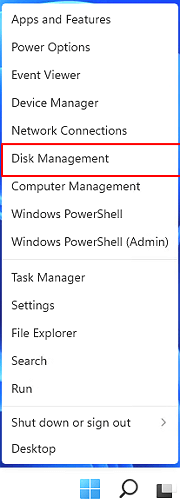
Step 2. To delete a partition on an SSD, select the partition you wish to remove and right-click on it.
Step 3. Select "Delete Volume."
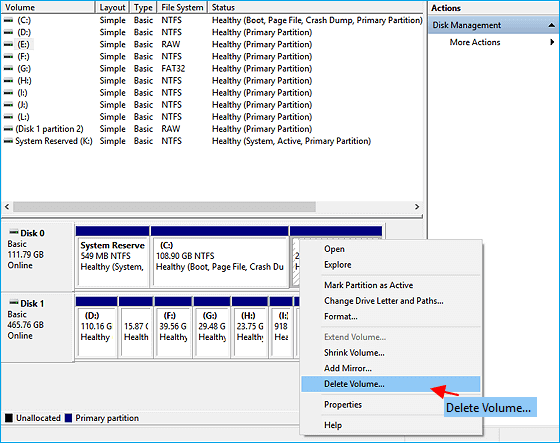
Step 4. Click "Yes" to finish deleting partitions on SSD.
- Notice:
- If you attempt to delete the active system with Disk Management, you may encounter an error stating "Windows cannot delete the active system partition on this disk." In such cases, you can use Qiling Disk Master to delete the active system partition.
Delete Partitions on SSD via Diskpart
The Diskpart command has more features than Disk Management, allowing for tasks like deleting EFI partitions and deleting all partitions at once. However, it's not recommended for those unfamiliar with computers, as incorrect input can lead to data corruption.
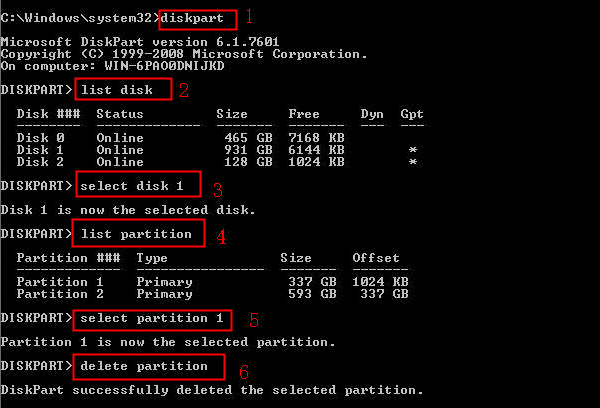
Step 1. Right-click "Windows" and select "Run."
Step 2. Type "diskpart" to open the command windows.
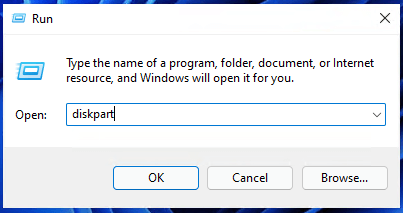
Step 3. To see all the disks on the computer, type "list disk" and press the "Enter" key.
Step 4. To choose the partition on the SSD, type "select disk 1" and press "Enter."
Step 5. Type "list partition" and hit "Enter".
Step 6. To delete a partition, type "delete partition 1" and confirm the deletion.
Step 7. To delete a partition on an SSD, type the command "delete partition" and press "Enter".
Step 6. Type "exit" to finish deleting partitions on SSD using CMD.
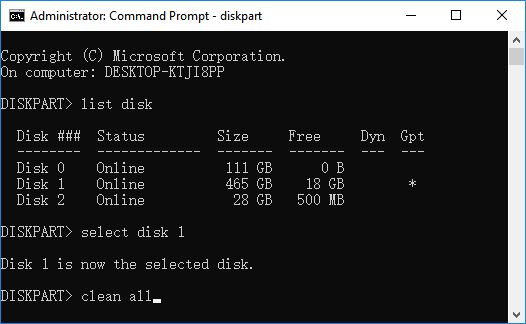
You can use the unallocated space on your SSD to extend existing partitions or create a new one. Alternatively, you can use Diskpart to delete all partitions, allowing you to start fresh. For more detailed information on using Diskpart, click the link below.

To delete all partitions in Windows using DiskPart, start by opening Command Prompt as an administrator and typing 'diskpart' to enter the DiskPart tool. Then, type 'list disk' to view a list of all disks connected to your system, and select the disk you want to delete partitions from by typing 'select disk X', where X is the number of the disk. Next, type 'list partition' to view a list of all partitions on the selected disk, and then type 'select partition X' to choose the partition you want to delete, where X is the number of the partition.
You can use Windows' built-in DiskPart tool to delete all partitions on an SSD at once in Windows 10, and it's free.
Conclusion
Qiling Disk Master is the most recommended method to delete partitions on an SSD. It allows you to delete one or all partitions at once and create a bootable disk to delete operating systems in the WinPE environment.
Deleting partitions on an SSD can be done using Disk Management and Diskpart, but these methods may be slower and more complicated, requiring extra caution when used.
FAQs About How to Delete Partitions on SSD
There are some frequently asked questions about how to delete partitions on an SSD in Windows 11/10, and if you're curious about the answers, keep reading.
1. Can I delete all partitions on SSD?
You can delete all partitions on an SSD using Diskpart or Qiling Disk Master, which can do it in one go, or use Disk Management to delete one partition at a time by repeating the "Delete Volume" process until all partitions are deleted.
2. What happens if I delete a partition of my SSD?
If you delete a partition on your SSD, all data on that SSD will be lost, and you'll be left with unallocated space. You can use this space to expand your C drive or other partitions, or create a new partition from it.
3. How many partitions should I have SSD?
The number of partitions on an SSD should be based on its capacity. For a 240-256GB SSD, 1-3 partitions are recommended, while a 1TB SSD should be divided into 2-5 partitions. This allows for efficient use of space and organization of data.
Related Articles
- 3 Best Free Partition Manager For Windows 7/8/XP 32 Bit and 64 Bit
- Top 6: HP USB Disk Storage Format Tool Alternative Windows
- [Simple & Easy] Wipe Your HDD/SSD Data Completely
- How to Remove MBR Partition in Windows 7/8/10/11
- How to Format Micro SD Card? [Windows/Mac/Android]
Formatting a micro SD card before use is a simple process. This article provides methods to format micro SD cards to FAT32 or other file systems on Windows, Mac, and Android, offering a solution for users who need to get their cards up and running. - How to Format New Hard Drive [QuickStart]
Formatting a new hard drive before storing files is crucial. There are two common ways to achieve this: using professional disk partition software, such as Qiling Disk Master, or utilizing Windows Disk Management. Let's start with the process!
Products
Articles & Tutorials
- Data Recovery
- Data Backup
- File Recovery
- File Backup
- System Backup and Restore
- Disk and Partition Clone
- Technical articles
- Mobile articles
- Disk Master Help
- Windows Data Recovery Tutorials
- Windows Secure Delete Tutorials
- Windows Partition Management Tutorials
- Windows File Backup and Restore Tutorials
- Windows System Backup and Restore Tutorials
- Windows Disk Backup and Restore Tutorials
- Windows Clone Tutorials