How to Format New Hard Drive [QuickStart]
Key Takeaways:
1. Two methods you get:
- Use a free and reliable partition manager like Qiling Partition Master to format a new hard drive. This software allows you to create, delete, resize, and merge partitions on your hard drive, making it easy to set up your new drive.
- Create and Format a new partition with Windows Disk Management.
2. No cost you paid.
Both two fixes are free for use.
Page Content
Do I Need to Format A New Hard Drive?
How to Format New Hard Drive
Format New Hard Drive Windows 10 FAQs
Do I Need to Format A New Hard Drive?
Formatting your new hard drive before storing files on it is important for several reasons. It allows you to erase any existing data, including personal data, that may be on the drive, which can be a security risk if you're not careful. Formatting also gives you the opportunity to set up a new file system and partition scheme, which can help improve the drive's performance and organization.
Formatting a hard drive gives you a chance to clean up and delete any unwanted files that may have come pre-loaded on the drive, allowing you to start with a fresh slate.
Formatting your new hard drive helps protect it from computer viruses and keeps your stored files safe and secure.
You can format a new hard drive using either a free disk formatter or Windows Disk Management. The free disk formatter offers a solution, while Windows Disk Management, a familiar tool, also provides a way to format the drive.

One for All Guideline: How to Format/Reformat A Hard Drive
Formatting a hard drive is necessary for replacing, repairing, reinstalling, or using a new disk, and can be done using various format utilities on Windows or Mac computers. This blog provides information on how to format a hard drive using these tools.
How to Format New Hard Drive
#1. How to Format A New Hard Drive with Partition Manager
When you get a new hard drive, you need to format it before you can use it to write or save files.
A free disk formatter - Qiling Disk Master Free allows you to format internal or external hard drives on Windows, and also provides a partition manager to create, resize, shrink, merge, and clone partitions.
Step 1. Right-click the hard drive partition and choose the "Format" option.
Step 2. Set the Partition label, File system, and Cluster size for the partition in the new window.
Step 3. Click the "Proceed" button to start the hard drive partition formatting process.
Step 4. You can see a warning window, click "Yes" to continue.
Other format options on USB/SD card/PS4:
#2. Use Disk Management to Create and Format New Hard Drive
Windows 10 includes several ways to format a hard disk, but Disk Management is often the best option due to its simplicity and ease of use.
- If an HDD/SSD has never been partitioned, you'll need to initialize and format it before using it. This process is done through the disk management utility in Windows, which can be accessed by right-clicking on the Start menu, selecting "Disk Management," and then selecting the unallocated disk.
- A hard drive contains an existing partition - format.
Video Tutorial: How to Initialize and Format a New Hard Drive in Windows 10
This video demonstrates how to set up and format a new drive on Windows 10, but the steps can also be applied to Windows 8 and Windows 7.
- Create a new partition
To format a new hard drive with unallocated space on Windows 10, first, ensure the drive is properly connected to your computer. Then, open the Disk Management tool by searching for it in the Start menu or by typing "diskmgmt.
Step 1. To create and format a hard disk, click the Search icon and type "Create and format a hard disk" and click to open Windows Disk Management.
Step 2. Right-click the targeted hard drive and select the "Initialize Disk" from the menu.
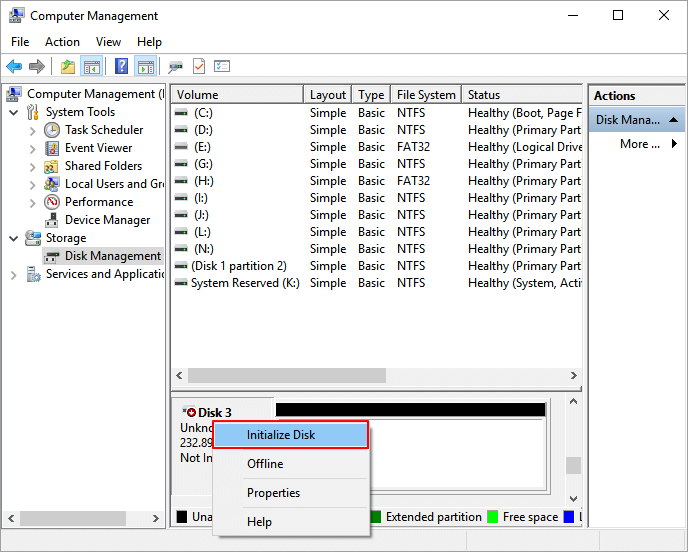
Step 3. On the Initialize Disk window, select the disk you want to initialize, choose the disk style (MBR or GPT), and click OK.

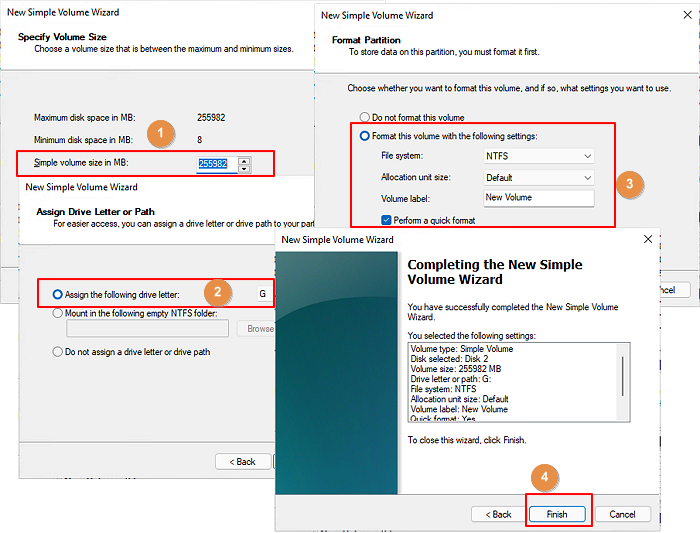
Step 4. Right-click the unallocated space and select the New Simple Volume. Click Next.
Step 5. You can keep the default size on the New Simple Volume window and click Next.
Step 6. Assign the drive letter and click Next.
Step 7. To format this volume, select NTFS as the file system, choose the default allocation unit size, and enter a desired volume label.
Step 8. Check the Perform a quick format and click Next.
Step 9. Click Next and then click Finish.
To format a new hard drive with the existing partition:
Step 1. Right-click the Windows icon and select Disk Management.
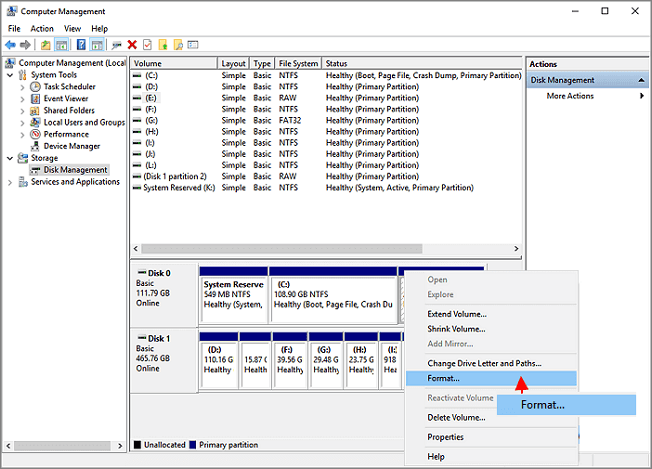
Step 2. To format the new hard drive, right-click on it and select the "Format" option from the list of available choices.
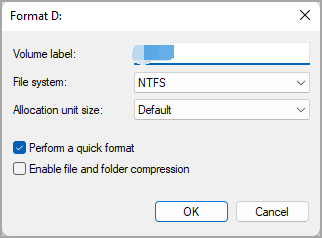
Step 3. On the Format window, type the description name in the Value label field, select NTFS file system, and set Allocation unit size to default.
Step 4. Check the Perform a quick format and click OK.
Format New Hard Drive Windows 10 FAQs
1. How should I format my new hard drive?
To format a new hard drive, you need to choose a file system that matches the operating system you plan to use it with. If you're storing files, you can use NTFS or FAT32, but if you're installing an OS, you'll need to use EXT4.
2. How do I format a new hard drive and install Windows 10?
To install Windows 10 from scratch, you'll need to format your hard drive and install the operating system. You can do this by downloading the Windows 10 Media Creation Tool from Microsoft's website, then following the prompts to format your hard drive and install Windows 10.
3. How do you format a hard drive in Windows 10?
To format a hard drive in Windows 10:
- Open the Start menu and search for "Disk Management".
- To format a hard drive, open the Disk Management window, right-click on the drive you want to format, and select the "Format" option.
- Select the desired file system and click "OK" to initiate the formatting process.
This process will completely erase all data on the drive, so please back up any important files before proceeding.
4. How do I format a new hard drive for Mac?
To erase a Mac, you can use the Disk Utility application. This method allows you to completely erase the hard drive, including any operating system, applications, and data.
- To format a hard drive, open Disk Utility, select the hard drive you want to format, and click on the "Erase" button.
- In the Erase window, select the desired format (Mac OS Extended (Journaled) is often the best choice), and assign a name to your hard drive.
- Then click on the "Erase" button again to confirm.
The second way - use the Terminal application.
- To erase the disk and create a new drive, open Terminal and type in the command "diskutil eraseDisk JHFS+ NewDrive /dev/disk0".
- This will format your hard drive using the Journaled HFS+ file system.
Related Articles
- CHKDSK Cannot Run Because the Volume Is in Use by Another Process
- How Do I Format SSD Partition as FAT32 from Command Prompt (CMD)? [2024 Tutorial]
- [Solved] How to Fix 'Format FS=NTFS Take So Long'
- Ultimate Guide on SSD Benchmark, Everything You Should Know
In this blog post, you'll learn about SSD benchmarking, including how it works and why it's necessary for testing SSD speed. We'll cover everything you need to know about SSD benchmarking and the best reliable tools to use for accurate results. - Fix Windows PC Won't Boot After Enabling Secure Boot
Many users who have upgraded from Windows 10 to Windows 11 have encountered issues with their PC not booting after enabling Secure Boot, which is a requirement for the OS upgrade. To resolve this startup problem, we have compiled 9 methods that can help, which will be presented in this article. - How to Fix PC Won't Boot After Installing M2 SSD - Full Guide
If your PC won't boot after installing a new M2 SSD, you can try booting from the BIOS settings, checking the boot order, and ensuring the SSD is properly recognized by the motherboard. You can also try reinstalling the operating system or using a live USB to troubleshoot the issue.
Products
Articles & Tutorials
- Data Recovery
- Data Backup
- File Recovery
- File Backup
- System Backup and Restore
- Disk and Partition Clone
- Technical articles
- Mobile articles
- Disk Master Help
- Windows Data Recovery Tutorials
- Windows Secure Delete Tutorials
- Windows Partition Management Tutorials
- Windows File Backup and Restore Tutorials
- Windows System Backup and Restore Tutorials
- Windows Disk Backup and Restore Tutorials
- Windows Clone Tutorials