How Do I Format SSD Partition as FAT32 from Command Prompt (CMD)? [2024 Tutorial]
A solid state drive (SSD) is a faster, more reliable, and longer lasting storage device compared to traditional hard drives, offering improved performance and durability.
FAT32 is an older file system that is largely compatible with all operating systems, making it a suitable choice for compatibility purposes.
To format your SSD partition as FAT32 from the command prompt, you can use the command `format /FS:FAT32 X:` where "X" is the drive letter of your SSD partition. For example, if your SSD partition is assigned the drive letter "E", you would use the command `format /FS:FAT32 E:`. This will format the partition as FAT32, but keep in mind that this file system has a 4GB file size limit, so it may not be suitable for large storage needs.
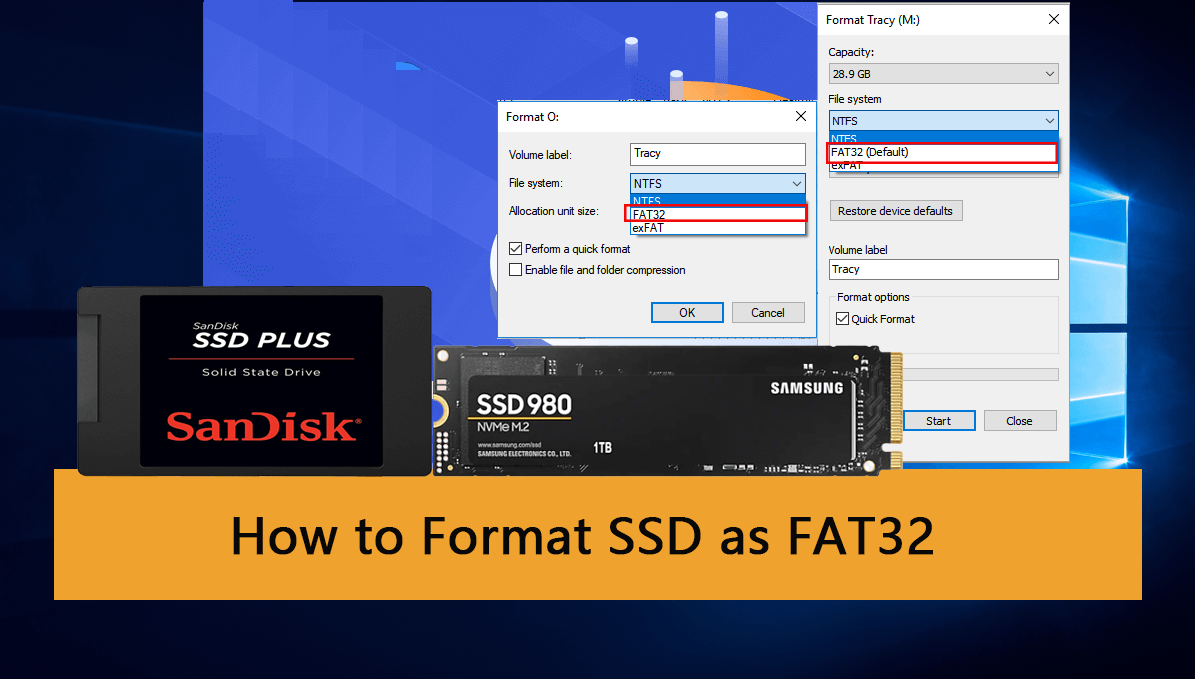
Can You Format a SSD Partition as FAT32 Using Command Prompt?
To format an SSD partition as a FAT32 file system using the command prompt, you can use the `format` command followed by the drive letter and the `/FS:FAT32` option. For example, if you want to format the drive letter `D`, you would use the command `format D: /FS:FAT32`.
While you can format your SSD partition to the FAT32 file system, the partition itself should be 32 GB or smaller.
FAT32 has a file size limit of 4 GB and a partition size limit of 32 GB, making it unsuitable for formatting drives larger than 32 GB.
How to Format SSD Partition As FAT32 from Command Prompt (CMD)
Before using the command prompt to format the SSD partition as FAT32, create a backup of your computer to prevent any potential data loss.
To format your SSD partition as FAT32 using the command prompt, you can follow these steps:
Step 1. Connect the external SSD to the computer using a USB cable. If it's an internal SSD, remove it from the computer and insert it into an available slot, then secure it with screws. Next, boot up the computer and enter the BIOS settings.
Step 2. Click on the "Start" button and search for "command prompt."
Step 3. After the results have been populated, click on "Run as administrator."
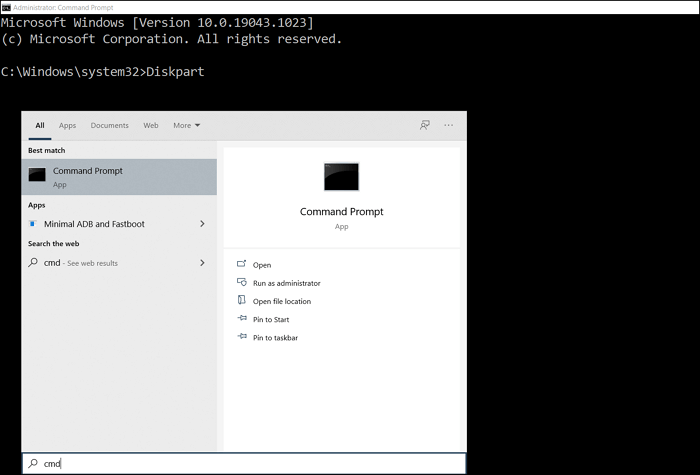
Step 4. Now, type "format /FS:FAT32 (drive letter):" in the command prompt and press "Enter." For example, "format /FS:FAT32 O:"

Step 5. Now, type "Y" to complete the formatting.
Bonus Tip: Format Large SSD Partition (64GB +) as FAT32 with CMD Alternative
Your SSD partition is over 32GB and you want to format it to FAT32, you can use a third-party tool like Qiling Disk Master to do so, as the command prompt is not capable of formatting partitions over 32GB.
With the Qiling Disk Master, you can perform a wide range of disk management tasks, including creating, deleting, merging, resizing, formatting, and wiping partitions, making it a comprehensive tool for various formatting needs.
Qiling Disk Master can format an SSD even if the partition size exceeds 32GB, thanks to its "Advanced Format" feature. This feature allows the software to break down larger partition sizes into smaller, manageable chunks, such as 32GB + 32GB + 32GB + 4GB, making it possible to format the drive despite its size.
Step 1. Launch Qiling Disk Master, right-click the partition you intend to format and choose "Format".
Step 2. In the new window, enter the Partition label, choose the appropriate file system, and set the cluster size according to your needs.
Step 3. To proceed with formatting the partition, click the "Proceed" button. This will initiate the formatting process for the selected partition, allowing it to be formatted in FAT32, EXT2, EXT3, or EXT4 file system format.
Step 4. To install the software, first, download the software from the official website. Then, run the downloaded file and follow the installation prompts.
To shrink a partition to make space for a new volume, you don't have to shrink down the volume size of the partition and then format it to FAT32. The Advance Format feature allows you to format a drive to FAT32 without shrinking the volume size. This simplifies the process and eliminates the need for the extra step.
These are some other additional features of Qiling Disk Master:
- Migrate OS to SSD
- You can convert SSD partitions from NTFS to FAT32 or FAT32 to NTFS using the built-in Disk Management tool on Windows, or using third-party software such as Qiling Partition Master or MiniTool Partition Wizard. These tools allow you to change the file system of a partition without losing data, making it a safe and free way to convert your SSD partitions.
- Convert SSD data disks between MBR and GPT for free.
- Extend the system partition
- Clone system partitions
Conclusion
If you want to format your SSD drive to the FAT32 file system, its partition size must be 32 GB or less, otherwise, you cannot format it.
You can format a 1 TB or 2 TB SSD to FAT32 using Qiling Disk Master, allowing for larger storage capacities than traditional FAT32 limitations.
If your partition size is over 32GB, use Qiling Disk Master to format your SSD to FAT32.
FAQs About Format SSD Partition as FAT32 from Command Prompt
Here are some questions about formatting SSD partition as FAT32 that we think you are looking answers for:
1. What is the format fs=fat32 command?
The command is used to format a hard drive or USB drive using the command prompt, quickly formatting the drive to FAT32 file format.
2. How to fix format fs=fat32 quick volume too big error?
To fix the error, you can use the Command Prompt or PowerShell to run Disk Utility. This will allow you to resolve the issue.
3. Can I format the SSD to FAT32 in Windows 11?
You can format your SSD to FAT32 in Windows using the built-in Disk Management tool or through the Command Prompt. To do this, go to the Disk Management tool, select the SSD drive you want to format, right-click on it, and choose "Format" from the context menu. Alternatively, you can use the Command Prompt to format the SSD by typing the command "format /FS:FAT32 X:", where "X" is the drive letter of the SSD drive you want to format.
4. How to Create a FAT32 partition using Diskpart?
Here's how to do that:
Step 1. Connect the SSD to your computer. If it's an internal SSD, you can simply install it into a free bay in your computer's case, making sure it's securely fastened. If it's an external SSD, you can connect it to your computer using a USB cable.
Step 2. Click on the "Start" button and search for "command prompt."
Step 3. After the results have been populated, click on "Run as administrator."
Step 4. Now, type "diskpart" in the command prompt and press "Enter."
Step 5. Now, type "create partition parimary size=20480" and again press the "Enter" button.
Step 6. Now, type "assign letter=G" and press the "Enter" button.
Step 8. Now, type "format /fs:FAT32 G:" and hit Enter.
Related Articles
- C Drive is Full in Windows 11
- How to Resize Windows Server 2008 Partition Without Data Loss
- How to Format M.2 SSD? [Easy Instructions]
- How Do I Run SSD Speed Test Online? Your Guide Is Here [Easy & Efficient]
To test your SSD speed, you can use free programs that allow you to check your SSD's performance online. These programs can help you determine how fast your SSD is and may provide additional information that can be useful for you. - Samsung Format Utility Download Free [With Guide] 🚩
What is Samsung Format Utility? How can I download Samsung Format Utility 2.5/2.4 for free? Is it the ideal tool to format a Samsung storage device? Find answers on this page. - SanDisk Format Solution: Format SanDisk to The Best Performance on Your Own
What is the best SanDisk format that allows your SanDisk storage devices to work smoothly for data storage and file transfer? On this page, we'll tell you the best SanDisk format and show you efficient ways to easily set a desired file system format for your SanDisk devices. Let's start.
Products
Articles & Tutorials
- Data Recovery
- Data Backup
- File Recovery
- File Backup
- System Backup and Restore
- Disk and Partition Clone
- Technical articles
- Mobile articles
- Disk Master Help
- Windows Data Recovery Tutorials
- Windows Secure Delete Tutorials
- Windows Partition Management Tutorials
- Windows File Backup and Restore Tutorials
- Windows System Backup and Restore Tutorials
- Windows Disk Backup and Restore Tutorials
- Windows Clone Tutorials