How Do I Run SSD Speed Test Online? Your Guide Is Here [Easy & Efficient]
Key Takeaways of SSD Speed Test Online:
After purchasing an SSD or a laptop/computer with an SSD, it's essential to know its speed to ensure it's running at its best. Knowing your SSD speed can help you determine the overall performance of your device, making it a crucial factor to consider. This knowledge can also help you identify if your SSD is running slow, which can be a sign of a potential issue that needs to be addressed. By understanding your SSD speed, you can take steps to optimize its performance and get the most out of your device.

If you're an SSD user and want to test your SSD speed online, there are three methods you can try. You can use online tools like CrystalDiskMark, AS SSD Benchmark, or HDTune to test your SSD's sequential read and write speeds, as well as its random read and write speeds.
| 🧰 Workable Solutions | 🎯 Complexity | 👔 Target Users |
|---|---|---|
|
#1. Qiling Disk Master🏆🥇 |
Easy | Windows beginners & professionals |
| #2. CrystalDiskMark🥈 | Easy | Advanced developers |
| #3. Blackmagic Disk Speed Test | Easy | Mac owners |
How Can I Test My SSD Speed? Try Reliable SSD Speed Test Online Tools
To test SSD speed online, you can use one of several tools available that allow you to determine if your SSD speed is slowing down. This process is straightforward and can be done in different Windows versions. Simply download and run one of the available tools, such as Qiling Disk Master, to easily check your SSD speed.
1. Qiling Disk Master
For Windows users, Qiling Disk Master is a great application that can be used to test SSD speed, utilizing its new feature DiskMark to assist users in testing SSD speed on their own.
Pros:
- ✔️It's a complete partition manager and SSD/HDD speed testing tool.
- ✔️It offers lifetime free upgrades.
- ✔️It upgrades disks without data loss.
- ✔️It offers several useful features in the free version.
Cons:
- ❌ This tool has no downside, but you can get the most advanced features in the premium version. For beginners, the free version is sufficient, while those seeking more features can opt for the premium version.
To test your SSD speed, download and install Qiling Disk Master, then follow the operational steps.
Step 1. Launch Qiling Disk Master, and click the download button to enable the DiskMark feature within the Disk management section.
Step 2. Select the target drive, test data, and block size from the drop-down boxes to proceed with the operation.

Step 3. Once everything is configured, click "Proceed" to initiate the disk test. This will display the Sequential read speed, I/O, and Delay data, providing a detailed analysis of the disk's performance.

Aside from testing SSD speed online, you can also use Qiling Disk Master to check hard drive read and write speed. This tool provides similar steps and offers bonus features to optimize SSD performance, allowing you to further enhance your drive's capabilities.
- 4K align SSD
- Change SSD cluster size
- Wipe SSD on Windows 11
- Migrate OS to SSD
2. CrystalDiskMark
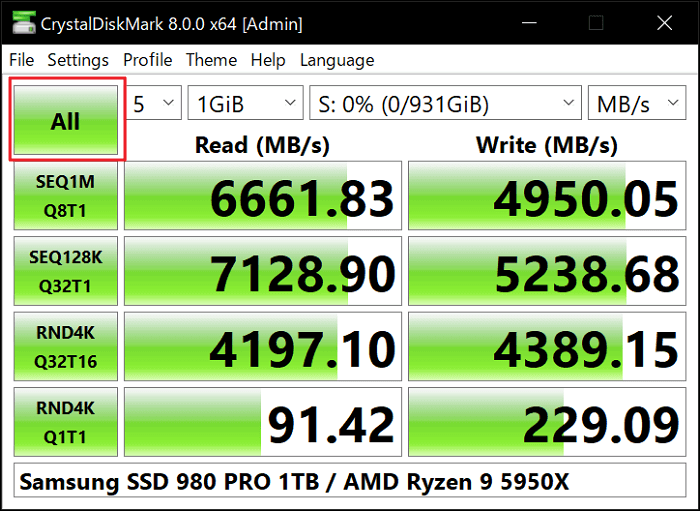
CrystalDiskMark is a popular tool for checking the speed of SSDs, offering various test options to provide a range of results. It allows users to test the read and write speed of their SSD, providing valuable insights into its performance.
Pros:
- ✔️Free to download, open-source.
- ✔️Long-lasting tool.
- ✔️Fast to launch.
Cons:
- ❌ Downloads can be choppy.
- ❌ Difficult to install
- ❌ Not compatible with different Windows versions
To test the speed of your SSD, download and install CrystalDiskMark, then follow the operational steps to run the test.
Step 1. Open CrystalDiskMark, and first, you need to set the test count to 3.
Step 2. Set the file size or leave it as default.
Step 3. Choose the SSD/HDD drive (Disk C).
Step 4. To begin, click the "All" button after setting the desired settings, and the process will be initiated.
Step 5. Once it completes the processing, you will see results.
3. Blackmagic Disk Speed Test - Mac Solution
Blackmagic Disk Speed Test is a tool used for SSD speed tests, which can be run with simple steps and is compatible with various operating systems and Windows versions.
Pros:
- ✔️It shows write/read speeds in MB/second
- ✔️It encloses just one window
- ✔️Requires a few easy settings
- ✔️ Free to download
Cons:
- ❌ Mac supported only, not available on Windows.
- ❌ Limited configuration options.
- ❌ The downloading process is confusing.
To test the speed of your SSD, download and install the Blackmagic Disk Speed Test, then follow these steps:
Step 1. After downloading and installing Blackmagic Disk Speed Test.
Step 2. To test the speed of your Solid-State Drive (SSD), you can open the drive to run and test its speed. This will provide you with an instant report of your SSD's performance.
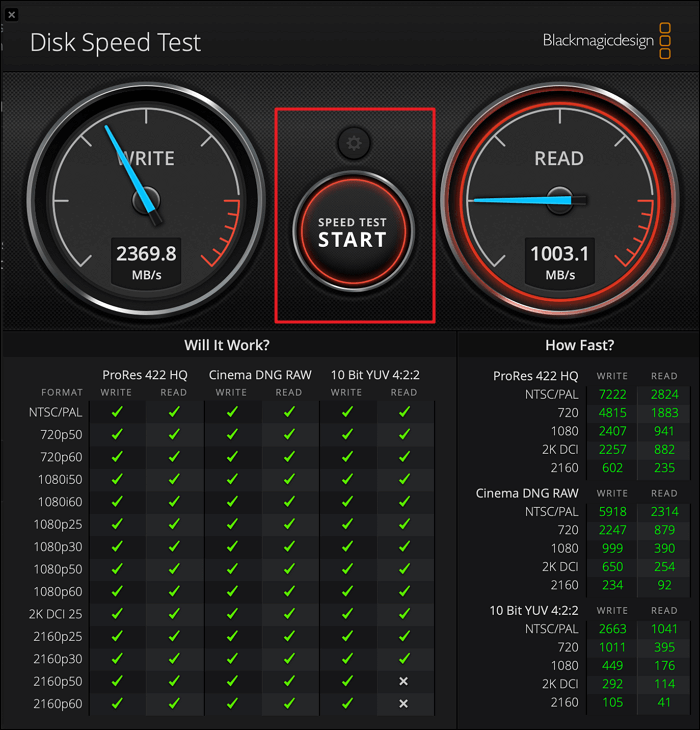
Note: To run Blackmagic Disk Speed Test, restart your PC/Laptop after installation, and close any other software running in the background.
How Do I Know If My SSD Is Fast with Average Speed or Not? Your Answer Is Here
After testing your SSD with various tools, review the reports generated by each tool to get a comprehensive understanding of your SSD's performance. The read and write reports provides you a clear indication of your SSD's speed, allowing you to determine whether it's fast or slow.
The table below helps you easily determine your SSD's speed after testing.
General speed ranges for different kinds of SSDs:
| SSD Type💻 | Read Speed🚀 | Write Speed✈️ |
|---|---|---|
| SATA SSD | Around 550 MB/s | Around 520 MB/s |
| NVMe/M.2 SSD | Around 3,500 MB/s | Around 3,000 MB/s |
| PCIe/NVMe SSD | Around 7,000 MB/s | Around 6,000 MB/s |
SSD speeds vary widely, with general ranges of sequential read and write speeds. However, specific models and manufactured SSDs can have significantly different average speeds, making it essential to check the specifications of a particular drive for accurate performance information.
If your SSD is slow and not performing as expected, you'll need to optimize it for better performance. This involves checking for any issues, updating your SSD's firmware, and ensuring that your computer's BIOS or UEFI settings are optimized for your SSD.
Tips to Improve SSD Read and Write Speed
To speed up SSD read and write speed, try the following tips:
- Using a fast data cable, The SSD can be connected to the system using a high-speed interface, such as NVMe or Thunderbolt, to ensure fast data transfer rates and minimize latency.
- Enabling TRIM To optimize the performance and extend the lifespan of an SSD, it's recommended to regularly update the operating system and firmware to ensure compatibility and stability. Additionally, users should avoid exposing the SSD to extreme temperatures, physical stress, or power outages, and consider using a solid-state drive with a built-in power management system to prevent sudden power failures.
- Keeping the SSD firmware updated to the latest version.
- Aligning the partition of the SSD to optimize the performance.
- Disabling unnecessary system processes, such as indexing and defragmentation, can slow down the SSD.
- Moving temporary files, such as the swap file, to a mechanical hard drive.
- Installing the operating system and frequently used programs on the Solid State Drive (SSD) allows for faster boot times and quicker access to applications, making it a common practice for improving computer performance. This approach helps to reduce the load on the traditional Hard Disk Drive (HDD), which can become a bottleneck in system performance.
- Increasing the size of the page file to reduce wear and tear on the SSD.
- Keeping the SSD free from malware and other security threats.
- Using software tools, such as Qiling Partition Master, to monitor the health and performance of the SSD, can help identify potential issues and prevent data loss. This includes checking for errors, monitoring temperature, and analyzing disk performance to ensure optimal operation and extend the lifespan of the SSD.
Benefits of Running SSD Speed Test Online
You can easily determine your SSD's performance by running an online SSD speed test. This test provides you an accurate idea of your SSD's speed, and it's essential to run it through a reliable and fast internet connection to get perfect results.
Running an SSD speed test online can provide several benefits, including determining the actual performance of your solid-state drive, identifying potential issues or bottlenecks, and comparing your drive's speed to others to see how it stacks up. This can help you optimize your system's performance and troubleshoot any problems you may be experiencing.
- The app can be run from any device with internet access, making it easy to test the speed of an SSD from anywhere.
- It's a quick way to test SSD speed.
- Get instant speed test results.
- You'll know the overall performance of your SSD.
- The speed of an SSD (Solid-State Drive) can be evaluated in various aspects, including sequential read and write speeds, random read and write IOPS (Input/Output Operations Per Second), and overall system responsiveness. To determine if an SSD's speed is slow, one can compare its performance to that of other SSDs or hard disk drives (HDDs) in similar scenarios, such as loading applications, transferring files, or running demanding software.
- Online SSD speed tests can help identify issues with your solid-state drive, such as slow performance or errors, by measuring its read and write speeds and detecting any potential problems.
- Making it easier to troubleshoot and fix any problems.
Final Verdict
Testing SSD speed can be confusing with numerous tools available. However, after extensive research, we have identified three effective ways to quickly test SSD speed online on your own. These methods can help you determine the best tool for your needs.
Our top pick is Qiling Disk Master, which simplifies SSD testing online with a straightforward process and offers additional useful features beyond just testing. It not only identifies slow SSD performance but also optimizes the SSD to speed up its performance, making it a reliable tool for SSD maintenance.
Download Qiling Disk Master to boost your SSD speed and get rid of worries about your storage device's performance.
FAQs About SSD Speed Test Online
Do you have more questions about the online SSD speed test and optimization, or want to learn more? Don't worry, I've can help - just read the following FAQs.
1. How can I test my SSD Speed?
To test your SSD speed, you can use various methods, including Task Manager and Command Prompt in Windows, or rely on dedicated SSD speed testing tools like Qiling Disk Master, among others.
2. What is a decent speed for an SSD?
The sequential read/write speed of an SSD SATA III is typically around 600MB/s, while SATA II is around 300MB/s and SATA I is around 150MB/s. However, actual read and write speeds can vary, with average read speeds around 500MB/s and average write speeds of at least 300MB/s for most modern SATA III SSDs, although specific models and manufacturers may have different speeds.
3. How to test SSD speed in Windows 10 using CMD?
To check your SSD speed, open the Command Prompt, type the command "winsat disk -ran -write -drive (name)", and press enter. This will display your SSD speed in the Command Prompt window.
Related Articles
- Diskpart Delete Server Partition: Get Solutions to Delete Recovery Partition
- How Do I Format a Disk in Windows 10? Follow and Learn How To [Beginners' Guide]
- How to Move Unallocated Space to C Drive in Windows 10/11
- Convert MBR to GPT in Windows Server 2012 (R2) without Data Loss
This post details how to convert MBR to GPT Server 2012 R2 2016, 2019, and 2022 without data loss by using Disk Management, Diskpart, and powerful third-party software. - Is It Possible to Copy the Recovery Partition to a New Hard Drive?
If your disk is running out of space, you may want to copy the recovery partition to a new hard drive. This post will tell you all the details about how to do that. - Is It Possible to Format a 2 TB Hard Drive to FAT32 in Windows?
Do you need an operable method to format a 2 TB hard drive? Then, you should read this post, which contains two workable ways with detailed tutorials.
Products
Articles & Tutorials
- Data Recovery
- Data Backup
- File Recovery
- File Backup
- System Backup and Restore
- Disk and Partition Clone
- Technical articles
- Mobile articles
- Disk Master Help
- Windows Data Recovery Tutorials
- Windows Secure Delete Tutorials
- Windows Partition Management Tutorials
- Windows File Backup and Restore Tutorials
- Windows System Backup and Restore Tutorials
- Windows Disk Backup and Restore Tutorials
- Windows Clone Tutorials