How to Format Micro SD Card? [Windows/Mac/Android]
Key Takeaways of formatting Micro SD card:
1. To format a Micro SD card on Windows 10/11, use a free Micro SD card format tool. This tool will allow you to format the drive without the need for an external drive or a computer with a built-in SD card slot.
2. To format a Micro SD card on a Mac, run the Disk Utility app, which can be found in Applications/Utilities or by searching for it in Spotlight. Once open, select the Micro SD card from the list on the left, then click the "Erase" button in the top toolbar.
3. To format a Micro SD card on Android, tap on the "Settings" app.
4. Format a Micro SD card for the Switch on the game console.
Page Content
How to Format a Micro SD Card on Windows 10/11
How to Format Micro SD Card on Mac
How Do You Format A Micro SD Card on Android
How to Format A Micro SD Card on Nintendo Switch
Do You Need to Format Micro SD Card?
Micro SD cards are a popular storage option for devices like digital cameras and mobile phones, despite their small size, and can hold a large amount of data. To use a micro SD card, you'll need to format it, which erases all existing data and prepares it for use, a process that only needs to be done once unless you want to erase all data on the card. If you're unsure whether to format your micro SD card, you can check the device's documentation for guidance.
How to Format a Micro SD Card on Windows 10/11
Qiling Disk Master is a safe and reliable SD card formatter that allows you to format your SD card to FAT32 or exFAT with ease in just four steps.
To avoid the "SD card read only" issue, ensure that the lock switch of the SD card adapter is in the unlocked position. If it's locked, you'll encounter this problem.
Download this SD card formatter:
Step 1. To format your SD card, locate it and right-click on the partition you want to format, then select the "Format" option.
Step 2. Set a new partition label, file system (NTFS/FAT32/EXT2/EXT3/EXT4/exFAT), and cluster size to the selected partition.
Step 3. Cclick the "Proceed" button to start formatting your SD card.
Step 4. Click "Yes" on the pop-up window to continue.
Video Tutorial - How to Format Micro SD Card on Windows 11 with File Explorer
Here is a step-by-step format a micro SD card on Windows 11, start by inserting the micro SD card into a micro SD card adapter, which is usually a small plastic adapter that converts the micro SD card to a standard SD card size. Next, insert the SD card into a card reader or a USB port on your computer. Then, open File Explorer, right-click on the SD card drive, and select "Format.
- 0:11 - 1:08 Introduce steps to use an SD card adapter
- 1:09 - 3:02 Format Micro SD Card with File Explorer
How to Format Micro SD Card on Mac
To format SD card on Mac:
1. To insert a Micro SD card into the device, you will need a Micro SD card reader. This reader can be connected to a computer or laptop via a USB port. Once connected, insert the Micro SD card into the slot on the side of the reader.
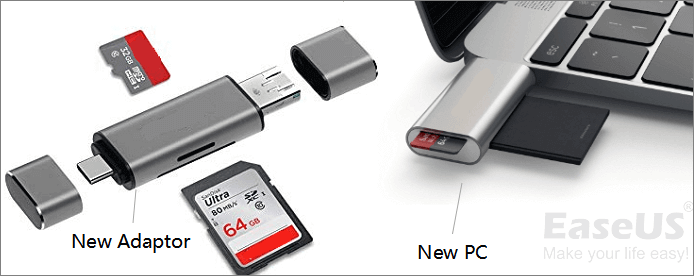
2. To transfer files from an SD card to a Mac, insert the SD card into an SD card reader, then plug the reader into a USB port on the Mac. Many Mac devices have removed the SD card slot, so using a reader is necessary.
- Notice:
- Before connecting the card reader to your Mac, ensure the lock switch is in the unlocked position, as this will prevent the computer from recognizing and formatting the SD card.
3. Copy the file on the Micro SD card to the computer, then format the Micro SD card. After formatting, copy the file back to the Micro SD card to save important data.
4. Open the Disk Utility:
- Run the Finder > Click "Applications".
- Locate a "Utilities" folder at the bottom and click to open it.
- Then you can find the Disk Utility.
5. To access your micro SD card, open the Disk Utility window, click on the left pane to view all connected hard drives, and select your micro SD card from the list.
6. The top right pane shows the main functions - First Aid, Erase, Partition, Restore, Unmount, and Info. Selecting the button name "Erase" is the next step.

7. Choose the correct format.
It shows many format options - Mac OS Extended (Journaled), Mac OS Extend (Case-Sensitive, Journaled), exFAT, and MS-DOS (FAT) are file systems.
On a Mac, the best format for an SD card is exFAT. This file system is compatible with both Mac and PC, and it's the recommended format for SD cards by Apple. FAT32 is also an option, but it has a 4GB file size limit, which may not be sufficient for larger files.
- For Micro SD cards that are 32GB or less, you can select MS-DOS(FAT32).
- For Micro SD cards that are above 64GB, choose the exFAT file system.
8. Type a name for your card.
9. Click the "Erase..." button, then confirm the deletion by clicking "Erase" in the warning popup that appears.
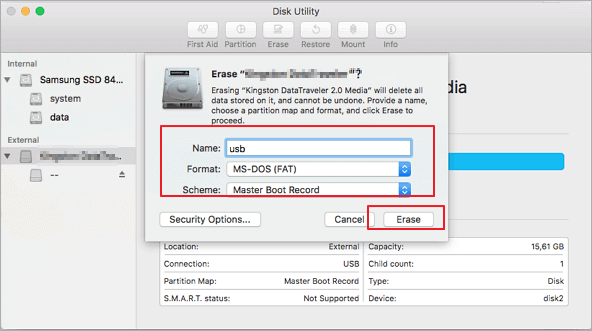

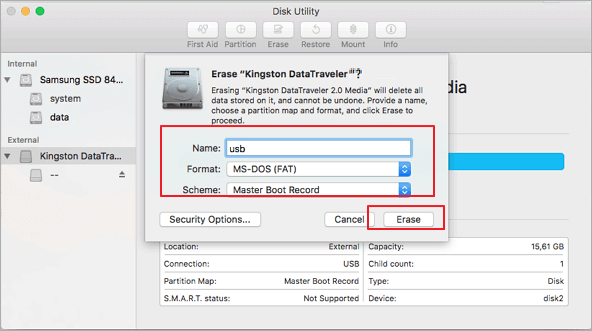
To format a USB flash drive to FAT32 on a Mac without losing data, start by plugging the drive into your Mac. Open Disk Utility, which can be found in Applications/Utilities or by searching in Spotlight.
For Apple Mac users, there are two ways to format a USB flash drive to FAT32: using Disk Utility or Terminal command line. Detailed steps for both tools are available for FAT32 format.
How Do You Format A Micro SD Card on Android
To format Micro SD card Android:
If you want to format other cards on your mobile phone, take out the SD card slot and insert a new SD card.
1. Open the "Settings" app on your Android phone.
2. To free up space on your phone, go to Storage, which may be named differently depending on your phone's version, and look for the option labeled "Storage".
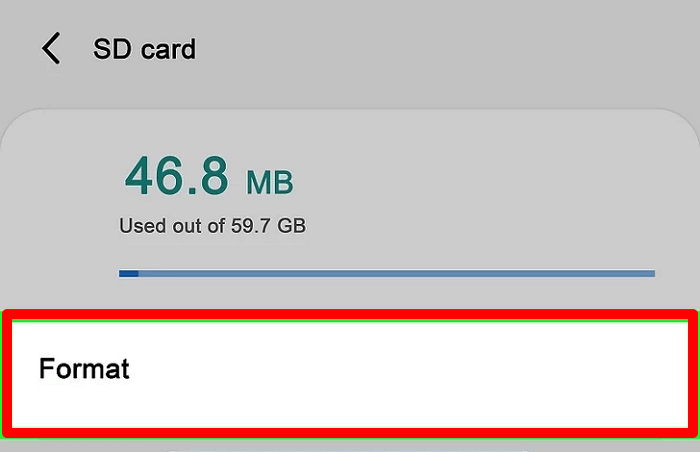
3. Select "Format" or "Format SD card".
How to Format A Micro SD Card on Nintendo Switch
Many Switch users also want to format their Micro SD card to FAT32 or exFAT file system, and they can do it on the gaming console.
1. Insert your SD card into the micro SD card slot on your device.
2. Go to System settings, then Formatting options, and select Format micro SD card, then choose Continue.
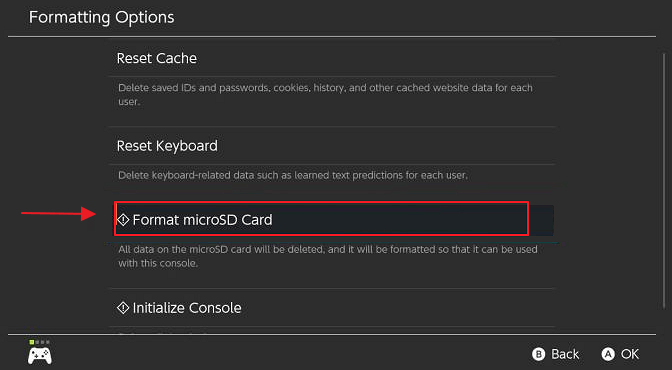
3. Confirm the warning message and choose "Continue".
You May Also Like:
Solved: Nintendo Switch Keeps Asking Format SD Card
Nintendo Switch users experience issues where their console repeatedly shows notifications to format SD cards, which is caused by an incompatibility issue with the SD card.
Format Micro SD Card FAQs
Micro SD cards can be formatted using various methods, including the built-in formatting options on most operating systems, such as Windows, macOS, or Linux. This process typically involves selecting the Micro SD card as the target drive, choosing a file system (e.
1. What does it mean to format your microSD card?
Formatting a microSD card not only prepares it for use, but also sets it up to work specifically with a particular device or operating system, making it compatible with the intended use.
2. How do I force a micro SD card to format?
To force a micro SD card to format, locate it on your computer, right-click on it and select "Format", confirm the operation by selecting "Quick Format" and clicking "Start", then wait for the quick formatting process to complete, which should only take a few seconds.
3. Why can't I format my micro SD card?
The card may be locked or corrupted, preventing it from being formatted. A physical switch on the card may be in the locked position, or the card itself may be damaged and require reformatting.
Related Articles
- How to Format WD My Passport Windows 10 [4 Easy Ways]
- How to Delete Partitions on SSD in Windows 11/10 [Step-by-Step Guide]
- Top 5 Best Disk Space Analyzer for Windows 11 [2024 Review]
- How to Install Windows 11 From ISO Files - 2 Easy Tips
- Fixed: Your Password Has Expired and Must Be Changed
To resolve the 'Your Password Has Expired and Must Be Changed' issue, follow these steps: update your password securely by navigating to the password reset page, entering your current password, and creating a new one that meets the required complexity standards. - PC Reset Stuck At 99%, What Should I Do? Your Answer Here
If your PC is stuck at 99% during the reset process, you can try to fix the issue by addressing system file problems or disk errors, which are common causes of this problem.
Products
Articles & Tutorials
- Data Recovery
- Data Backup
- File Recovery
- File Backup
- System Backup and Restore
- Disk and Partition Clone
- Technical articles
- Mobile articles
- Disk Master Help
- Windows Data Recovery Tutorials
- Windows Secure Delete Tutorials
- Windows Partition Management Tutorials
- Windows File Backup and Restore Tutorials
- Windows System Backup and Restore Tutorials
- Windows Disk Backup and Restore Tutorials
- Windows Clone Tutorials