8 Free Disk Space Analyzer Recommend and Download in 2024
Figuring out which files and folders are taking up the most space on your device can be overwhelming, especially with the increasing reliance on devices for work and personal tasks. However, the market for hard disks is expected to experience significant growth in the coming years, indicating a shift towards more storage solutions.
The hard disk market size was valued at $52.2 billion in 2021 and is expected to grow to $80.6 billion by 2030, with a compound annual growth rate (CAGR) of 5.60% during that period.
Using a free disk space analyzer is essential to manage complex tasks and ensure you never run out of storage space, as it helps examine and display the arrangement of files and folders on your hard drive.
Overview of The Best 8 Free Disk Space Analyzer
Discovering how your device storage can be utilized using various free disk space analyzers can be a great experience. Below, we have provided a comprehensive overview of the 8 free disk space analyzers to analyze disk space on Windows, exploring essential factors such as supported system, technical support, and bonus features.
| Comparison | 💻Supported System | 💿Support Drive | 🎢Bonus Feature |
|---|---|---|---|
|
|
Windows XP/Vista/7/8/8.1/10/11 |
|
- Move/Resize/Create Partition - Fix Disk Errors - Format Partition |
| WinDirStat | Windows 95/98/ME/NT4/2000/XP/Vista/7/8/8.1/10 |
|
None |
| TreeSize Free | Windows XP to 10 |
|
- Deduplication - Command Line Options |
| SpaceSniffer | Windows XP/Vista/7/8 |
|
- Scans NTFS - Smart Cached Scanning - Supports ADS - Zoomable Elements |
| DiskSavvy | Windows XP/Vista/7/8/10 |
|
None |
| Saleen File Pro | Windows XP/Vista/7/8/8.1 |
|
None |
| JDiskReport | Windows 10/98/2003/ XP/7/8/2000/Vista |
|
- Restores Disk Space |
| Disk Usage Analyzer Free | Windows XP/XP Professional/Vista/7/8/1 |
|
- Drive Backup |
If you want a more detailed look into the top 8 free disk space analyzers, keep reading this article. You might have gotten a brief idea after quickly scanning these tools, but there's more to explore.

7 Ways to Fix 99% Disk Usage on Windows
Discover effective solutions to resolve 99% disk usage issues on Windows by following these seven methods to optimize your system's performance efficiently.
8 Best Free Disk Space Analyzer Recommend and Download
We've curated a list of the top 8 free disk space analyzers for Windows, considering their features, pros, and cons, as well as accuracy, completeness, and product security. These tools can help you identify and remove large files, locate duplicate files, and provide a comprehensive solution for managing your disk space.
1. Qiling Disk Master
Qiling Disk Master Free is a comprehensive disk management tool that offers features to optimize and manage computer storage, including analyzing disk space, managing disks, and improving performance.
Key Features of Qiling Disk Master:
- Fast scan results: Users can quickly get a picture of space usage using an efficient system scan, displaying file size in a more visual format of GB/MB/KB/B.
- Data visualization: The tool provides users a clear view of their disk space usage by showing the percentage of total, used, and unused space. This will allow users to directly see the maximum file types and make informed decisions about their storage needs.
- Quickly locate files: Users can navigate to file view/folder to directly identify and access files, or click the guide to learn how to find large files on Windows 10.
- Remove junk and hidden files: This tool is integrated into disk management functions and offers a feature to clean up disks by deleting temporary files and hidden files that are no longer needed.
- Provide more extra features: Qiling is a top-notch partition manager tool that offers various advanced features such as health check, speed test, partition management, and partition cloning, making it a reliable choice for users.
Download link:
#Disk Space Analyzer#View Disk Storage#Check Disk Space#Free#Windows
User Review: Here are some comments about using Qiling Disk Master from Capterra:
2. Windows Directory Statistics (WinDirStat)
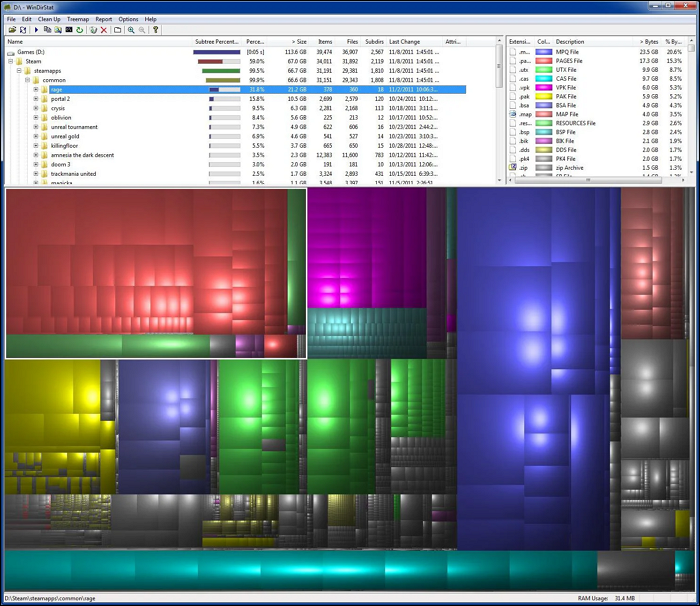
WinDirStat is a free software that thoroughly scans your computer and generates a visual report of disk usage, using a treemap to show the percentage of each disk's usage.
Key Features of Windows Directory Statistics:
- Open-Source Utility Software: The software is built on an open-source framework, allowing users to access and modify the source code, and is specifically designed to run on Microsoft Windows OS, providing compatibility and integration with the Windows environment.
- Fast Scanning Results: The program uses advanced algorithms and optimization techniques to quickly and efficiently scan systems, providing fast results when scanning junk files and cached data, which minimizes waiting time and boosts productivity.
- Removes Junk and Cached Data: The software can detect and remove various types of junk files that build up over time, including temporary files, system logs, and unnecessary application data.
- Easy Analysis of Disk Space: The tool offers a visual representation of disk space usage, allowing users to easily identify and prioritize areas of high usage, making it easier to manage and optimize disk space.
Download Link: https://sourceforge.net/projects/windirstat/
#Disk Space Analyzer#Windows Disk Space Analyzer#Free
User Reviews: Here are some comments about using this tool from Source Forge:
This guide provides a comprehensive overview of space analyzers, including their types, features, and applications. It covers topics such as data analysis, visualization, and reporting, as well as the importance of space analyzers in various industries. The guide also discusses the benefits and limitations of space analyzers, and provides tips and best practices for selecting and implementing the right space analyzer for a specific use case.
3. TreeSize Free
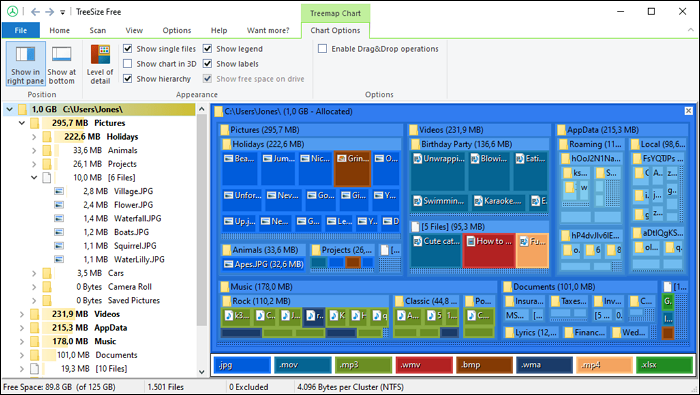
TreeSize, created by JAM Software, is a leading disk space analyzer software that offers a unique treemap view of system drives, providing comprehensive information about disk space usage in an easily understandable format. Its intuitive and user-friendly interface makes it accessible to a global audience, with support for over 16 languages.
Key Features of TreeSize:
- Efficient Resource Usage: The application is designed to be lightweight, running efficiently without consuming excessive system resources.
- Excellent Data Visualization: The platform offers a robust data visualization feature that significantly improves the user experience by providing an intuitive and interactive way to explore and understand complex data.
- Windows Explorer Integration: This tool integrates with Windows Explorer, allowing users to easily delete unwanted files from their system.
- Full Support for Windows Editions: This software is compatible with all versions of Microsoft Windows, including both 32-bit and 64-bit operating systems.
Download Link: https://www.jam-software.com/treesize_free
#Disk Space Viewer#Check Disk Space#Free
User Reviews: Here are some comments about using this tool from Yahoo News:
4. SpaceSniffer
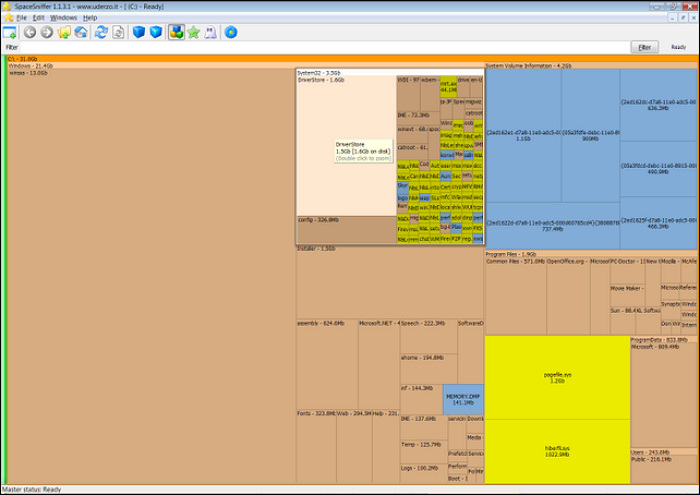
SpaceSniffer is a powerful disk space analyzer for Windows, developed by Uderzo software. This open-source tool uses a treemap visualization approach to provide a detailed report on disk space usage, helping users identify and delete unnecessary files and reclaim valuable storage space.
Key Features of SpaceSniffer:
- Customizable File Format Colors: Users can customize the colors of various file formats to suit their preferences.
- Support for Alternate Data Streams (ADS): The software allows for alternate data streams (ADS), which are additional hidden streams of data that can be associated with a file, storing metadata, extended attributes, or other file-related information.
- File Categorization Options: This tool enables users to organize files by various characteristics, including name, size, and other relevant attributes, making it easier to manage and locate specific files.
- Compatibility with Multiple Windows Versions: This software is compatible with multiple versions of the Windows operating system.
Download Link: https://spacesniffer.en.softonic.com/
#SpaceSniffer#View Disk Space#Check Disk Storage#Free
User Reviews: Here are some comments about using this tool from the download page:
5. DiskSavvy
DiskSavvy is a highly regarded disk space analyzer that efficiently examines hard disks, NAS, and servers, identifying and eliminating files or folders consuming significant amounts of disk space, with a free and paid version offering enhanced features.
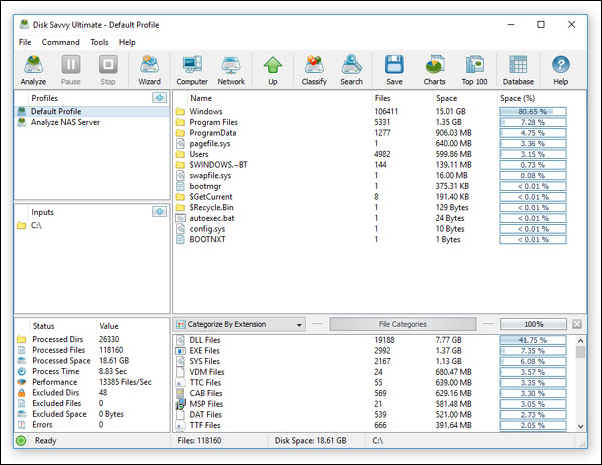
Key Features of Disk Savvy:
- Fast and Easy to Use Tool: The software offers an easy-to-use interface for navigation and quick access to features, and it also optimizes scanning algorithms to quickly analyze disk space usage.
- File Filtering for Sorting Disk Space Reports: Users can sort disk space reports by various criteria, such as file size, date modified, or file type, among others, to efficiently manage and prioritize their files.
- Powerful File Management: Effective file management is crucial for maintaining a clutter-free and organized digital space. By implementing robust file management strategies, individuals can efficiently organize their files, free up disk space, and reduce the risk of data loss. This can be achieved through the use of tools and techniques that enable users to categorize, prioritize, and store their files in a logical and accessible manner.
- Analysis Results via Pie Chart: A pie chart effectively displays the disk space analysis results in a clear and visually appealing manner.
Download Link: https://www.disksavvy.com/downloads.html
#Disk Space Viewer#Monitor Disk Space#Free
User Reviews: Here are some comments about using this tool from Alternative To: Users have shared their experiences and thoughts about the tool, providing a general overview of its features and functionality. They have also mentioned any pros and cons they have encountered while using the tool, offering a balanced view of its strengths and weaknesses.
6. Saleen File Pro
Saleen File Pro is a tool that helps manage computer or network drive space by creating visual maps of disk storage, identifying large files or folders, and providing detailed information about specific folders and files.
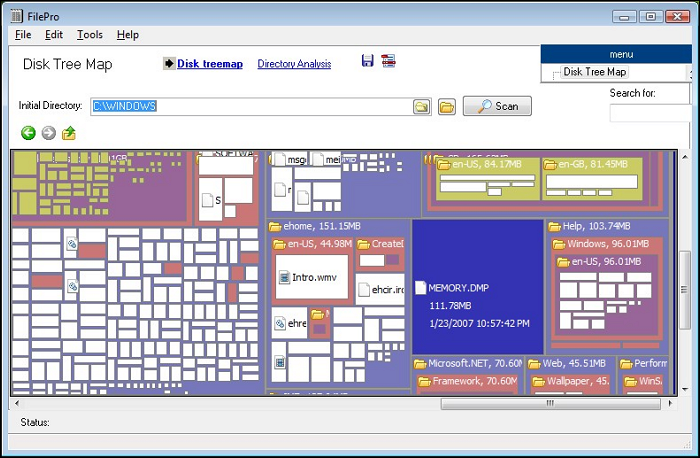
Key Features of Salen File Pro:
- Generate Disk Treemaps: Users can create disk Treemaps for both local and network volumes.
- Search and Locate Files: This feature enables users to search and find specific files within the disk Treemaps, making it easier to locate and access desired files.
- Save Entire or Partial Volume Snapshots: Users can save snapshots of their entire volumes or specific disk portions using Treemaps for preservation.
- Compare Files or Directories: The software features a robust file and directory comparison tool, allowing users to select two files or directories and initiate a comparison.
Download Link: https://www.download.io/saleen-filepro-download-windows.html
#View Disk Space#Check Disk Space Usage#Free
User Reviews: Here are some comments about using this tool from Softpedia:
7. JDiskReport
JDiskReport by JGoodies is a free software for Windows that helps you understand how your computer's hard disk space is being used. It presents the information in a user-friendly manner through a pie chart, tables, and bar graph. The standout feature of this tool is its complete freeware nature, offering a completely ad-free and toolbar-free experience, making it a fantastic choice for effectively managing your storage space on Windows.
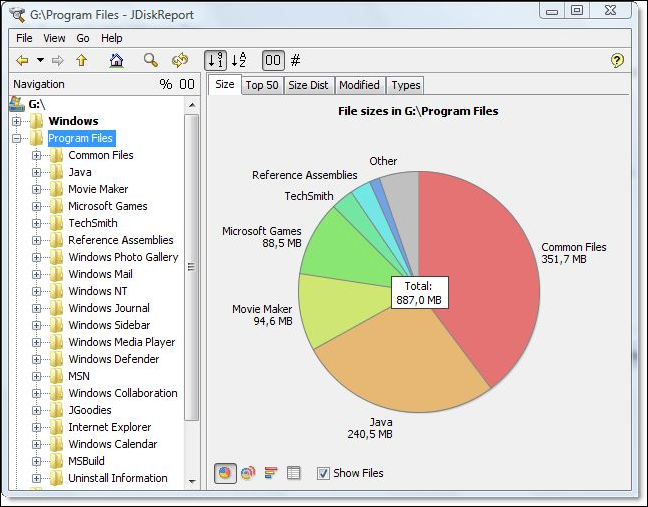
Key Features of JDiskReport:
- Restores Lost Disk Space: The tool offers various file management features to help you recover lost disk space quickly and efficiently.
- Modified Tab for File Modification Tracking: The tool helps track changes made to files, giving insights into productivity and identifying files that need frequent updates.
- Size Tab for Drive Size Information: This tool allows you to quickly and easily assess how much space files are occupying on your drive, providing a clear and comprehensive overview of your storage usage.
- Top 50 Tab for Identifying Files: The tool lists the top 50 largest files, enabling users to prioritize and manage them effectively, thereby optimizing storage usage.
Download Link: https://download.cnet.com/JDiskReport/3000-2248_4-10330941.html
#Check Disk Space#View Disk Capacity#Disk Space Monitor
User Reviews: Here are some comments about using this tool from CNET:
8. Disk Usage Analyzer Free
The Free Disk Usage Analyzer is a helpful tool that assists in organizing files and managing disk space. It locates the largest files on your disk, making it easy to find archives, and allows you to move them to another location or delete them if they are no longer needed. The tool also provides a convenient pie chart view to visualize file types, making it a useful tool for keeping your disk space organized.
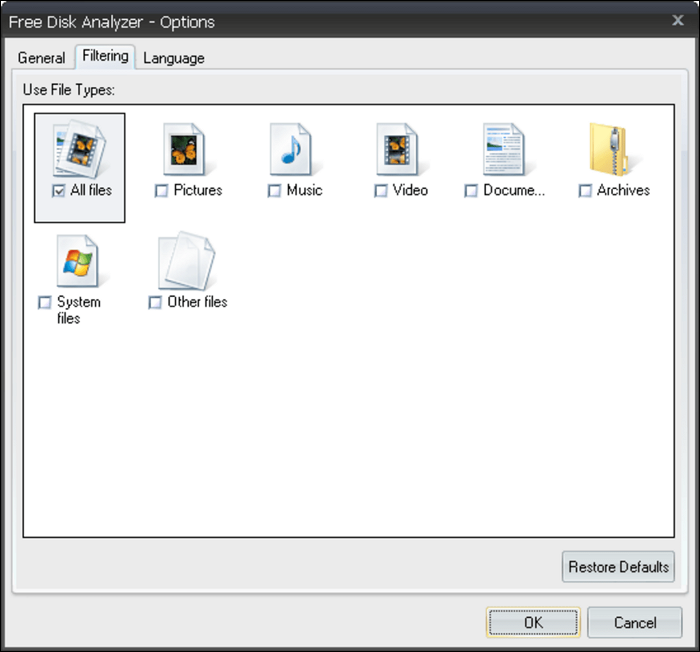
Key Features of Disk Usage Analyzer Free:
- File Organization: This tool helps you identify and categorize files such as videos, photos, and archives that take up a lot of space on your storage device, allowing you to free up space and manage your files more efficiently.
- Space Management: With the space management feature, you can optimize your disk space by moving files to another location, such as a backup drive, freeing up space and keeping your system organized.
- Deletion: This tool specifically targets files like cached videos from websites, temporary files, or any other redundant data that is occupying valuable disk space.
- Real-Time Results: The scanning process can be monitored in real-time, allowing users to see the progress and results immediately, rather than waiting for the entire process to finish.
Download Link: https://free-disk-usage-analyzer.en.softonic.com/
#Disk Usage Analyzer#View Disk Space#Disk Usage Checker
User Reviews: There is no user reviews for this tool. You can download it and share your idea. The tool is available for download.
If you've found a reliable disk space analyzer software on this page, don't forget to share it with your friends online to help them find a good one too.
Conclusion
Qiling Disk Master stands out as the top disk space analyzer tool in 2024, offering a unique blend of cutting-edge capabilities and user-friendliness. Its extensive features and intuitive interface make it an exceptional choice, outshining other tools in the roundup.
Qiling Disk Master takes the lead, but other tools like WinDirStat and TreeSize Free are also worth mentioning for their valuable features and intuitive interfaces. These tools, including Qiling, offer users the ability to navigate through disk partitions, identify large files, and manage storage space efficiently, making them worthy alternatives.
FAQs About Free Disk Space Analyzer
You've likely already discovered the powerful free disk space analyzer tools that help manage your disk space and optimize your computer's performance. If you have any further questions or need more information, feel free to explore the FAQs section.
1. What is the best free disk space analyzer for Mac?
Disk Drill by CleverFiles is one of Mac's best free disk space analyzers, offering a wide range of features including scanning devices and volumes, file and folder viewing and removal, searching for deleted files, and attempting recovery of lost partitions.
2. What is taking up disk space on PC?
Various factors can occupy disk space, including installed applications, system files and updates, user files, downloads, temporary files, system restore points and backups, the Recycle Bin, hibernation and page files, and large system files, which can collectively take up a significant amount of storage.
3. How to analyze disk space on Windows 10?
To analyze disk space on Windows 10, follow these steps:
Step 1: Open the Settings menu to click "System" and select "Storage."
Step 2: The main hard drive is taking up space due to various file types, which can be viewed by looking under the "(C:)" section. This section shows what's taking up space on the main hard drive. To see more, click "Show More Categories" to view storage usage from other file types.
Related Articles
- How to Format SD Card on Windows 11? Here Are 4 Ways for You in 2024
- Paragon Migrate OS to SSD Review [Pros & Cons]
- How to Format eMMC Drive [2024 Full Guide]
- How to Format SanDisk iXpand Flash Drive in Windows 10/8/7
- Resolve 100% Disk Usage in Windows 11
If you're experiencing 100% disk usage on Windows 11, it doesn't necessarily mean you need a larger HDD or SSD. - How to Format 128GB SD Card to FAT32
You can download a FAT32 formatting tool to format a 128GB SD card to FAT32, as Windows may not allow it natively.
Products
Articles & Tutorials
- Data Recovery
- Data Backup
- File Recovery
- File Backup
- System Backup and Restore
- Disk and Partition Clone
- Technical articles
- Mobile articles
- Disk Master Help
- Windows Data Recovery Tutorials
- Windows Secure Delete Tutorials
- Windows Partition Management Tutorials
- Windows File Backup and Restore Tutorials
- Windows System Backup and Restore Tutorials
- Windows Disk Backup and Restore Tutorials
- Windows Clone Tutorials