Full Guide on HDD Benchmark on Windows [2024 Newest]
Key Takeaways:
- Understand the importance of monitoring the benchmark status of HDD.
- To optimize HDD performance, it's essential to learn HDD benchmark tips and choose the best HDD benchmark tool. By understanding how to benchmark a hard drive, you can identify its strengths and weaknesses, and make informed decisions when selecting a new drive.
- To run the HDD benchmark test using one of the best HDD benchmark tools, you can use CrystalDiskMark, which is a free and popular benchmarking tool for hard disk drives and solid-state drives. Simply download and install the software, then select the drive you want to test and choose the benchmarking options, such as the number of passes and the type of test. The tool will then run the test and provide you with detailed results, including read and write speeds, as well as other performance metrics.
HDD performance is a key factor in computer speed, and HDD benchmarking involves testing HDD speed and performance under various conditions and workloads.
Many users demand HDD benchmarking, so this article will provide a detailed solution, starting with the reasons to run a disk benchmarking test, which includes understanding storage performance, comparing storage options, and troubleshooting storage issues. This will be followed by a step-by-step guide on how to run a HDD benchmarking test, including choosing the right benchmarking tool, selecting the right test settings, and interpreting the results. The article will also provide tips on how to optimize storage performance and troubleshoot common storage issues.
View the Necessary Tools for HDD Benchmark:
| ⏱️Duration | 2-3 minutes |
| ⛏️Tools | Professional benchmark tool: Qiling Disk Master |
| 💻Supported Systems | Windows 11/10/7 |
| ✍️Tested Data | Read and write, I/O, Delay |
| 🧑💻Target Users | Suitable for all users |
What Is HDD Benchmark and Why It's Important
An HDD benchmark test, also known as a disk performance test, involves running a professional tool to evaluate a disk's read and write speed for various access scenarios, measuring metrics such as sequential/random read speeds, processing times for I/O operations, and the reliability of the disk. This helps to assess the impact on your computer.
Running the HDD benchmark test has several main purposes:
- Check if your disk is failing
- Improve the efficiency of your hard disk and your computer
- Find computer problems that need to be improved and fixed
- Troubleshoot what is affecting your computer's performance and processor speed
Running a disk benchmark test is crucial to ensure your hard disk's performance. HDD Benchmark is a tool that can help you do this, providing insights into your hard disk's storage speed and overall performance. By running a benchmark test, you can identify any potential issues and take steps to improve your computer's performance.
HDD Benchmark Tips: Best HDD Benchmark Tool Recommend
Performing a disk speed test on Windows 10/11 is crucial for evaluating system performance. For accurate results, I recommend using a professional benchmarking tool, which can help you assess how much a tweak affects your computer. This will provide you with a reliable measure of your HDD's speed and performance.
A good benchmarking tool should possess several key qualities. Firstly, it should be able to accurately measure and compare the performance of different systems or applications, providing a clear and unbiased assessment of their capabilities.
- Functionality: The benchmarking tool should comprehensively cover all relevant metrics to ensure a thorough evaluation, and provide detailed results to facilitate informed decision-making. This includes metrics such as performance, scalability, reliability, security, and usability.
- Security: The benchmarking tool should be designed to prioritize security and privacy, ensuring that user data remains safe and protected from malware and other potential threats.
- Technical Support: A benchmarking tool should ideally provide additional technical support, including user manuals, direct human contact, and possibly online forums or communities, to ensure users can effectively utilize the tool and troubleshoot any issues that may arise.
- Additional Features: The benchmarking tool should not only provide simple performance metrics but also offer optimization options for the HDD, including error correction and fixing. This would enable users to not only measure their HDD's performance but also take proactive steps to maintain and improve its health.
- Compatibility: A good HDD benchmark tool should be able to test and evaluate various types of hard drives, including SSDs, HDDs, and hybrid drives, and run on multiple operating systems, such as Windows, macOS, and Linux.
A good HDD benchmark tool should cover a range of features from basic to advanced, including measuring sequential read and write speeds, random read and write speeds, and IOPS (input/output operations per second). The best hard drive benchmark tools should also offer advanced features such as queue depth, thread count, and file system support, as well as the ability to test specific scenarios like video editing and gaming. Based on these criteria, we have identified four top-rated hard drive benchmark tools that can help you evaluate the performance of your storage devices.
Keep reading for HDD Benchmark Tools Recommend and Download:
1. Qiling Disk Master
Qiling Disk Master is an excellent disk management tool that offers many free features, including the ability to test hard disks' read and write speeds.

Pros:
- Simple interface, suitable for novice operators.
- Provides hard drive read/write, input/output, and latency speeds.
- Boosts drive speed after running benchmark tests
- Supports users in creating test results and saving data
Cons:
- It only supports Windows systems
Download:
2. PassMark Software
PassMark Software is a tool that evaluates computers and software, allowing for stress tests to be performed on your computer. It is also the quickest method to troubleshoot whether USB 3.0 is working properly.
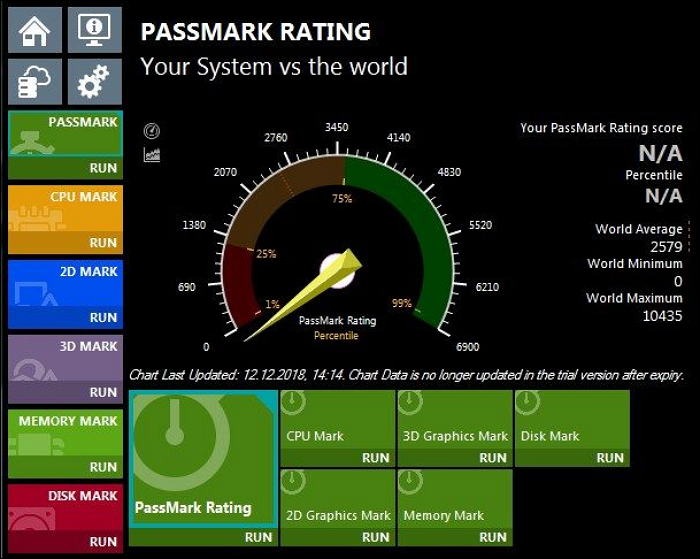
Pros:
- A flexible site to run various performance tests
- Here is a summary of the system information:
Cons:
- The device lacks the ability to save test results, making it difficult to compare performance with other devices. This feature would be useful for identifying trends and making informed decisions about future upgrades.
- It does not offer other speed-boosting features
Download: PassMark Software
3. UserBenchmark
UserBenchmark supports testing the speed profile of various hard drives, including Seagate and WD models, focusing on typical consumer hard drives, and checks against multiple user ratings.
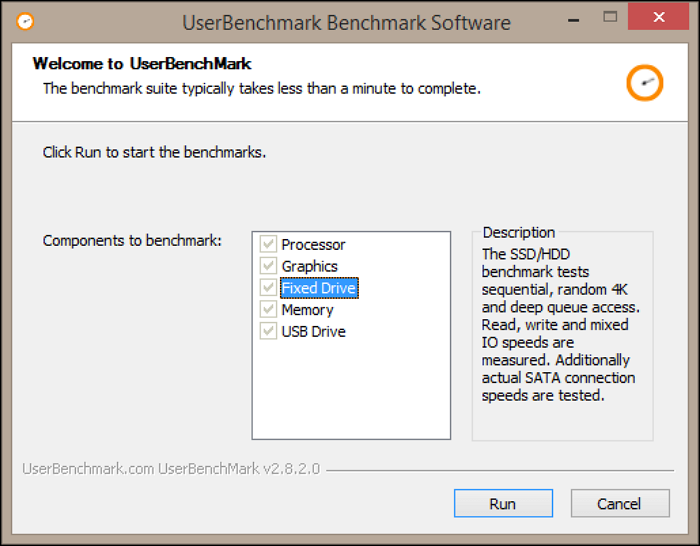
Pros:
- Its effective speed is adjusted for more cost per GB
- The test is fast and can assess your computer's speed in under a minute.
Cons:
- This product is designed for consumer testing of purchased drives, making it unsuitable for older drive checks.
- It does not provide additional tools for optimizing performance.
Download: UserBenchmark
4. CrystalDiskMark
CrystalDiskMark is a free, open-source tool that's widely used to test the sequential and random read and write speeds of various hard drives. However, it's worth noting that excessive use may potentially damage the drive.
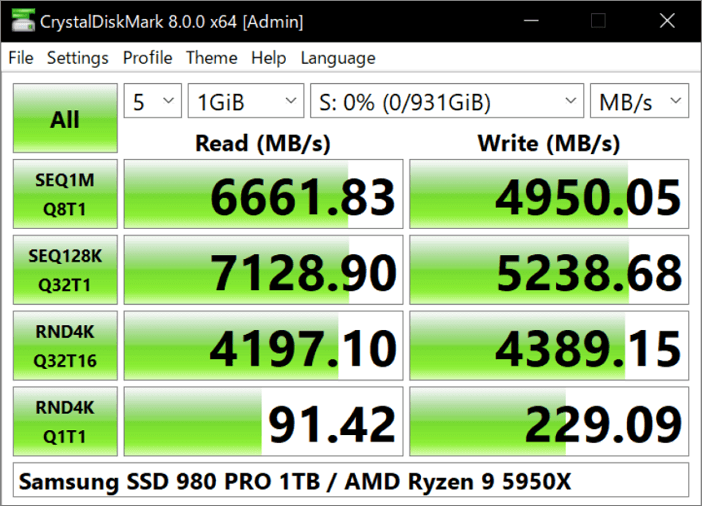
Pros:
- CrystalDiskMark tests file size range: 16MB-64GB.
- Provides support for 45 languages.
Cons:
- Benchmarking results are not compatible between versions.
- It tends to affect the life of the driver.
Download: CrystalDiskMark
Qiling Disk Master stands out as the most comprehensive benchmarking tool, offering a feature-rich experience without any sales pitch. Its ability to test data in a way that guarantees 100% safety makes it a top choice for users.
As we continue to learn how to use this tool to run hard drive benchmarks, we'll explore its capabilities and features in more detail. The tool is designed to provide a comprehensive analysis of a hard drive's performance, including its read and write speeds, access times, and other relevant metrics.
How to Run an HDD Benchmark Test
For easy disk speed tests on Windows, consider using Qiling Disk Master, a full-featured partition management tool that integrates various disk performance features and provides detailed reports to help users improve their hard disk performance.
Qiling Disk Master allows you to customize settings and test the speed of your hard drive, SSD, USB, and SD card with its tool.
Qiling Disk Master supports all Windows systems, including Windows 7/8/10/11 and Windows Vista/XP, allowing users to run the HDD benchmark test on Windows.
Step 1. Launch Qiling Disk Master and click the download button to activate the "DiskMark" feature under the "Discovery" section.
Step 2. To begin the test, click on the drop-down box to select the target drive, test data, and block size.

Step 3. Once everything is configured, click "Proceed" to begin the disk test, which will display the Sequential read speed, I/O, and Delay data.
Qiling Disk Master is a versatile software that can be used with various hard drives, making it one of the best SSD benchmark tools, in addition to its HDD benchmark feature. It is a powerful tool that offers a range of functionalities.
- Check hard drive health
- Check the hard drive temperature
- Improve SSD read and write speed
- Merge/resize/delete/create partitions
If you're experiencing disk difficulties or partition errors, Qiling Disk Master can assist you. You can also share it with others who may be facing similar issues by clicking the button below.
- Notice:
- The Command Prompt and Task Manager in Windows only allow real-time read and write speed testing, but don't support a full benchmark test. For an accurate speed test, a third-party tool is recommended.
Conclusion
After running the HDD benchmark test, you can analyze the data to make performance improvements to your drive. For drives used for OS booting, prioritizing random read and write speeds is key. In contrast, for mass storage drives like external hard drives and USB, sequential reads and writes are more important.
Qiling Disk Master provides accurate benchmark data and is a top-notch USB speed test tool, allowing for data export and analysis. It also offers features like data cloning, partition resizing, and formatting, making it a one-stop shop for disk partitioning.
You May Also Like:
FAQs About HDD Benchmark
In this section, there are some additional questions about the HDD benchmark. These are frequently asked questions, and I have provided some short answers. I hope these answers will help you to solve your doubts.
1. How to benchmark HDD?
To benchmark HDDs, you can use a professional testing tool like Qiling Disk Master, which is a trustworthy and versatile software that can help you benchmark your disk in just three easy steps.
Step 1. Launch Qiling Disk Master, find "DiskMark," and activate it.
Step 2. Set the target drive and the size of the test data, such as 1TB or 2TB, for the purpose of testing the drive's performance and capacity. This will allow you to evaluate the drive's ability to store and retrieve large amounts of data, and to identify any potential issues or limitations.
Step 3. Click "Start" to start the test and wait a while to view the results.
This article provides a detailed step-by-step guide with pictures. You can check the article for more precise instructions.
2. What is the fastest speed of HDD?
A normal HDD can read and write data at speeds between 80MB/s and 160MB/s, whereas an SSD can do so at speeds of 200 to 550 MB/s.
3. What is the benchmark in hard disk?
Benchmarking involves running specialized software to measure a disk's speed in various access scenarios, such as sequential, random 4K, and deep queue depth, generating numbers in MBps that summarize its speed characteristics.
Related Articles
- Fixed: SMART Status Bad Backup and Replace Error💡
- Which Command Is Used to Format a Disk Partition as EXT4? Check and Find Answer Here
- Fix and Repair EFI Bootloader in Windows 10/8/7
- 6 Tips to Fix SD Card Slow Transfer Speed on Windows
- Format RAW SD Card/USB Drive in Windows 11/10/8/7
To format a RAW SD card, USB flash drive, pen drive, or RAW partition, you can use a RAW SD card formatter or Qiling Partition Master. This software allows you to easily format the device to FAT32, NTFS, EXT2, or EXT3 in Windows 11/10/8/7. - How to Format Read Only Disk to Normal Windows 11
This article will explore how to format a read-only disk to normal in Windows 11, providing a step-by-step guide to achieve this. Let's get started.
Products
Articles & Tutorials
- Data Recovery
- Data Backup
- File Recovery
- File Backup
- System Backup and Restore
- Disk and Partition Clone
- Technical articles
- Mobile articles
- Disk Master Help
- Windows Data Recovery Tutorials
- Windows Secure Delete Tutorials
- Windows Partition Management Tutorials
- Windows File Backup and Restore Tutorials
- Windows System Backup and Restore Tutorials
- Windows Disk Backup and Restore Tutorials
- Windows Clone Tutorials