How to Improve SSD Read and Write Speed
SSDs are a great addition to your PC, offering faster data transfer speeds and improved responsiveness compared to traditional hard drives. However, if not optimized, SSDs can slow and stop working, making proper maintenance crucial to ensure their longevity.
If you're experiencing slow SSD issues, don't worry - there are fixes that can help improve your SSD's read and write speeds. By following the guide, you can gain access to multiple solutions that can give your PC a much-needed boost, making it more responsive for gaming and work. So, take the first step and get ready to experience a faster and more efficient system.
Why SSD Read and Write Speed Gets Slow
Your SSD may slow down due to various reasons, including NVMe SSD slow write speed issues. Some common causes include a fragmented file system, a high number of write operations, or a failing SSD controller. Additionally, malware or viruses can also cause your SSD to slow down, as can a full or nearly full disk. Furthermore, a faulty SSD cable or a malfunctioning motherboard can also contribute to slow SSD performance.
- Low disk space: Ensure your drive has at least 20% free disk space, as your system sometimes uses it as a cache.
- TRIM command is disabled or doesn't exist: TRIM is a crucial feature for optimizing the performance of all your drives, whether they're solid-state drives (SSDs) or traditional hard disk drives (HDDs).
- AHCI mode is disabled: AHCI (Advanced Host Controller Interface) is the interface between your SATA SSDs and your PC, enabling your PC to communicate with the SSDs and manage data transfer between them.
- The boot sequence is incorrectly configured: Your boot settings can also affect SSD performance.
- The computer or SSD is infected with viruses: Virus, malware, and spyware can be detrimental to your PC's performance, particularly if they infect your SSD. This can lead to a decrease in your computer's speed and overall functionality.
- BIOS/firmware is outdated: Keep your PC's BIOS updated and check for any new SSD firmware to ensure optimal performance.
- Something is wrong with the SATA port or cable: The SATA port cable can be loose or damaged.
- Low RAM capacity: Having low RAM capacity can slow down your SSD's read and write speeds, as the RAM manages all activity on your PC. To clean your RAM, try killing any background activities and restarting your PC. This can help improve your SSD's performance.
The most common reasons for a slow SSD include fragmentation, disk errors, and outdated firmware. To determine the exact SSD read and write speeds and to address these issues, you can run an SSD performance test. This test will help you identify the specific problem and provide a solution to fix it.
How to Test SSD Read and Write Speed
Windows provides Task Manager and Diskpart for real-time speed tests, but they do not give accurate data. Luckily, Qiling Disk Master is a very comprehensive alternative for speed testing, capable of testing SSD read/write speed and I/O, as well as providing delay data.
It provides a user-"Introducing a user-friendly interface designed to make SSD speed tests simple! With our intuitive platform, you can quickly and easily assess the performance of your solid-state drive.
Step 1. Launch Qiling Disk Master, click the download button to activate the "Surface test" feature under the "Disk management" tab page.
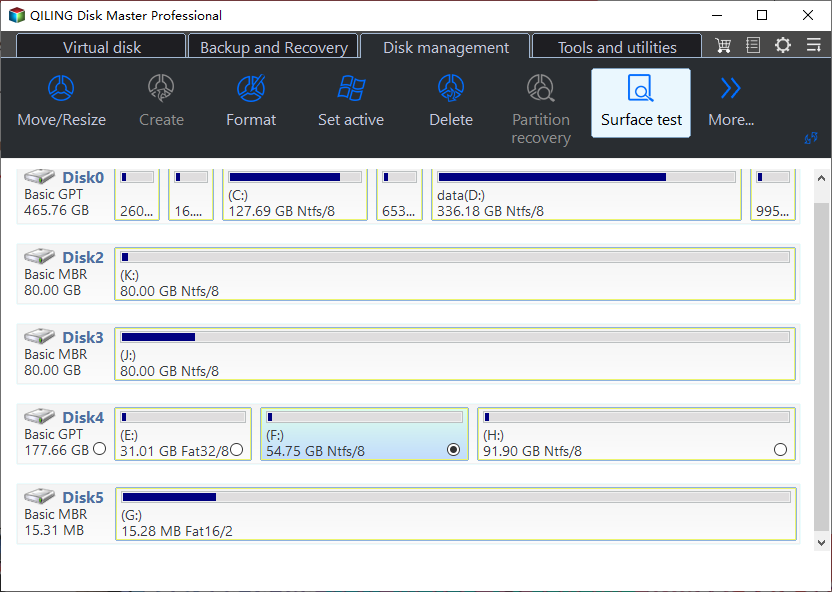
Step 2. To select the target drive, test data, and block size, click on the drop-down box and choose the desired options from the available selections.
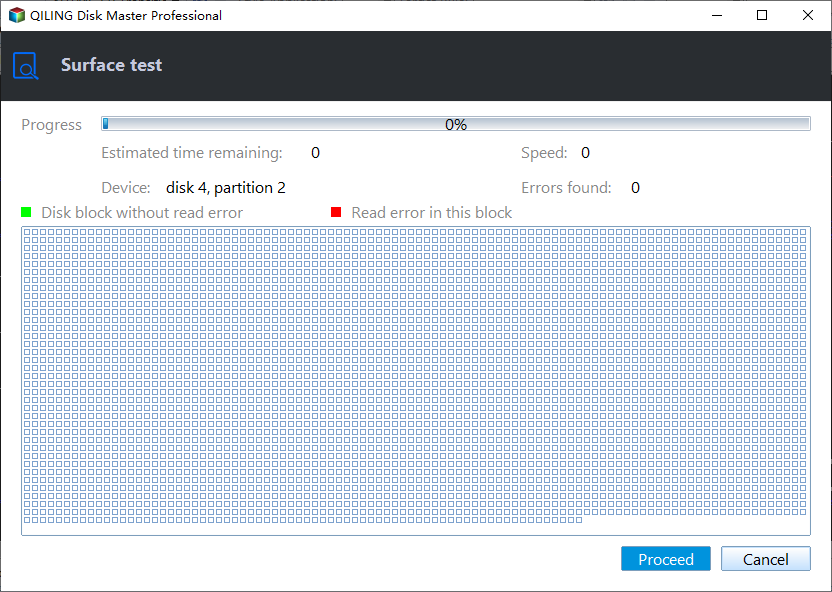
Step 3. Once everything is configured, click "Proceed" to begin the disk test. This will display the sequential read speed, I/O, and Delay data.

If you're familiar with Diskpart, you can also check SSD speed in CMD. Don't worry if your SSD has abnormal read and write speeds - most issues can be fixed to offer faster SSD performance. To fix this, follow the fixes in the section below.
You May Also Like:
How to Improve SSD Read and Write Speed
If you're experiencing slow-down issues with your SSD, I recommend trying various fixes to pinpoint the problem. If you know the specific issue, you can use the corresponding fix. Otherwise, try all the fixes to identify the cause.
- 1. Extend the Partition to Get More Space
- 2. Check TRIM Support
- 3. Enable AHCI mode
- 4. Optimize SSD
- 5. Choose the High-Performance Mode
- 6. Update the Firmware of the SSD
- 7. Configure Correct Boot Order
- 8. Check SATA Port and Cable
Here are 8 different fixes to improve SSD read and write speeds quickly and easily:
1. Extend the Partition to Get More Space
Your drive may have unused space that can be added to the primary partition, giving you more storage space and helping to improve SSD performance by leaving room for the system cache.
You can use Windows's built-To extend the SSD partition, you can use the Disk Management tool or a third-party tool like Qiling Disk Master. This tool offers a "Format" feature to quickly format the unallocated space as the primary partition, or you can use the Partition Master app's "Extend Partition" feature to help you extend drive partitions.
Qiling Disk Master allows you to optimize your SSD for optimal performance, check SSD health, and maintain peak conditions. It also offers features such as SSD 4K alignment and setting/changing cluster sizes to further improve performance.
2. Check TRIM Support
To ensure your SSD is functioning at its best, you can check if the TRIM command is working on your PC. If it's not, your SSD's speeds may be lower than expected. To run the TRIM command, follow these steps:
Step 1. Run the "Command Prompt" terminal as an administrator.
Step 2. Type the following command and command and hit the "Enter" key.
fsutil behavior query DisableDeleteNotify
Note: 0 indicates that TRIM is running, and 1 indicates it's disabled.
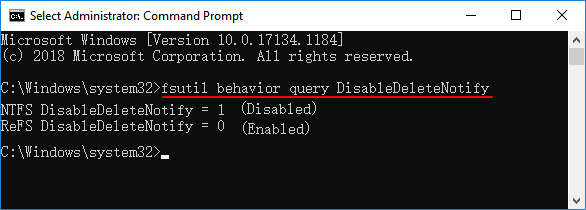
Step 3. If you get 1, type the following command and hit the "Enter key.
fsutil behavior set DisableDeleteNotify 0
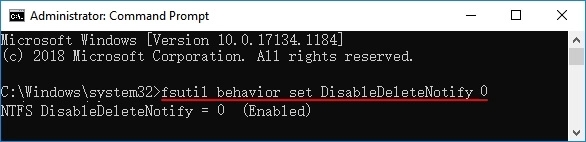
You have successfully configured TRIM for your SSD drive and can also use your SSD manufacturer's drive management app to enable TRIM.
Click the links below if you meet the following problems, such as:
3. Enable AHCI mode
Enabling AHCI mode on your PC allows SSDs to perform faster than those running in IDE mode, making it ideal for faster read and write speeds.
Follow the steps below to configure AHCI mode:
Step 1. Open the Windows "Command Prompt" terminal as an Administrator.
Step 2. Now type the following command and hit the "Enter" key.
bcdedit /set {current} safeboot minimal
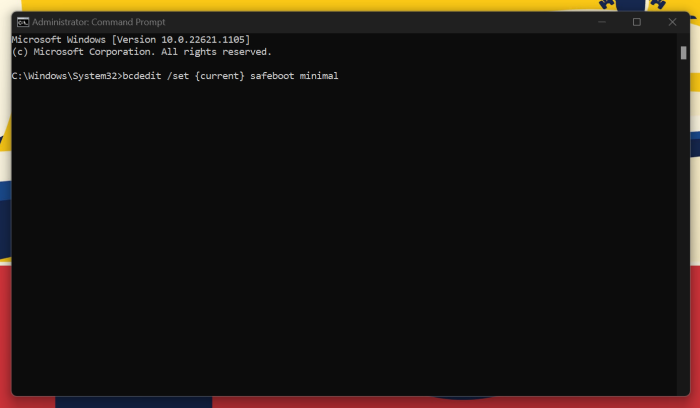
Step 3. In your system's BIOS, enable the "AHCI" mode.
Step 4. Save the changes made and exit the BIOS to boot into your PC's operating system.
Step 5. Run the "Command Prompt" terminal in Windows Safe Mode and enter the following command.
bcdedit /deletevalue {current} safeboot
Your PC will restart, and AHCI will be automatically installed for the fastest SSD performance.
4. Optimize SSD
Your SSD's performance can slow down over time due to a buildup of files and installed apps. To combat this issue and maintain optimal SSD read and write speeds, you can optimize your SSD drive by following a series of steps.
Step 1. Search for "Defrag" in your Windows Start menu.
Step 2. Click on the "Defragment and Optimize Drive" option and select it to open the "Optimize Drives" window.
Step 3. To optimize your SSD drive, select the drive you want to optimize and click the "Optimize" button to begin the process.
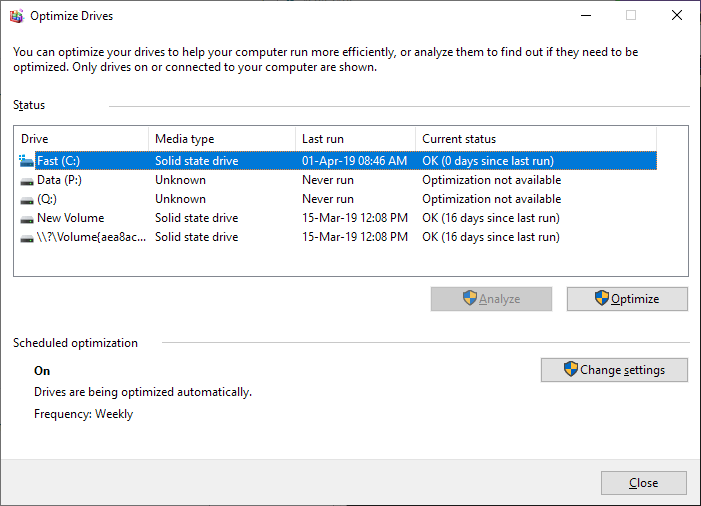
Note: Optimizing your drive periodically helps maintain the performance of your SSD. This process can also be scheduled to run automatically every month or so, ensuring your drive stays fast and efficient.
You May be Interested:
5. Choose the High-Performance Mode
Your PC may be saving power by reducing overall performance, which also affects your SSD's speed. To get the best SSD speeds, choose the "Best Performance" mode on Windows to allocate the most system resources and power.
To get the fastest speeds on your PC, start by ensuring it's connected to a stable internet source. Next, check your internet speed using a speed test tool and update your operating system and browser to the latest versions.
Step 1. Go to your "Settings" and look for the "System" tab.
Step 2. Now, select the "Power and Battery" option and scroll down.
Step 3. The "Power" tab contains the "Power mode" option.
Step 4. Choose the "Best Performance" option from the list and toggle it on.
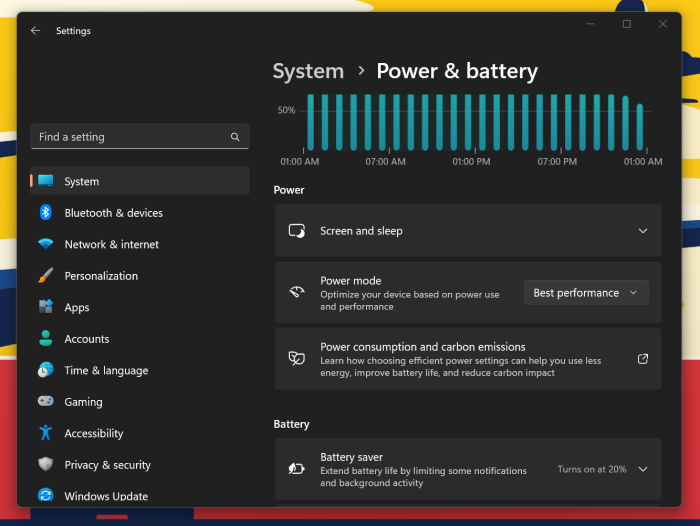
Note: To get the best performance for your drives and system, you can enable the high-performance mode, but this will consume more power and reduce your battery life.
6. Update the Firmware of the SSD
To keep your SSD firmware updated, follow these steps to ensure optimal performance and avoid bugs and issues: Regularly check your SSD manufacturer's website for firmware updates, download and install the latest version, and follow the provided instructions to update your SSD's firmware, which may involve restarting your computer and running the update tool. This process helps fix errors and improve performance, ensuring your SSD operates at its best.
Step 1. Go to your SSD manufacturer's website and select your SSD model.
Step 2. Now, download the updated firmware and install it.
Reboot your system after updating the SSD drive, and it will be updated.
7. Configure Correct Boot Order
To ensure your SSD is functioning at its best, check the boot order in your PC's BIOS and set your SSD as the primary boot drive, allowing for the fastest read and write speeds.
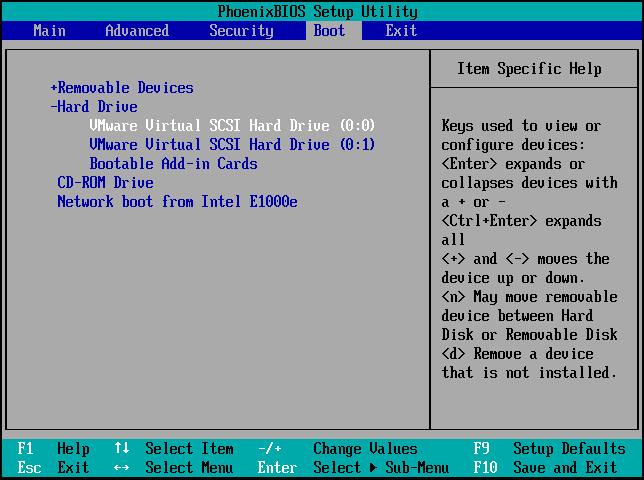
To keep your SSD as the priority drive, you can set it as the boot drive and allocate more resources to it. This will help keep your system responsive and optimize its performance.
8. Check SATA Port and Cable
Check your SATA connection to ensure it's not loose or disconnected, and that the connector or port is not damaged. Open your PC's case to verify the SATA cable is securely connected.
If you experience any issues, such as slow performance or failure to connect, replace the SATA cable with a new one and plug it into a different SATA port on your motherboard for optimal performance.
To monitor SSD speed in daily work, you can use Qiling Disk Master, a tool that can help you check the performance of your solid-state drive.
You May Also Like:
Conclusion
To improve your SSD read and write speeds, follow the steps outlined in the article, ensuring to implement all the suggested points. Remember to make a backup of your data before proceeding with any fix, so you can recover it if needed. By following these tips, you can optimize your SSD performance.
To maximize your SSD's performance, consider using Qiling Disk Master, a tool that can help you check and manage your drive's space and performance. This app also optimizes your SSD for the best possible speeds, making it a quick and easy way to get the most out of your storage device. By downloading and using Qiling Disk Master, you can enjoy improved performance and speeds from your SSD.
FAQs About Improve SSD Read and Write Speed
The guide above provides a comprehensive overview of how to improve your SSD read and write speeds. If you still have questions, you can refer to the FAQs below for further assistance.
1. How can I increase my SSD read and write speed?
Here are some common fixes to improve SSD read and write speeds:
- Enable TRIM support.
- Optimize your SSD using Windows "Optimize Drive" tool.
- Configure your PC to use the "Best Performance" mode.
2. Why is my SSD reading and writing so slow?
Your SSD is reading and writing slowly due to errors like low space, outdated firmware, or other issues, which can cause slowdowns.
- Low RAM
- The computer or SSD is infected with viruses
- TRIM command is disabled or doesn't exist
You can fix all issues with your drive using the Qiling Disk Master tool and optimize it for the fastest speeds.
3. What is a good SSD reading speed?
Solid State Drives (SSDs) that use SATA cables typically have read and write speeds of 250-550 MB/s, with some reaching speeds of over 1000 MB/s. Be sure to choose an SSD with a minimum performance of 300+ MB/s.
Related Articles
- [Tips] AutoSave Is Greyed Out or Not Working in Office, Word, Excel
- What Should I Do After Accidentally Marked Drive C Active [2023 New]
- Top 8 Ways to Fix Kernel Mode Heap Corruption BSOD Error
- [BSOD Error] How to Fix the Stop Code Memory Management in Windows
- QILING Fast Cache Tutorials
Read this guide to learn QILING Fast Cache Tutorials with clear steps, practical tips, and safer troubleshooting methods. - What Is IOPS (Input/Output Operations Per Second) and How Do You Measure It?
IOPS is a measure of storage speed that helps users understand the functionality and capability of physical and network storage, allowing them to gauge overall productivity achieved by disk drives.
Products
Articles & Tutorials
- Data Recovery
- Data Backup
- File Recovery
- File Backup
- System Backup and Restore
- Disk and Partition Clone
- Technical articles
- Mobile articles
- Disk Master Help
- Windows Data Recovery Tutorials
- Windows Secure Delete Tutorials
- Windows Partition Management Tutorials
- Windows File Backup and Restore Tutorials
- Windows System Backup and Restore Tutorials
- Windows Disk Backup and Restore Tutorials
- Windows Clone Tutorials