Solved: 6 Fixes for Samsung 990 Pro Slow Write Speed - 2024 New
The Samsung 990 Pro is a high-spec PCIe 4.0 SSD that delivers top-notch performance, making it a popular choice among gamers and enthusiasts. With read and write speeds of up to 7450/6900 MB/s, it's the ultimate 4th generation SSD.
Why Samsung 990 Pro Slow Write Speed Error Appears
The Samsung Pro 990 SSD is not immune to problems, including slow write speeds, which can be caused by a number of factors such as firmware issues, outdated drivers, corrupted files, overheating, or physical damage to the drive.
- Insufficient space: If your disk has less free space, write speed will be affected.
- High temperature: Prolonged use of games or other programs on your SSD can cause it to overheat, potentially affecting its writing and reading speeds.
- Read Also: How to Test or Check SSD Temperature on Windows 10/11/8/7
- Bugs: Your Samsung 990 Pro might be experiencing slow read and write speeds due to malware or other system bugs.
- Wear: The Samsung 990 Pro, like most SSDs, eventually wears out, leading to a decrease in performance over time.
The Samsung 980 Pro's slow write speed issue can be attributed to several factors, including the use of a single controller, which can lead to bottlenecks in data transfer, the use of TLC NAND flash memory, which can be slower than other types of memory, and the fact that the drive is designed for general use rather than high-performance applications, resulting in a slower write speed. Additionally, the drive's software and firmware may not be optimized for write-intensive workloads, further contributing to the slow write speed.
Before fixing the error, it's recommended to test the speed of your Samsung Pro 990. This provides you an accurate read/write speed, allowing you to know how fast or slow your SSD is.
How to Test Samsung 990 Pro Read/Write Speed
You can check your Samsung 990 Pro's read/write speed using Command Prompt, but it requires typing a few lines of commands, which can be intimidating and potentially lead to data loss if you're not experienced.
You can easily run a speed test on your Samsung 990 Pro SSD using a third-party app, such as Qiling Disk Master. This app's "Disk Mark" feature allows you to check the read and write speed of your SSD in a safe and user-friendly way, making it accessible even for beginners.
Step 1. Launch Qiling Disk Master, and click the download button to activate the "DiskMark" feature under the "Discovery" section.

Step 2. Choose the target drive, test data, and block size from the drop-down boxes.

Step 3. Once everything is configured, click "Proceed" to begin the disk test, which will then display the Sequential read speed, I/O, and Delay data.
You can view detailed test results showing I/O, read/write speed, and delays. If your Samsung 990 Pro SSD has a slow write speed, read on to learn possible fixes.
6 Fixes for Samsung 990 Pro Slow Write Speed Error
This part lists six efficient fixes for your problem and these fixes are also useful to Samsung 970 EVO Plus slow write speed. Continue to read and try to remove the issue.
Fix 1. 4K Align Samsung 990 Pro
4K alignment is a technology that optimizes and enhances drive performance, but it can accumulate debris on your SSD over time, leading to slow writing. To solve the slow writing issue on Samsung Pro 990, try 4K alignment, which can be done using the Qiling Disk Master app, that can optimize your drive based on your test results.
Step 1. Go to "Toolkit" and choose "4K Alignment".
Step 2. Select the disk you want to align and click the "Start" button.
This tool can also do the following:
- Run SD card speed test
- Run USB flash drive speed test
- Check external hard drive health and speed
- Check SD/microSD card health
This tool can 4K align storage devices based on their health condition and speed performance, making it a multifunctional tool.
Fix 2. Run Trim Command
To run the Trim command on your Samsung Pro 990 SSD, follow these simple steps: Enable TRIM in your BIOS or UEFI settings, then run a disk cleanup tool like CCleaner or a built-in disk cleanup utility, and finally, run the Trim command using a command prompt or terminal. This will ensure that your SSD's controller erases data immediately, preventing unused blocks from remaining blocked. By doing so, you'll optimize your SSD's performance and maintain its overall health.
Step 1. Start Command Prompt and run it as administrator.
Step 2. In the new window, type "fsutil behavior query DisableDeleteNotify" and hit "Enter."
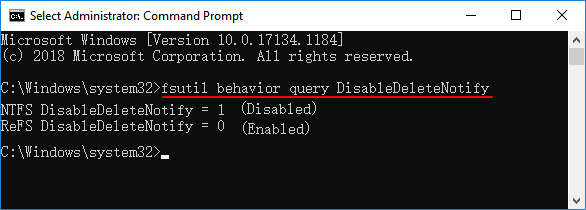
Step 3. If you get a result of "1" indicating that the TRIM command is disabled, type "fsutil behavior set DisableDeleteNotify 0" and press Enter.
Fix 3. Check Samsung 990 Pro Health
To check the SMART status of your Samsung 990 Pro SSD, you can use the Samsung Magician software or the built-in Windows tool, "Disk Management". To use Samsung Magician, download and install the software, launch it, and click on the "Health" tab, then the "SMART" button. The SMART status will be displayed on the screen, showing the health and temperature conditions of your SSD.
Step 1. Launch Qiling Disk Master and click the blue arrow to activate the "Disk Health" feature under the "Discovery" section.

Step 2. To check the health condition of your disk, select the target disk and click the "Refresh" button, which will display the current status of your disk's health.

You can use Qiling Disk Master to run a surface test to locate bad sectors on the Samsung 990 Pro, check file system errors, split/merge partitions, format, initialize, and more.
To manage your Samsung 990 Pro SSD effectively, download this tool.
There is no text to summarize. This conversation has just started.
Fix 4. Free Up Space on Samsung 990 Pro
If your 990 Pro SSD has a lot of junk files taking up more than 70% of its space, it will become slow. To increase its read and write speed, you need to clear space by removing unnecessary files. You can find more information by clicking the link below.
Read: How to Free Up Hard Drive Space on SSD
Fix 5. Use Samsung Magician
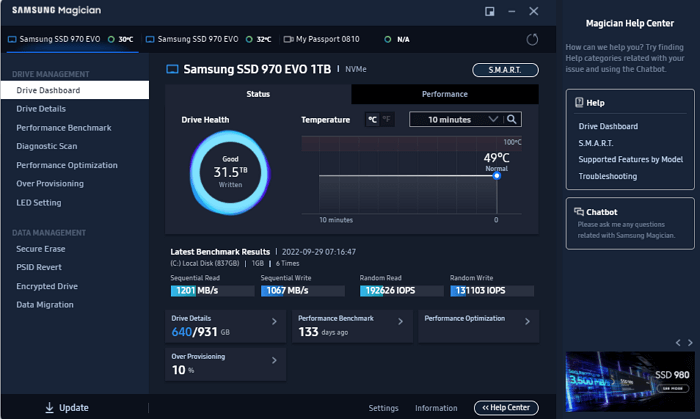
Samsung Magician is designed to manage and monitor SSD performance. To fix slow write speed on a Samsung 990 Pro, follow the steps below.
Step 1. After downloading and installing the software from Samsung's official website, simply open it, and the software will automatically detect your SSD and its details.
Step 2. On the left side, categories such as Details, Performance Baseline, Diagnostic Scans, Reserve Space, and Performance Optimization are shown, allowing users to improve the health and performance of their Samsung 990 Pro SSD. (Note: The image provided is an example of a Samsung SSD 970, not 990 Pro.)
However, this method only works for Samsung SSDs, so if your SSD is from another brand, go to Fix 1. By the way, if these fixes help remove your problem, share this article to help other users facing this issue.
Fix 6. Select a High-Performance Mode
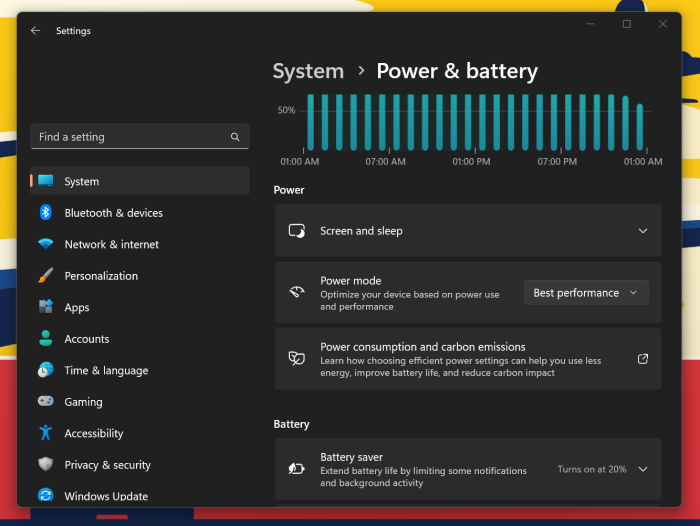
To get the most out of the Samsung 990 Pro SSD, ensure it's receiving enough power, and select a high-performance mode to utilize its full potential.
Step 1. Go to the "Start" menu and type "power."
Step 2. Select "Power and Sleep" from the menu.
Step 3. In this window, select "Additional power Settings."
Step 4. Click "Power mode" and then "Best Performance."
Here, you may also like to know:
Conclusion
The Samsung 990 Pro's superior read and write speed may decrease over time due to factors like high temperature, bugs, or insufficient space. To fix this issue, consider using Qiling Disk Master, a tool that can optimize and organize fragments on the SSD, test its health, read and write speed, and optimize performance. This is a straightforward and effective solution to get the most out of your Samsung 990 Pro.
Samsung 990 Pro Slow Write Speed FAQs
If the Samsung 990 Pro writes data slowly, the following FAQs can help you understand possible causes and choose the right fix.
1. Why is Samsung 980/990 Pro so slow?
The Samsung 990/980 Pro can slow down due to various reasons such as insufficient storage space, malware, bugs, hardware issues, file fragmentation, and incorrect system configuration.
2. What is the write speed of the Samsung 990 Pro?
The Samsung 990 Pro has impressive read and write speeds, with sequential read speeds reaching up to 7450 MB/s and sequential write speeds reaching up to 6900 MB/s.
3. How to fix Samsung NVMe SSD slow issue?
Samsung Magician can improve the performance of Samsung SSDs with features such as Performance Baseline, Diagnostic Scans, Reserve Space, and Performance Optimization.
Related Articles
- Tutorial: Install a New Hard Drive on Windows 11 Safely
- Low Level Format Tool Download, 2024 Review [Pros & Cons]
- Troubleshooting: M.2 SSD Not Showing Up in Windows 11
- How to Extend C Drive Space in Windows 11 [2024 Tutorial]
- How to Resize Encrypted Partition in Windows 10/11 [Step-by-Step Guide]
If you need to resize an encrypted partition in Windows 10/11, there are two efficient ways to do so. Alternatively, you can use a professional tool to easily decrypt and resize the partition. - Resize Partition Under Windows 7 (32 Bit and 64 Bit)
Qiling free partition magic for Windows 7 works flawlessly to resize/move/merge/split partitions in Windows 7 (32 bit and 64 bit). Qiling Partition Master is a magic partition tool for Windows 7 which offers complete Windows 7 disk management solution.
Products
Articles & Tutorials
- Data Recovery
- Data Backup
- File Recovery
- File Backup
- System Backup and Restore
- Disk and Partition Clone
- Technical articles
- Mobile articles
- Disk Master Help
- Windows Data Recovery Tutorials
- Windows Secure Delete Tutorials
- Windows Partition Management Tutorials
- Windows File Backup and Restore Tutorials
- Windows System Backup and Restore Tutorials
- Windows Disk Backup and Restore Tutorials
- Windows Clone Tutorials