Solve Toshiba SSD Slow Write Speed
Toshiba SSDs generally outperform HDDs in terms of speed, but users may still encounter issues, such as slow read/write speeds, similar to other storage drives.
The Toshiba SSD slow write speed issue can be addressed through various methods. One approach is to update the firmware to the latest version, as this can often resolve compatibility issues and improve performance. Additionally, checking for and resolving any disk errors using built-in tools like the Toshiba SSD's own diagnostic software or a third-party utility like CrystalDiskInfo can also help.
Why Toshiba SSD Slow Write Speed?
The slow write speeds on Toshiba SSDs can be caused by various reasons. Before finding solutions, it's essential to understand the possible culprits behind this issue. Some of the reasons that might be contributing to your slow SSD write speed include.
- Incorrect or incompatible ports
- Low disk space
- Damaged SSD
- High temperature
- Firmware issues
- Background tasks
- Defragmentation
- Age of disk
- Damage or lose SATA connectivity
To improve the write speed of your SSD, you can consider upgrading to a faster SSD, such as an NVMe SSD, or using a solid-state drive with a higher write speed rating. Additionally, you can also consider using a caching solution, such as a RAM drive, to offload frequently accessed data from your SSD.
How to Monitor Toshiba SSD Slow Write Speed?
If you're not familiar with CMD commands or find them dull, you can use third-party software to test the writing speed of your Toshiba SSD. A more user-friendly and effective solution is Qiling Disk Master, which offers advanced features like Disk Mark to monitor and resolve slow SSD write/read speed issues. This program provides accurate and detailed results, making it a better option than other disk monitoring software.
Qiling Disk Master is a user-friendly tool that makes it easy to monitor and manage slow SSD drives, even for those who are new to the process. With its painless functionality and intuitive interface, users can quickly track their SSD write speed and take necessary steps to optimize their performance. By downloading the advanced version of the tool, users can follow simple steps to get started and enjoy improved SSD performance.
Step 1. Launch Qiling Disk Master. Click the download button to activate the "Surface test" feature under the "Disk management" tab page.
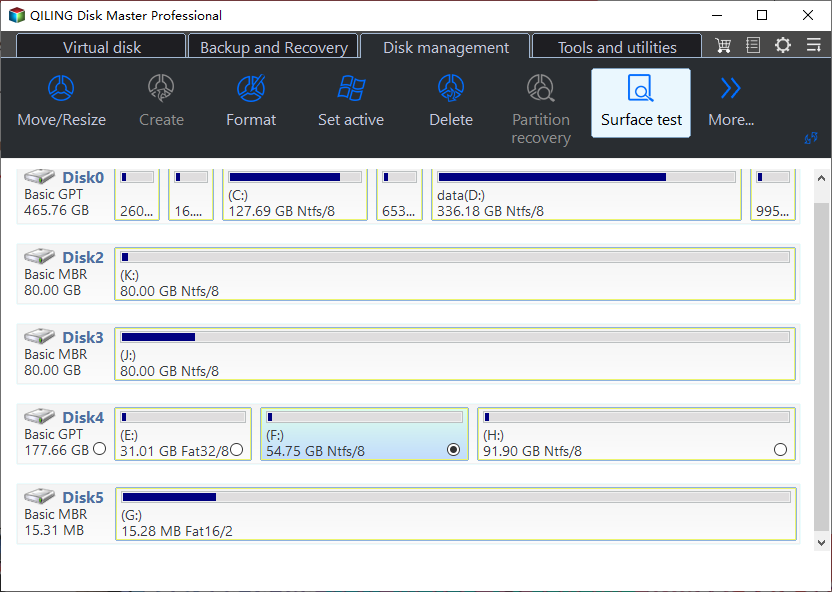
Step 2. To select the target drive, test data, and block size, click on the drop-down box and choose the desired options from the list.
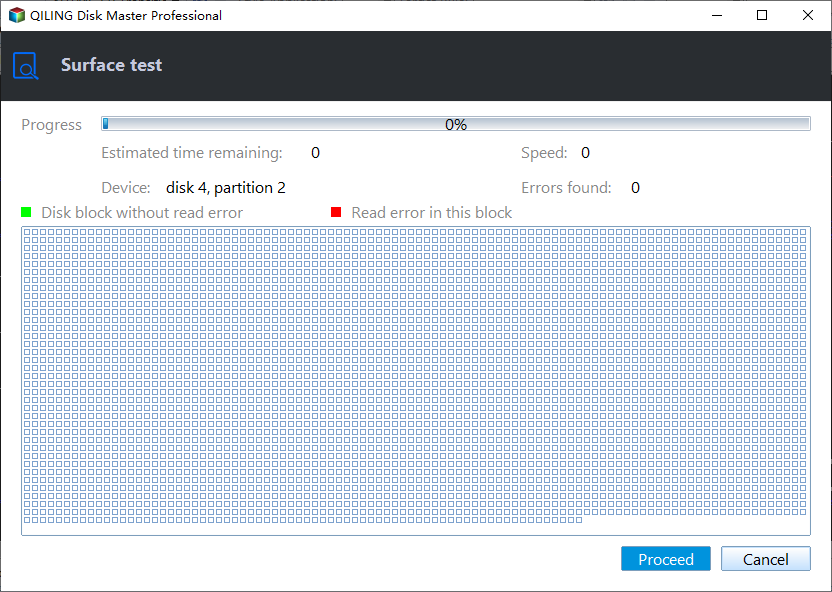
Step 3. Once everything is configured, click "Proceed" to begin the disk test, which will display sequential read speed, I/O, and Delay data.

If the guide above is hard for you to operate, you can watch and learn more details in the video below:
How to Fix Toshiba SSD Slow Write Speed - 6 Fixes
Now that you know how to monitor your Toshiba SSD, let's tackle the issue of slow write speed. To enhance your drive's performance, consider these six solutions.
Fix 1. Check Toshiba SSD Health
If your Toshiba SSD has health issues, it may slow down its write speed. To diagnose and resolve this, you can use the disk health check feature of Qiling Disk Master. This tool effectively checks the health of your drives and provides a clear health status, allowing you to monitor and repair issues such as corrupted drives, slow read and write speed, and more.
Step 1. Launch Qiling Disk Master, click the blue arrow to activate the "Disk Health" feature under the "Tools and utilities" tab page.

Step 2. To check the health condition of your disk, select the target disk and click the "Refresh" button. This will display the health status of your disk.

If you encounter any problems, you can use Qiling Disk Master for a one-stop solution service.
Fix 2. Align Toshiba SSD
If checking Toshiba SSD health doesn't work for you, try aligning it using the 4K alignment functionality of Qiling Disk Master to maximize write speed and speed up performance, which can also optimize your SSD and remove duplicate and junk files in a few clicks. 4K alignment can be done by following the steps provided.
Step 1. Go to "Disk management" and choose "4K Alignment".
Step 2. Select the disk you want to align, then click "Proceed".
Fix 3. Turn Off Windows Write-Cache Buffer Flushing
Turning off Windows Write-Here are the steps to follow to fix the slow SSD write speed issue using cache buffer flushing:
Note: Back up your data on an external drive to prevent unexpected data loss.
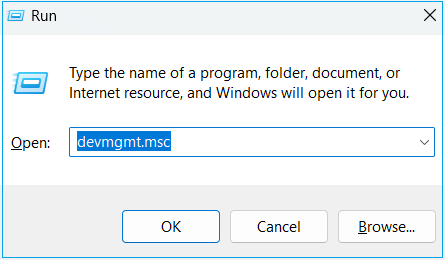
Step 1. Press Windows + R keys, type devmgmt.msc, and click OK.
Step 2. Find the Disk drives option and double-click it.
Step 3. If you have multiple drives connected to your computer, select your Toshiba SSD and right-click on it.
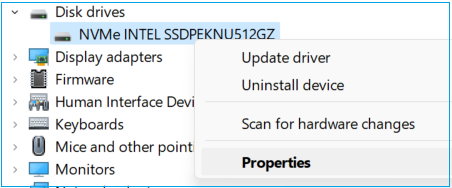
Step 4. To access the Policies option in the Properties menu, click on Properties, and then select Policies from the menu bar.
Step 5. Checkmark the Enable write caching on the device box.
Step 6. To disable Windows write-cache buffer flushing on a device, click the Turn off Windows write-cache buffer flushing on the device checkbox and then hit the OK button.

Step 7. Select Yes to reboot your PC to save changes.
Fix 4. Free Up Space
SSDs like Toshiba's often have limited storage space and can quickly become full, making it essential to regularly remove temporary files and content to maintain optimal performance. To free up space, we recommend using Qiling Disk Master, a tool that offers multiple options to wipe data and junk files with just a few clicks, helping to keep your SSD running smoothly.
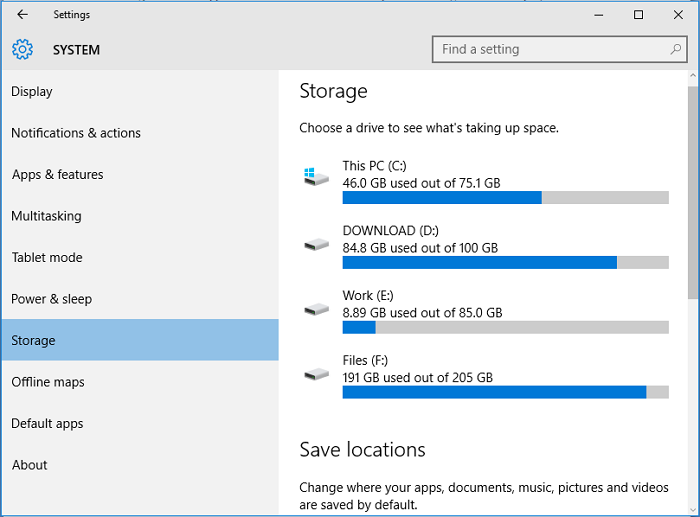
To free up hard drive space in Windows 10/11, start by deleting unnecessary files and programs, then use the Disk Cleanup tool to remove temporary files, system logs, and other items you don't need. Next, check for and uninstall any unused programs, and consider upgrading to a solid-state drive (SSD) for faster performance.
To free up hard drive space in Windows 10/11, consider implementing various strategies. Start by deleting temporary files and system logs, and then empty the Recycle Bin. Next, uninstall any unused applications and remove any unnecessary system updates.
Fix 5. Update the Firmware of the SSD
Step 1. Press Windows + R keys, type devmgmt.msc, and hit Enter.
Step 2. Find the Disk drives option and double-click it.
Step 3. Right-click your Toshiba SSD and select Properties.
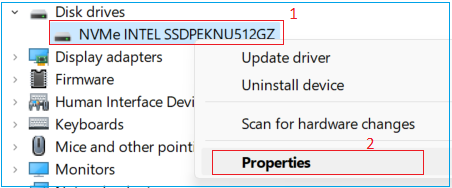
Step 4. To view the hardware details, click on the "Details" tab and select "Hardware IDs" from the menu bar.
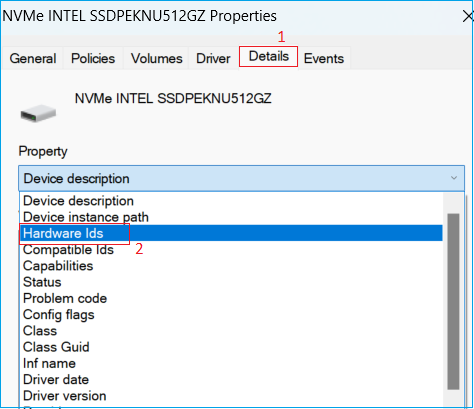
Step 5. The firmware revision listed at the end of the SSD part number should be checked and updated to the latest available version to ensure optimal performance and reliability. This involves accessing the SSD's firmware update tool, checking for any available updates, and following the instructions to download and install the latest firmware revision.
Fix 6. Check SATA Port and Cable
Check your SATA cable and port for any damage or loose connections, and replace the cable if necessary to ensure a stable and fast connection for your SSD.
You May Also Like the following:
Conclusion
The article provides six practical fixes to solve the Toshiba SSD slow write speed issue, and we recommend trying Qiling Disk Master, a one-stop solution for all disk management needs, to help resolve the problem.
FAQs About Toshiba SSD Slow Write Speed
We hope your slow SSD write speed issue is solved. If you have any questions about the topic, follow this FAQ section to find answers.
1. Why is my Toshiba running so slow?
Toshiba drives may run slowly due to insufficient space, outdated firmware or drivers, a failing hard drive, or a fragmented hard drive. To resolve this, run a disk check and defragmentation, delete unnecessary files, and regularly update firmware and drivers.
2. How can I speed up my Toshiba hard drive?
To speed up your Toshiba hard drive, consider checking its health using third-party software, freeing up space by deleting unnecessary files and programs, and keeping your Windows operating system and drivers up-to-date. This can help optimize your drive's performance.
3. How fast is KXG50ZNV256G Toshiba?
It is a new line NVMe (Non-The SSD is designed for high-speed data transfer and delivers exceptional performance, boasting read speeds of up to 3000MB/s and write speeds of up to 2100MB/s. It is suitable for use on both laptops and desktop computers, making it a versatile option for those who require fast data transfer capabilities.
Related Articles
- 7 + Fixes: Missing Operating System or Operating System Not Found
- How to Clone 2TB HDD to 1TB SSD in Windows 11/10/8/7? Your Guide Is Here
- Home Office Setup: Setting Up Home Office for Remote Work
- How to: Extend System Partition on Windows 10 [Safely and Quickly]
Learn how to extend system partition on Windows 10 easily and safely, thus you can fix Low Disk Space warning or app responding slow issue effectively. - ASUS Laptop Slow in Windows 11/10? 7 Effective Fixes!
If your brand new ASUS laptop is running slow on Windows 11/10, this post provides effective solutions to fix the problem. The methods provided can be applied to various ASUS models, including the a53u, i7, x541u lento, x102b, and more. - 2 Effective Ways to Fix Asus Recovery Partition Missing Problem
If you've deleted the Asus recovery partition or it's missing. You can recover or recreate it using a professional partition recovery tool or manually create a new recovery partition.
Products
Articles & Tutorials
- Data Recovery
- Data Backup
- File Recovery
- File Backup
- System Backup and Restore
- Disk and Partition Clone
- Technical articles
- Mobile articles
- Disk Master Help
- Windows Data Recovery Tutorials
- Windows Secure Delete Tutorials
- Windows Partition Management Tutorials
- Windows File Backup and Restore Tutorials
- Windows System Backup and Restore Tutorials
- Windows Disk Backup and Restore Tutorials
- Windows Clone Tutorials