How to Fix SanDisk SSD Slow Error
If you're experiencing slow issues with your SanDisk SSD, despite its reputation for being superfast, you're not alone. Even with a trusted brand like SanDisk, some users may still encounter performance problems. To get to the bottom of the issue, consider checking for software or driver updates, running a disk cleanup, and ensuring your SSD is properly configured in your system settings.
Don't worry about the SanDisk SSD slow error, as this article provides simple and practical solutions to help you get the best speeds out of your SSD.
Why SanDisk SSD Slow Appears
The SanDisk SSD slowdown can be attributed to various hardware and software issues. However, due to the difficulty of resolving hardware problems, the most practical solution is to purchase a new SSD.
If the SanDisk SSD is slowing down, you can try to fix the issue by identifying and addressing the root cause. Possible causes include a full disk, corrupted files, or a faulty hardware component. Once the issue is identified, you can take steps to resolve it, such as deleting unnecessary files, running disk cleanup tools, or replacing a faulty component.
- The ports you're using are incompatible or incorrect.
- Limited available SSD disk space.
- PC or SSD firmware issues.
- Hibernation is enabled.
To determine and fix SSD slow error, you can use a SSD benchmark tool to test the speed of your SSD, and then proceed to the next section to learn how to fix the issue after identifying the possible cause.
How to Fix SanDisk SSD Slow - 5 Fixes
Unfortunately, it seems there's no direct solution to improve SanDisk SSD's performance. However, you can try the following general tips to potentially boost your system's overall performance:
- 1. Disable Hibernation
- 2. Align SanDisk SSD Partition
- 3. Make SATA Controller Runs in AHCI Mode
- 4. Securely Erase SanDisk SSD
- 5. Check SanDisk SSD Port
Look at the step-by-step guides to fix your SanDisk SSD slow error:
1. Disable Hibernation
Hibernate, also known as Sleep Mode, is beneficial for HDDs as it allows them to quickly load applications, outperforming system boot times. However, for SSDs, their already sufficient boot speed and time render Hibernate unnecessary.
The "Hiberfil.sys" file consumes a lot of space and RAM resources, making it preferable to disable the hibernation option to free up disk space and improve SanDisk SSD performance.
Follow the steps given below to disable "Hibernation" on your PC:
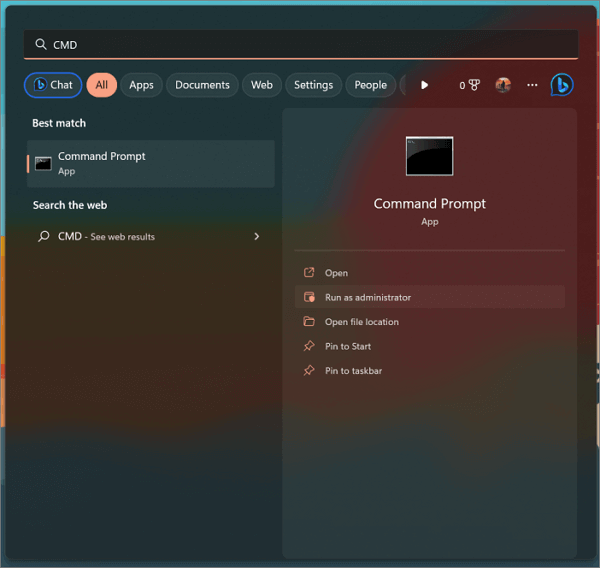
Step 1. Press the "Start" button and type cmd. Make sure you run the command prompt as an administrator.
Step 2. Type the following command - powercfg.exe/hibernate off and press the "Enter" key.
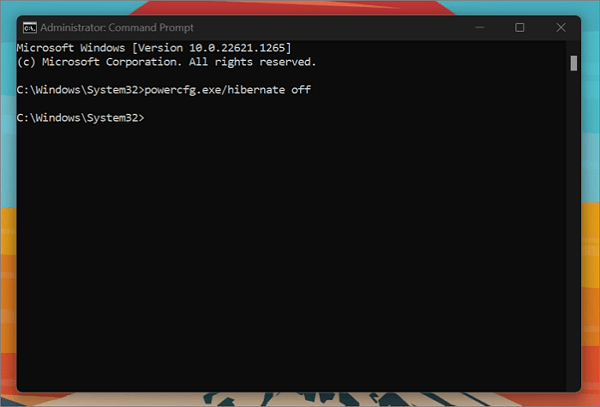
Disabling hibernation allows your SSD to run without slowdowns or speed issues.
2. Align SanDisk SSD Partition
4K alignment allows SSDs to read and write data at the fastest possible speed, best for maintaining performance, and can be optimized using a secure third-party partition tool like Qiling Disk Master.
To use the software, simply launch it and select the drive you want to clean up. Then, click on the "SSD 4K alignment" feature to clean up junk files, optimize the disk, and remove large files. This will help to improve the performance of your system by freeing up space and reducing clutter.
Step 1. Go to "Disk management" and choose "4K Alignment".
Step 2. Select the disk you want to align, then click the "Proceed" button.
Your SSD has been successfully aligned and optimized, and you can take it a step further by using Qiling Disk Master's built-in feature to remove unnecessary files and free up more disk space, ultimately boosting performance even more.
3. Make SATA Controller Runs in AHCI Mode
SanDisk's solid-Enabling AHCI mode on a state drive allows it to maintain its high performance, as disabling it can cause the SSD to operate and respond slowly. It is thus recommended to switch the SSD from IDE to AHCI mode.
Follow the below-given steps to enable AHCI mode:
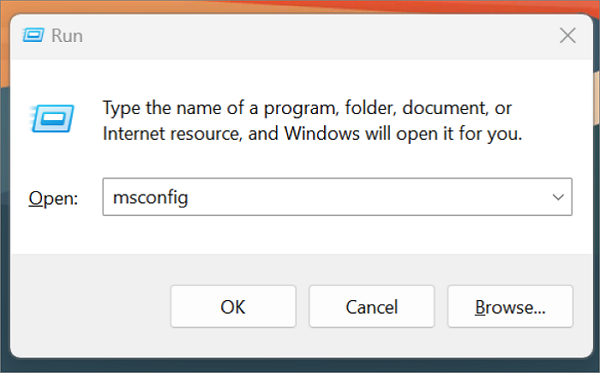
Step 1. Press the Windows key + R to open the Run dialog, type msconfig, and press Enter.
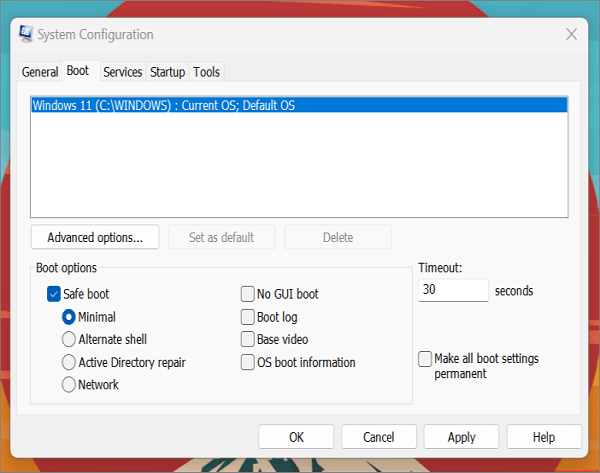
Step 2. Select the "Safe Boot" option and click "OK" under the "Boot" tab.
Step 3. To resolve the issue, repeatedly press the "F2" or "DEL" keys to enter the BIOS settings. Change the SATA mode from "SATA" to "AHCI" and save the changes. Exit the BIOS settings and restart your computer. The changes will take effect after the reboot.
Step 4. Windows will start normally. Restart your computer, then type msconfig and untick the "Safe Boot" option under the "Boot" tab.
This configuration ensures the SATA controller operates in AHCI mode, providing the best performance for SSDs. Running an SSD performance test can confirm the effectiveness of this method.
4. Securely Erase SanDisk SSD
If you're still experiencing slow performance from your SanDisk SSD, consider erasing all data on the drive. This can be done using the Secure Erase technique, which involves a series of commands to completely wipe the drive. This method can potentially improve the SSD's performance.
Qiling Disk Master simplifies the command line process and securely erases data without damaging the SSD, making it easy for novices to clean up their SSD.
If your SanDisk SSD is infected with malware or a virus, or if you want to completely erase all data on it, you can use the SanDisk SSD Dashboard to securely erase the drive. This method will completely delete all data, making it beneficial for infected drives. To do this, download and install the SanDisk SSD Dashboard, launch it, and follow the on-screen instructions to erase the drive.
Step 1. Run Qiling Disk Master. Click the "Wipe Disk" tab.
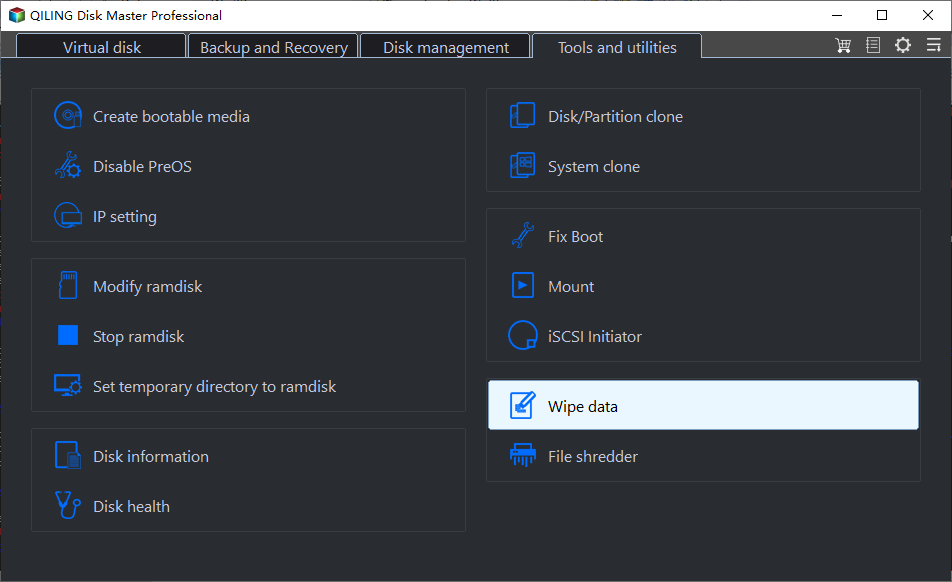
Step 2. Select the targeted HDD or SSD to wipe.
Notice: Make sure you've selected the correct storage device before initiating the wipe process, as the data will be irrecoverable once the wiping starts.
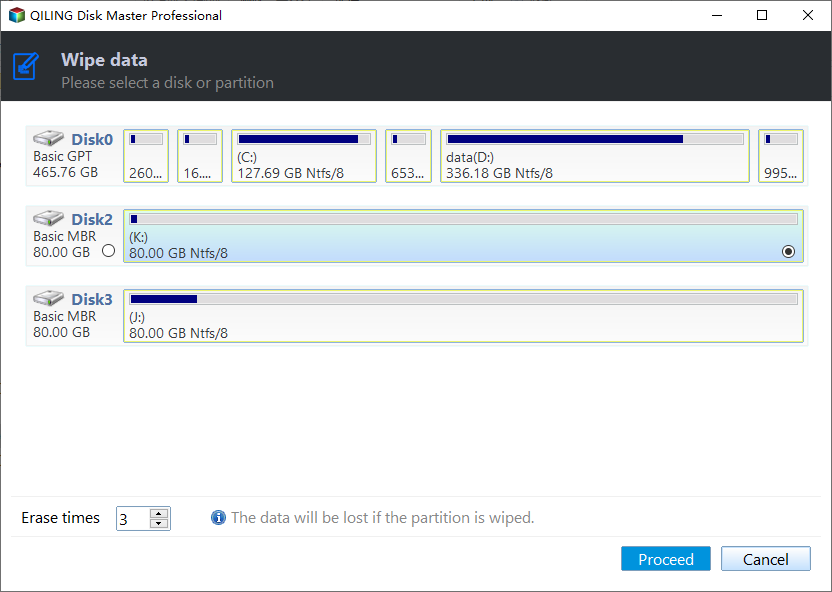
Step 3. Choose Wiping Method and click "Proceed".
Choose a suitable wiping method. Recommend Qiling Secure Erase!
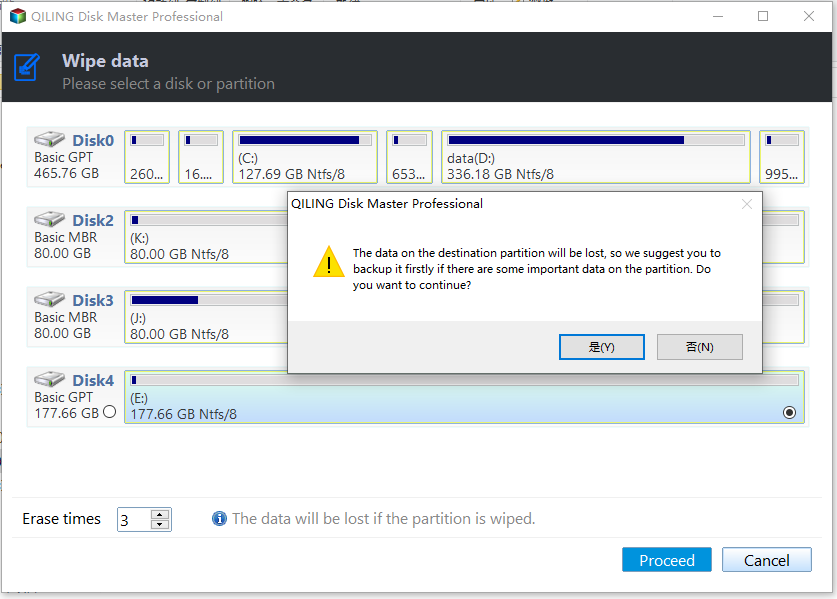
Step 4. Check the warning message and click "Wipe" to confirm.
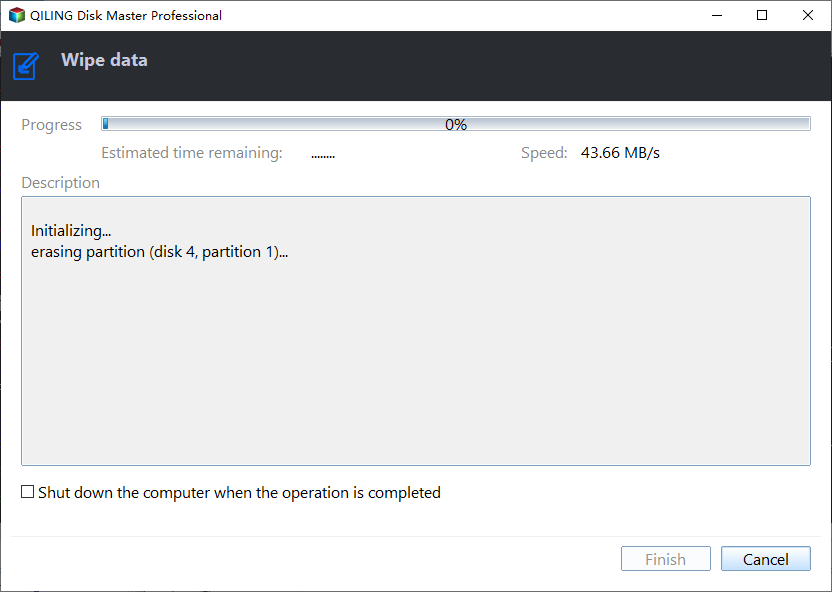
Step 5. Wait for wiping finish and click "Done".
5. Check SanDisk SSD Port
The port on your computer should be compatible with your SSD to ensure optimal performance. A USB-C, Thunderbolt, or USB-A 3.2 Gen 2 port is recommended for the fastest speeds, while NVME and M.2 SSDs require specific ports. Using a USB 2.0 or older port will result in slower data transfer speeds.
To prevent connection loss issues while using the SanDisk SSD, ensure the port and cable you use are in working order. This includes checking the integrity of the port and cable, and verifying that they are compatible with the SSD.
Conclusion
If your electronic device's SSD becomes slow after extended use, it's often due to exhausted storage space or misaligned partition. In such cases, Qiling Disk Master is the ideal solution, capable of addressing both issues effectively.
The app helps you check and optimize your SSD for the best performance, and also provides guidance on fixing slow speed issues and restoring performance.
We have more excellent content about SSD slow write speed that you might be interested in. Click the links below to get more information:
FAQs About SanDisk SSD Slow
If your questions still haven't been answered, to get them resolved as well, look over these FAQs.
1. Is SanDisk SSD fast?
SanDisk SSDs are among the best external SSDs, offering read and write speeds of 500-2000 MB/s for quick transfers, making them ideal for editing and saving high-resolution photos and videos.
2. Why my SanDisk SSD is not working?
If your SanDisk SSD isn't functioning, there could be several reasons such as hardware damage or software issues, outdated device drivers, uninitialized SSD, lack of SSD space, hibernation mode, or a corrupted file system, which can limit its performance. Regularly monitoring your SSD's health can help prevent these issues and keep it running efficiently.
3. How long does SanDisk SSD last?
SSDs are highly reliable due to their lack of moving parts, with most lasting 5+ years and some exceeding 10 years. However, the lifespan of an SSD can be influenced by how frequently data is written to the flash memory.
Related Articles
- Fix: Windows 10 Update Stuck Checking for Updates
- How to Fix MacBook Pro Screen Goes Black and Unresponsive [7 Practical Ways]
- 6 Solutions to Mac Recovery Mode Not Working [2023 Guide]
- 3 Ways | How to Enable and Disable Offline Files in Windows 10
- Hades 2 Save File Location & Config File Location on PC/Steam/Xbox
If you're having trouble finding your Hades 2 save file location, this article is for you. we will guide you through different methods to locate your game saves and config files on PC, Steam, or Xbox, including how to back up your game saves using Qiling Disk Master. - Top 8 Hard Drive Temperature Monitor Software for Windows [Pros & Cons]
Tracking hard disk temperature helps users take the right action. If overheating disk issues persist, users can use any of the hard drive temperature monitor software listed to take corrective measures.
Products
Articles & Tutorials
- Data Recovery
- Data Backup
- File Recovery
- File Backup
- System Backup and Restore
- Disk and Partition Clone
- Technical articles
- Mobile articles
- Disk Master Help
- Windows Data Recovery Tutorials
- Windows Secure Delete Tutorials
- Windows Partition Management Tutorials
- Windows File Backup and Restore Tutorials
- Windows System Backup and Restore Tutorials
- Windows Disk Backup and Restore Tutorials
- Windows Clone Tutorials