6 Solutions to Mac Recovery Mode Not Working [2023 Guide]
Using Command + R, your Mac may enter Recovery Mode and perform various tasks such as reinstalling macOS, changing the admin password, formatting the hard drive, factory resetting Mac, and more.
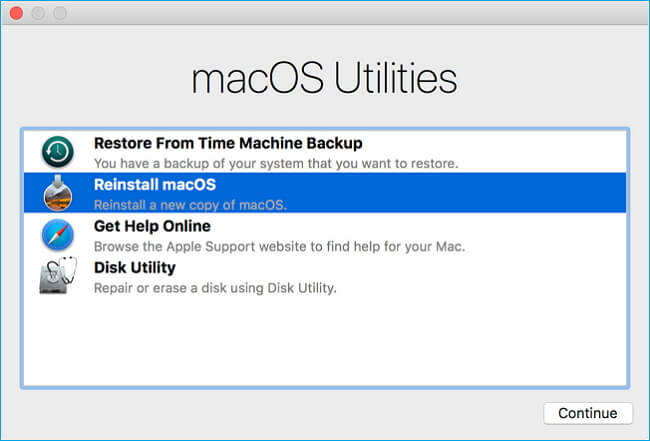
If your Mac Recovery Mode is not working, you may see a standard login window or a blank screen instead of the "macOS Utilities" window, or you may be unable to enter the Mac Recovery Mode through your keyboard or mouse, or you may have an issue with your admin password. This can be frustrating, especially if you're trying to troubleshoot an issue with your Mac.
Why Is Mac Recovery Mode Not Working
To activate Mac Recovery Mode, you need to press and hold the Power button until the Mac turns off, then press and hold the Power button again until you hear the boot chimes or see the Apple logo. If you're unable to activate Mac Recovery Mode, it's likely because the Mac is not shutting down properly, or the Power button is not functioning correctly.
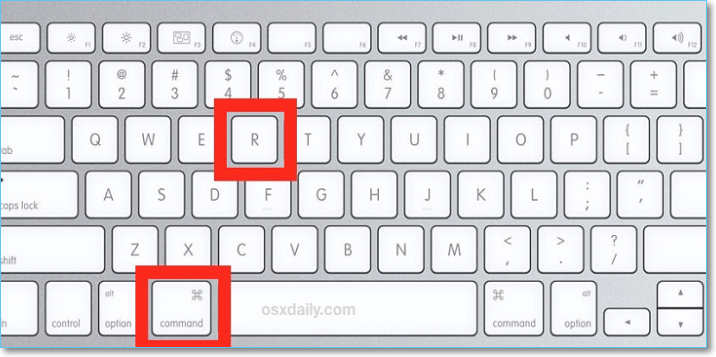
- Step 1. Press and hold the Power button, then immediately hold down the "Command + R" keys.
- Step 2. When you first turn on your Mac, let go of the keys when you see the Apple logo on the screen, indicating the login screen is about to appear.
- Step 3. Then, type the password.
- Step 4. If the macOS Utilities appeared, you successfully accessed Mac Recovery Mode.
When the Mac Recovery Mode and "Command + R" still do not work, even after carefully following the instructions, it's possible that there are some issues with your Mac device. To troubleshoot, you can check for any problems with your Mac device.
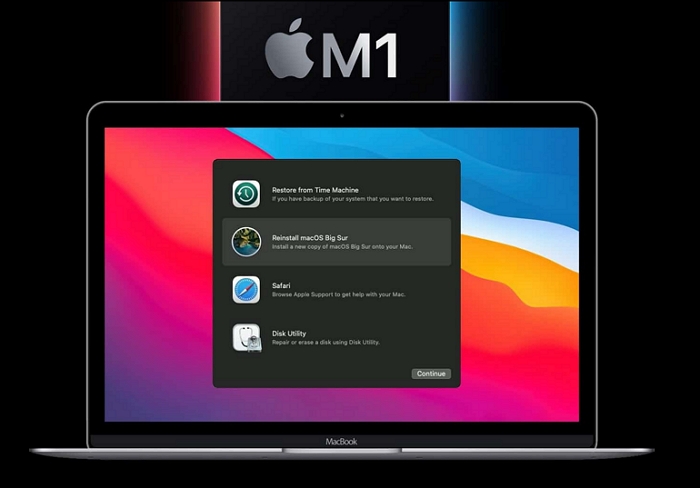
Reason 1. New ways for M1 Mac to launch Recovery Mode.
To enter the M1 Mac Recovery Mode, you can't use the same method as Intel Macs. Instead, you can force restart your M1 Mac and immediately hold down the power button until the Recovery Mode screen appears, or you can use the Command + R keys. This will allow you to access the Recovery Mode on your M1 Mac.
Reason 2. The keyboard might be faulty
If you're using a Bluetooth keyboard, it's possible the keyboard isn't connected to your Mac, or it's defective, making it impossible to access the Mac Recovery Mode by pressing "Command + R".
Reason 3. Mac Recovery Mode not working because of the old macOS version
If your Mac is old and running Mac OS X Snow Leopard or an earlier version, it won't have a recovery partition. As a result, you can't access Recovery Mode by pressing "Command + R".
Reason 4. The recovery partition is missing or damaged
Your recovery partition may have been damaged due to misuse or accidentally erased when changing your hard drive, leading to a corrupted partition that prevents your Mac from running in Recovery Mode as usual.
Recover Data from a Mac with a Failed Recovery Mode
Mac users may experience issues with Recovery Mode not working, which can be a sign of an operating system failure, potentially leading to permanent data loss.
The Mac Recovery Mode not working issue can be caused by various reasons, and a problem with your Mac can lead to data loss. To prevent data loss, you should be aware of your data security, especially when experiencing issues with launching Recovery Mode.
Deep Data Recovery for Mac is a safe and exclusive software that helps users recover permanently deleted files on Mac, with a user-friendly interface that makes file recovery straightforward even for beginners.
Deep Data Recovery for Mac
- Recover lost or deleted files, documents, photos, audio, music, and emails with ease using data recovery software, which can scan storage devices, memory cards, and other media to locate and restore lost data, even from formatted or corrupted drives, and provide a high chance of successful recovery with minimal technical expertise required.
- Recover files from formatted hard drives, emptied Trash Bins, flash drives, and digital cameras with ease.
- Data recovery support is available for various unexpected events, including sudden deletion, formatting, hard drive corruption, virus attacks, and system crashes, providing a solution for users to recover their lost data under different situations.
To resolve data loss issues after failing to access Mac Recovery Mode, you can try booting your Mac in Safe Mode, using the built-in Disk Utility to repair your startup disk, or running a third-party disk recovery software. If these methods fail, you can try booting from a macOS installation media and running the Disk Utility from there.
Step 1. Select file types and click "Fast Scan" to start
Launch Deep Data Recovery on your Windows computer. Select the desired file types and click "Fast Scan" to initiate the recovery process.

Note: You can choose different search modes based on where and why the data was lost.
Step 2. Select the location and scan
Select the disk where the lost data is located, then click the "Scan" button to initiate the scanning process.

Step 3. Filter and preview lost files
After scanning, use the file format filter to locate the deleted files you need.

Step 4. Recover lost data or files
You can double-Click a file to preview its content, or choose multiple files to recover them at once. Click "Recover" to restore the lost data to a local or cloud drive.
Before attempting to repair the issue with Mac Recovery Mode not working, make sure your data and files are in a secure location, as the troubleshooting process may require restarting your Mac. Once secure, you can try the following 6 methods to resolve the issue.
6 Ways to Solve Mac Recovery Mode Not Working
If your Mac's Command + R key combination is not working, don't panic! There are several solutions to resolve this issue.
Solution 1. Ensure using the correct Recovery command on an M1 Mac
To launch Recovery mode on an M1 Mac, follow these steps:
Step 1. Shut down the Mac.
Step 2. Keep Pressing the power button.
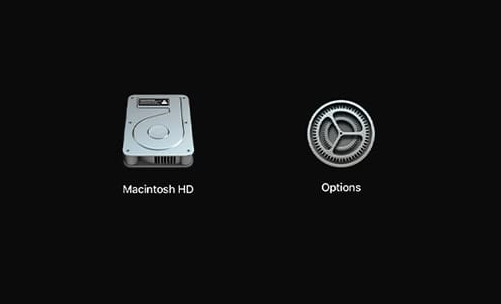
Step 3. When the Apple logo appears, you can select to access startup options after a message on the screen.
Step 4. You can choose Options > Continue, which can successfully launch Mac Recovery Mode at some point.
Solution 2. Check and alter your keyboard
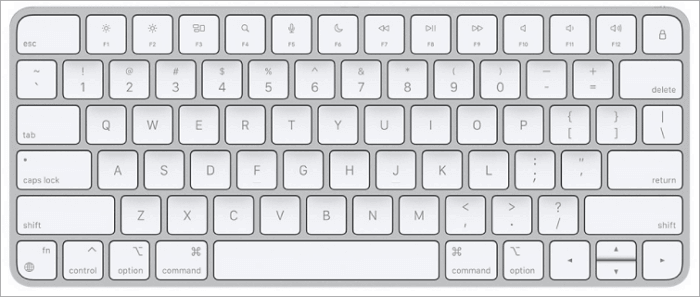
If Command + R isn't working on your Mac, ensure the keyboard isn't faulty. This is often the simplest solution to the problem, as a faulty keyboard can cause a range of issues, including the Command + R key not functioning as expected.
To troubleshoot the issue, unplug the current keyboard and plug in a different one to rule out any keyboard-related problems, then try to open Mac Recovery Mode to test the procedure.
If everything returns to normal once the keyboard is replaced, the issue was likely caused by the broken keyboard. A new keyboard should be installed to resolve the problem.
Solution 3. Use a bootable installer to reinstall macOS
The Recovery partition first appeared in 2011 and may not be available on older Macs running Snow Leopard or earlier versions.
To resolve the issue, install macOS from a USB drive, create a bootable installer, and use it to reinstall macOS on your Mac. Then, go to the Mac App Store to update to the latest macOS version.
Step 1. Select the USB drive to reinstall macOS.
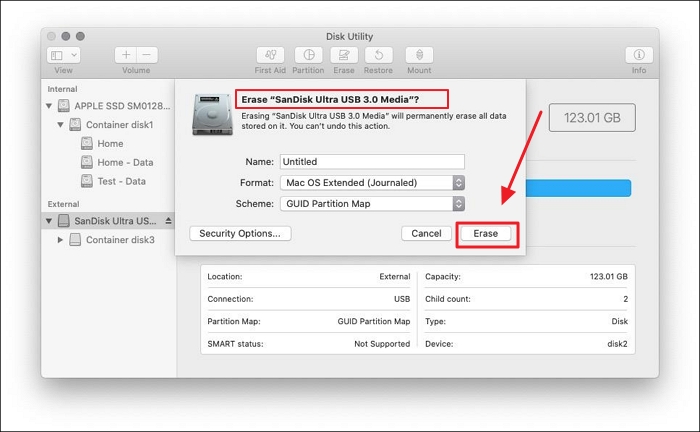
Step 2. Format the USB drive and prepare to install the program.
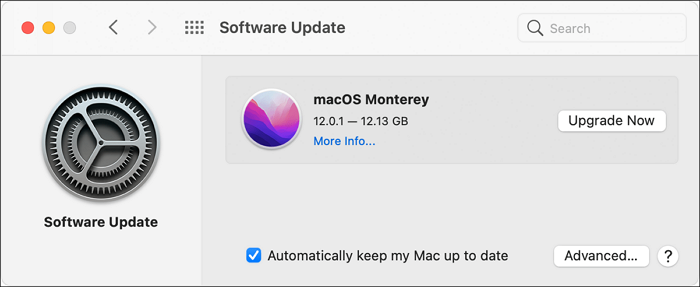
Step 3. The macOS installer can be downloaded from System Preference - Software Update to a USB drive.
Step 4. Create a bootable USB disk by Terminal Command.
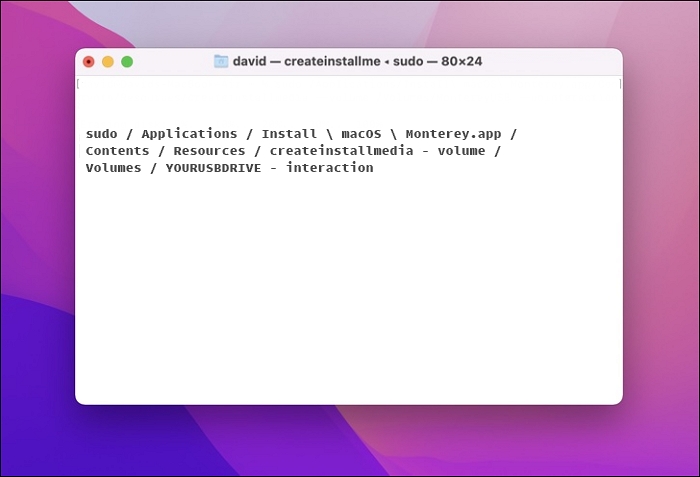
Step 5. Enter your admin password.
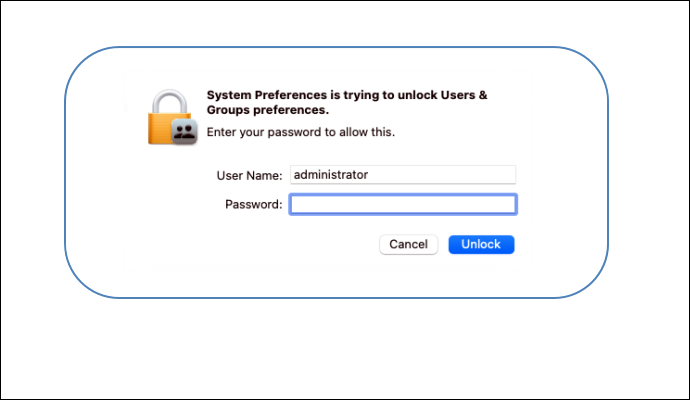
Step 6. To test whether your new macOS installation is working properly, boot your Mac from a USB drive after reinstalling the operating system. If the Mac Recovery Mode is functioning as expected, you should be able to successfully boot from the USB drive. This is a good way to verify that your installation was successful.
Solution 4. Use Internet Recovery Mode
Mac Internet Recovery Mode loads recovery choices from Apple's servers over the Internet, allowing you to fix issues by accessing recovery options remotely.
Step 1. To restart your Mac, hold down the "Command-Option/Alt-R" or "Shift-Option-Command-R" keys while clicking the Apple menu and selecting "Restart". This will initiate a fresh boot, clearing any cache and temporary files that may be causing issues.
Step 2. After seeing a globe pattern and the message "Starting Internet Recovery," release the keys.
Step 3. The screen will display the macOS Utility window after loading.

You can restore your Mac using Mac Internet Recovery, which allows you to reinstall the operating system. After doing so, use Disk Utility to check for any disk issues, effectively troubleshooting and fixing any problems with your Mac's storage.
Solution 5. Reset SMC
If your Mac's Recovery Mode isn't working, resetting the System Management Controller (SMC) might be a helpful solution. The SMC controls features such as temperature and battery management, so resetting it could potentially resolve the issue.
Step 1. Press the power button while simultaneously holding the Shift, Control, and Option keys.

Step 2. Release all of the keys after 10 seconds.
Step 3. Turn on your MacBook
Solution 6. Reset NVRAM/PRAM
PRAM and NVRAM save settings like system volume and the startup-disc option.
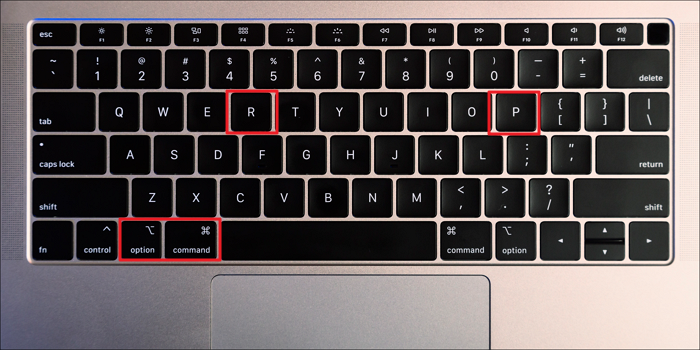
To resolve the issue with your Mac Recovery Mode not working, you can try resetting the PRAM/NVRAM by pressing the keys Command + Option + P + R simultaneously at startup. This can help resolve the problem and allow you to access Recovery Mode.
To Wrap It up
After trying the above 6 solutions to fix your Recovery Mode, you can restore your data without losing it. It's essential to back up your data or restore it as soon as possible to ensure its safety. Deep Data Recovery for Mac can be a helpful tool in this process.
Mac Recovery Mode Not Working FAQs
If Mac Recovery Mode is not working, what can you do? First, make sure the Mac is properly shut down and then press the power button to turn it on.
1. What happens when Recovery Mode doesn't work?
Instead of the macOS Utilities window, you will get the standard login window, black, or just a blank screen if your Mac Recovery Mode doesn't work. You can use the troubleshooting methods on practically all Mac devices.
2. What to do if Command + R isn't working?
If your Command + R doesn't work, you can try to refresh the page by pressing Command + Shift + R instead. This will reload the page and might resolve the issue.
- Check and alter your keyboard
- Reinstall macOS
- Use Internet Recovery Mode
3. What do you do when your Mac doesn't go into recovery mode?
You might have trouble getting Mac to go into Recovery Mode, then you can try using a different method to reset it, such as using a bootable USB drive or reinstalling the operating system.
- Check keyboard connections
- Boot Mac in Safe Mode.
- Use a Bootable Installer to reinstall macOS.
4. Will Command + R wipe my Mac?
The keys won't erase anything, but instead, they'll boot the device into Recovery Mode during a restart.
Related Articles
- Hard Drive Not Spinning? Causes and Fixes Here!
- How to Restore Missing Downloaded Files Steam
- Fix 'Startup Repair cannot repair this computer automatically' in Windows 10/8/7/Vista
- [3 Ways] How to Backup Wireless Network Profile
- How to Recover Browser/Internet History?
If you've lost your browser/internet history, it can be restored. Solutions are available to recover deleted or lost internet history on Chrome, Firefox, IE, and other browsers, as well as Android phones. - Recover Deleted DCIM Folder from Android
Here is the best DCIM folder recovery solution to recover deleted DCIM folder from Android phone, be it from the internal storage or memory card (SD card, xD card, microSD card, CF card). Try it to retrieve images, videos, and other files from your Android devices, cameras or Smartphones with ease.
Products
Articles & Tutorials
- Data Recovery
- Data Backup
- File Recovery
- File Backup
- System Backup and Restore
- Disk and Partition Clone
- Technical articles
- Mobile articles
- Disk Master Help
- Windows Data Recovery Tutorials
- Windows Secure Delete Tutorials
- Windows Partition Management Tutorials
- Windows File Backup and Restore Tutorials
- Windows System Backup and Restore Tutorials
- Windows Disk Backup and Restore Tutorials
- Windows Clone Tutorials