[3 Ways] How to Backup Wireless Network Profile
In today's digital age, a significant majority of the world's population relies on wifi or cellular data, which is an essential component of any device, including cell phones, laptops/computers, and iPads. Despite its widespread use, many people are unaware of the importance of wireless network profiles and their benefits. This lack of knowledge can be addressed by learning about the features and advantages of wireless network profiles, including how to make a backup, which is a crucial aspect of device management. By understanding these concepts, users can ensure a seamless and secure online experience.
What Is Wireless Network Profile
A wireless network allows devices to stay connected to the internet without the need for cables. Access points, such as routers, amplify WiFi signals, enabling devices to stay connected even when they're far from the router. This is why you can connect to a public WiFi network, such as a coffee shop's or hotel's, by selecting their network from your device's list of available connections.
When you first connect to a network, Windows creates a network profile and saves it on your computer, allowing it to automatically connect to the network using the previously selected settings.
If the wireless network you want to connect to doesn't appear in the list of available networks, it might be a non-broadcast network. You can create a profile for the network, which will allow your device to connect to it automatically.
You can add network details such as network name, security type, key, etc. in the settings of your device to connect to a specific network.
2 Practical Ways to Backup Wireless Network Profile
Backing up a wireless network's profile is necessary to restore an entire network from a single device. This information, known as a backup profile, contains the details needed to control and troubleshoot the network.
In the event of a network failure, having a backup of your profile can help you identify affected devices. This allows you to quickly recover wireless networks by copying and updating the current settings of connected devices, if necessary. You can access wireless profiles in Windows and Android through the "Programs and Features" and "Network Connection" sections, respectively, where you can view and modify default settings.
To back up a wireless network profile, you need a wireless network and an internet connection. You can use a WiFi router or laptop and install WiFi Windows Auto Backup, creating a wireless network profile and placing network information. Two practical ways to achieve this include using WiFi Windows Auto Backup or manually creating a backup by copying the necessary files, such as the wireless network profile and network information, to a safe location.
Solution 1. Backup Wireless Network Profile Using Command Prompt
You can use the netsh command in the Command Prompt tool to save and restore wireless network profiles if you know the commands you'll use. There's no need to install any other software, as many network utilities are available to download that can perform this function.
To backup the wireless network profile using the command prompt, follow these steps:
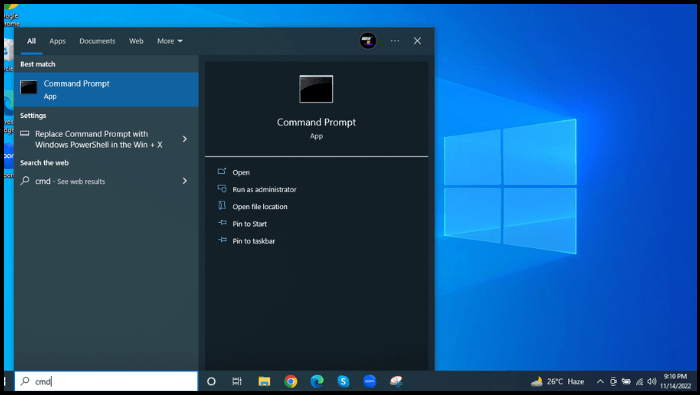
Step 1. To open Command Prompt, go to Windows Search, type "cmd", and then click on "Command Prompt" from the search results.
Step 2. To check the available wireless profiles, simply type "netsh WLAN show profiles" in the Command Prompt, and it will display the list of available profiles. If you know the name of the profile you want to connect to, you can save it by typing "netsh WLAN export profile name=profile_name" and replacing "profile_name" with the actual name of the profile.
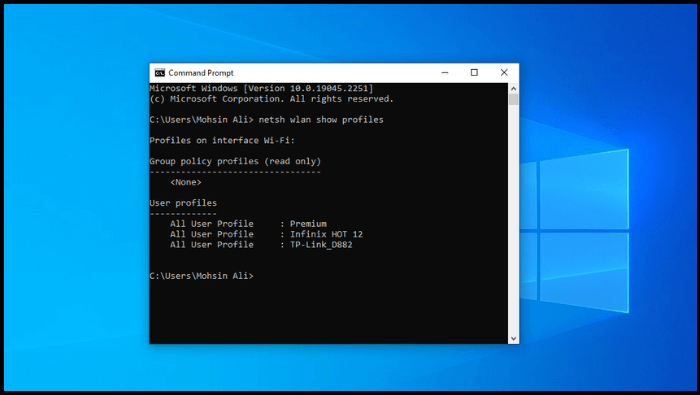
Step 3. To export all available wireless network profiles, use the command "netsh WLAN export profile key=clear folder=[folder path]" and replace [folder path] with the actual path to the desired folder on your computer, for example "C:\Users\pug19\Desktop".
Step 4. To save a Wi-Fi profile, you can use the netsh WLAN export profile command, specifying the profile name, key (set to clear), and folder path. This will save the profile as a separate .xml file in the stated folder. Alternatively, if you only want to save one shape, you can simply specify the shape in the command, similar to netsh WLAN export profile [profile name] key=clear folder= [folder path].
Command prompt showing netsh profile export command.
* The key-clear argument makes the password visible in plain text.
Copy profile files to a new computer, renaming them if desired, and use the same file name in the command to restore the profile.
Solution 2. Backup Wireless Network Profile to USB Drive Windows 7
Using the built-in Windows 7 backup tool, you can save your network passwords to a USB drive automatically, regardless of whether you use WEP, WPA, or TKIP security codes. This process allows you to easily back up your network passwords and access them when needed, making it a convenient and efficient solution for managing your network connections.
Step 1. To manage wireless connections on Windows, go to the Start Menu and type "manage wireless" in the search box, then press Enter.
Step 2. Right-click the network you want to backup and select Properties from the context menu.
Step 3. In the connection tab of the Properties window, tap Copy this network profile to a USB flash drive.
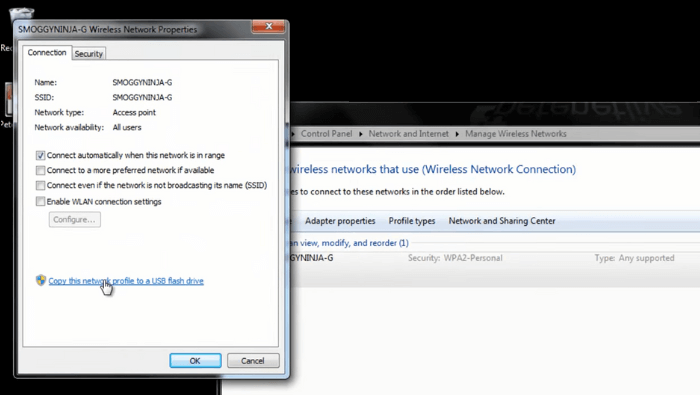
Step 4. To complete the backup, the setting backup tool will appear. Simply click the "Next" button to finalize the process.
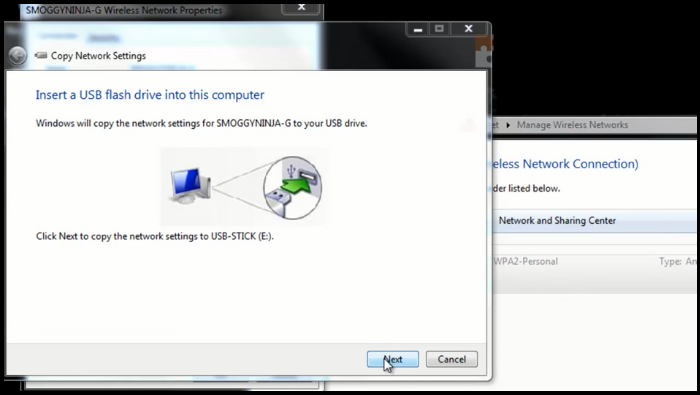
To connect to a wireless network using a USB drive, simply insert the drive into a computer and select "Connect to a wireless network". This will trigger the AutoPlay pop-up to appear.
Use autoplay to connect to the saved network.
You can also access the network settings from the text file saved/available on the USB drive in the SMRTNTKY folder WSETTING.txt.
A Better Way: Using File Backup Software
The methods above are complicated and technically demanding, requiring precision in every step to achieve the desired result. A simpler approach is to use software, such as Qiling Backup, which can complete the task with minimal effort and technical expertise, making it a more convenient option.
Qiling Backup Home is a backup software that protects your data by making backups of systems, disks, partitions, and files, saving them to local drives, NAS, Security Zone, and cloud. It enables automatic, full, incremental, and differential backups, as well as cloning hard disks and migrating Windows systems, such as migrating Windows 10 to an SSD.
The following are the detailed steps:
Step 1. To initiate a backup, click the File backup button.

Step 2. On the left, both local and network files will be shown, allowing you to browse and extend the directory to select the desired backup files.

Step 3. Follow the on-screen instructions to choose a location to store the backup.

Step 4. To encrypt the backup with a password, click on "Options" in the "Backup Options" section. This allows you to customize the backup process according to your preferences.

To specify the backup schedule, click on the "Backup Scheme" button. This allows you to set the frequency and timing of backups, such as daily, weekly, or monthly, and also choose specific events like system shutdown or login to start the backup.

Step 5. The backup may be stored on a local disk, Qiling's online service, or a Network-Attached Storage (NAS).

Step 6. Qiling Backup allows customers to back up data to both a third-party cloud drive and Qiling's own cloud drive.
To back up data to a cloud drive provided by a third party, select Local Drive, scroll down to add Cloud Device, and then add and log in to your account.
Step 7. Click Proceed to begin the backup process. The backup job will be presented as a card on the left side of the panel after it has been finished. Click the backup job to handle it further.

The Bottom Line
Backing up your wireless network profile is crucial, allowing you to quickly restore any changes or settings in case of a network issue. This is especially important for portable devices that rely on wireless connectivity for data access. By backing up your wireless profile, you can ensure a seamless and uninterrupted connection, making it easier to work or access data on the go.
FAQs
1. Where is my wireless profile?
To view all network profiles for the present user, simply type "cmd" into Windows Search, open Command Prompt, and then type "netsh WLAN display profiles" followed by pressing the Return key. This will display a list of all network profiles for the current user.
2. Should my WIFI network profile be public or private?
The public network is (Recommended) by Microsoft.
Using a VPN (Virtual Private Network) on your home, work, or public network can provide a secure connection and hide your PC from other devices on the network, making it less suitable for file and printer sharing.
3. Can WiFi owners' access everything I see?
The WiFi owner or provider has access to the admin panel from the WiFi router, allowing them to view browsing and searching history performed on their network, as well as login information, including what and when users did on their computer or PC.
4. Can someone spy on you through WIFI?
If someone hacks your WiFi, they can monitor your unencrypted traffic, allowing them to spy on data sent across your network, including personal info like name, address, and financial account details.
Related Articles
- How to Reinstall Windows 10 Without CD (3 Ways)
- Best Ways To Fix Windows PowerShell Keeps Popping Up
- How to Format SD Card in Canon Camera [Step-by-Step Guide]
- How to Boot from USB Ubuntu? [Full Guide in 2022]
- Which Is the Best NTFS Allocation Unit Size, How to Set?
Learn what NTFS allocation unit size means, how it affects storage, and how to choose or set the right cluster size. - NTFS VS Share Permissions, What's the Difference and How to Set Them?
The article compares and contrasts NTFS and Share Permissions, highlighting their key differences and focusing on the NTFS vs Share Permissions debate. - Fix Windows 11 Wi-Fi Not Working (2026 Guide)
Products
Articles & Tutorials
- Data Recovery
- Data Backup
- File Recovery
- File Backup
- System Backup and Restore
- Disk and Partition Clone
- Technical articles
- Mobile articles
- Disk Master Help
- Windows Data Recovery Tutorials
- Windows Secure Delete Tutorials
- Windows Partition Management Tutorials
- Windows File Backup and Restore Tutorials
- Windows System Backup and Restore Tutorials
- Windows Disk Backup and Restore Tutorials
- Windows Clone Tutorials