Hard Drive Not Spinning? Causes and Fixes Here!
Here are 4 practical fixes for resolving the "Hard Drive Not Spinning Up" error:
| Workable Solutions | Step-by-step Troubleshooting |
|---|---|
| Fix 1. Check Power Surge | Figure out which component is damaged > Replace the components with a new one...Full steps |
| Fix 2. Troubleshoot PCB | Take PCB out of the hard drive > Use probes to touch both ends of the diode...Full steps |
| Fix 3. Fix Disk Head | Remove the lid of hard drive > Check if the disk head is on the platter > Move disk head back...Full steps |
| Fix 4. Fix Spindle Motor | check if the spindle motor is seized or damaged > If yes, swap the platter...Full steps |
Hard Drive Not Spinning
Your hard drive isn't spinning when plugged in, which could indicate a problem with the firmware, or more serious issues like a heavy power surge or insufficient power supply.
Possible Causes
- Electrical failure on the PCB (Printed Circuit Board)
- The read/write head stuck on the platter
- Seizure of the platter motor
Symptoms
If your hard drive is not spinning, your computer won't recognize it, and you won't be able to recover data using software until you fix the issue.
If your hard drive is not spinning, it's best to have a professional manually repair it. However, you can try some troubleshooting steps to diagnose the issue, which can be found by reading on.
How to Fix Hard Drive Not Spinning Up
To resolve the issue of a hard drive not spinning up, it's essential to identify the root cause. This involves troubleshooting steps such as checking the power supply, ensuring the drive is properly seated, and verifying the SATA or power cables are securely connected. If the drive is old or has been physically damaged, it may be nearing the end of its lifespan or have a mechanical failure.
Option 1. Check the Power Surge/Supply
If your hard drive has a burning smell, it might be due to a power surge that damaged the PCB, requiring you to identify and replace the faulty component. If there's no burning smell, try swapping the power cable or connecting the hard drive to another computer to rule out a power supply issue. If the problem persists, it's likely a mechanical or electrical issue with the hard drive itself.
Option 2. Troubleshoot PCB
The Printed Circuit Board (PCB) on a hard drive enables electricity to flow between its various components, allowing the drive to function. The PCB contains key components such as the Main Controller IC (the drive's "brain"), Motor Controller Chip, Cache Chip, ROM/BIOS, Board Number, and TVS Diodes. Damage to any of these components can cause the hard drive to fail, including the inability to spin.
Diodes on a PCB are commonly failing parts, and when shorted, they can cause a hard drive to be damaged. To test them, you'll need a T8 screwdriver and a multimeter. This is the first step in the process.
Step 1. Carefully remove the PCB (Printed Circuit Board) from the hard drive using a screwdriver.
Step 2. To measure the diode's voltage, touch the multimeter's probes to both ends of the diode, ensuring good contact without touching any other components. This setup allows you to read the voltage across the diode, which can provide insight into its functionality and potential issues.
Step 3. If the multimeter makes a beeping sound and displays a number near zero, it indicates that there is a short circuit on the diode. This is because the multimeter is unable to measure the voltage drop across the diode, suggesting that the diode is not functioning properly and is essentially acting as a wire, allowing current to flow freely.
Step 4. If you want to recover data from the hard drive and discard it, you can remove the diode. Otherwise, you need to replace the diode with a functional one from a similar PCB.
Notice:
- External and embedded firmware boards exist, with the latter being more difficult to remove, often requiring professional assistance.
- Diodes are rectangular and black components that are generally marked as D1, D2, D3, etc. with a number indicating their specific type or function.
- The removal of the diode requires heat, which necessitates the use of specialized tools, and should not be done bare-handed to avoid physical damage to the PCB.
- Due to the different firmware information stored on the PCB, replacing the problematic PCB with an identical one won't work.
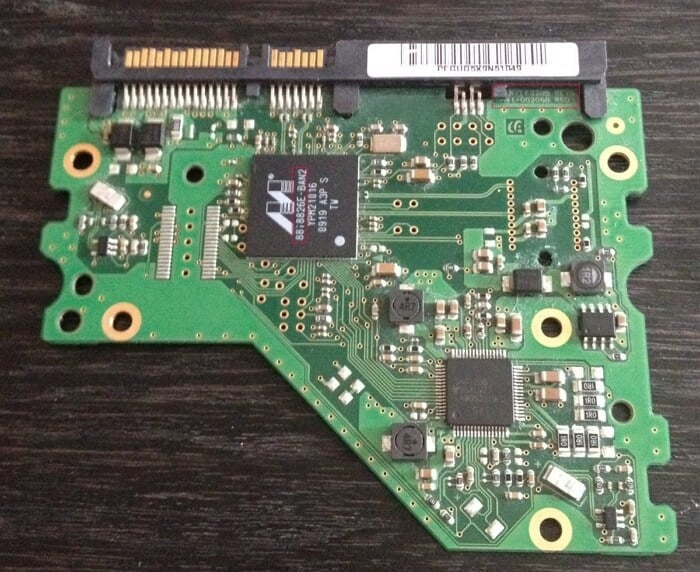
If there's a clear bracing component on the PCB, don't touch it and send it to a professional for further handling.
Option 3. Fix Stuck Disk Head
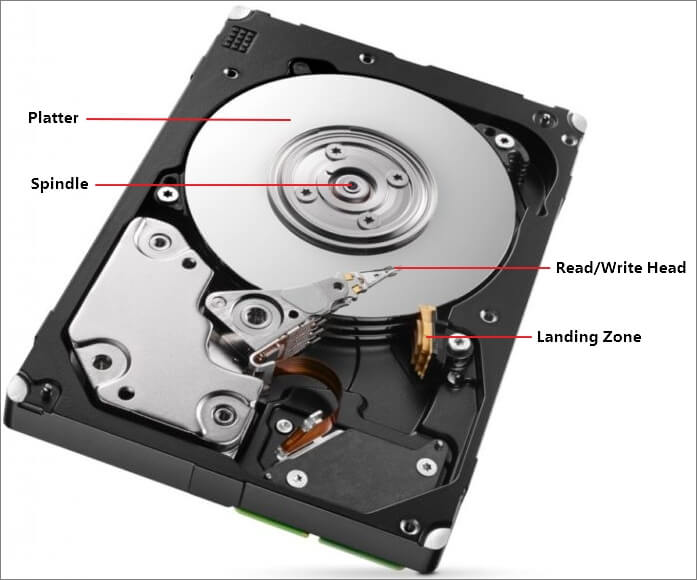
A problematic disk head can cause issues like hard drive clicking and a hard drive not spinning. If the disk head gets stuck on the platter, it can prevent the hard drive from spinning. You can try to fix a stuck head by following online tutorials.
Step 1. Remove the lid of the hard drive using a screwdriver that fits the screw type.
Step 2. If you notice the disk head is on the platter, that's where the issue lies. To resolve this, you'll need to relocate the disk head back to its parked position using a hook or a similar tool in conjunction with a screwdriver.
Step 3. Turn the screw in the center of the spindle counterclockwise using a screwdriver, while simultaneously pulling the head with the hook to reduce the stress on the platter.
Step 4. After putting the lid back on, connect the hard drive to your computer. The hard drive should spin up and work again.
Notice:
- Make sure you perform the operation above in a clean environment.
- The screw under the sticker can be found by running your finger across the lid. It's the only screw on the bottom of the laptop.
Option 4. Fix Seized Spindle Motor
If a hard drive's spindle motor is seized or the spindle itself is damaged, the platter won't spin up when plugged in, and a platter swap is typically performed to fix the issue.
To perform a platter swap, you'll need professional tools and a clean environment, so it's recommended to send your hard drive to professionals for manual repair. Alternatively, you can try it yourself by searching for tutorial videos on YouTube and carefully following the instructions.
If your hard drive is not spinning, it's likely due to one of several common causes, including a faulty power supply, a malfunctioning motor, or a software issue. In such cases, solutions may involve checking the power cord and connections, cleaning or replacing the drive's motor, or running a diagnostic test to identify the root cause. Additionally, if the problem persists, you may need to consider replacing the hard drive altogether.
Extra Tip: How to Recover Data from a Hard Drive
If you've fixed the hard drive not spinning up and noticed data loss, the best solution is to use a free data recovery software like Deep Data Recovery to retrieve your lost files. This tool can help you recover your data.
To recover data from a hard drive, follow these steps with the help of Deep Data Recovery. First, download and install the software, then connect the hard drive to your computer.
Step 1. Launch Deep Data Recovery software on your Windows 11/10/8/7 device, select the desired file types you want to recover, and click "USB/SD Scan" to initiate the recovery process.

Note: You can choose different search modes based on where and why the data was lost.
Step 2. Choose the place where you lost data. Then, click "Scan".

Step 3. After scanning, use the file format filter to find the required files, then click the "Preview" button or double-click a file to preview its content.

Step 4. To recover lost data, select the file that was accidentally deleted, check the box next to it, and click on the "Recover" button to restore it to a safe location.
The Bottom Line
Regular backups are the safest way to avoid complete data loss, and it's essential to take action, whether that's manually copying files or using free backup software. In common data loss situations like deletion, formatting, and OS crash, data recovery software can be used to recover files. However, in situations like a hard drive not spinning, no data recovery software can help before the device is recognized by the computer. By backing up your hard drive regularly, you can ensure that your data is safe and easily recoverable.
For next steps when a hard drive fails, read What to Do If Your Hard Drive Fails in Windows.
Related Articles
- Fix MacBook Pro Shuts Down Randomly Error and Restore All Lost Data
- Fix 'Windows Can't Find A System Image on This Computer' Error
- Windows 10 Thinks My Hard Drive is Removable
- [Fixed] Windows Cannot Run Disk Checking on This Volume Because It Is Write Protected
- Troubleshooting of a Failed Hard Drive to SSD Cloning
Cloning a hard drive to an SSD can be problematic, especially when dealing with failed hard drives containing bad sectors. If the cloning software encounters issues, it may terminate the process and display an error message. - What Is File Level Backup? Top 5 Best File Level Backup Software Free Download
This page helps you understand file-level backup, its popularity, and when it's needed, as well as provides 5 best file-level backup software to protect a large number of files immediately.
Products
Articles & Tutorials
- Data Recovery
- Data Backup
- File Recovery
- File Backup
- System Backup and Restore
- Disk and Partition Clone
- Technical articles
- Mobile articles
- Disk Master Help
- Windows Data Recovery Tutorials
- Windows Secure Delete Tutorials
- Windows Partition Management Tutorials
- Windows File Backup and Restore Tutorials
- Windows System Backup and Restore Tutorials
- Windows Disk Backup and Restore Tutorials
- Windows Clone Tutorials