Windows 10 Thinks My Hard Drive is Removable
Windows 10 Thinks My Hard Drive is Removable
Your internal drives should not appear as removable in Windows 10. This issue may be caused by a driver problem or a misconfiguration. You can try updating your drivers, checking for BIOS updates, or running a system file checker to resolve the issue.
In Windows 10, external USB flash drives sometimes appear as Disk Drives instead of their actual type, and internal drives may show as removable. This issue can be frustrating, and simply restarting the computer may not solve the problem for everyone. The drive properties can be changed, but the majority of users face difficulties in doing so and get stuck on the same track.
- Fix HDD Detected as Removable Drive by Modifying in Device Manager
- Backup Registry and System before Troubleshooting
- Fix Hard Drive Shows as Removable in Registry
Why Does My Hard Drive Show up as Removable
The internal hard drive is shown as a removable disk because the system's BIOS and SATA port markings on the motherboard consider it an external device, which can potentially cause corruption or data loss.
How to Fix Internal Hard Drive Shows as Removable in Windows 10
Here on this page, we present two widely applied solutions to troubleshoot the problem. Let's begin with the simpler method, which is often effective.
Solution 1. Modify in Device Manager
Step 1. To access the Control Panel in Windows 10, simply type "Control Panel" in the search box next to the Windows menu, and then click on the result to open it.
Step 2. Navigate to "Device Manager".
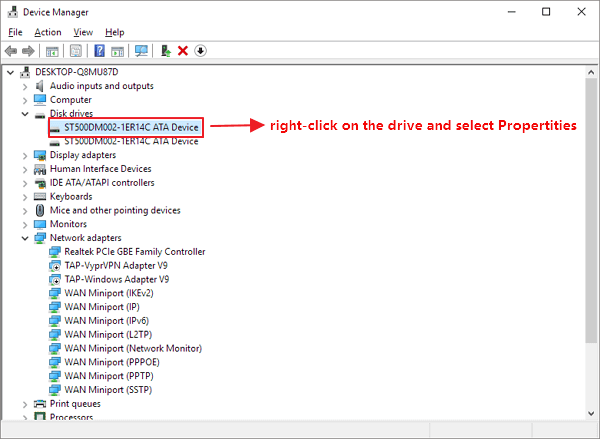
Step 3. On the Device Manager window, double-click on the "Disk drives".
Step 4. Right-click on the internal hard drive (HDD or SSD) and select "Properties".
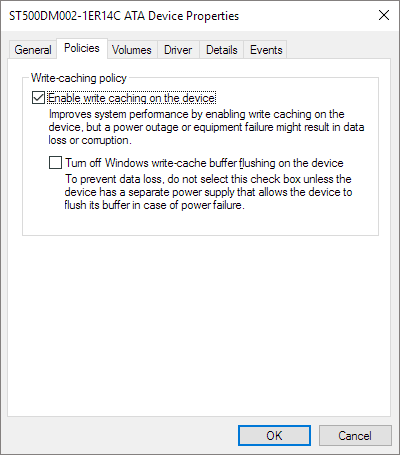
Step 5. To ensure proper functionality, go to the Policies tab, and verify that "write caching on the device" is enabled, while "optimize for quick removal" is disabled, as this setting directly affects how Windows identifies a drive as removable or not.
Step 6. Update to the latest chipset and AHCI/RAID driver.
Solution 2. Modify in Registry
Since the problem cannot be ideally solved by the simple method, you have to rely on the last resort which ensures a high success rate, but it's a Registry fix, so it's somewhat risky and requires backing up the registry before making changes.
Backup registry and system in advance
To backup the registry in Windows 10, you can do so quickly, but we advise against backing up individual registry files as this can lead to a full OS reinstall if something goes wrong.
Download Qiling backup software, which offers a one-click system backup option, allowing you to easily back up your entire system, including registry files, with just a few clicks.
Step 1. Launch Qiling Backup on your computer, click System Backup on the home screen to begin the backup task.

Step 2. Your Windows operating system information and all system related files and partitions will be automatically selected, so you don't need to do any manual selection at this step. To proceed, choose a location to save the system image backup by clicking the illustrated area.

Step 3. The backup location can be another local drive, an external hard drive, network, cloud, or NAS. It's recommended to use an external physical drive or cloud to preserve system backup files.

Step 4. Customization settings, such as enabling an automatic backup schedule in daily, weekly, monthly, or upon an event, and making a differential and incremental backup, are available in the Options button. Clicking "Proceed" will initiate the Windows system backup process, which will display the completed task on the left side in a card style.

Windows system backup, including the registry, can be done in seconds with Qiling Backup. If any issues arise during registry modification, the system can be easily restored from the backup, minimizing downtime.
Fix Windows 10 internal hard drive showing as removable in Registry:
Step 1. Right-click the "Start" button in Windows 10, then select "Command Prompt (Admin)" from the Power Users menu to open a command prompt with administrator privileges.
Step 2. In the command prompt window, type devmgmt msc and hit Enter. This will open the Device Manager.
Step 3. To configure the inbox driver to consider a SATA device internal, right-click on the SATA device under Disk Drives and select "Properties" to open its properties.
Step 4. In the Details tab, locate the "Bus reported device description" property to confirm the device name.
Type the following command in the previously opened command prompt and hit "Enter":
reg.exe add "HKLM\SYSTEM\CurrentControlSet\Services\storahci\Parameters\Device" /f /v TreatAsInternalPort /t REG_MULTI_SZ /d x
Modifying the registry to fix a hard drive showing as removable in Windows can be risky, so it is crucial to back up the system and registry beforehand to avoid potential damage.
If an internal SSD appears in the removable-devices menu, the Windows 11 removable-SSD checklist helps distinguish a connection setting from a disk failure.
Related Articles
- How to Backup and Restore Google Chrome Bookmarks?
- Computer Freezes When Playing Games in Windows 10
- Fix IE Browser Shuts Down Suddenly in Windows 10/8/7 Error
- Fix Hard Drive Won't Power Up/Turn on Without Data Loss
- Fix Error 1327 Invalid Drive When Installing Programs Windows 10
Error 1327 invalid drive is an error pop-up indicating that the drive for program installation is not valid. Check this article to understand the causes and know how to fix error 1327 invalid drive Windows 10. - How to Fix Windows Boot Manager Error Code 0xc0000225
If you receive Error Code - 0xc0000225 when you turn on your Windows PC, this post will help you resolve it using multiple methods. The methods are easy to follow, but ensure you take backup. Once the error code 0xc0000225 is fixed, you can get back to working on your PC.
Products
Articles & Tutorials
- Data Recovery
- Data Backup
- File Recovery
- File Backup
- System Backup and Restore
- Disk and Partition Clone
- Technical articles
- Mobile articles
- Disk Master Help
- Windows Data Recovery Tutorials
- Windows Secure Delete Tutorials
- Windows Partition Management Tutorials
- Windows File Backup and Restore Tutorials
- Windows System Backup and Restore Tutorials
- Windows Disk Backup and Restore Tutorials
- Windows Clone Tutorials