How to Fix Windows Boot Manager Error Code 0xc0000225
Error Code 0xc0000225 The "Your PC needs to be repaired" error is a common Windows error that appears when you turn on your PC or laptop, often on a Blue screen with the error message or on a black screen with the "An unexpected error has occurred" message.
The 0xc0000225 error typically occurs when the system is unable to boot due to an inability to locate the correct system files, specifically the Boot Configuration Data (BCD), which contains essential information and boot instructions for the system.
| Workable Solutions | Step-by-step Troubleshooting |
|---|---|
| Fix 1. Check Your Hard Drive | One of the most common causes of the 0xc0000225 error code in Windows 10...Full steps |
| Fix 2. Run the Built-In Tool | The most straightforward workaround to fix the 0xc0000225 error code in Windows 10...Full steps |
| Fix 3. Run Virus Scan | Malware and viruses in the system could also be the reason for getting...Full steps |
| Fix 4. SFC to Check the System | The 0xc0000225 error code also appears because of missing or corrupted system files, which can be caused by various factors such as viruses, malware, or disk errors. This error can occur during the Windows startup process, and it may display a blue screen with an error message. To resolve this issue, you can try running a System File Checker (SFC) scan, which can help identify and replace any corrupted system files. Additionally, checking for disk errors and running a virus scan can also help resolve the issue.Full steps |
| More Fixes | The error code 0xc0000225 can be fixed with 6 additional fixes, which are available for you to follow and resolve the issue.Full steps |
The worst part about this error code is that it doesn't allow you to enter it into your system. Thus, fixing the error code 0xc0000225 on your Windows PC becomes essential, as it causes the system to crash and restart frequently. So, let's move to the next section and know the causes of the 0xc0000225 error code.
Causes: Why Do You See the Error Code 0xc0000225?
The 0xc0000225 error code is caused by various reasons, including corrupted system files, incompatible hardware, outdated drivers, and issues with the Windows operating system, among others.
- 🔢Missing Binary: The Boot Manager Error Code - 0xc0000225 is often caused by missing or corrupted system files that are essential for proper booting.
- 📄Corrupt MBR: A corrupted Master Boot Record (MBR) could also cause the Boot Manager Error Code - 0xc0000225 when powering on a PC or laptop.
- 💽Hardware or Software Change: The Boot Manager Error Code - 0xc0000225 typically occurs due to a recent hardware or software change, which can cause the system to become unable to load the necessary files to boot. This can be caused by a variety of factors, including a driver update, a new device being installed, or a change in the system's configuration.
- 😈Malware & Viruses: Malware and viruses can cause the 0xc0000225 error by making incorrect changes to system settings. This can increase the chances of encountering the error.
- 💾Damaged Hard Drive Or Its Cable: The 0xc0000225 error can occur due to a damaged hard drive or its cable, making it undetectable and resulting in a "A required device isn't connected or can't be accessed" message with the error code.
So these are the most common causes of the Windows 10 Boot Manager Error Code - 0xc0000225.
Let's now read ahead and look at how to resolve it in Windows 10.
Read Also: Blue Screen of Death Error 0x000000C5
How To Fix Windows Boot Manager Error Code 0xc0000225?
If you're experiencing the Boot Manager Error Code - 0xc0000225 on your Windows PC, you can try various fixes such as checking the boot order, running a System File Checker, and resetting the BIOS settings to resolve the issue.
Fix 1. Check Your Hard Drive
The 0xc0000225 error code in Windows 10 is often caused by issues with the hard drive, so it's a good idea to check if your hard drive is damaged.
If your computer is not booting, first check that the power cord is securely connected to both the computer and the wall outlet. Also, make sure that the cord is not damaged. Additionally, ensure that the computer is properly connected to any monitors or other peripherals.
Fix 2. Run the Built-In Startup Repair Tool
To fix the 0xc0000225 error code in Windows 10, run the integrated Startup Repair tool, which will automatically troubleshoot and resolve system file problems that prevent the system from booting properly.
So follow the below-mentioned steps to run this tool on your system:
Step 1. Insert the Windows 10 bootable installation device into your system and restart it.
Step 2. On the next screen, select your preferred language, time zone, and input method for your device.
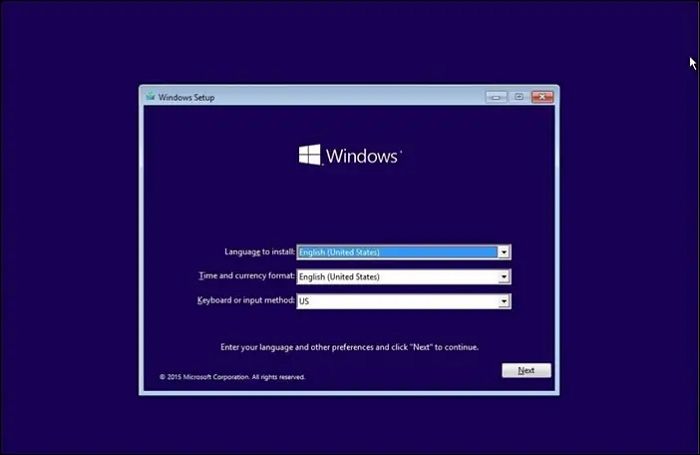
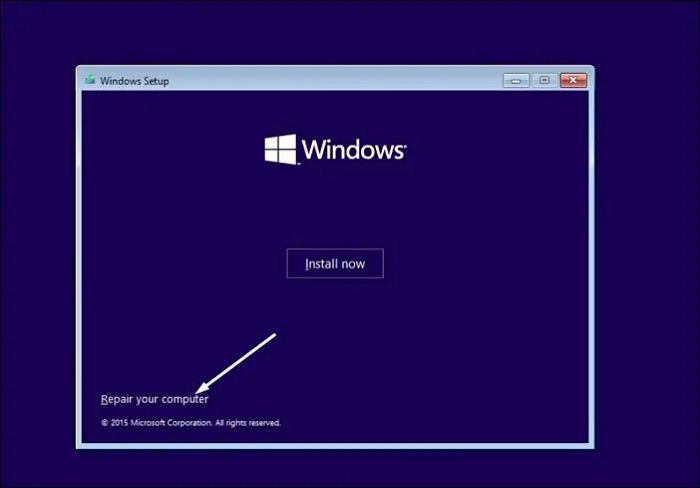
Step 3. Click on "Next", then select the "Repair your computer" option.
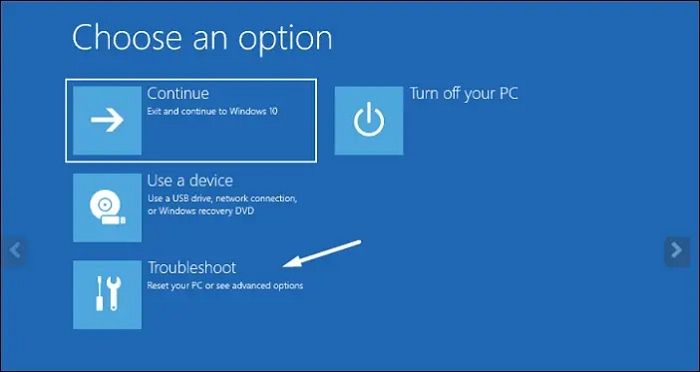
Step 4. To troubleshoot, click on the "Troubleshoot" option on the "Choose an option" screen. This will allow you to select a specific troubleshooting option from a list of available choices.
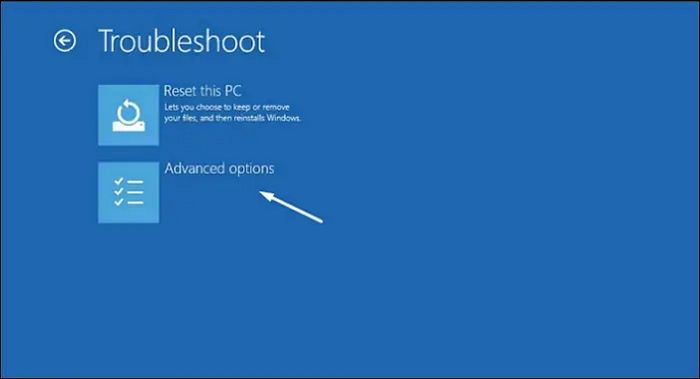
Step 5. Select "Advanced options" on the "Troubleshoot" screen.
Step 6. To start the troubleshooting process, click the "Automatic/Startup Repair" button on the "Advanced" options screen.
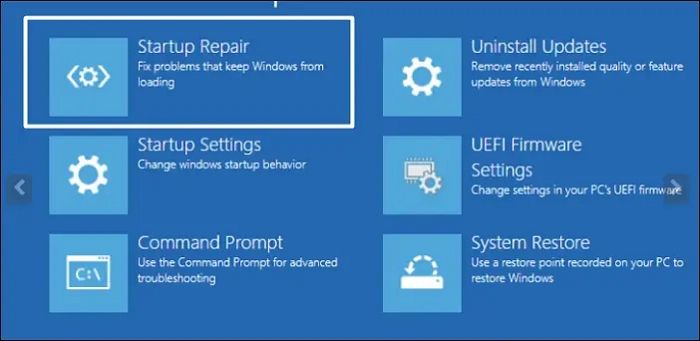
Step 7. Enter your currently signed-in account password in the present box and click "Continue".
Step 8. You need to follow now the prompts mentioned on the screen to continue troubleshooting to fix the issue.
Fix 3. Run Virus Scan
Malware and viruses in the system could also be the reason for getting the 0xc0000225 error while booting into the system. To troubleshoot this, try running a quick antivirus scan on your Windows system to check if it resolves the issue. This step can help identify and remove any malicious software that may be causing the error.
Step 1. Follow Steps 1 - 5 in Fix 1 to move to the Advanced options section.
Step 2. Click on "Command Prompt" to open Command Prompt and run the below code in it:
cd C:\ProgramData\Microsoft\Windows Defender\Platform\4.18*
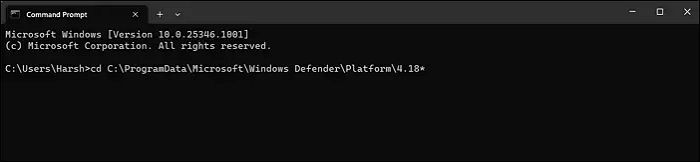
Step 3. Once done, copy-paste the below-mentioned command in it and press the Enter key:
MpCmdRun -Scan -ScanType1
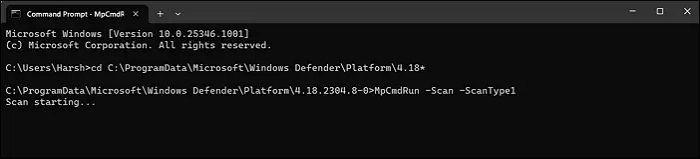
Step 4. The quick virus scan has started on your system and is finding malicious files.
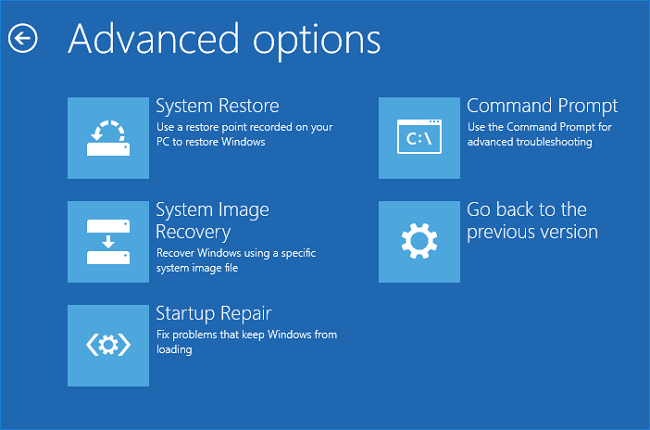
How to Repair Windows 11 and Fix Corrupted Files
Having issues with your Windows 11 computer? If you're experiencing freezes, system crashes, or getting a message saying "This PC can't run Windows 11", you may want to read more to troubleshoot the problem.
Fix 4. Use SFC to Check the System File and Disk
The 0xc0000225 error code can also occur due to missing or corrupted system files. To resolve this, running an SFC scan can help repair all corrupted system files by replacing them with their cached version stored in the system.
You can check the below-To run an SFC scan on Windows, follow these steps: Open Command Prompt as an administrator, type "sfc /scannow" and press Enter. This command will scan all protected system files and replace any corrupted ones with a cached copy.
Step 1. To go to the Advanced options section of Windows Recovery Environment, follow steps 1-5 in Fix 1, which involves accessing the Windows Recovery Environment and navigating through the menu options.
Step 2. To open the Command Prompt, select the Command Prompt option on the Advanced options screen. This will open the console.
Step 3. Once the console is opened, copy-paste the below command into it and press the Enter key:
sfc /scannow
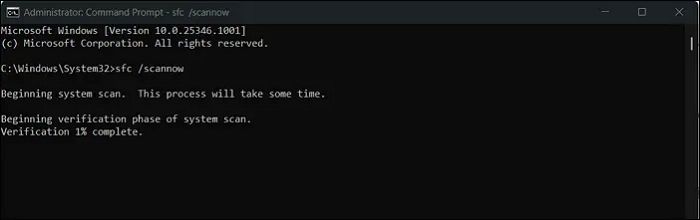
Step 4. Once you execute the above command in it, the SFC scan will start and take a few minutes to complete. So wait a few minutes for the scan to finish.
Step 5. If the 0xc0000225 error doesn't appear again, it's good. If it's still there, proceed to the Advanced options in the Windows Recovery Environment and try running the chkdsk c:/f command to scan your drive for file system errors.
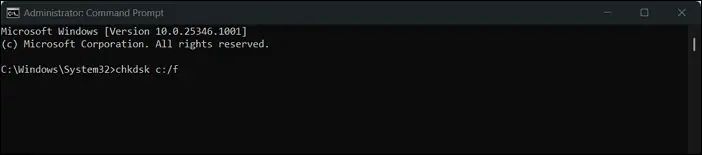
To fix the error code 0xc0000225, consider running a System File Checker (SFC) scan to identify and replace corrupted system files. You can also try running a DISM scan to repair any issues with the Component Store. Additionally, check for any malware or viruses that may be causing the error by running a full system scan with an anti-virus program.
Fix 5. Manually Repairing the BCD File
The 0xc0000225 error typically occurs when there's a problem with the Boot Configuration Data (BCD) file, which might be missing or corrupted. To resolve this issue, rebuilding the Boot Configuration Data (BCD) is recommended, as it will address any problems with the file.
To create a new account, go to the website's login page, click on the "Sign up" or "Create an account" button, and follow the prompts to enter your details. You'll need to provide a valid email address, choose a strong password, and agree to the website's terms of service.
Step 1. Follow steps 1-5 in Fix 1 to access the Advanced options section of the WinRE.
Step 2. Select Command Prompt to open the console and execute the below-listed commands in it:
- bootrec /scans
- bootrec /fixmbr
- bootrec /fixboot
- bootrec /rebuildbcd
Step 3. The process of repairing the Boot Configuration Data (BCD) file has started, allowing the system to be restored to its previous state.
Fix 6. Use Command Prompt To Resolve the Error Code
The issue may be caused by the system not selecting the correct partition where Windows is installed, resulting in a 0xc0000225 error when trying to boot.
To ensure the partition on which Windows is installed is active, follow these steps: Ensure the partition on which Windows is installed is set to active. You can do this by going to Disk Management, selecting the partition, and right-clicking on it to set it as active. This should resolve the issue.
Step 1. Open Command Prompt on your system and run the below commands in it:
- diskpart
- list disk
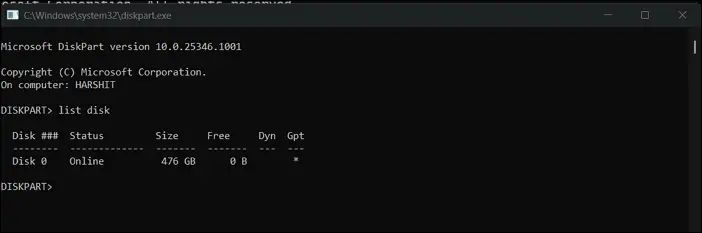
Step 2. You'll now see a list of all your system drives in the Command Prompt utility. Select the disk on which Windows is installed on your hard drive by running the command "list disk" followed by the disk number of the drive you want to select, for example, "select disk 0".
- select disk X
- list partition
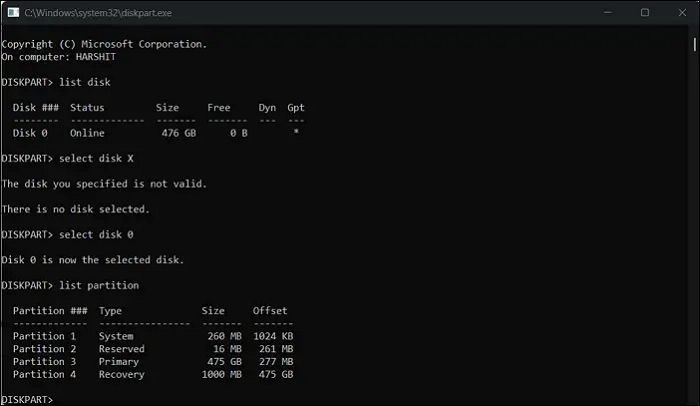
Step 3. Select the primary partition by executing the command `sudo fdisk /dev/sdX` (replace "X" with your actual drive letter) and press Enter.
select partition X
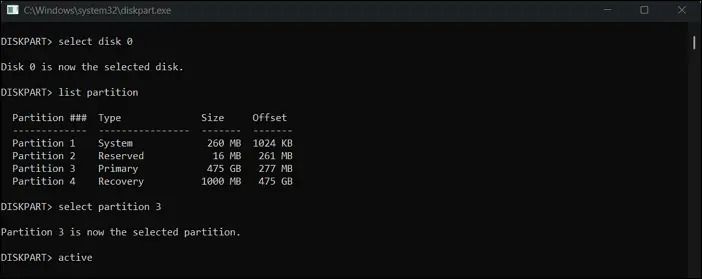
Step 4. Once selected, type "active" in it and press Enter to make the partition active.
Fix 7. Edit the Windows Boot Manager
To resolve Windows 10's Boot Manager Error Code - 0xc0000225, you can edit the Windows Boot Manager using the Command Prompt utility, which will set it as the default entry and fix the issue.
Follow the below prompts to know what exactly you need to fix this BSOD error:
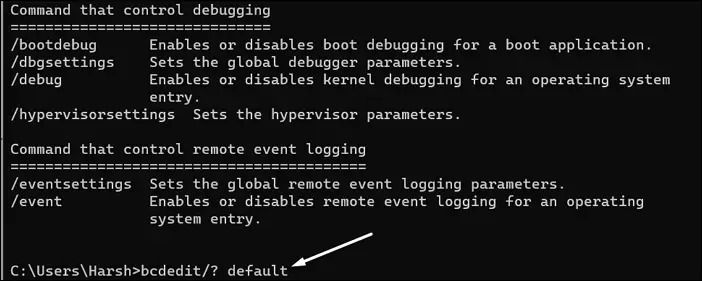
Step 1. Open the Command Prompt utility in WinRE and run the below-listed command in it:

bcdedit/?
Step 2. To set the default boot entry, open the Command Prompt as an administrator and type the command `bcdedit /set {default} device
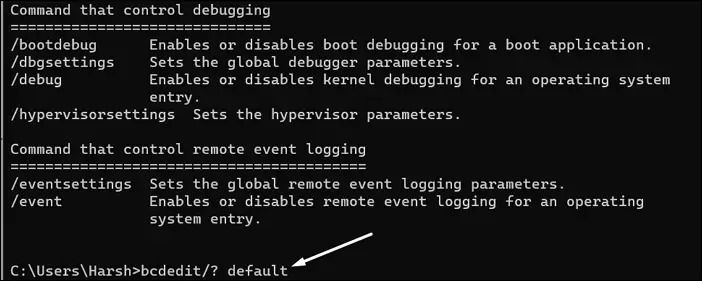
Step 3. Restart your PC and check if the Boot Manager Error Code - 0xc0000225 still appears.
Fix 8. Update Your BIOS or UEFI
If the Windows 11 installation issue persists, it may be due to bugs or glitches in the system's BIOS or UEFI. Updating the BIOS or UEFI to the latest build could potentially resolve the problem.
You can find the same steps in your system's hardware manual. If you don't find the steps in the hardware manual, find the steps on your brand's website.
Fix 9. Perform a Clean Reinstall of Windows
If the 0xc0000225 error code persists when booting into Windows 10, consider reinstalling the OS. This involves deleting all data and reinstalling Windows, which may resolve the issue.
So try the below-mentioned instructions to clean and reinstall your Windows PC:
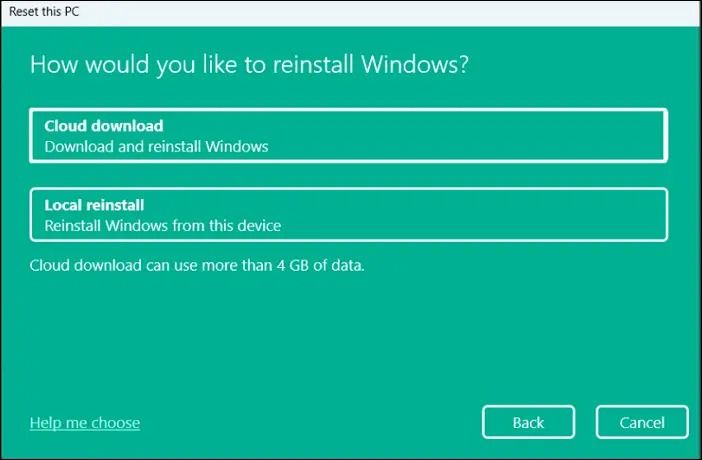
Step 1. Click the "Reset this PC" option on the Troubleshoot screen for additional options. This will allow you to choose between two settings: "Remove everything" and "Keep my files".
Step 2. Click on the "Remove Everything" option in the "Choose an option" prompt.
Step 3. To reset your Windows PC, click on the "Cloud download" option and then the "Reset" button.
How to Recover Data When Fixing Error 0xc0000225
In some situations, you may be unable to fix the error code, which may require replacing the storage or reinstalling Windows, resulting in data loss.
Having data recovery software can be a lifesaver in case of accidental data deletion or device failure, allowing you to recover lost data quickly and efficiently.
Deep Data Recovery is a professional software that can recover deleted data from various scenarios, including deletion, partition loss, formatting, repartition, system crash, and virus attacks.
Here is the list of features:
- It helps to restore deleted files faster when the system cannot boot. This is because the system cannot boot, which means it cannot access the operating system and therefore cannot access the deleted files.
- Create WinPE bootable media to make the existing operating system boot
- This tool helps to recover data from formatted, deleted, or corrupted partitions.
- Preview files before recovery.
- Recover lost photos, videos, music files, documents, and other files from a hard drive, SSD, USB flash drive, or pen drive using data recovery software. This software can scan the drive and retrieve deleted or corrupted files, even if they have been overwritten.
- User-Our user-friendly interface makes it easy for even novice users to recover their files with just a few clicks. With a simple and intuitive design, you can quickly locate and restore your lost data without needing technical expertise.
Download and follow the step-by-step guide below.
Note: To maximize the chances of successful data recovery, install Qiling data recovery software on a separate disk drive, rather than the original one where the files were lost.
Step 1. Launch Deep Data Recovery on your computer, select the affected storage location, and click "Scan" to start the recovery process.

Step 2. This recovery software will start scanning the disk to find all lost and deleted files. When the scan process completes, you can filter the results by clicking "Filter" > "Type" to specify the types of lost files you are looking for.

Step 3. Preview and restore lost Windows files by scanning them, double-clicking to preview, selecting target data, and clicking the "Recover" button to save them to a safe spot.

The Bottom Line
The 0xc0000225 error is a frustrating issue, but it can be resolved with some simple troubleshooting methods. Fortunately, we've shared 11 working workarounds to fix the Boot Manager Error Code - 0xc0000225 issue in Windows 10, providing a detailed solution to help users resolve this problem.
We hope the mentioned workarounds helped you eliminate this issue with ease. If yes, don't forget to let us know which of the mentioned fixes assisted you.
Windows Boot Manager Error Code 0xc0000225 FAQs
People get a lot of questions about the Boot Manager Error - 0xc0000225. Thus, in this section, we've answered the most commonly asked questions about it.
1. What Does Error 0xc0000225 in Windows 10 Mean?
The 0xc0000225 error in Windows 10 indicates a problem finding the correct system files necessary for booting, specifically the BCD (Boot Configuration Data) file, which is crucial for system startup.
2. What Is Error Code 0xc0000225 Safe Mode?
The 0xc0000225 error code on the Blue screen usually appears when the system's BCD file gets corrupted or goes missing. This can be fixed by running a few commands in Command Prompt.
3. What Is Error Code 0xc0000225 a Required Device Isn't Connected?
The 0xc0000225 error with the "Required Device Isn't Connected" message is often caused by issues with the boot configuration, such as an inaccessible Winload.exe file, a damaged OS disk, or incorrectly selecting a partition.
4. How Do I Fix Safe Mode Error?
If your system can't enter Safe mode, try using System Restore to revert to an earlier restore point. If that doesn't work, consider reinstalling Windows 10 from scratch.
Related Articles
- Low Level Format VS Standard Format, What's the Differences and Which to Use?
- How to Fix Windows 11 23H2 Update Failure in 5 Ways
- How to Increase Transfer Speed of External Hard Drive
- How to Fix Active Partition Not Found in Windows [Full Guide]
- Python Delete File: How to Delete a File in Python [Recovery Is Available]
To delete a file in Python, you can use the `os` module, which allows you to interact with the operating system. Specifically, you can use the `remove()` function from the `os` module to delete a file. - 10 Ways to Fix Red Screen of Death on Windows 11/10
Can you fix a red screen of death on Windows 11/10/8/7? Yes, you can fix the red screen of death error in Windows 10 with 10 effective solutions. Before the solutions, it's better to run Qiling data recovery software to export data to another location.
Products
Articles & Tutorials
- Data Recovery
- Data Backup
- File Recovery
- File Backup
- System Backup and Restore
- Disk and Partition Clone
- Technical articles
- Mobile articles
- Disk Master Help
- Windows Data Recovery Tutorials
- Windows Secure Delete Tutorials
- Windows Partition Management Tutorials
- Windows File Backup and Restore Tutorials
- Windows System Backup and Restore Tutorials
- Windows Disk Backup and Restore Tutorials
- Windows Clone Tutorials