Fixed: Blue Screen of Death Error 0x000000C5 | Top Ways
Key Takeaways:
- 0x000000c5 is a DRIVER_CORRUPTED_EXPOOL error, indicating a severe kernel error.
- This confusing error is typically caused by issues such as driver problems or hard disk corruption.
- Qiling Disk Master provides a solution to the 0x000000C5 error by allowing users to run a disk check and repair any corrupted system files, which can resolve the issue and prevent further system crashes.
Qiling provides a step-by-step analysis and effective troubleshooting strategies to equip users with the knowledge to identify and address the 0x000000C5 error.
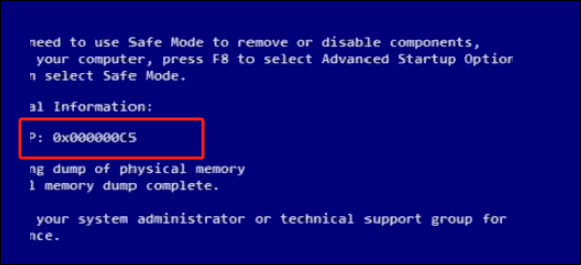
How to Fix Blue Screen of Death 0x000000C5
To resolve the 0x000000C5 Blue Screen of Death error, users should implement targeted solutions and undertake systematic troubleshooting. This includes running a memory stress test, checking for faulty hardware, and updating drivers to the latest versions. Additionally, users can try disabling recently installed software or drivers, and running a System File Checker to ensure all system files are intact. By taking these proactive steps, users can effectively resolve the 0x000000C5 error and prevent it from recurring.
Quick Guide - Run Windows Boot Repair Tool to Fix BSOD
When tackling the 0x000000C5 Blue Screen of Death error, Qiling Disk Master is an invaluable ally. Its "Boot Repair" feature is a powerful tool for resolving hard disk and system boot errors, addressing not just the 0x000000C5 error but also system failures, system blue screens, system black screens, and more.
The following are steps to fix the 0x000000C5 driver_corrupted_expool Blue Screen of Death error via Qiling Disk Master:
Step 1. After connecting the external drive/USB to your computer, start Qiling Disk Master, navigate to "Tools and utilities", and click "Create bootable media".

Step 2. Insert a USB drive or CD/DVD and click "Proceed" to proceed with the installation. You can also burn the Windows ISO file to the storage media.

Step 3. Connect a bootable drive to the new computer, reboot by pressing F2/Del, set the drive as the boot disk and exit the BIOS.
Step 4. Boot the computer again and enter the WinPE interface. Open Qiling Disk Master, then click "Fix Boot" under the "Tools and utilities" option.

Step 5: Select the system you want to repair and click "Proceed".

Step 6. The system has been successfully repaired. Click "OK" to complete the boot repair process.
Download Qiling Disk Master to ensure the overall health and stability of your computer. As one of the best Windows boot repair tools, Qiling Disk Master can solve more issues related to the boot/partition and disks.
- Boot a Lenovo/Dell/HP computer from USB
- Format A USB Drive That Doesn't Show Up
- Fix Windows 11 Black Screen with Cursor
- Fix all kinds of yellow screen, red screen and other errors
If you know what caused the error, you can continue to explore more options:
Method 1. Fix Corrupted Hard Drive
Qiling Disk Master is a powerful tool that can address various hard drive issues, including the 0x000000C5 error, by conducting thorough scans to identify corrupt files or sectors, and then allowing users to diagnose and repair these issues efficiently, ensuring a more stable and reliable computing environment.
Step 1. Right-click the target partition that has a problem.
Step 2. Choose "Advanced" > "Check File System".
Step 3. Confirm if you want to hide the partition or not.
Step 4. In the Check File System window, check the "Fix the error on the disk" option.
Step 5. Click "Proceed" to check errors on your partition.
Read Also:
Method 2. Update Driver
To resolve the 0x000000C5 Blue Screen of Death error caused by outdated or incompatible drivers, update the problematic drivers to their latest versions. This can be done by following these steps:
Step 1: To resolve the issue, access the "Device Manager" via the "Win + X" power menu, then navigate to the problematic driver and right-click on it.
Step 2: To update drivers for your device, go to the context menu, select "Update Driver," and then choose "Search automatically for drivers." Follow the on-screen instructions to complete the update.

Method 3. Rollback Driver
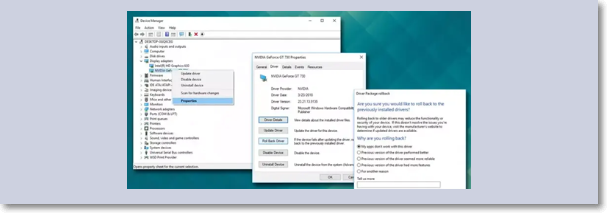
To roll back an updated driver that is causing a 0x000000C5 Blue Screen of Death error, you can follow these steps: Roll back the driver to a previously functioning version by going to the Device Manager, right-clicking on the problematic device, selecting "Properties," navigating to the "Driver" tab, and clicking on "Roll Back Driver." This action will revert the driver to a version that was operational before the update, potentially resolving any compatibility issues causing the BSOD error.
Step 1: To start, access the Device Manager using the Windows Search bar and go to the targeted driver. Next, right-click the updated driver and choose "Properties."
Step 2: To roll back the driver in the Properties window, go to the Driver tab, click Roll Back Driver, and follow the on-screen instructions to complete the process.
Method 4. Run SFC
To fix the 0x000000C5 Blue Screen of Death error using the System File Checker (SFC), run the SFC utility, which scans and restores corrupted system files, helping to identify and repair any corrupted or missing system files contributing to the issue.
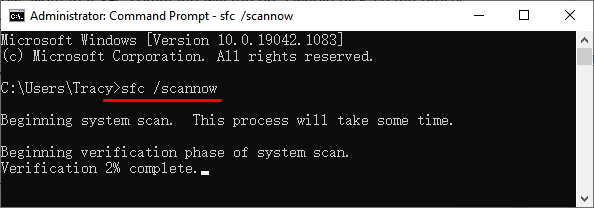
Step 1: To access the Windows Run function, press "Win + R" and type "CMD." Then, press the "Ctrl + Shift + Enter" keys to open Command Prompt as administrator.
Step 2: Run the "sfc /scannow" command in the Command Prompt window to scan and replace corrupted system files, then reboot and check if the 0x000000C5 Blue Screen of Death error is resolved.
Further Reading: SFC SCANNOW Stuck
Method 5. Run DISM
The Windows operating system includes a utility called Deployment Image Servicing and Management (DISM), which can repair and prepare Windows images, including the Windows Recovery Environment and others. Running DISM can help resolve the 0x000000C5 Blue Screen of Death error by repairing corrupted system image files and resolving component store corruption, making it a useful tool in resolving this error. To run the DISM tool, follow these steps.
Step 1: To open the Command Prompt as an administrator on Windows, right-click on the Taskbar, select Task Manager, go to File, click Run new task, type "CMD" in the dialogue box, check the box to create the task with administrator privileges, and then click OK.
Step 2: To open Command Prompt with admin privileges, you need to run the command `cmd` in the Command Prompt with admin privileges. This will open a new Command Prompt window with admin privileges, allowing you to run the necessary commands to install and configure the necessary software.
"DISM /Online /Cleanup-Image /RestoreHealth"
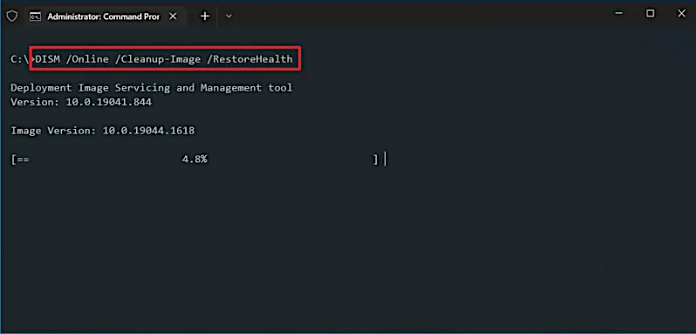
Step 3: The DISM tool is used to scan and repair issues in the Windows image, and running the command "DISM /Online /Cleanup-Image /RestoreHealth" initiates this process. This command tells DISM to scan the Windows image for problems and automatically fix them, which may take some time to complete. It's essential to let the process run uninterrupted to ensure successful execution.
Method 6. Qiling Blue Screen Repair Service
If none of the above methods solves your blue screen problem, you can use data recovery services for hard drive and RAID and contact our team of experts.
Qiling Premium Support & Serivce
1 for 1 service for fixing multiple boot issues on your current PC
- Windows 11 Blue Screen of Death, also known as a Black Screen, Green Screen, or Red Screen, is a type of system crash that occurs when the operating system encounters a critical error, resulting in a screen display that typically shows a blue screen with error messages and diagnostic information.
- A cloned disk that was created using a dissimilar recovery method is unbootable on the original computer and also on a new PC, making the computer unbootable.
- 0XC000000E, 0XC0000225, Inaccessible_boot_device, Operating System not found or missing, etc. can be caused by various Windows errors.
Contact us for fixing your issues now:
What Is Error Code 0x000000C5
The 0x000000C5 error, or DRIVER_CORRUPTED_EXPOOL error, is a significant system complication in Windows operating systems, primarily caused by corrupted or obsolete device drivers, leading to system instability, frequent crashes, and the Blue Screen of Death (BSOD).
The 0x000000C5 error, which triggers the Blue Screen of Death, halts normal computing activities and poses a risk of data loss, potentially disrupting workflow and impacting productivity.
The 0x000000C5 error can be triggered by various factors, including faulty hardware, overheating, software conflicts, driver issues, and corrupted system files, which can cause the system to become unstable and lead to this specific error code. Additionally, outdated or incompatible system files, registry errors, and conflicts with other system components can also contribute to the occurrence of this error. Furthermore, hardware malfunctions, such as failing RAM or a malfunctioning hard drive, can also cause the system to become unstable and result in the 0x000000C5 error.
What Caused Error 0x000000C5
The 0x000000C5 error is a complex issue that can arise due to various factors. These include hardware malfunctions, software conflicts, and other underlying problems. Understanding the root causes is essential to implement effective solutions and prevent its recurrence. Each factor presents its own set of challenges and implications, making it crucial to identify and address them accordingly.
- Corrupted Hard Drive: A failing or corrupted hard drive can cause data errors, triggering the 0x000000C5 error and potentially compromising the system's integrity.
- Corrupted RAM: The 0x000000C5 error can occur due to issues with the computer's RAM, such as physical damage or data corruption, which can cause memory-related errors and manifest during system operation.
- Driver Issues: The 0x000000C5 error occurs when outdated, incompatible, or faulty device drivers cause system instability, disrupting the smooth functioning of hardware components.
- Malware Infections: The system can be infiltrated by viruses, malware, and other harmful software, leading to data corruption, system instability, and triggering the 0x000000C5 error.
- Software Issues: The 0x000000C5 error can occur due to conflicts between software applications, system files, or the operating system, leading to incompatibilities and impairing the system's overall functionality.
To resolve the 0x000000C5 error, consider using Qiling Disk Master, a tool that can help diagnose and repair hard drive issues, ensuring the overall health and stability of your system.
Conclusion
The 0x000000C5 Blue Screen of Death error is a significant threat to system stability and data integrity, caused by corrupted hard drives, malfunctioning RAM, driver issues, software conflicts, and potential malware infections, requiring prompt resolution to ensure uninterrupted computing activities and system health.
The Qiling Disk Master is a valuable tool for diagnosing and addressing system-related issues, allowing users to proactively maintain their system's health and stability. By leveraging its powerful features, users can prevent future occurrences of the Blue Screen of Death error and promote a smoother computing experience overall.
FAQs About Blue Screen 0x000000C5
0x000000C5 is a Blue Screen of Death error code that occurs when there is a problem with the driver for a hardware device. This error can be caused by a faulty or outdated driver, a hardware issue, or a software conflict.
1. How do I fix a corrupted Expool driver?
To fix a corrupted Expool driver, you can try the following steps: first, restart your computer in safe mode and then navigate to the System32 folder to rename or delete the corrupted Expool driver file; alternatively, you can use the System File Checker tool to scan and replace the corrupted file; or, if the issue persists, you can try running a System Restore to a previous point when the driver was working properly.
Step 1: To resolve the issue with the corrupted Expool driver, access the Device Manager by right-clicking on the Start menu and selecting it. From there, navigate to the Expool driver, which is likely to be listed under a category such as "System" or "Other devices.
Step 2: Right-click the driver and choose "Update Driver," then follow the on-screen prompts to successfully update the corrupted driver.
2. What is a corrupted graphics driver?
A corrupted graphics driver can cause a malfunctioning software component that communicates between the operating system and graphics hardware, leading to display issues, system crashes, and the 0x000000C5 Blue Screen of Death error.
3. What is error code 0x00000005c?
Error code 0x00000005c is a critical system issue known as MACHINE_CHECK_EXCEPTION, typically caused by hardware malfunctions or system component failures, which can be resolved by checking hardware components, ensuring proper cooling, and verifying hardware compatibility.
Related Articles
- How to Fix White Screen of Death on Windows Computer
- How to Delete NTFS Partition [Three Ways in 2026]
- How to Shrink Partition in Windows 11/10
- Guide on Converting MBR to UEFI [Safe Guide for Beginners]
- How to Format M.2 SSD in Windows 10 [Detailed Instruction]
If you don't know how to format your M.2 SSD in Windows 10, we'll show you how to do that. Continue reading this article and format your SSD to your desired file system in no time. - How to Move Windows 11 to Another Drive | Ultimate Guide🔥
How to move Windows 11 to another drive? This post will introduce two safe and efficient tips that can help you transfer Windows 11 to a new drive without reinstallation.
Products
Articles & Tutorials
- Data Recovery
- Data Backup
- File Recovery
- File Backup
- System Backup and Restore
- Disk and Partition Clone
- Technical articles
- Mobile articles
- Disk Master Help
- Windows Data Recovery Tutorials
- Windows Secure Delete Tutorials
- Windows Partition Management Tutorials
- Windows File Backup and Restore Tutorials
- Windows System Backup and Restore Tutorials
- Windows Disk Backup and Restore Tutorials
- Windows Clone Tutorials