How to Fix White Screen of Death on Windows Computer
The "White Screen of Death" is a dreaded error that strikes Windows users, indicating a problem within the operating system. It prevents users from accessing the login menu, blocking their view of the Windows screen and any boot options. This frustrating experience can be unsettling for anyone who's encountered it.
How do I Fix the White Screen of Death on My Computer?
The Windows Stop Error (WSoD) can occur due to various reasons, but it's often temporary and can be resolved with different methods. Common causes include malware, outdated or corrupted display card drivers, issues with external devices, and problems related to the latest Windows update. This article will provide solutions and cures for the most significant issues that can cause WSoD, covering a range of potential causes and fixes.
1. Turn Off Computer
If the White Screen of Death (WSoD) issue occurs on your device, it's essential to force restart it immediately. To do this, press and hold the device's power button for a few seconds, then wait for the computer to shut down completely. Once it's fully powered off, press the power button again to reboot the system. This should resolve the issue and allow you to access the regular Windows login page.
2. Remove All External Devices
If restarting your device didn't resolve the White Screen of Death, try removing all external devices connected via USB, including printers, mice, keyboards, and hard drives. Disconnect them all, force restart your system, and turn it on again. If the issue is resolved, add the devices one by one to identify which one caused the problem. This can help you isolate the faulty device.
3. Turn On Safe Mode
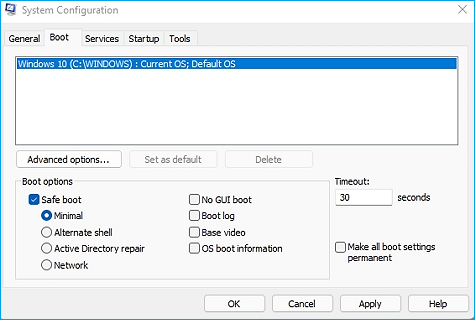
To enter safe mode, restart your computer and immediately start tapping the F8 key on your keyboard. This will bring up the Advanced Boot Options menu. Select "Safe Mode" from the list of options, and your computer will boot up in safe mode. If the issue persists, you can try disabling any recently installed software or hardware drivers to see if that resolves the problem. If the issue goes away in safe mode, it's likely that one of these drivers or software is causing the problem.
Step 1: To open the system configuration windows, press Win+R, type msconfig, and press OK. Then, go to the Boot tab.
Step 2: To access the Boot sections, tick the point that shows the Safe Boot option, which allows you to boot in safe mode, and also gives you the option to have a network connection.
Step 3: To resolve the issue, restart your system in safe mode and check if everything works normally. If it does, then the problem is likely with a recently installed application or driver.
4. Update Driver Of Display Adapters
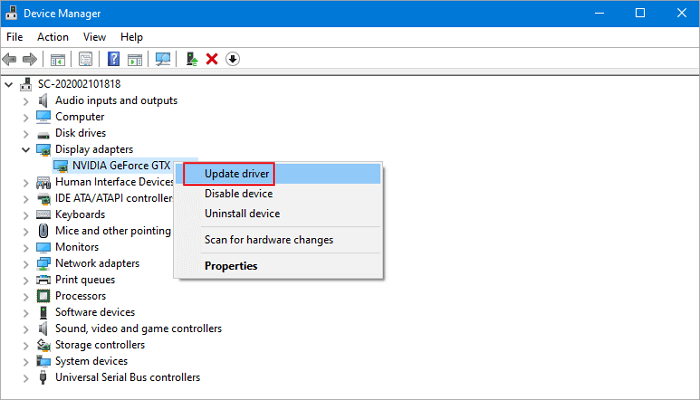
If you're experiencing a white screen of death, it could be due to outdated graphics drivers. Check your video card drivers to see if they're up to date, as this might be the cause of the issue.
To update the graphics driver, download it from the OEM website, as Windows Update no longer updates graphics drivers. OEMs typically provide an installer that can install the driver and any necessary patches.
5. Recover Data By Using Qiling Partition Master
Qiling Partition Master is a helpful tool for recovering lost partitions and has other useful features for managing your Windows system's disk.
Qiling excels in various partition management tasks, including resizing, moving, migrating, and changing labels, as well as defragmentation and exploration. It also allows for converting MBR to GPT and merging non-adjacent partitions. Additionally, Qiling enables quick OS transfer to a new storage device and merging small partitions into larger ones, making it a useful tool for resolving disk space issues and recovering lost data.
Step 1. Open Qiling Partition Master and click "Partition Recovery" on the top menu. Select a disk to start searching for lost partition(s), then click "Scan" to begin the process.
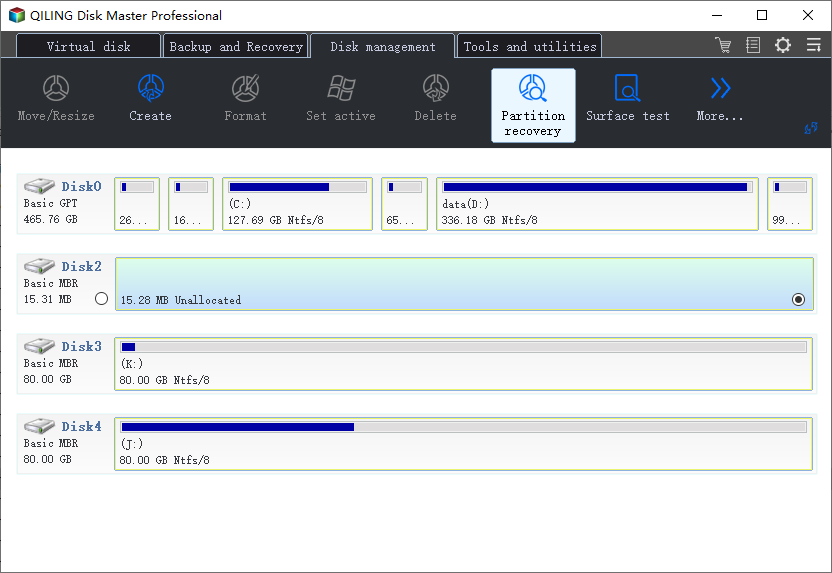
Step 2. A quick scan will start immediately, and you can pause the scanning process at any time by clicking "Proceed" when the lost partition shows up, allowing you to start your data recovery.
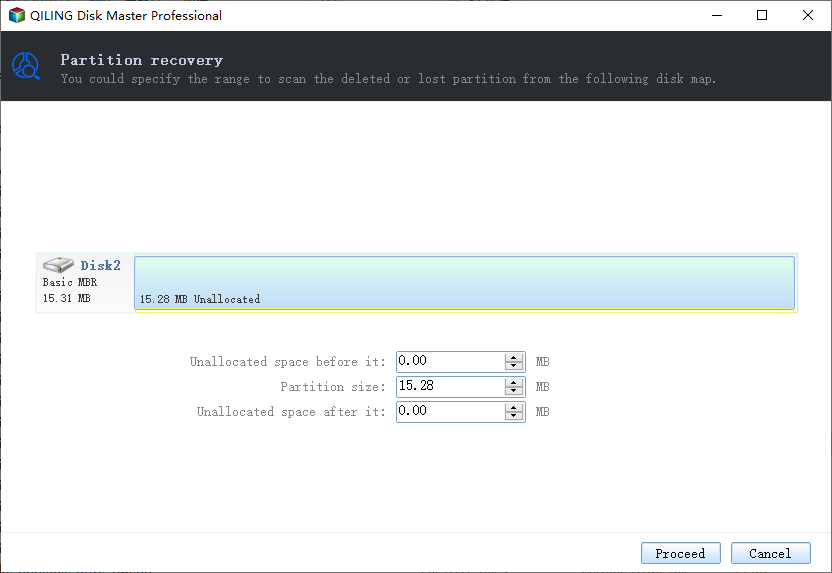
You can double click on the partition you're looking for to preview its content.
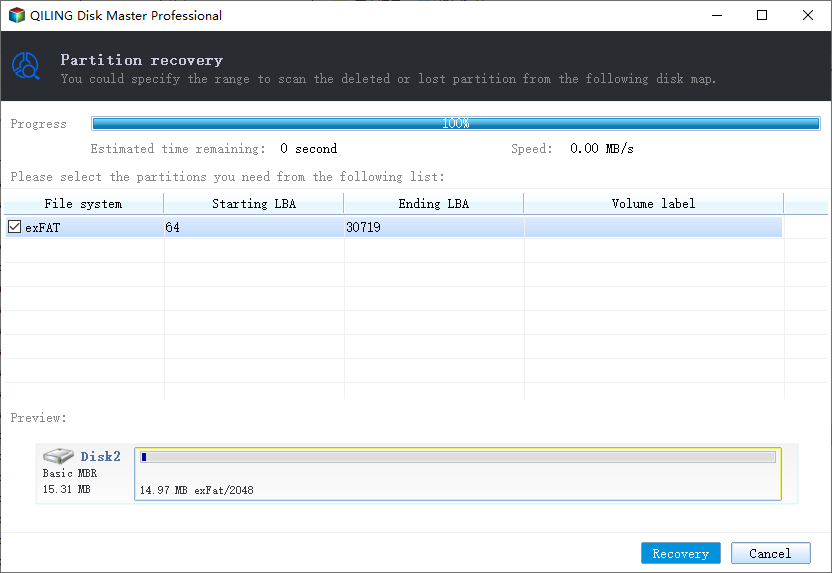
Step 3. Once the lost partition and data have been found, click "Recover". This will restore your lost partition, making it reappear in your drive.
6. Roll Back Windows Update
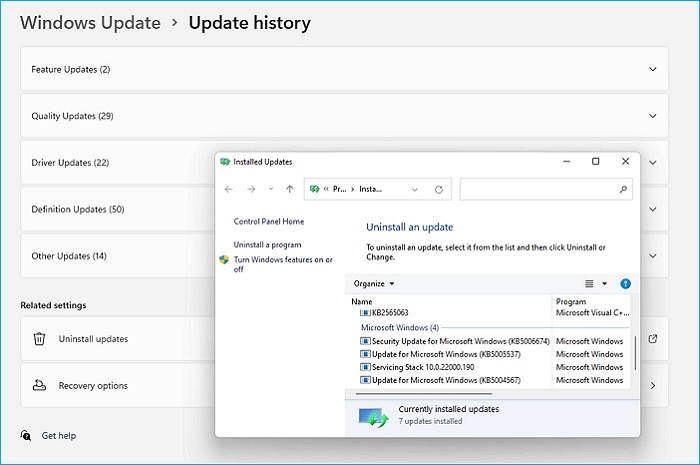
Faulty or corrupted Windows updates are a common cause of the White Screen of Death (WSoD) issue, with many users experiencing problems after installing specific updates. If you suspect that a recent update may be the culprit, follow these steps to troubleshoot and resolve the issue.
Step 1: Press Win+I to open the setting. Go to Windows Update.
Step 2: After visiting the Update History page, click on "Uninstall Updates" to open the classic window showing all the recently installed updates.
Step 3: To troubleshoot an issue, select the recently installed update that you suspect might be causing the problem, right-click on it, and choose the "Uninstall" option from the context menu. This will remove the update and potentially resolve the issue.
7. Check Pending Windows Updates
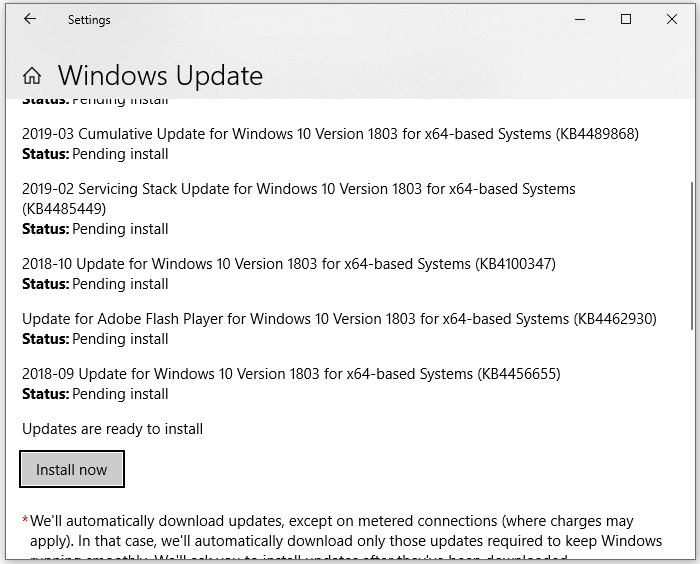
If you're experiencing issues with Windows updates, it's possible that you're missing out on some significant updates, which can cause this problem. To resolve this, check for available updates and download the necessary update patch to get back on track.
Step 1: To check for Windows updates, open the Windows Settings and navigate to the Windows Update section. If an update is available, it will be displayed; if not, click the "Check for update" button to initiate a scan.
Step 2: If there is an update, it would be best to install it. Additionally, look for driver updates under Optional update and install those as well.
Step 3: The latest update should be installed and the computer should be restarted to ensure that all changes are applied and the computer is running with the most current security patches and features.
Concluding Thoughts
The White Screen of Death (WSoD) is a frustrating issue that can occur at any time, leaving users feeling helpless. Fortunately, there are simple solutions that can help resolve this problem and get your system back up and running smoothly.
If you're experiencing issues with your computer system, it's likely due to a problem with the system itself, caused by various factors. To troubleshoot, you can try the steps listed in the app, starting from top to bottom, which should lead you to a solution. The issues are generally broad, and the app is designed to provide assistance in finding the answer to your specific problem.
Related Articles
- How to Fix Windows 11 Slow Startup? Your Complete Guide
- How to Fix (GPT) Hard Disk Partition Not Recognized in Windows 11/10
- How to Format USB Using CMD in Windows | 2022 Guide
- Top 10 Best Free Partition Manager Tools for Windows 11/10 (2022 Guide)
- How to Perform Diskpart Quick Format in Windows [Easy & Efficient Ways]
This page provides a comprehensive guide on performing a quick format using Diskpart, including a full quick format on diskpart. It also offers a professional format tool to assist with the process. - Do I need EFI System Partition? Can I Delete the EFI Partition?
If you've used the Disk partition tool and seen the EFI System partition, you're likely familiar with it. But have you ever wondered if you actually need it, and can you safely delete it without affecting your Windows PC setup.
Products
Articles & Tutorials
- Data Recovery
- Data Backup
- File Recovery
- File Backup
- System Backup and Restore
- Disk and Partition Clone
- Technical articles
- Mobile articles
- Disk Master Help
- Windows Data Recovery Tutorials
- Windows Secure Delete Tutorials
- Windows Partition Management Tutorials
- Windows File Backup and Restore Tutorials
- Windows System Backup and Restore Tutorials
- Windows Disk Backup and Restore Tutorials
- Windows Clone Tutorials