How to Perform Diskpart Quick Format in Windows [Easy & Efficient Ways]
Key Takeaways:
1. You may want to quickly format a hard drive using Diskpart to save time, but it can be a bit tricky as it requires specific commands.
2. To use Dikspart to perform a quick format, you can run the command "Dikspart /quick" in the command prompt. This will initiate the quick format process, which will format the disk without checking for bad sectors, making it a faster process but also potentially risky if the disk is faulty.
If you're looking for a guide on using Diskpart to quickly format a disk, this guide can help. This page provides detailed steps on how to use Diskpart to perform a quick format, which can be a useful tool for various disk-related tasks. Let's dive in and learn more about Diskpart.
Can I Quick Format the Disk Using Diskpart?
Diskpart is a command line tool that performs disk management via a simple command prompt, allowing users to list, partition, delete, or format hard drives and disks, with various commands available for these functions, and it has been included in almost all Microsoft-Windows operating systems since XP.
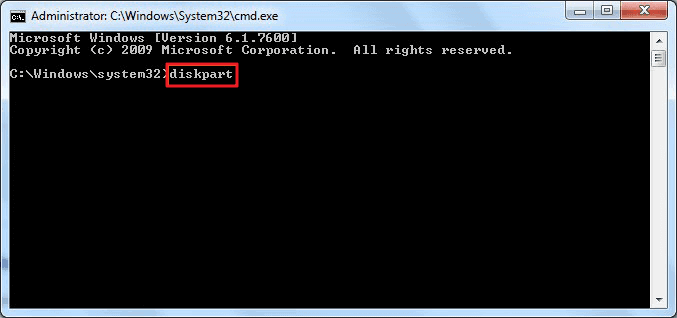
Diskpart is a command-line utility that replaces its predecessor, fdisk, and allows users to manage their disks. It can be used to perform a full format or quick format, and we will focus on using Diskpart to perform a quick format. To use Diskpart to quick format a disk, you can follow the steps: Open the command prompt as an administrator, type "diskpart" and press enter, then type "list disk" to select the disk you want to format, type "select disk X" (replace X with the number of the disk you want to format), type "clean", type "convert mbr" (optional), and finally type "format quick" to complete the quick format process.
Note: To avoid data loss, please back up all important data before starting to format your hard drive. You can follow this link to learn how to back up your data. Once you've backed up your data, you can proceed with formatting your hard drive.
Diskpart Quick Format: How to Quick Format a Disk Using Diskpart?
To perform a quick format using the Diskpart command, you can type the following command in the Diskpart command line: `format quick`. This command will quickly format the selected disk without checking for errors, making it a faster process. Please note that using the quick format option may not detect and fix all errors, so it's essential to ensure the disk is healthy before proceeding. If you're unsure, you can use the `chkdsk` command to check for errors before attempting a quick format.
To perform a quick format using Diskpart, open Command Prompt as an administrator, type "diskpart", and press Enter. Then, type "list disk" and press Enter to display a list of all disks on the system.
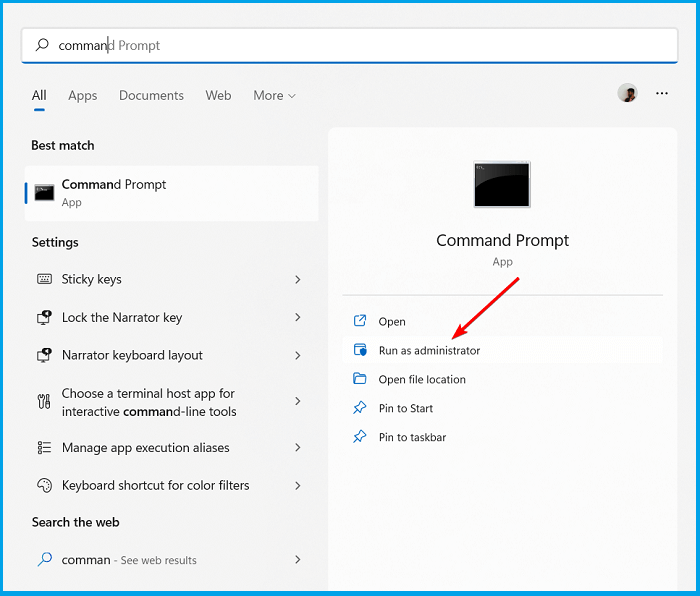
Step 1. Right-click the Windows icon and search "Command Prompt."
Step 2. Select "Command Prompt" and run it as Administrator.
Step 3. Type diskpart at the command prompt and press Enter.
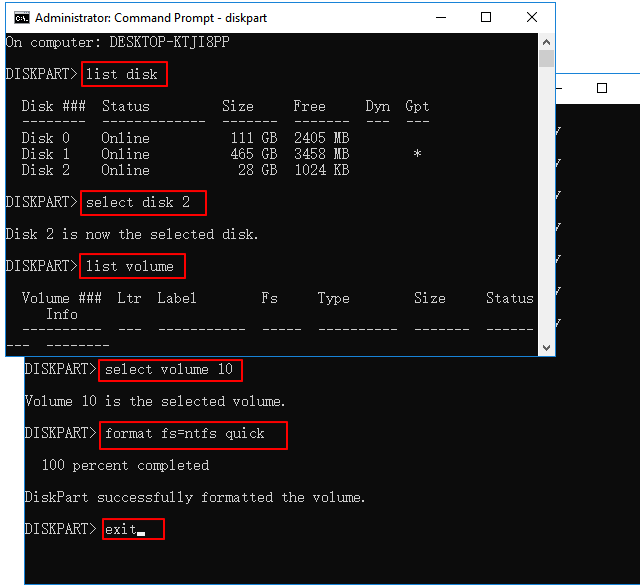
Step 4. To perform a quick format using Diskpart, type the command line "FORMAT QUICK" and press "Enter", then type "EXIT" and press "Enter" again. Alternatively, you can type "FORMAT QUICK /FS:NTFS" and press "Enter" to format the disk to NTFS file system, and then type "EXIT" and press "Enter" to exit Diskpart.
- list disk
- select disk 2
- list volume
- select volume 10
- format fs=ntfs quick
- Notice:
-
Replace disk 2 with your disk number.
10 is not a valid volume quantity. Please enter a valid volume quantity.
To format a 4TB external hard drive, you can use the exFAT format. This format is suitable for large external hard drives and allows for fast data transfer.
Step 5. You need to type "exit" and press "Enter" to close the program after DiskPart finishes the quick format.
Formatting a drive using Diskpart can be a bit tedious, but it's a straightforward process. To do this, you'll need to open the Command Prompt as an administrator, type "diskpart", and press Enter. Then, type "list disk" to view a list of available drives, select the one you want to format by typing "select disk X" (where X is the number of the drive), and finally, type "clean" to wipe the drive clean and "convert mbr" to convert it to a Master Boot Record. Note that formatting a drive will erase all data on it, so be sure to back up any important files before proceeding.
If you want to format hard drives or disks in an easier and simpler way, you may like to know a third-party free tool, Qiling Partition Master, which can help you with that.
Professional Alternative to Diskpart: Quick Format
Compared to Diskpart, Qiling Partition Master Free offers a more user-friendly experience, particularly when it comes to quick formatting. Its clear interface and detailed prompts make it easy to navigate, allowing users to feel at ease while using the software.
While both Diskpart and Qiling Partition Master are disk management tools, they have distinct differences. Diskpart is a built-in Windows utility that allows users to manage partitions, create and delete volumes, and perform various disk-related tasks.
| Features | Qiling Partition Master | Diskpart |
|---|---|---|
| Reliability | More reliable | Less reliable |
| Operation Difficulty | Easy to use | Complex |
| Suitable User | All users | Advanced users |
Qiling Partition Master is easy to operate, making it suitable for both professionals and non-professionals. The software doesn't require entering commands during the format process, reducing the likelihood of mistakes.
To quickly format a disk using Diskpart, you can use the following command: `diskpart` followed by `list disk` to select the disk you want to format, then `clean` to remove any existing data, and finally `quick` to initiate the quick format process. However, please note that this method is not recommended for SSDs, as it may cause data loss. It's always best to use the built-in formatting tools provided by the operating system or the manufacturer's recommended formatting software for optimal results.
Step 1. Run Qiling Partition Master, right-click the hard drive partition you intend to format and choose "Format" to format the partition.

Step 2. Set the partition label, file system, and cluster size in the new window, then click "Proceed" to format the partition.

Step 3. Click "Yes" in the warning window to start formatting the partition on your hard drive.
This partition manager can also help you to resize, extend, shrink, split, merge, move, and copy partitions, as well as convert between different file systems, such as FAT to NTFS, and vice versa. It can also create and delete partitions, and even recover data from lost or damaged partitions. It's a very powerful tool for managing your computer's storage.
What Else Can Qiling Partition Master Do?
The tool has features beyond disk management, including the ability to manage user accounts, groups, and permissions, as well as provide information about system resources, hardware, and software. It also allows for the creation and management of system snapshots, and provides a way to view and manage system logs. Additionally, it includes tools for troubleshooting and system maintenance, such as disk cleanup and system file checker.
- Convert to NTFS/FAT32
- Clone systems and partitions
- Convert MBR to GPT without data loss
- Check disk, file system errors, and bad sectors
- Format disks, partitions, and external hard drives
Qiling Partition Master is the best choice for an easy and efficient format, making it ideal for those who want to perform this task with minimal hassle.
Conclusion
If you're not a computer expert, performing a quick format using Diskpart can be tricky. However, you can simplify the process by using Qiling Partition Master, which can help you achieve a quick format without having to navigate complex commands. If you'd like to free yourself from the hassle of formatting, you can download Qiling Partition Master to assist you.
FAQs About Diskpart Quick Format
How much do you know about Diskpart quick format now? In this part, you can see three questions related to today's topic. Hope it can help.
1. What is the fastest way to format a partition in CMD?
To quickly format a partition in CMD, type the command "format fs=ntfs quick" after locating the partition you want to format. This will perform a quick format.
2. What is the difference between full format and quick format?
This means performing a quick format and deleting the data on the disk, but not completely, allowing for a window of recovery, and taking less time.
A full format takes more time and rewrites every sector of the drive, also overwriting existing data and making it unrecoverable.
3. Is quick format good enough?
It depends on your needs, with a quick format being sufficient if you plan to reuse the drive, but a full format is recommended if you suspect any issues with the drive.
Related Articles
- How to Figure Out if You Have a 32 or 64-bit Operating System on Your PC or Laptop
- How to Create A Partition Windows 11? [Solved]
- (FULL FIX 2022) We Couldn't Create a New Partition or Locate an Existing One
- How to I Permanently Shred Files? Your Complete Guide Is Here
- How Much Disk Space Does Windows 10 Take [Full Explanation]
Windows 10 takes up a significant amount of space on your computer, even if you haven't installed any applications. The operating system itself is a major contributor to this space consumption, and understanding how much space it takes up is essential. - How Much GB is Fortnite on Laptop/PC | Get More Storage
Fortnite has entered Season 1 of Chapter 5, introducing new maps, weapons, and items, but also requiring more storage space on your HDD/SSD. If you're unsure how much space Fortnite takes up on your laptop or PC, this article will provide the answer and offer tips to help resolve any storage issues.
Products
Articles & Tutorials
- Data Recovery
- Data Backup
- File Recovery
- File Backup
- System Backup and Restore
- Disk and Partition Clone
- Technical articles
- Mobile articles
- Disk Master Help
- Windows Data Recovery Tutorials
- Windows Secure Delete Tutorials
- Windows Partition Management Tutorials
- Windows File Backup and Restore Tutorials
- Windows System Backup and Restore Tutorials
- Windows Disk Backup and Restore Tutorials
- Windows Clone Tutorials