Convert MBR to GPT Without Data Loss (Windows 11 Available)
Windows systems use either a Master Boot Record (MBR) or GUID Partition Table (GPT), depending on the system's age, operating system, and firmware. To convert an MBR to GPT, Qiling Partition Manager is a reliable tool that can perform the conversion without data loss. The process involves selecting the disk to convert, right-clicking on the MBR disk and choosing "Convert to GPT", and then clicking "Apply" to commit the changes, all without requiring partition deletion or formatting beforehand.
- Applies to Windows 11/10/8/7/Vista/XP
- Trusted by over 10,000,000 users for more than 10 years
- Windows partition software allows you to manage and manipulate partitions on your Windows computer, including creating, resizing, cloning, moving, merging, and formatting them.
- Qiling Partition Master -
Your Smart Windows 11 Update Disk Manager
- MBR to GPT Converter, Make Disk Ready for Windows 11.
- Migrate Windows 11 to New SSD in 1-Click.
- Handy to Extend orCombine Partitions in Windows 11.
- Clone and Upgrade Disks without Data Loss.
- Why Convert MBR to GPT
- How to Check the Partition Style
- The Best MBR to GPT Converter
- Convert MBR to GPT with Software
- Manual Solutions to Convert MBR to GPT
- People Also Ask
Why Convert MBR to GPT
Users want to convert MBR to GPT for reasons such as replacing a disk, upgrading their system, or simply wanting to do so due to personal preference.
- I will replace the disk with a bigger one.
A GPT disk can support larger than 2TB volumes, unlike MBR, which has a 2TB limit. If you have a larger MBR disk, you'll need to convert it to GPT to utilize the full capacity.
- Personal willingness
Converting MBR to GPT is a popular choice due to GPT's ability to hold a nearly unlimited number of partitions without the need for an extended partition. However, the process can be tricky as it requires converting MBR to GPT without losing any data. Fortunately, there are ways to do this easily and quickly, allowing users to take advantage of GPT's benefits while keeping their important files intact.
- MBR VS GPT | What's the Difference and Which Is Better
- The debate between MBR and GPT has been ongoing, with both having their own strengths and weaknesses. MBR (Master Boot Record) and GPT (GUID Partition Table) are two different partition table formats used for storing data on a hard drive or solid-state drive (SSD). While MBR is limited to supporting a maximum of 4 primary partitions per drive, GPT allows for up to 128 partitions, making it a more versatile option. However, GPT also has its own set of complexities and limitations, such as requiring a specific type of firmware to work properly.
- MBR vs GPT comparison
How to Check the Partition Style of a Disk
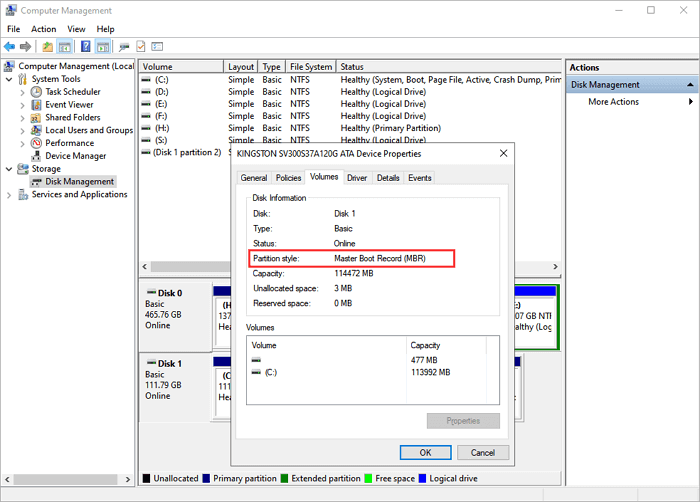
To identify the disk type, open Disk Management, and check the partitioning scheme of the hard drive, which will show whether it's MBR or GPT. This information is necessary before converting to the target type.
Step 1.Right-click "This PC" and choose "Manage".
Step 2.Go to "Disk Management".
Step 3.Right-click the disk you want to check and choose "Properties".
Step 4.To find the partition style, go to the "Volumes" tab and look under the disk information, where it will be listed.
The Best MBR to GPT Converter - Qiling Partition Master
Windows Disk Management can convert a non-partitioned hard disk from MBR to GPT, but this process requires deleting all partitions, resulting in data loss. Therefore, it's not the best choice for conversion. Instead, consider using third-party partition management software, such as Qiling Partition Master, to safely convert a hard disk from MBR to GPT.
This disk program allows you to convert an MBR disk to a GPT disk without deleting partitions, preventing data loss. Its considerate feature makes it stand out from other partition management software. Additionally, it offers quick partitioning capabilities, enabling you to resize disk space without losing data, making it useful for home, business, and service providers.
How to Convert MBR to GPT Without Data Loss
Converting an MBR disk to a GPT disk with Qiling Partition Master is a straightforward process that can be completed in just three steps. This partition magic software also supports the reverse conversion, allowing you to easily switch between MBR and GPT disks as needed.
Other Manual Solutions to Convert MBR to GPT in Windows 11/10
To convert MBR to GPT without downloading additional software, you can manually edit the boot sector and partition table of your hard drive using a text editor like Notepad. This process involves opening the boot sector and partition table in a text editor, deleting the MBR signature, and rewriting the GPT header.
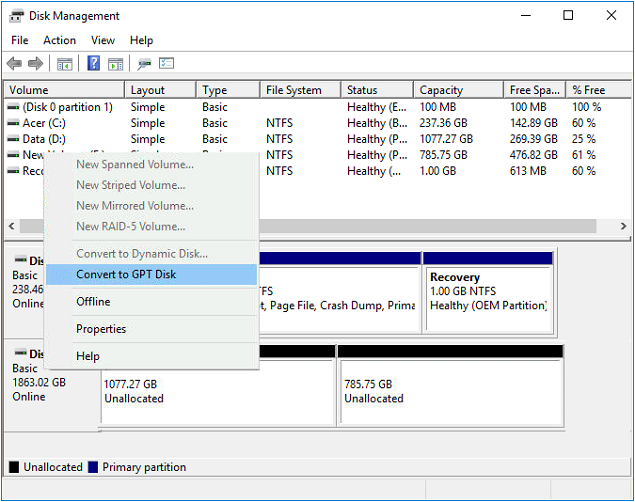
Solution 1. Convert MBR to GPT Disk with Disk Management
Step 1.Right-click on "This PC", choose "Manage", then go to "Disk Management".
Step 2.If you accidentally deleted a volume in Disk Management, you can recover the partition and the files on it by following the steps in the linked article. Otherwise, right-click the volumes on your target disk and select "Delete Volume..." to remove them.
Step 3.When your disk becomes empty, right-click it and choose "Convert to GPT Disk".
Solution 2. Convert MBR to GPT via Diskpart
You need to know the number of your MBR disk. If you don't know, you can refer to Part 2. Then, take these operations: open command prompt, type the following commands in Command Prompt, and press Enter after each command.
diskpart list disk select disk 1 clean list disk select disk 1 convert gpt
People Also Ask These Questions
The internet is buzzing with discussions about MBR and GPT, and this is where you can find the answers.
1. Can MBR be converted to GPT?
You can convert a disk from MBR to GPT partition style using Disk Management, but only if the disk is empty of partitions or volumes. However, if you want to convert the system disk to GPT, you'll need to use a third-party partition software like Qiling.
2. How do I change from MBR to GPT in Windows 11/10?
In general, there are 3 ways to convert MBR to GPT.
- 1. Convert MBR to GPT using Qiling MBR to GPT converter.
- 2. Convert MBR to GPT Windows 11/10 with Disk Management.
- 3. Convert MBR to GPT via Diskpart.
3. What is GPT format?
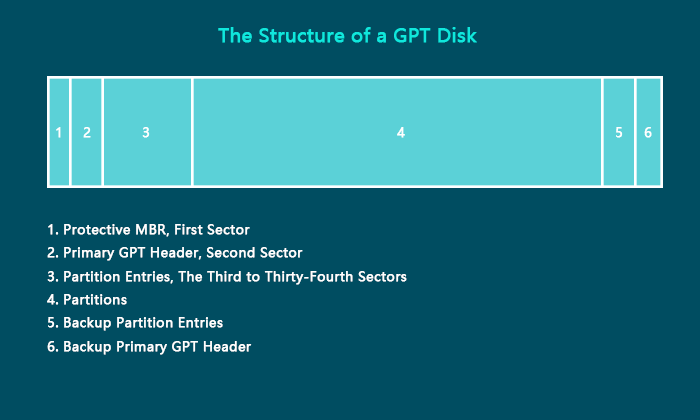
The GUID Partition Table (GPT) is a format used to define hard disk partitions in computers with UEFI startup firmware, replacing the traditional master boot record (MBR) method. Unlike the MBR, which had a maximum partition size of 2.2TB, GPT allows for partitions of up to 18 exabytes.
4. What is UEFI boot mode?
UEFI (Unified Extensible Firmware Interface) is a modern solution that has been replacing the legacy BIOS on PCs since its introduction in 2007 with Windows Vista Service Pack 1 and Windows 7. Unlike BIOS, UEFI can do more and may be stored in flash memory on the motherboard, or loaded from a hard drive or network share at boot. The interface and features of UEFI vary across different PCs.
5. Should I use MBR or GPT?
If you have a large hard disk (over 2TB), GPT is a better choice. However, if your computer is BIOS-based, use MBR for the system disk. For smaller disks (under 2TB) used for data storage, both GPT and MBR are suitable options.
The preparation differs for a data disk and a Windows boot disk; follow the Windows 11 MBR-to-GPT decision guide before changing either one.
Related Articles
- Free Download Kingston DT 101 G2 Repair/Format Tool
- 8 Solutions to Fix NTLDR Is Missing in Windows 10/8/7
- [2026 Update]How to Resize EXT4 Partition in Windows 11/10
- 3 Powerful Ways to Convert GPT to MBR in Windows 11 [2022 Guide]
- Some volumes will be lost after converting dynamic disk to basic
Solutions for how to avoid volumes lost after converting dynamic disk to basic. - How to Allocate Free Space from One Partition to Another Easily and Quickly
You can allocate free space to C drive when C drive is almost full, you can refer to this post to learn how to do it.
Products
Articles & Tutorials
- Data Recovery
- Data Backup
- File Recovery
- File Backup
- System Backup and Restore
- Disk and Partition Clone
- Technical articles
- Mobile articles
- Disk Master Help
- Windows Data Recovery Tutorials
- Windows Secure Delete Tutorials
- Windows Partition Management Tutorials
- Windows File Backup and Restore Tutorials
- Windows System Backup and Restore Tutorials
- Windows Disk Backup and Restore Tutorials
- Windows Clone Tutorials