How to Delete NTFS Partition [Three Ways in 2022]
NTFS stands for New Technology File System, a default standard file system for Windows systems, allowing storage, organization, and file retrieval on hard disks, known for greater security and reliability.
Can You Delete NTFS Partition?
Deleting an NTFS partition within Windows allows you to free up space for other systems, but ensure it's not part of the C drive partition.
If the NTFS partition belongs to the system partition, Windows will not allow you to delete it. You will see the delete volume greyed out when you delete it with Disk Management. The system partition is used to boot the Windows, so they cannot be deleted within Windows. To delete it, you need to use a third-party tool. Next, I will introduce three ways to delete NTFS partition.
- Notice:
- Deleting an NTFS partition will completely erase all data on the disk, so it's recommended to back up any important files beforehand.
How to Delete NTFS Partition? [Three Ways]
Deleting an NTFS partition in Windows is a straightforward process that can be accomplished using either a built-in tool or a third-party utility. To delete an NTFS partition, you can use the built-in Disk Management tool in Windows, which allows you to easily remove unwanted partitions. Alternatively, you can use a third-party tool, such as a partition manager or a disk editor, to delete the NTFS partition. Both methods are simple and effective, and the choice between them ultimately depends on your personal preference.
Method 1. Delete NTFS Partition via Qiling Partition Master
Method 2. Delete NTFS Partition via Disk Management
Method 3. Delete NTFS Partition via Diskpart
We will start with Method 1, which uses a reliable and powerful disk tool that can meet more needs. This method will provide detailed steps, making it the best way to begin.
Method 1. Delete NTFS Partition via Qiling Partition Master
Qiling Partition Master Free is a user-friendly tool that can easily delete NTFS partitions while keeping all data on the disk intact. By properly managing partitions, it can maintain the disk's performance. Its simple and intuitive interface makes it suitable for beginners, and downloading it will allow you to learn how to use it effectively.
Step 1. Launch Qiling Partition Master, and click "Partition Manager".
Before deleting any partition on your disk, make sure to back up all important data to prevent loss.
Step 2. To delete a partition or all partitions on a hard drive, you need to open the Disk Management utility. This can be done by right-clicking on the Start button, selecting Disk Management, or searching for it in the Start menu.
- Delete single partition: Right-click on the partition you wish to delete and select "Delete".
- Delete all partitions: To delete all partitions from a hard drive, right-click the drive you want to delete partitions from, and select "Delete All".
Step 3. Click "Yes" to confirm the deletion.
- Notice:
- If your NTFS partition is on the C drive, which belongs to the system partition, you'll need to create a bootable disk to delete the partition.
Method 2. Delete NTFS Partition via Disk Management
Disk Management is a utility that comes with Windows to manage your computer's disks and partitions, making it easy to perform operations on partitions. To delete NTFS partitions with Disk Management, simply follow these steps.
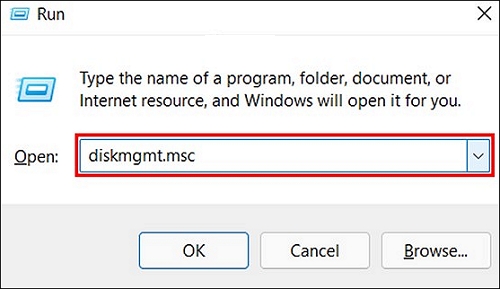
Step 1. To open Disk Management, press the Windows key + R to open the Run window, then type "diskmgmt.msc" and press Enter.
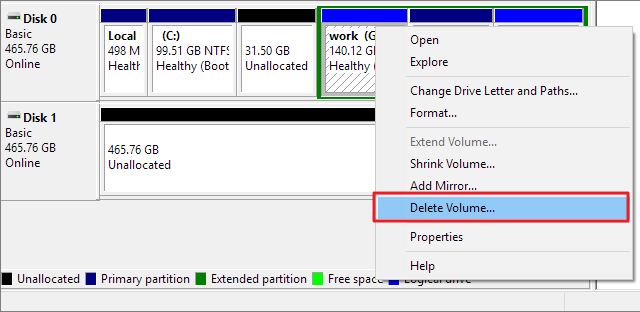
Step 2. To delete a partition in Disk Management, select the partition you want to delete, right-click on it, and choose "Delete Partition" from the context menu. This will erase all data on the selected partition.
Step 3. Right-click the NTFS partition you want to delete and select "Delete Volume" from the context menu to delete the partition.
Step 4. Confirm the deletion of the partition and click "Yes."
- Important
- If the NTFS partition is an active system partition, you'll get a message saying Windows can't delete it. If you still want to delete it, you'll need to create a Win-PE bootable media using Qiling Partition Master.
Method 3. Delete NTFS Partition via Diskpart
Diskpart is a tool that uses commands to manage and repair partitions, supporting all Windows users. It has more features than Disk Management, but requires careful attention to syntax parameters due to its complexity. If you're interested in using it to delete NTFS partitions, please refer to the following steps.
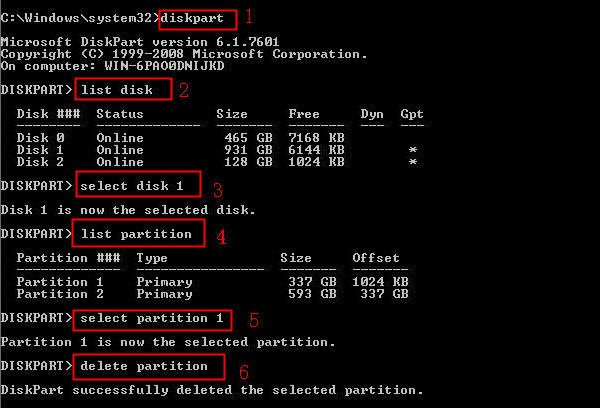
Step 1. Open Diskpart: hold down "Windows+R" and type "diskpart".
Step 2. Run the following command:
list disk – to see all the disks
select disk n – n refers to the number of the disk of the NTFS partition
list partition – to see all the partitions
select partition m – m refers to the NTFS partition you want to delete
delete partition
Step 3. Close the Command Prompt window.
- Tip
- If you want to use Diskpart to delete all partitions quickly, you can click on the link for help: Diskpart Delete All Partitions.
Conclusion
This guide introduced three methods to delete NTFS partition: using Qiling Partition Master, Disk Management, or Diskpart. Qiling Partition Master offers more powerful features and is user-friendly, requiring minimal computer skills to delete or resize NTFS partitions. Additionally, the guide addresses frequently asked questions about deleting NTFS partitions, providing helpful information for users.
FAQs About Delete NTFS Partition
Here are some frequently asked questions about deleting NTFS partitions:
1. Can I delete the NTFS recovery partition?
You can safely delete the NTFS recovery partition as it typically only takes up a small amount of space and won't affect the running operating system. It's usually kept on the hard drive for safekeeping.
2. How do I remove NTFS from Windows?
To remove NTFS from Windows, Qiling Partition Master is the recommended choice. Alternatively, you can use Disk Management to remove NTFS partition by following three steps.
Step 1. Open Disk Management by inputting "diskmgtmt.msc" on the run window.
Step 2. Choose the partition you want to remove and right-click it.
Step 3. Choose "Delete Volume" and click "Yes."
3. Can I safely delete partitions?
You can safely delete partitions using various methods, such as Windows built-in tools like Disk Management and Diskpart, or reliable software like Qiling Partition Master.
Related Articles
- Fix "Not Enough Space on the Disk in Windows Server"
- Resize Dynamic Disk to Extend or Shrink Dynamic Disk
- Windows 11 Is Not Booting? Your Fixes Are Here!
- SSD System Reserved: How to Remove System Reserved Partition
- How to Check Hard Drive for Bad Sectors - 3 Easy Ways 💡
Bad sectors on a hard drive can be caused by incorrect shutdown, dust pollution, and virus attacks. To identify them, you can use Partition Properties, Command Prompts, or third-party software. This article will guide you through the top 3 ways to check your hard drive for bad sectors. - How to Check If Disk Is Healthy on Windows [Step-by-Step Guide]
You can check if a disk is healthy using various methods, including built-in Windows features or third-party software, with five effective ways outlined in this article.
Products
Articles & Tutorials
- Data Recovery
- Data Backup
- File Recovery
- File Backup
- System Backup and Restore
- Disk and Partition Clone
- Technical articles
- Mobile articles
- Disk Master Help
- Windows Data Recovery Tutorials
- Windows Secure Delete Tutorials
- Windows Partition Management Tutorials
- Windows File Backup and Restore Tutorials
- Windows System Backup and Restore Tutorials
- Windows Disk Backup and Restore Tutorials
- Windows Clone Tutorials