How to Check Hard Drive for Bad Sectors - 3 Easy Ways 💡
Bad sectors are permanently damaged areas on a hard disk caused by factors such as incorrect shutdown, dust pollution, or virus attacks, resulting in lost data that cannot be stored on them. If your computer is experiencing strange noises or slowing down, it may indicate the presence of bad sectors on your hard drive. To determine if you have bad sectors, you can use one of three methods prepared by Qiling.
- Tip 1. Turn to Qiling Disk Master - Easy & Safe
- Tip 2. Run CHKDSK Utility - Require Basic Computing Knowledge
- Tip 3. Check Hard Drive for Bad Sectors in Partition Properties - Limited Info
Tip 1. Turn to Qiling Disk Master
Qiling Disk Master Professional is a simpler and more professional bad sector detection tool that allows users to test hard drive surface and mark bad sectors in red, providing location and number information, and is user-friendly with no command entry required.
Go install this tool and start testing the bad sectors on your hard drive now.
Step 1. To check the disk on your computer, open Qiling Disk Master, right-click the disk you want to check, and select "Surface Test" from the context menu.
Step 2. The operation will be performed immediately, and all bad sectors will be marked as red.
Qiling Disk Master cannot only run a disk surface test and locate bad sectors but also directly detect disk health, providing a comprehensive evaluation and issuing warnings when necessary.
Here's how to check hard drive health:
Step 1. Launch Qiling Disk Master, click the blue arrow to activate the "Disk Health" feature under the "Tools" section.

Step 2. To check the health condition of your disk, select the target disk and click the "Refresh" button. This will display the current status of your disk.

Qiling Disk Master offers a feature called "Check File System" which enables users to repair damaged sectors marked during a surface test.
Here is how to repair the bad sectors using Qiling Disk Master:
Step 1. Right-click the target partition that has a problem.
Step 2. Choose "Advanced" > "Check File System".
Step 3. Confirm if you want to hide the partition or not.
Step 4. In the Check File System window, select the option to "Fix the error on the disk".
Step 5. Click "Start" to check errors on your partition.
With this simple click, you can more intuitively know whether your disk is healthy and whether you need to replace it with a new hard disk, etc. If your health score is low, you may need to clone the original data to a new disk first to avoid data loss.
Tip 2. Use CHKDSK Utility
The Command Prompt can perform basic disk management tasks, scan, locate, and repair bad sectors on the hard drive, but it may be a bit more difficult than Method 1.
Step 1. To run the Command Prompt as an administrator in Windows 10/11, you can search for "Command Prompt" in the search box and choose the option "run as administrator."
🔎Note: To run the chkdsk commands in Command Prompt, you need to open the Command Prompt as an administrator. This is because the chkdsk commands require elevated privileges to function properly. If you don't run Command Prompt as an administrator, you may encounter an error message stating that you don't have sufficient privileges to run the commands.
Step 2. To run the check disk command, open the cmd window and type "chkdsk C:" followed by pressing the enter key to confirm the command. This will initiate the check disk process on the C: drive.
Here, you need to replace the C drive with the correct disk letter.
You May Also Like: Run CHKDSK to Check and Repair Hard Drive
Then CMD shows the type of the file system first, and the check will go to different stages:
- Stage 1: Examining basic file system structure.
- Stage 2: Examining file name linkage.
- Stage 3: Examining security descriptor.
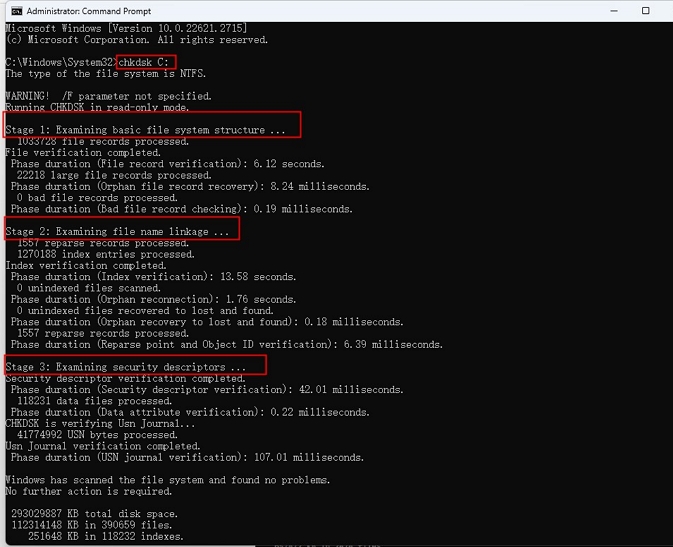
During the check disk process, CMD will inform you if any bad sectors exist on your hard drive. To run the CHKDSK command and check for bad sectors, you can follow the steps outlined in the article, which provides a guide on how to use this command to identify and potentially fix issues with your hard drive.
Tip 3. Check Hard Drive for Bad Sectors in Partition Properties
In Windows systems, you can use partition properties to check for bad sectors on your hard disk, in addition to using the Command Prompt (CMD).
To check a hard drive for bad sectors, first ensure the target hard drive is turned off. Then, restart your computer, and enter the BIOS settings. Look for the option to save changes to a floppy disk or a USB drive, and select that option.
Step 1. To access the properties of a drive, click on "This PC" and right-click on the target drive, then select "Properties."
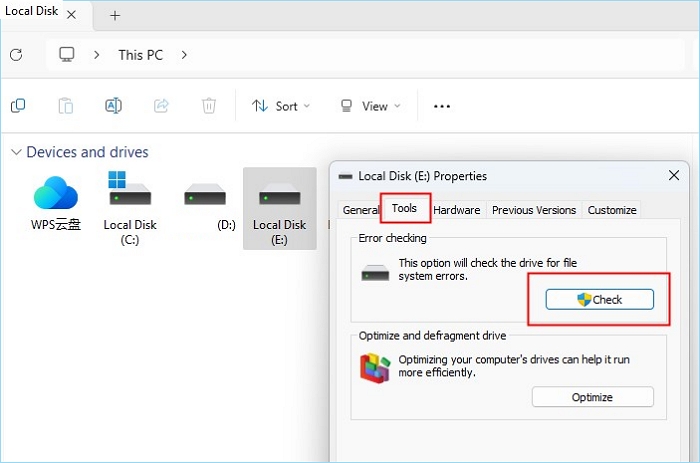
Step 2. Click on "Tools" and then "Check" in the pop-up window. Select either "Automatically fix file system errors" or "Scan" and attempt to recover bad sectors, then click "Start".
If there are bad sectors, a pop-up window will prompt you in time, or it will display "No errors were found." if there are none.
When Should I Check a Hard Drive for Bad Sectors?
Bad sectors are areas of the hard disk that are permanently damaged due to factors such as incorrect shutdown, dust pollution, or virus attacks.
Bad sectors on a hard drive refer to areas where data cannot be written or read due to physical or logical damage, which can be either physical (physical damage to the storage clusters) or logical (clusters that cannot function properly).
When bad sectors appear on the hard disk, symptoms such as data corruption, system crashes, and slow disk performance may occur. This can be tested by running disk diagnostic tools, such as chkdsk in Windows or fsck in Linux, which can identify and mark bad sectors on the hard disk. If bad sectors are found, it is recommended to replace the hard disk to prevent further data loss and system instability.
- The computer often makes unusual noises.
- Blue screen or computer freezes.
- "The file is corrupted" message appears when opening the file.
- Windows system crashes.
- The hard disk temperature is too high.
- The hard drive failed to start.
- Prevent computers from accessing data.
Qiling Disk Master can test and repair bad sectors on a hard drive, making it a useful tool for maintaining the health of your storage device.
Conclusion
A hard drive with bad sectors can still be used, but it's essential to back up data and consider replacing it to avoid data loss and system crashes.
You can determine if your hard disk has bad sectors by using the built-in tools on your computer, such as the Check Disk utility in Windows or the Disk Utility app in macOS. Additionally, you can use third-party software like CrystalDiskInfo or HDTune to scan your hard disk for bad sectors. By doing so, you can make a backup in advance and avoid greater losses if any bad sectors are found. Sharing this information with others can help them be aware of this issue.
Test Bad Sectors on Hard Drive FAQs
For beginners, CHKDSK can be a bit difficult. Below, we have listed three further questions and answers to help you. Read them if you need them.
1. Does CHKDSK fix bad sectors?
To fix hard drive errors, you can use different CHKDSK commands and switches. If you've found bad sectors on the disk, try running the command `chkdsk /r` to attempt to repair it. This command will scan the disk for errors, identify and repair bad sectors, and also attempt to recover any readable information from the bad sectors.
CHKDSK C: /R Locate the bad sectors on the C drive and attempt to recover readable information from the bad sectors. If the data is recoverable, you may be able to retrieve some or all of your files. If the data is not recoverable, you may need to replace the drive or seek professional data recovery services.
2. What do I do if my hard drive reports bad sectors?
You can often fix bad sectors on a hard drive by utilizing its built-in spare sectors, which can automatically replace the damaged areas with healthy data. This process is usually done by the hard drive itself, and you may not even need to intervene.
- Use the Error Checking utility built into Microsoft Windows.
- Double-click My Computer and then right-click the hard drive.
- To resolve the issue, click on Properties, then on the Tools tab of the Properties dialog box, click Check Now in the Error Checking Status area.
- In the Check Disk dialog box, select the Automatically fix file system errors check box, the Scan for and attempt to recover bad sectors check box, and then click Start.
A disk check can often fix a small number of bad sectors on a disk, but any data written to those sectors will likely be lost.
3. How do I test my hard drive for bad sectors?
You can use the error-checking utility provided by Microsoft Windows:
- Double-click My Computer (This PC), and right-click the hard disk.
- On the shortcut menu, click and choose Properties, and click on the Tools tab in the Properties dialog box.
- Click Check in the Error-Checking Status section.
4. Can a hard drive with bad sectors still be used?
A hard drive with a small number of bad sectors can work normally, but it's recommended to back up data or migrate the OS to another drive promptly, while a disk with many bad sectors should be cloned to a brand-new disk to prevent data loss.
Related Articles
- How to Make Nintendo 3DS System Read SD Card Over 32GB
- Download Partition Magic Server Software for Windows Server 2012/2012 R2
- How to Unlock a Lenovo Laptop Without Password
- How to Format SD Card for Trail Camera [2024 Newest Solution]
this guide provides a step-by-step guide to show you how to format SD card for trail camera. And you will know the detailed instructions on Windows, Mac, and camera. - How to Align Partition | Easy and Detailed Tutoial
Master the art of partition alignment to ensure optimal performance and storage efficiency. With our step-by-step guide, you'll learn how to easily align partitions, streamlining your storage setup and maximizing your system's potential. - How to Analyze Disk Space on Windows 10 [Step-by-Step Guide]
Want to know what's taking up space on your Windows 10 disk? this guide will introduce you to two free tools that can help you analyze and identify the space-hogging culprits on your Windows 10 disk.
Products
Articles & Tutorials
- Data Recovery
- Data Backup
- File Recovery
- File Backup
- System Backup and Restore
- Disk and Partition Clone
- Technical articles
- Mobile articles
- Disk Master Help
- Windows Data Recovery Tutorials
- Windows Secure Delete Tutorials
- Windows Partition Management Tutorials
- Windows File Backup and Restore Tutorials
- Windows System Backup and Restore Tutorials
- Windows Disk Backup and Restore Tutorials
- Windows Clone Tutorials