Download Partition Magic Server Software for Windows Server 2012/2012 R2
Key Takeaways of Partition Magic Server 2012:
- 1. Partition Magic server software supports managing and utilizing disk space on Windows Server systems, in addition to Windows systems.
- 2. For Windows Server 2012 and 2012 R2 users, there is powerful partition magic software available for free download that makes it easy to manage disk drives.
PartitionMagic is a utility software program for hard disk drive partitioning originally made by PowerQuest but subsequently owned by Symantec, available for both Windows and Windows Server users to manage disk drives on their own.
In 2009, Symantec announced it would no longer support PartitionMagic, and despite its popularity, the software has not received any further updates since then. Fortunately, most Windows users can find alternative software to help with partition management, but for Windows Server users, including those with Server 2012, 2012 R2, or 2016, the situation is less clear. However, there are still alternatives available to help with disk management tasks, even for newer Server users.
Windows Server 2012 Partition Magic Software is software that helps manage and optimize disk performance on Server computers. It is provided by different software providers to perform partition magic server functions. This software can be used to manage and optimize disk performance.
What Is the Best Partition Magic for Windows Server 2012 or 2012 R2
To pick a reliable partition magic server software, look for tools specifically designed for server operating systems like Windows Server 2012 or 2012 R2, such as Qiling Partition Master Server. Ensure the software supports your server's architecture (32-bit or 64-bit) and can handle your drive sizes.
To determine if the Windows Server partition manager you've found is suitable for Windows Server systems, consider the following standard criteria: check if the partition manager is designed specifically for Windows Server, if it supports the version of Windows Server you're using, and if it meets the system requirements of your Windows Server setup. Additionally, verify if the partition manager is compatible with your existing hardware and software configurations, and if it has the necessary features to manage partitions, disks, and storage effectively.
- 100% clean and risk-free.
- Support multiple disk management features that you need.
- Instant and powerful technical support, available to help any time.
- Reasonable price for Windows Server, business owner, and service providers.
Windows Server 2012 and 2012 R2 have reached end of life, and are no longer supported by Microsoft. The current supported versions are Windows Server 2016 and Windows Server 2022.
The best partition magic server software for Windows Server 2012 or Windows Server 2012 R2 can be found in professional disk tools provided by manufacturers, offering assistance for partition management needs.
Free Download Partition Magic for Windows Server 2012
Qiling Disk Master Enterprise is a disk partitioning tool for Windows Server computers. It helps resize, create, format, clone, and manage server disks through a clear interface.
You can download this software and use the following benefits for Windows Server 2012 disk management.
Benefits of Using Qiling Disk Master Enterprise for Server 2012:
- Free inquiry and 24*7 free tech support
- 5*24 technical expert on call" 1-800-992-8995
- Free upgrade with new versions of Qiling Disk Master.
- The software offers different editions tailored to specific user groups, including Server for Windows Server users, Unlimited for business owners, and Technician for MSP/service providers.
- This system supports all Windows Server systems, including Windows Server 2011, 2019, 2016, 2012, 2012 R2, 2008, and 2003.
To use Partition Master Enterprise on Windows Server 2012, follow the guide to learn how to resize and adjust disk partition size, and optimize disk performance.
Steps to Resize and Manage Partitions in Windows Server 2012 with Qiling Partition Magic
You can partition your hard drive in various ways, including creating a separate partition for your OS, programs, and data. To do this, you can use the built-in Disk Management tool in Windows, which allows you to resize, extend, or shrink existing partitions, as well as create new ones.
#1. How to Partition Hard Drive in Windows Server 2012
Step 1. Launch Qiling Disk Master to check for free space at the Partition Manager section.
- If your hard drive has unallocated space, you can create a new partition using the built-in Disk Management tool in Windows. To do this, go to Start, type "Disk Management" in the search bar, and open the Disk Management tool.
- If the hard drive has no unallocated space, the user should proceed with the next step, which is not specified in the provided text. However, the implication is that the user should then attempt to free up space on the hard drive by deleting files or uninstalling programs.
Step 2. Shrink a disk partition to create unallocated space.
Right-Click on the target drive partition with a lot of free space and select "Resize/Move".
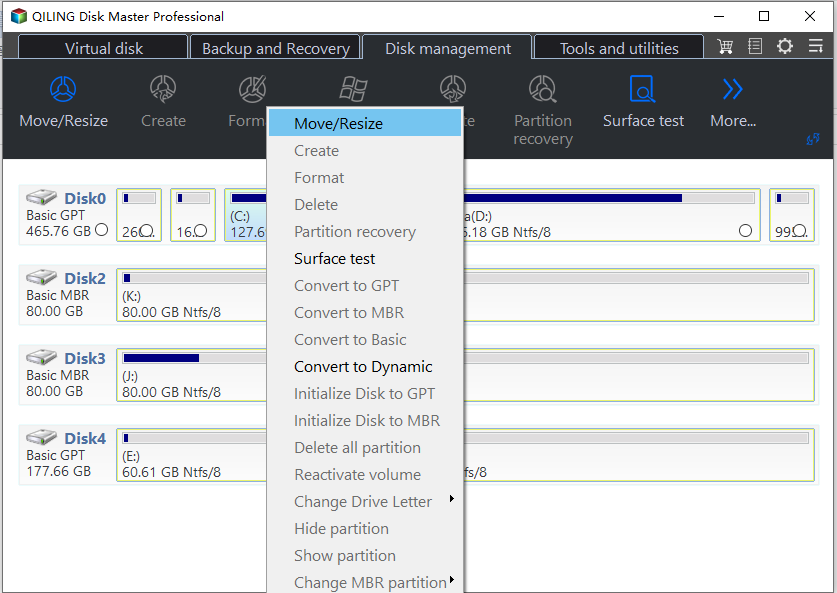
To free up unallocated space, drag either end of the partition to the right or left, reducing its size. This can be monitored in the "Partition size" area, showing how much space has been decreased.
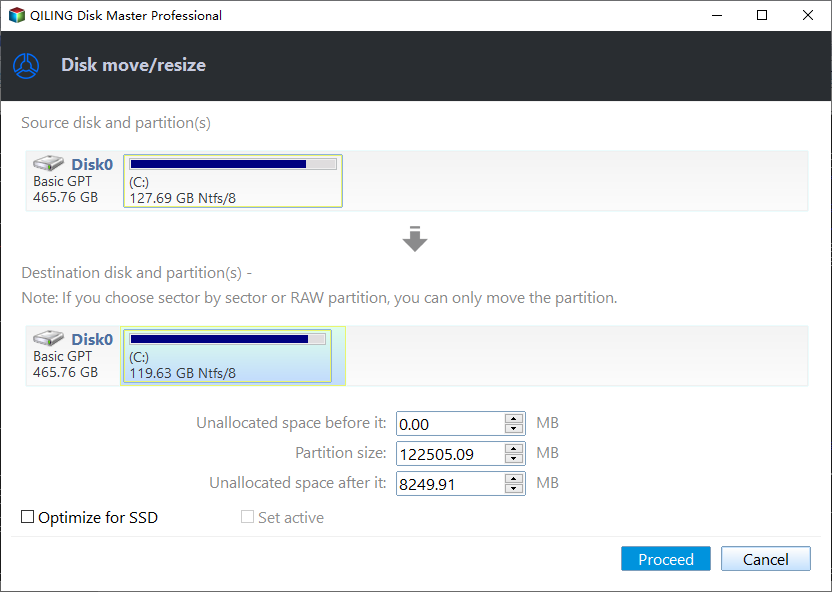
Click "Proceed" to save all the changes.
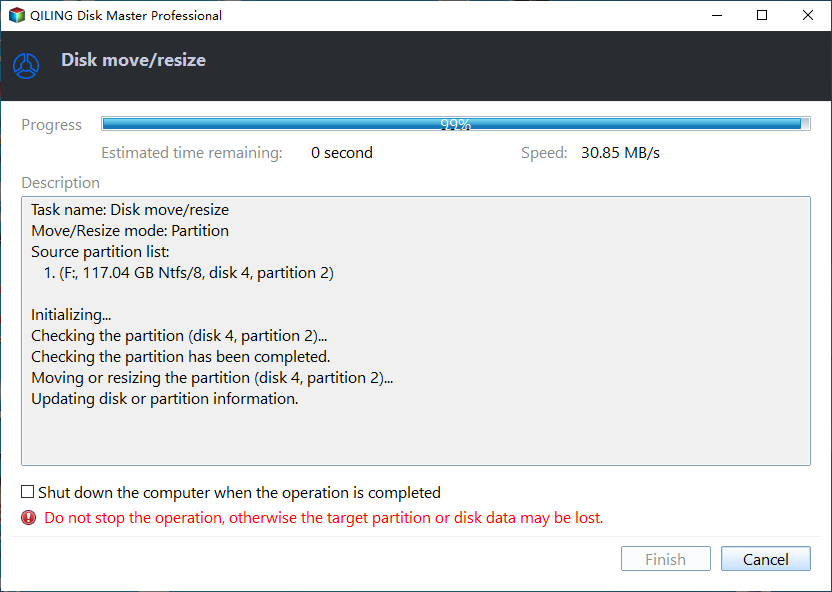
Go back to Partition Manager, there should be unallocated space appearing on the same disk. You can continue with the next step to create a new partition on your hard drive.
Step 3. Create a new partition with unallocated space on the target hard drive.
Right-click on the unallocated space and choose "Create".
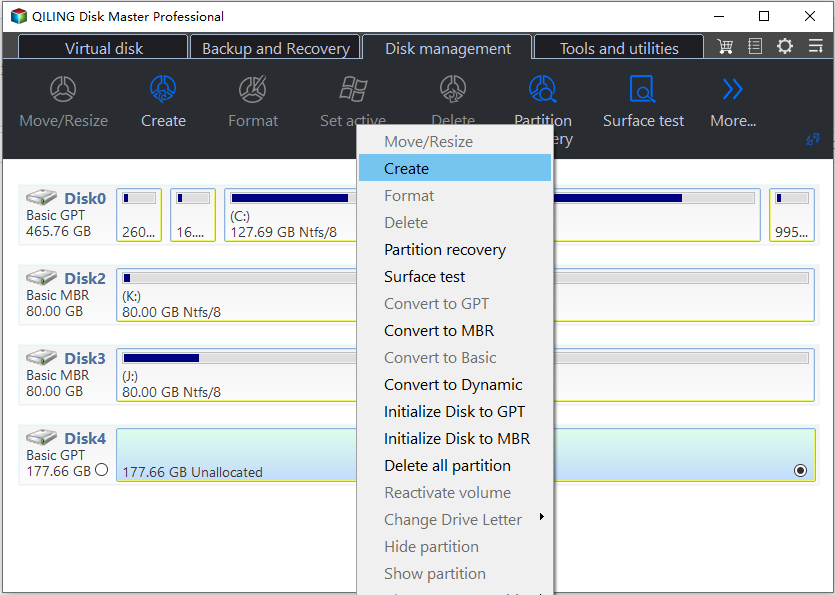
This software allows users to customize various settings for a partition, including its size, drive letter, label, and file system type, among other options.
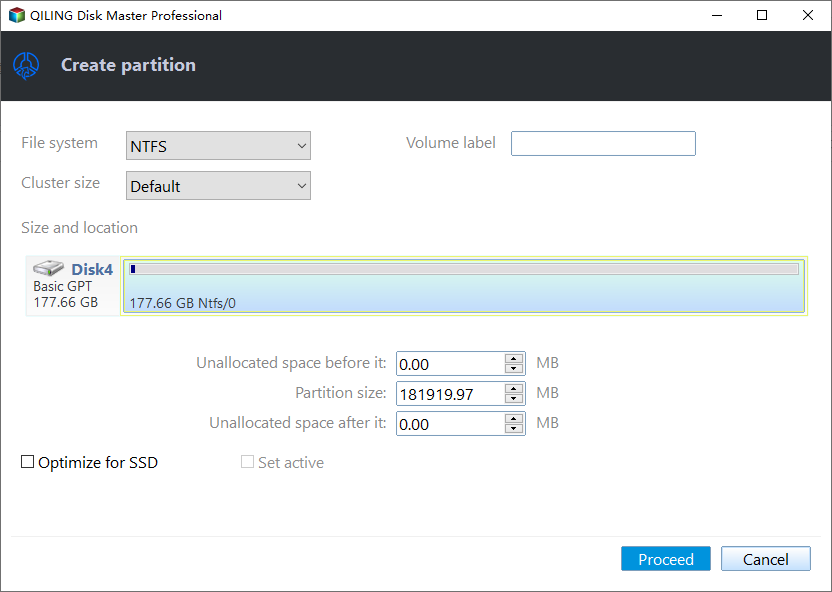
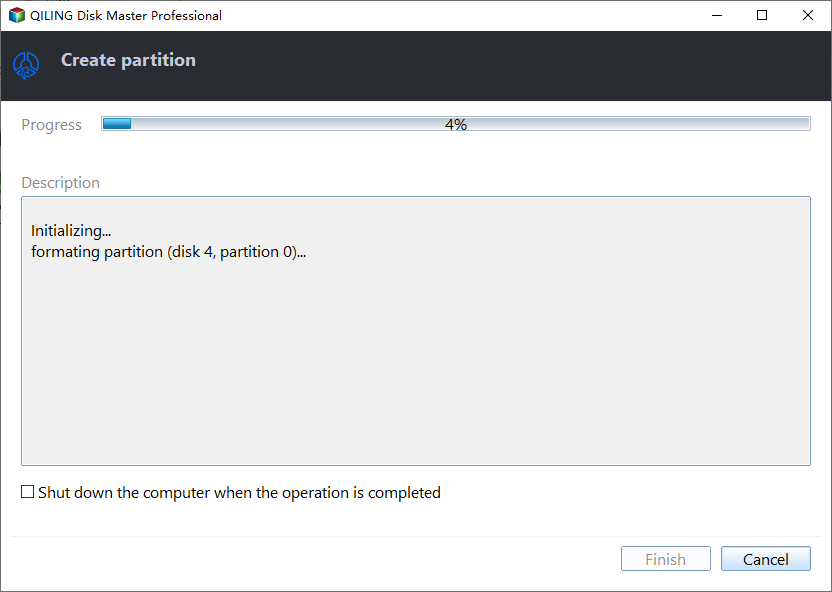
Create a new partition on your hard drive by selecting the unallocated space and clicking "New" in the Disk Management window. Choose the size and file system type for the partition, then click "Apply" to create it. Repeat this process to create additional partitions as needed.
#2. Extend Windows Server 2012 System Partition
Option 1. Extend System C drive with unallocated space
- 1. Right-click on the System C: drive and select "Resize/Move".
- 2. To expand the C: drive, the system partition end needs to be dragged into the unallocated space, effectively adding to the C: drive.
- 3. To proceed, click the "Proceed" button to execute the operations and extend the C drive.
Option 2. Extend System C drive without unallocated space
- 1. Right-click a big partition with enough free space on the system disk, select "Allocate Space".
- 2. Select the system drive at the "Allocate Space From" (*) To section, and drag the end of the System C drive into the unallocated space.
- 3. Click "Proceed" to save the changes and extend the C drive.
#3. Upgrade or Migrate Windows Server 2012 System to a New HDD/SSD
Steps to migrate OS to HDD/SSD:
- Run Qiling Disk Master, and select the "Tools and utilities" tab page.
- Check "System Clone" button to start.
- Select the desired storage drive, either a solid-state drive (SSD) or a hard disk drive (HDD), as the destination for the installation and click "Next".
- Be aware that the data and partitions on the target disk will be completely erased, so it's essential to back up any critical data before proceeding. If you haven't already, please do so now to avoid any potential loss of important information.
- Preview the layout of your target disk. Then click "Proceed" to start migrating your OS to a new disk.
Note: When migrating your operating system to an SSD or HDD, be aware that the process will delete and remove existing partitions and data on the target disk if there's not enough unallocated space available. To avoid losing important data, back up any saved files to an external hard drive before proceeding.
- For Your Information:
- After migrating the OS, reboot the Windows Server 2012 by pressing the Del/F2 keys to enter the BIOS, and set the boot drive to the new SSD or HDD with the migrated OS, ensuring the server system remains bootable on the new disk.
What Else Can I Do with Qiling Partition Magic Server 2012
In addition to disk management, Qiling Disk Master Enterprise for Windows Servers offers further features. This software allows you to check and discover what else you can do in Windows Server 2012, including various additional functionalities.
- Manage Disk Partitions: Create, delete, format, merge, split, extend, and shrink partitions.
- Disk Conversation: The tool allows conversion of a Windows server disk from MBR to GPT or vice versa, conversion of a disk from basic to dynamic or vice versa, and conversion of a partition from NTFS to FAT32 or vice versa.
- Disk upgrade, OS migration: clone Windows Server, migrate OS to HDD/SSD without reinstallation.
- Disk Repair: Check file system, surface test bad sectors, and rebuild MBR.
- Optimize SSD: 4K align SSD, change cluster size.
- Advanced Features: A software can partition a hard drive with just one click, fix low disk space errors, remove write protection from USB and external disks, and even extend the SSD System C drive by adding a second hard disk.
Windows Server 2012 Partition Magic Software Is Available Here to Help, Go and Get It Now
On this page, we introduced Qiling Disk Master Enterprise, a reliable Windows Server 2012 partition magic software that enables users to manage disk partitions, clone and upgrade disk drives, and improve SSD performance with just a few simple steps.
Qiling Disk Master Enterprise can fulfill disk management demands on both newer and older Windows Server systems, including Windows Server 2011/2019, Server 2008, and Server 2003.
FAQs about Partition Magic Server 2012
If you have further questions about Partition Magic or Partition Magic Server software for Windows 2012, please refer to the list of questions below for answers.
1. Is partition magic still free?
Partition Magic, a popular disk partitioning tool, is not a freeware. Although its owner Symantec stopped supporting it, the software remains available for free download on some third-party websites.
Considering your data security and system safety, we suggest turning to a reliable partition magic alternative software for help. Qiling Disk Master, with 18+ years of experience in disk management, is a trusted partition magic software that can assist you.
2. Who makes partition magic?
Partition Magic was a disk utility software designed by PowerQuest to resize and convert NTFS and FAT partitions and volumes.
3. What is partition magic used for?
PartitionMagic is a software tool that allows Windows users to resize partitions, copy and move volumes, and change the file system between NTFS and FAT32.
For advanced disk management needs like disk cloning, OS migration, and 4K alignment, other powerful partitioning software is required, as Partition Magic is not capable of fulfilling these demands.
Related Articles
- Partition Manager for Windows 11 Free Download in 2026 🏆
- Windows Was Unable to Complete the Format? Fixed!🔥
- How to Resize Virtual Hard Disk in 2026 [Efficient & Safe Solutions]
- How to Burn ISO to USB on Windows 8 Efficiently
- DiskPart: Format Disk Partition in Windows 11, 10, 8, 7
DiskPart format command enables you to quick format a disk partition in Windows 11, 10, 8, 7. Here comes the step-by-step guide. - Using Diskpart to Initialize Disk into MBR/GPT Format
To use a brand new hard disk, you need to initialize it first. Diskpart can initialize the disk to MBR or GPT via the command lines, but you can also avoid typing commands by employing a third-party tool.
Products
Articles & Tutorials
- Data Recovery
- Data Backup
- File Recovery
- File Backup
- System Backup and Restore
- Disk and Partition Clone
- Technical articles
- Mobile articles
- Disk Master Help
- Windows Data Recovery Tutorials
- Windows Secure Delete Tutorials
- Windows Partition Management Tutorials
- Windows File Backup and Restore Tutorials
- Windows System Backup and Restore Tutorials
- Windows Disk Backup and Restore Tutorials
- Windows Clone Tutorials