How to Unlock a Lenovo Laptop Without Password
| ⚙️Complex Level | Low, Beginners |
| ⏱️Duration | 5-10 minutes |
| 💻Applies to |
|
| ✏️Ways |
🚩Automatically Unlock a Lenovo Laptop Without Password - Easy Way 1. Unlock a Lenovo Laptop with Password Reset Disk Way 2. Unlock Lenovo Laptop with CMD Way 3. Unlock the Lenovo Laptop with Factory Resettings If you're unable to unlock your Lenovo laptop due to a forgotten Microsoft account password, you can try resetting it. To do this, go to the login screen and click on the "Forgot password" option. Enter your Microsoft account email address and follow the prompts to reset your password. |
In today's digital age, our laptops, including Lenovo models, are an essential part of our daily lives. However, if we forget our laptop's password, we're unable to access any data or features, making it a frustrating experience. Fortunately, there are ways to unlock a Lenovo laptop without a password, although they may require some technical knowledge. Qiling Software can provide alternative solutions, but before that, it's essential to understand the various reasons and circumstances that may lead to needing to unlock a Lenovo laptop without a password, which can differ from person to person.
Possible occasions/reasons to unlock a Lenovo laptop without a password:
- 🟠Forgotten Password: Forgetting passwords can be frustrating, especially when it happens with a Lenovo laptop, often due to complex or infrequently used passwords, leaving the user locked out.
- 🔵Urgent Access Needs: When work deadlines are looming or you need to access important information while traveling, having immediate access to your laptop can be a lifesaver.
- 🔴Security Concerns: If you suspect unauthorized access or need to maintain laptop security, you may need to unlock it without a password.
- 🟢Password Change Issues: After changing a password, individuals may encounter login problems, requiring alternative unlocking methods, such as using a password reset or recovery process, or seeking assistance from the system administrator.
Lenovo laptop users may find themselves in situations where they need to unlock their laptop without a password, such as when they've forgotten their password or are in a hurry. Fortunately, there are various methods to quickly resolve this issue, and sharing these ways with other Lenovo laptop users can be helpful.
We'll discuss four manual methods to unlock a Lenovo laptop, each with its own limitations and disadvantages. However, a more convenient option is available for password recovery needs: Qiling Disk Master.
Here are some advantages it offers compared to manual methods:
- User-Friendly: Qiling Disk Master has a straightforward and easy-to-use interface, making it accessible to users who don't need to delve into complex technical details.
- Efficiency: This process streamlines the process, saving you time and effort compared to manual methods.
- Additional Features: Qiling Disk Master offers a range of features beyond password recovery, including comprehensive disk management tools.
- Reliability: Lenovo laptop users have been able to resolve their password-related problems with the help of this tool, which has a track record of success.
Using Qiling Disk Master can simplify and expedite the password recovery process for your Lenovo laptop, allowing you to automatically unlock it without a password and enjoy a hassle-free experience.
Automatically Unlock a Lenovo Laptop Without Password
For a more efficient and user-To unlock your Lenovo laptop without a password, you can utilize the Qiling Disk Master's Password Reset feature. This feature provides an automated solution, which is more convenient than manual methods. It allows you to unlock your laptop without needing to enter a password, making it a helpful tool for this purpose.
To unlock your Lenovo laptop without a password, you can bypass the complexities of manual methods by downloading the Qiling Disk Master. This tool allows you to quickly unlock your laptop, making it a convenient solution.
Step 1. To reset the password on a USB disk, insert the USB disk into your computer, download and run Qiling Disk Master, and click "Toolkit" followed by "Password Reset" in the program.

Step 2. A small window will pop up, and after reading it carefully, you can click "Create" to proceed.

Step 3. Select the correct USB flash drive or external mobile hard disk and click "Create" again. Wait patiently. Once the password reset USB flash drive is created, click "Finish."

Step 4. To access the locked PC, remove the password reset USB, insert it into the PC, and restart. You will be prompted to change the boot drive to boot from USB, and once completed, the system will automatically boot from the USB.
Step 5. After restarting your computer, find Qiling Disk Master again and go to the "Password Reset" option. In the interface, you will see all accounts on the PC; select the target account and check the "Reset & Unlock" option.

Step 6. When you receive this prompt, click "Confirm" to continue. Your password will be erased.

If your Lenovo laptop is locked, don't worry - there's a tool that can help you unlock it with just a few clicks.
4 Quick Ways to Unlock a Lenovo Laptop Without Password
Let's delve into the four methods to unlock a Lenovo laptop without a password, carefully understanding each approach. These methods are neither too easy nor too difficult, requiring focus to avoid frustration and successfully complete the action. By doing so, we can unlock the laptop without needing a password.
Way 1. Unlock a Lenovo Laptop with Password Reset Disk
This method requires creating a reset disk or bootable USB password reset tool in advance, using Windows' "Create a password reset disk" feature, which allows recovering your laptop if you forget your password. However, this only works if you had previously created the USB or used another PC.
To unlock a Lenovo laptop with a password reset disk, follow these steps. First, insert the password reset disk into the laptop's CD or DVD drive.
Step 1. Turn on your Lenovo laptop and enter an incorrect password when prompted. This will display the "Reset Password" option. Press "OK" to proceed.
Step 2. You should insert the reset disk in your Lenovo laptop.
Step 3. Click "Reset password."
Step 4. Click "Next" in the Password Reset Wizard.
Step 5. To create a new password, enter a password in the "New password" field, write a hint, and then click "Next."
Step 6. To install a new theme, go to the Appearance section of your WordPress dashboard, click on the "Add New" button, then select the theme you want to install from the available options. If you want to upload a theme from your computer, click on the "Upload Theme" button, select the theme file, and click "Install Now". If you want to install a theme from the WordPress repository, search for the theme you want to install, click on the "Install" button, and then click "Activate" to activate the theme.
To reset the Lenovo laptop password on Windows 7/8/10, follow these steps: boot the laptop from the Windows installation media, select the language and other preferences, and then click Next. On the next screen, click on Repair your computer, and then select Troubleshoot.
Way 2. Unlock Lenovo Laptop with CMD
To reset your Windows 10 password without logging in, you can use the Command Prompt (CMD) on your Lenovo laptop. CMD offers a set of commands that allow you to make changes to your computer, and with the right steps, you can unlock your laptop even if you've forgotten your password. By following the proper instructions and authorizing the relevant commands, you can successfully reset your password and regain access to your device.
- Notice:
- The default administrator is a feature in all Windows versions that allows for password-free access, but it must be enabled beforehand.
Follow these steps carefully:
Step 1. Press the F8 key multiple times on your Lenovo laptop as soon as it turns on to access the Advanced Boot Mode.
💡Note: The key to take a screenshot on a laptop may vary depending on the specific version and model of the laptop.
Step 2. To access the Advanced Boot Options, restart your computer and repeatedly press the F8 key as it boots up. Once you see the Advanced Boot Options window, use the up (↑) or down (↓) arrow keys to select "Safe Mode with Command Prompt" and press "Enter" to proceed.
Step 3. To access your device without a password, locate the Built-in Administrator option on the main screen and select it.
Step 4. To reset the Windows password, start the Command Prompt in Safe Mode, then type the command "net user Administrator 123456" and press Enter. Replace "Administrator" with the name of your account and "123456" with the new password you want to use. This will reset the password for your account.
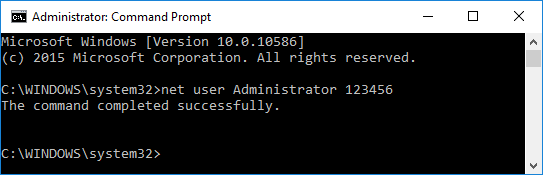
After completing the steps, a pop-up message appears stating, "The command completed successfully." This allows you to easily log into your Lenovo laptop. However, there is a limitation to this method: you must have enabled built-in administrative commands beforehand, as it will not work if you had not done so prior to locking yourself out of your laptop.

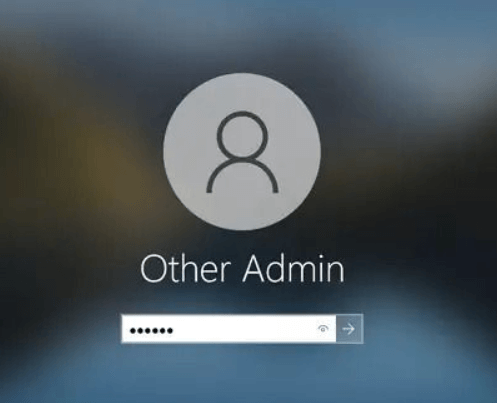
5 Ways | Reset Windows 10 Password Without a Disk
To reset your password without a password reset disk, follow these easy steps. First, try the built-in password reset feature in Windows, which can be accessed from the login screen.
Way 3. Unlock Lenovo Laptop with Factory Resettings
If all other methods fail, try a factory reset, but be aware that it will delete all data on your Lenovo laptop. This should be a last resort, as it will result in data loss. First, try other methods to recover your laptop without losing your data. Factory reset should only be considered when other options have been exhausted.
To unlock a Lenovo laptop with factory resettings, follow these steps: First, ensure that the laptop is completely powered off. Next, press and hold the Novo button (usually located on the side or top of the laptop) and the Power button simultaneously for 5-10 seconds.
Step 1. To restart your laptop in safe mode, turn it on, press the Shift key, and select the restart option. This will take you to the Advanced Startup screen, where you can choose to boot in safe mode.
Step 2. Choose the "Troubleshoot" option.
Step 3. Click "Reset this PC."
Step 4. You'll find two options here: select "Remove everything."
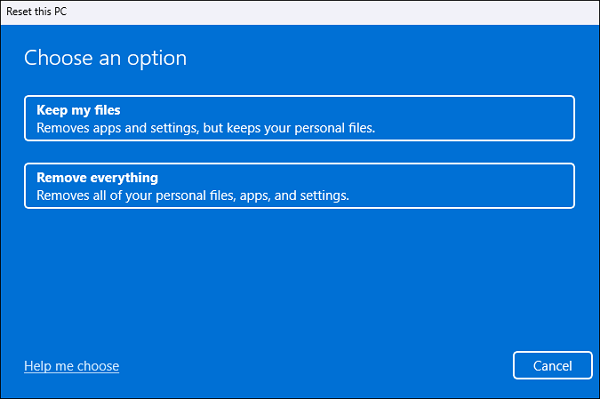
💡Note: The factory reset process takes 1 hour and completely removes all files, or 2-3 hours to remove files and clean the drive. The laptop will restart multiple times during the reset. Follow the on-screen instructions to reset your Lenovo laptop password using this method.
Read Also: Factoring a PC, also known as upgrading or replacing a PC, can take anywhere from a few hours to several days, depending on the complexity of the process and the individual's level of technical expertise. On the other hand, finding the default admin password for an HP computer is a relatively quick and straightforward process, usually taking only a few minutes to a couple of hours, as it typically involves accessing the BIOS settings and looking for the password or using a password reset tool.
Way 4. Unlock Your Lenovo Laptop by Resetting Microsoft Account Password
If you're a Microsoft account user, you can reset your password and potentially unlock your Lenovo laptop from any device with an internet connection, including another computer or even your cell phone. This allows you to access your Microsoft Store apps, settings, and data across all devices.
Follow the steps:
Step 1. To reset your Microsoft password, go to the Microsoft password reset page, enter your phone number or email address associated with your account, and click "Next."
Step 2. You'll get an OTP code on your recovery email or phone number, verify your identity with that code and click "Next".
Step 3. Now, set a new password and click "Next."
If you find it hard to follow the text guide, here's a video that provides the full procedure of resetting the Windows password via CMD and Qiling Disk Master Pro.
Share this article with your friends.
Conclusion
Forgetting a password can be a frustrating experience, but with the right knowledge and tools, you can unlock your Lenovo laptop without a password or reset Lenovo password without disk. Various reasons might lead to the need to unlock a Lenovo laptop, including forgotten passwords, urgent access requirements, and security concerns, and this guide will walk you through each method in detail.
If you've forgotten your Lenovo laptop password, don't worry - there are effective ways to regain access. This guide has provided you with the knowledge and tools needed to fix this issue and ensure a hassle-free experience with your laptop in the future. You can choose the method that best suits your situation and preferences, and always prioritize the security of your data. We recommend using Qiling Disk Master, which can automatically unlock your Lenovo laptop without a password.
You may also like:
Unlock a Lenovo Laptop Without Password FAQs
If you're unable to remember your Lenovo laptop password, there are a few methods you can try to unlock it without a password. One option is to reset the laptop to its factory settings, which will erase all of your personal data. Another option is to use a password reset tool, such as the Lenovo Password Reset Tool, which can help you recover your password.
1. How do I unlock my Lenovo laptop without a disk if I forget the password?
If you've forgotten your Lenovo laptop's password, you can try resetting your Microsoft account password or use Command Prompt to unlock it. Alternatively, you can use a third-party tool like Qiling Disk Master to gain access to your laptop.
2. How to factory reset a Lenovo laptop without a password or a Novo button?
To factory reset a Lenovo laptop without a password or Novo button, you can use Windows settings. This process involves booting the laptop in a specific mode, accessing the Windows Recovery Environment, and then performing a factory reset from there.
- Restart your Lenovo laptop.
- When the Windows logo appears, press and hold the power button until the laptop turns off, and repeat this process twice.
- On the third restart, your laptop should enter Automatic Repair mode.
- Click on 'Troubleshoot.'
- Choose 'Reset this PC.'
- Select 'Remove everything.' This option will erase all data.
- Follow the on-screen prompts to initiate the factory reset process.
- Windows will guide you through the steps, including reinstallation.
3. Is there a way to get into a laptop without the password?
You can try using a Linux live USB to bypass the password. You can also use a tool like Ophcrack to crack the password.
Password Reset Disk: If you created a password reset disk beforehand, you can use it to reset your password easily.
Built-in Administrator: On Windows systems, a built-in administrator account can be enabled to regain access to the laptop, but this requires it to have been activated before being locked out.
Password Recovery Tools: Third-party password recovery tools like Qiling Disk Master can help you access the system without knowing the password, allowing you to retrieve the password or reset it to a new one.
For Lenovo local-account recovery without a reset disk, read Forgot a Lenovo Laptop Password? What to Do Without a Reset Disk.
Related Articles
- How to Shrink Partition in Windows 11/10
- Full Guide to Format 4K Sector Hard Drive Partitions in Windows 11/10
- Can I Format My Samsung SSD T7 1TB for PS5, and How?
Before you install an SSD on your PS5, you should format it to work with the PS5. Luckily, you will discover a comprehensive tutorial to format SSD for PS5. - Can't Safely Eject External Hard Drive on Windows 10, How to Solve It?
If you encountered the 'Problem Ejecting a USB Mass Storage Device' problem and can't safely eject an external hard drive on Windows 10, you can try the solid ways in this post to fix this issue. - Can I Check and Optimize SSD Performance in Windows 11? Yes, Sure
If your SSD is running slow in Windows 11, there are several reasons and easy steps to check and optimize its performance. Reasons include fragmented files, disk errors, and outdated drivers, among others. - How to Check/View Disk Storage/Usage on Windows 10/11
How to check or view disk space on a computer or laptop? Learn the easiest methods to view disk usage on your Windows PC and Mac.
Products
Articles & Tutorials
- Data Recovery
- Data Backup
- File Recovery
- File Backup
- System Backup and Restore
- Disk and Partition Clone
- Technical articles
- Mobile articles
- Disk Master Help
- Windows Data Recovery Tutorials
- Windows Secure Delete Tutorials
- Windows Partition Management Tutorials
- Windows File Backup and Restore Tutorials
- Windows System Backup and Restore Tutorials
- Windows Disk Backup and Restore Tutorials
- Windows Clone Tutorials