Lenovo Laptop Stuck on Lenovo Screen? 9 Easy Fixes Here!
If your Lenovo laptop is stuck on the Lenovo logo screen, it's likely due to a software issue, such as a corrupted operating system or a problem with the boot loader. To resolve this, you can try booting in safe mode, running a system file checker, or using a recovery drive to restore your laptop to its previous state. If none of these solutions work, it may be necessary to perform a factory reset or seek professional help from Lenovo's customer support team.
Lenovo laptop stuck on Lenovo screen error can be fixed with solutions provided by Qiling Software, making it easier than expected.
- Notice:
- If your Lenovo laptop gets a black screen but still running, you can try to fix it by clicking on the screen to see if it responds, checking the brightness, updating the display drivers, running a system file checker, and checking for any hardware issues. If none of these solutions work, you may need to restart your laptop in safe mode or perform a system restore to resolve the issue.
Use Third-Party Software to Fix Lenovo Laptop Stuck on Lenovo Screen
If your Lenovo laptop is stuck on the logo screen, don't worry - Qiling Disk Master's "Startup Repair" function can help. This tool, often used for partition management, has also demonstrated its ability to resolve boot-related issues, ensuring your Lenovo Notebook won't continue to be stuck.
Step 1. After connecting the external drive/USB to your computer, start Qiling Disk Master, go to the "Bootable Media" section, and click on "Create bootable media" to proceed.

Step 2. To create a Windows installation media, select a suitable storage device such as a USB drive or CD/DVD, and click the "Create" button. Alternatively, you can burn the Windows ISO file onto the chosen storage media.

Step 3. Connect a bootable drive to a new computer, boot from it by pressing F2/Del, set it as the boot disk, and exit the BIOS with F10.
Step 4. Boot the computer again, enter the WinPE interface, and open Qiling Disk Master. From there, click on "Tools and utilities" and select "Fix Boot".

Step 5: Select the system you want to repair and click "Proceed".

Step 6. The system has been successfully repaired. Click "OK" to complete the boot repair process.
After extensive research and development, the product's algorithm has been significantly enhanced, allowing various startup issues to be effectively addressed. This has led to a reduction in startup problems and common errors, making it easier to initiate the product.
🚩See Also: Windows 10 Stuck on Welcome Screen
9 Fixes for Lenovo Laptop Stuck on Lenovo Screen Error
Now that we've identified possible causes, let's move on to some easy solutions. Don't worry, you can tackle these at home without any special expertise or tools.
- If your laptop won't turn on, try unplugging all the external devices and running a hard reset. This can help resolve issues related to a faulty power supply or a malfunctioning charger. Simply unplug the power cord, any USB devices, and other peripherals, and then press and hold the power button for 30 seconds to discharge the laptop's power.
- Fix 2: Remove a Lenovo DVD Drive.
- Fix 3: Run Lenovo Diagnostics Tool.
- Fix 4: Perform Automatic Repair.
- Fix 5: Repair the Boot Sector or BCD.
- Fix 6: Reset BIOS to Default Settings.
- Fix 7: Start Your Lenovo Laptop in Safe Mode.
- Fix 8: Reset the PC to Factory Settings.
- Fix 9: Reinstall Windows.
Follow the detailed guides below and try to remove this error.
Fix 1: Unplug All External Devices and Perform a Hard Reset
To perform a hard reset on a Lenovo laptop, press and hold the power button for 30 seconds to discharge the system. Then, press the power button again to turn it back on. This will restart the laptop and clear any temporary software issues that may have caused it to freeze on the Lenovo screen.
- Shut down the Lenovo laptop and disconnect all external devices.
- Disconnect the power cord, removing the battery if your laptop has one.
- Hold the power button for about 30 seconds.
- Connect the power cord and reinsert the battery into the Lenovo laptop.
- Press the power button again to restart your laptop.
Fix 2. Remove the Lenovo DVD Drive
Some users found that removing the DVD ROM drive helped resolve the Lenovo screen error on their laptop, possibly by freeing up space or reducing interference, so you may want to try removing it to see if it resolves the issue you're experiencing.
Fix 3: Run the Lenovo Diagnostics Tool
Lenovo PCs and notebooks have a built-in diagnostic tool that tests and troubleshoots system issues, diagnosing hardware components and monitoring system health.
This tool can diagnose and fix various system issues, including Lenovo laptops stuck on the Lenovo logo screen or welcome screen, Windows 10 desktops stuck on the Lenovo logo screen, and more. It can also help resolve issues such as Lenovo laptops freezing or crashing, and provide solutions for other system problems.
- Shut down the Lenovo computer and restart it.
- Press F12 at startup to enter the boot menu, then select Lenovo Diagnostics to run it.
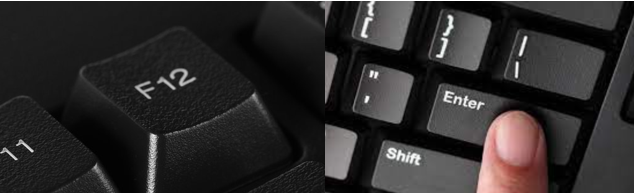
The Lenovo boot menu key is a function key (usually F1-F12) that allows you to access the boot menu on a Lenovo computer. The specific key to press varies depending on the model and configuration of the device. To boot Lenovo, you can try pressing the function keys (F1-F12) one by one during startup to see which one opens the boot menu.
If you're having trouble understanding Lenovo boot menu keys or need help entering the boot menu, this guide can help. It provides comprehensive solutions to your queries.
Fix 4: Run Automatic Repair
Automatic Repair can be used to fix some operating system issues, such as Lenovo's stuck-in boot menu error, by running the Windows repair disc or a bootable USB.
Start the Lenovo computer with a startup error from the CD, and click "Repair Your Computer" to enter the recovery interface.
In Windows 10, go to Troubleshoot, select advanced options, click Startup Repair, and follow the on-screen prompts to complete the automatic repair operation.
Fix 5: Repair Boot Sector or BCD
A corrupted boot sector or BCD file can cause a Lenovo PC to get stuck on the boot menu, and can be fixed by repairing the boot sector or BCD in Windows.
To make this work, you need to run Command Prompt. Since the Lenovo laptop won't boot to the desktop, you will also need a repair disc to start the computer.
- To fix the issue, navigate to the "Repair Your Computer" option, then select "Advanced Options" and finally choose "Command Prompt".
- Next, type these commands below and press Enter after each one:
- bootrec /fixmbr
- bootrec /fixboot
- bootrec /scanos
- bootrec /rebuildbcd
Fix 6: Reset BIOS to Default Settings
The BIOS is the first program that runs when a laptop or PC starts up, and a BIOS problem can prevent the computer from starting properly.
Here's how to restore the BIOS:
- To shut down the Lenovo notebook, click on the Start menu, then click on the Power button, and select Shut down. Ensure the AC adapter is securely connected to a power source, such as a wall outlet, to provide power to the notebook.
- Immediately power on your computer and continuously press the F12 key until the BIOS Setup Utility interface appears.
- To reset your router, use the arrow keys to navigate to the "Restart" option, then select "Load Setup Defaults," and confirm with "Yes."
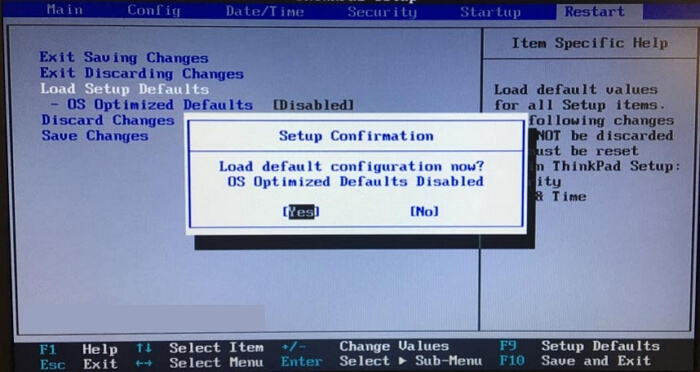
- Press F10 to save and exit.
This method is suitable for accidentally changing the BIOS parameters, causing the Lenovo notebook to fail to start normally.
Fix 7: Disable Lenovo Service Engine in BIOS
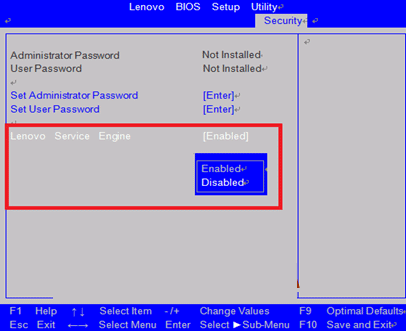
If Lenovo Service Engine is enabled in BIOS, Lenovo will get stuck on the Lenovo splash screen and won't start. This is because the program, although providing benefits, also allows attackers to use the Lenovo Service Engine to perform malicious actions, such as buffer overflow attacks and connecting to Lenovo test servers. To resolve this issue, disable Lenovo Service Engine in BIOS.
- Start your Lenovo computer and press F12 to enter BIOS.
- To disable Lenovo Service Engine, navigate to the Security tab in your computer settings, find Lenovo Service Engine, and toggle it off.
Fix 8: Reset the PC to Factory Settings
If you've tried all the above methods and your Lenovo laptop is still stuck on the Lenovo screen, you can try factory resetting it as a last resort. This will erase all data on the laptop, so be sure to back up any important files before proceeding.
- If you're running Windows 10, start your computer from a repair disc or bootable USB, and enter the Windows Recovery Environment, which can help resolve issues with your operating system.
- Then go to Troubleshoot > click Reset this PC.
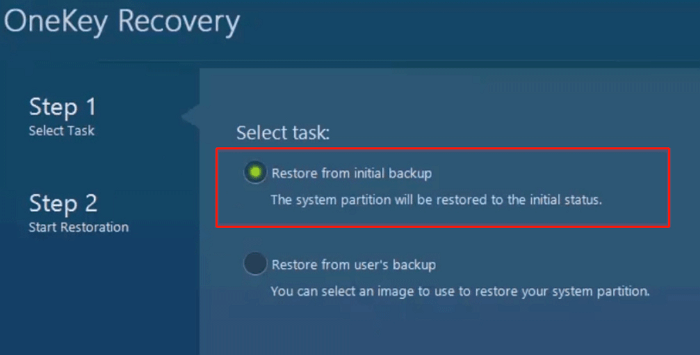
You can run Lenovo OneKey Recovery to restore the system to its original state.
Fix 9: Reinstall Windows for Lenovo Laptop
If all else fails, you may need to reinstall Windows, which is a time-consuming step that should only be taken after exhausting all other troubleshooting options.
To install Windows 10, you'll need a USB drive and access to another laptop or computer to download and run the Windows 10 Media Creation Tool from Microsoft.
- Create a bootable USB drive using the Media Creation Tool.
- Insert the bootable USB drive into the laptop and boot from it.
- Follow the on-screen instructions to reinstall Windows.
- Reinstalling Windows will completely erase all data, making it a last resort solution.
Why Is Lenovo Laptop Stuck on Lenovo Screen
Lenovo has long been a household name in the computer industry, winning praise for its high quality and advanced technology. However, like any other company, Lenovo is not immune to mistakes. A Lenovo laptop stuck on the Lenovo logo screen is a common issue that can be caused by a variety of reasons, including software issues, hardware problems, or even user error.
- Hardware Issues: Hardware issues can be caused by various factors, including humidity, dust or liquid ingress, shocks, hard drive failure, RAM failure, or CPU overheating, leading to a laptop's inability to access or use essential hardware components, thereby preventing the boot process.
- Corrupted system files: If critical system files on your laptop are corrupted or damaged, the operating system may not boot properly.
- Software Conflicts: Newly installed software or updates may conflict with your existing system, preventing your Lenovo notebook from starting properly.
- BIOS issues: The BIOS is the first software to run on a laptop when turned on, and issues with its settings can prevent the laptop from booting properly.
- Virus attack: A defective Windows installation may be the cause of the Lenovo Notebook PC getting stuck on the Lenovo logo screen, likely due to a virus invasion that affects the software's functionality.
These causes may also lead to the following issues:
Based on the reasons provided, we have some advice to prevent the "Lenovo laptop stuck on Lenovo logo" error. To help others, please share this article.
Conclusion
When your Lenovo laptop's screen gets stuck, you can troubleshoot the issue step by step using the methods mentioned above. However, these manual methods can be complex, so if you're not experienced, you can try Qiling Disk Master, a tool that can fix related startup problems with just one click, even if you don't know what caused the error.
Before attempting to repair your Lenovo computer, it's a good idea to back up any important data by creating a bootable USB drive. This will help prevent data loss in case the repair process goes awry.
FAQ About Lenovo Laptop Stuck on Lenovo Screen
If your Lenovo laptop is stuck on the Lenovo logo screen, try pressing the power button for 30 seconds to discharge the power, then press and hold the power button for 30 seconds to fully discharge the power. If that doesn't work, try booting in safe mode by pressing the Novo button (usually located on the side or top of the laptop) and selecting the "Boot in Safe Mode" option. If you're still having issues, try resetting the BIOS settings to their default values. If none of these steps work, it's possible that there's a hardware issue with your laptop.
1. Why is my Lenovo laptop stuck on the logo screen?
This error is typically caused by a Windows update, BIOS error, damaged hardware, outdated drivers, or a virus. To resolve the issue, try restoring the BIOS, testing the hardware, and attempting a hard laptop login reset. This should help identify and fix the underlying problem.
2. How to hard reset your Lenovo laptop?
Turn off your Lenovo laptop and disconnect all external devices.
- Remove the battery if your laptop has a removable battery, then disconnect the power cord.
- Press the power button for 15 seconds.
- Reconnect the power cord and insert the battery you just removed.
- Turn on your Lenovo laptop by pressing the power button again.
3. If your laptop is stuck on the Lenovo screen, try restarting it in safe mode by pressing the power button and the volume down button simultaneously. If that doesn't work, try booting in BIOS mode by pressing the power button and the F1 or F2 key simultaneously, then navigate to the boot settings and select the default operating system.
If your Lenovo laptop gets stuck on the startup page, there are several ways to resolve the issue. The causes of this error can be addressed by following the troubleshooting steps, which may include running a System File Checker, checking for malware, and updating the operating system.
- Fix 1. Perform a Power Drain.
- Fix 2. Reset BIOS to Default Settings.
- Fix 3. Disable Lenovo Service Engine in BIOS Setting.
- Fix 4. Run Lenovo Diagnostics Tools.
- Fix 5. Start the Laptop From Safe Mode.
- Fix 6. Reinstall Windows.
Related Articles
- How to Disable Low Disk Space Warning in Windows 11/10
- Locate, Remove and Delete Large Files in Windows
- Fixes for Windows Cannot Be Installed to Disk 0 Partition 1 Error
- Partition SSD for Windows 10 Installation, Full Guide with Pictures
- How to Remove/Delete Hidden Partition on USB Drive in Windows 11/10/8?
Plan to delete hidden partition on USB drive to get more space for further use? Here come the effective methods! - Easily Solved: Can't Delete System Partition of Windows 10, 8, 7
If you're unable to delete the system partition within Windows Disk Management, this article can provide a solution. It offers a guide on how to delete the C drive in Windows 7, 8, or 10.
Products
Articles & Tutorials
- Data Recovery
- Data Backup
- File Recovery
- File Backup
- System Backup and Restore
- Disk and Partition Clone
- Technical articles
- Mobile articles
- Disk Master Help
- Windows Data Recovery Tutorials
- Windows Secure Delete Tutorials
- Windows Partition Management Tutorials
- Windows File Backup and Restore Tutorials
- Windows System Backup and Restore Tutorials
- Windows Disk Backup and Restore Tutorials
- Windows Clone Tutorials