How to Boot Lenovo Laptop from USB Windows 11/10 [Full Guide]
Key Takeaways:
- Boot from USB on Lenovo laptop can solve many problems.
- This guide will provide detailed information on how to make Lenovo boot from USB, covering the steps and procedures to successfully boot your Lenovo device from a USB drive.
Lenovo laptops are widely used for business and personal work. If you need to boot Windows from a USB drive or reinstall the OS on your Lenovo laptop, this guide provides a clear solution. Follow the steps below to boot your Lenovo laptop from USB.
| ⏱️Duration | 5-7 Minutes (Step-by-step Tutorial) |
| 💻Applies to | Get the Lenovo laptop to boot from USB on Windows 11/10/8/7 |
| ⛏️ Tools |
✔️USB ✔️Windows ISO files ✔️Lenovo laptop or desktop |
| 🖌️ Stages |
1️⃣Preparations to Boot Lenovo Laptop from USB |
| 🔍Required Software | USB creators and ISO burner - Qiling Disk Master |
Many users are very concerned about booting their laptops from USB. Here is a real case from Reddit:
Anyway, it seems like I had a virus that pretty much corrupted my OS, or the OS itself did it. So I'd need a guide on what to press when to get into the boot menu and to boot from the USB, which I will insert into the laptop.
If your Lenovo laptop or PC is experiencing system corruption, hard drive failure, or other critical issues, you can boot from a USB drive to troubleshoot and potentially resolve the problem. To do this, you'll need to create a bootable USB drive with a compatible operating system or recovery media, then follow the on-screen instructions to boot from the USB drive. This can help you access your system and perform necessary repairs or recover your data.
How to Boot Windows 10 from USB Flash Drive
To install Windows or run it on different devices, you can create a bootable USB and boot Windows 10 from a USB flash drive by following this guide. This allows you to install Windows or run the same OS on various devices.
Preparations to Boot Lenovo Laptop from USB
To boot a Lenovo laptop from a USB, you'll need to make the USB drive bootable and contain the operating system. This involves creating a bootable USB using a tool like Rufus or Etcher, and then installing the desired operating system, such as Windows, onto the USB. You can then use the USB to boot your Lenovo laptop, allowing you to access and run the operating system directly from the USB drive.
💡Download the ISO file for Windows
- Windows 10: https://www.microsoft.com/en-us/software-download/windows10
- Windows 11: https://www.microsoft.com/en-us/software-download/windows11
💡Prepare the USB
The USB drive should have at least 16GB of visible available storage and be formatted as FAT32.
- Hold down Windows+R and type diskmgmt.msc in the Run window.
- Right-click on the target USB drive and select Format.
💡Download Bootable USB creator and ISO burner
Since Windows doesn't have a built-in tool to create a bootable USB, you can use a third-party tool like Qiling Disk Master Free to achieve this.
This tool is designed for Lenovo laptops to burn Windows ISO files, simplifying the process of creating bootable USB. It supports various Windows versions, including Windows 11/10/8.1/8/7 and Windows XP/Vista.
Read Also:

The Sony VAIO Boot Menu is a utility that allows users to boot their computer from a USB drive, CD/DVD, or other external devices. This feature is useful for troubleshooting, reinstalling the operating system, or running a system recovery. To get Sony VAIO boot from USB, users need to follow these steps: insert the USB drive into the VAIO laptop, press the power button, and immediately start tapping the F11 key repeatedly. This will open the Boot Menu, where users can select the USB drive as the boot device.
This guide introduces the Sony VAIO boot menu and Sony BIOS key, allowing you to easily boot your Sony VAIO laptop from USB drives.
Steps to Boot Lenovo Laptop from USB
To get your Lenovo laptop to boot from USB, you'll need to prepare your USB drive with a bootable operating system or a bootable Linux distribution. You can use a tool like Rufus or Etcher to create a bootable USB drive, and then configure your Lenovo laptop's BIOS settings to prioritize USB booting over the internal hard drive. This will allow you to boot your Lenovo laptop from the USB drive, giving you access to a variety of operating systems and tools.
Situation 1. Run the Operating System
You can run a Windows OS from a USB drive in several ways. You can clone the OS to an external drive, burn a Windows ISO to USB, or use other tools to create a bootable USB.
Read more: Create Windows 10 Bootable USB
Situation 2. Fix Boot Error
If your computer is experiencing startup errors, such as a Windows blue screen, you can try booting from a USB drive to resolve the issue. This allows you to reinstall the operating system or troubleshoot boot problems using an ISO file.
We provide a detailed solution next.
Stage 1. Create a Bootable USB for Lenovo Laptop
To use Qiling Disk Master, first ensure you have downloaded the correct ISO file. Then, use the tool to create a bootable USB and burn the ISO file. Even if you're new to this process, it's easy to complete to do.
Step 1. Launch Qiling Disk Master and go to the Tools section, then click "Create Bootable media".

Step 2. To transfer files from a USB to a computer, select the target USB as the destination and click "Proceed" to execute the operation.

Qiling Disk Master is a reliable free ISO burner that allows you to burn an ISO file and create a bootable USB drive, which can then be used to install Windows and boot a Lenovo laptop from USB.
- Tip
- To resolve boot issues, you can create bootable USB drives using Qiling Disk Master, which allows you to access a Win-PE environment. This enables you to check the status of your hard disk, troubleshoot problems, and make necessary fixes.
You May Also Like:
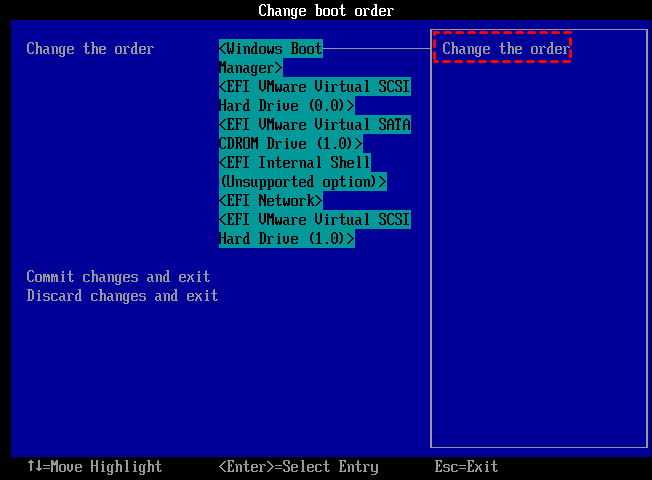
Stage 2. Change the Lenovo laptop Boot Order
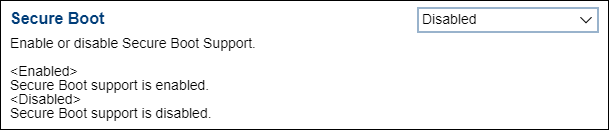
To set up the USB, you need to change the boot order. First, disable Secure Boot, which is usually found in the UEFI settings. Then, set the USB drive as the first boot device, and save your changes.
- To enter the BIOS on your Lenovo IdeaPad, it is recommended to press the Novo button instead of the traditional F2 or F12 keys. This can be done by pressing the Novo button on the top right corner of your laptop, which will then lead you to a boot menu. From there, you can select the BIOS option to enter the BIOS settings. This method is preferred over the traditional keys as it provides a more straightforward and user-friendly experience.
- To load the optimization defaults and disable Secure Boot, press the F9 key (which is equivalent to Fn+F9) on your keyboard. This will allow you to select Disabled under Secure Boot.
- Notice:
- This method works for Lenovo 2020 or newer devices. For 2019 or earlier devices, please check the solution in Lenovo Support Center.
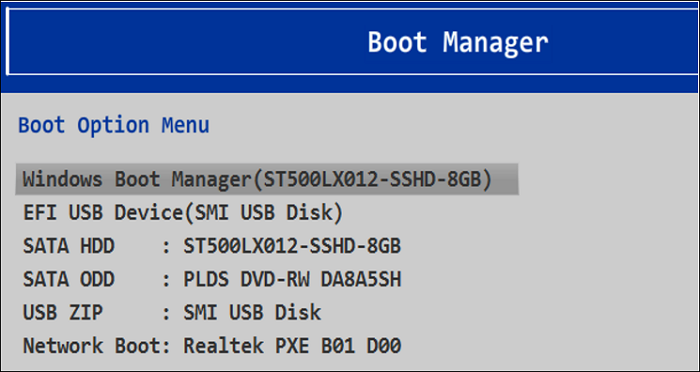
Then change the boot sequence in the BIOS as follows:
- Insert a bootable USB disk.
- Reboot the PC and access the boot menu via F12 (or Fn+F12) during the boot process.
- Press and hold Enter to select the desired boot device.
- Tip
- The PC can be configured to boot into boot mode via the Novo button, and then select booting from the USB disk under the Boot Menu.
After changing the boot order, your Lenovo laptop will automatically boot from USB. This process is also applicable to other laptops, such as ASUS and HP, and can be done by booting from USB on those devices as well.
Conclusion
Lenovo laptops can make our work and life easier, but sometimes they may not boot properly due to various reasons or get stuck in a boot loop. However, with a bootable USB drive, you can easily resolve this issue. Creating a bootable USB and burning the ISO file to the corresponding USB drive allows you to boot your Lenovo computer from USB, making it a convenient solution to get your laptop up and running again.
If this tutorial has been helpful to you, please don't forget to share the article with others to help them benefit from it as well.
FAQs About How to Boot Lenovo Laptop from USB
Understanding how to get Lenovo Laptop to boot from USB can bring a lot of convenience. Here, I list some other related questions; if you encounter them, please read on.
1. How to fix a Lenovo laptop that won't boot from USB on Windows?
If your Lenovo laptop won't boot from a USB drive, it might be due to the bootable USB drive not being created correctly or the computer being affected by Lenovo Service Engine (LSE). To resolve this, you have two possible solutions.
Solution 1. Remove Lenovo Service Engine
Step 1. Open Settings, select System , and make a note of the system type.
Step 2. Navigate to Lenovo Security Advisory and select the date.
Step 3. Locate the Lenovo LSE Windows Disabler Tool, download, and open it.
Solution 2. Create the bootable media correctly
Step 1. Create the bootable USB using MediaCreationTool or a third-party tool.
Step 2. Select the bootable CD type.
Step 3. Insert a bootable USB into your Lenovo computer, enter the BIOS, select the USB drive, and press Enter to make Lenovo boot from the USB drive.
2. How to fix the Lenovo boot menu not working?
To enter the boot menu, press F1/F2/F9/F10/F11/F12 keys at boot time, or use Novo to enter BISO if the keys don't work. Alternatively, users can also use Lenovo Diagnostics to test their hard drives, and if a problem is found, replace the drive with a new one.
3. What is the Lenovo BIOS key?
To access the BIOS, press F2 or Fn+F2 repeatedly after turning on your PC, or press F1 when the Lenovo logo displays and click it 5-10 times after pressing the power button.
Related Articles
- How to Find Hidden Partition or Hide Partition in Windows 10/8/7
- 6 Ways to Fix Winload.efi Missing on Windows 11/10
- Windows Install Stuck on Windows Logo: 100% Working Fixes
- How to Format EFI Partition in Windows 11/10? [Your Guide Here 2023]
- How to Fix Broken Registry Items on Windows 11 (5 Quick Ways)
This article provides a simple and free method to find hidden partitions in Windows 10 and hide or unhide partitions with ease. - Can C Drive Space Be Extended in Windows 11
In Windows 11, the C drive space can be extended, but only if the storage capacity is fixed. This is often necessary when the hard drive is filled, a common issue that may require extending the C drive space to free up space and prevent data loss.
Products
Articles & Tutorials
- Data Recovery
- Data Backup
- File Recovery
- File Backup
- System Backup and Restore
- Disk and Partition Clone
- Technical articles
- Mobile articles
- Disk Master Help
- Windows Data Recovery Tutorials
- Windows Secure Delete Tutorials
- Windows Partition Management Tutorials
- Windows File Backup and Restore Tutorials
- Windows System Backup and Restore Tutorials
- Windows Disk Backup and Restore Tutorials
- Windows Clone Tutorials