How to Boot Windows 10 from USB Flash Drive
If you're looking for a detailed guide on how to boot Windows 10 from USB and install Windows from USB, this guide can help! Qiling can help you with all your USB booting needs, providing a solution for any possibility you want to boot from USB.
- Case 1. The current PC is an old system, such as Windows 7, and you want to load and run your latest Windows system via USB.
- Case 2. When your Windows system crashes or encounters a serious system error, booting Windows 10 from a USB drive can help you reinstall the system or troubleshoot the issue. This allows you to access a working Windows environment and attempt to resolve the problem.
If you need to boot Windows 10 from a USB drive, this article provides can help. Whether you want to install Windows 10 on a new computer, create a portable Windows installation, or troubleshoot a Windows issue, booting from a USB drive can be a lifesaver.
| ⏱️Duration | 5-7minutes |
| 🧑💻Apply to |
Boot Windows 10 from USB: ✔️ To create a bootable USB to install Windows or fix Windows boot issues, download the Windows ISO file from Microsoft's official website. Then, use a tool like Rufus or the built-in Windows Media Creation Tool to create a bootable USB drive from the ISO file. ✔️ To run the same configuration of Windows 10 on different devices, you can create a Windows Image (WIM) file that contains the operating system and all installed applications, settings, and drivers. This WIM file can then be deployed to other devices, allowing you to replicate the same configuration across multiple machines with minimal effort. |
| 🚩Required Tools |
|
| ✍️Steps |
1️⃣Preparations |
Stage 1. Preparations Before Booting Windows 10 from USB
When you want to boot Windows 10 from a USB drive, you'll need to prepare the correct tools and devices, including a USB drive with enough free space, a Windows 10 installation media, and a computer that can boot from a USB drive.
1. To create a bootable USB with at least 16GB of free space, format the USB in FAT32. This will allow you to create a bootable USB drive that can be used to install an operating system, run a live Linux environment, or perform other tasks that require booting from the USB drive. The FAT32 format is a widely supported file system that can be read and written by most operating systems, making it a good choice for a bootable USB drive.
To create a bootable USB, use a reliable tool like Qiling Disk Master Professional, which can safely format a USB drive larger than 32GB to FAT32, a format supported by Windows, as the built-in tools cannot handle drives of this size.
Step 1. After downloading and launching Qiling Disk Master, right-click on the target partition on the USB and select "Format."
Step 2. Select Partition Label, FAT32 File System, and Cluster Size, then click OK.

Step 3. Acknowledge the warning window and click "Execute 1 Task" to apply the formatting requirement.
2. When creating a bootable USB drive, you need to burn the Windows ISO file onto the USB. This is a necessary step to prepare the USB drive for the Windows installation process.
Step 1. Open: https://www.microsoft.com/en-us/software-download/windows10
Step 2. Click Download Now and download the ISO file.
Stage 2. Create a Bootable USB
You have two ways to create a bootable USB:
1. Use Qiling Disk Master to create bootable installation media:
Qiling Disk Master is a top-notch ISO burner that simplifies the process of creating a bootable Windows USB, allowing users to resolve system crashes or boot errors by booting from the USB.
Step 1. Launch Qiling Disk Master, go to the Bootable Media section, and select Burn ISO to proceed.
Step 2. Open the downloaded ISO file and follow the on-screen instructions to complete the installation.

Qiling Disk Master also offers additional features, which can be explored further by clicking the provided button.
2. Use Windows Media Creation Tool
Microsoft offers the Windows Media Creation Tool, which enables users to upgrade Windows and create bootable USB drives. However, this solution is more complex and may not be suitable for all users. For those who are comfortable with technical procedures, Microsoft provides a detailed guide on how to use the tool, which can be accessed by clicking on the link: Windows 10/11 Media Creation Tool.
After creating a Windows Bootable USB, you're ready to proceed. Please continue reading and consider sharing this helpful guide with others if you think it's useful.
How to Boot Windows 10 from USB - 2 Ways
To boot from a USB drive with or without BIOS support, follow these steps below.
Method 1. Boot from USB without BIOS
To boot your computer from within Windows, you can follow these steps:
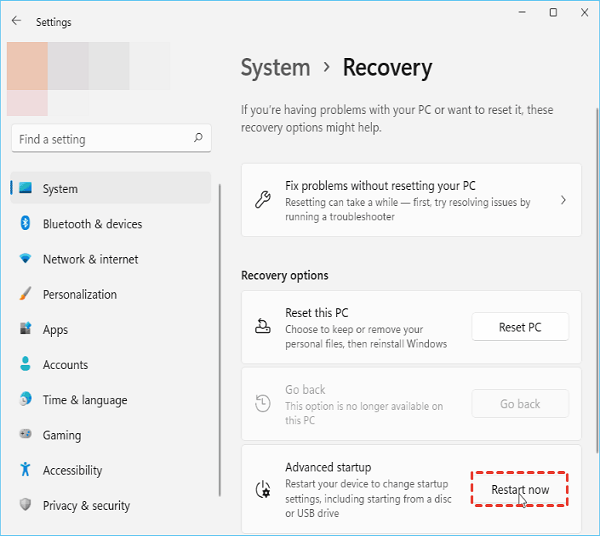
Step 1. Connect a USB to a Windows computer and open the Windows Settings by clicking the Start button, then selecting "Settings". From there, navigate to "System" and then "Recovery".
Step 2. Click Restart next to Advanced Startup to reinstall Windows 10 or troubleshoot.
Note: If you created the installation USB, please run the installer by selecting setup.exe in File Explorer and follow the wizard to install Windows 10.
Method 2. Boot from USB from BIOS
If your computer fails to boot, you'll need to change the boot options in the BIOS/UEFI settings to boot Windows 10 from a USB drive. This involves accessing the BIOS/UEFI settings, navigating to the boot settings, and selecting the USB drive as the primary boot device.
Step 1. Connect the installation or recovery USB to your computer and press F1/F2/F10/Del keys to enter the BIOS, where you can boot from the USB.
The boot menu keys can vary depending on the motherboard manufacturer and model, so it's best to check the motherboard manual or search the Internet for the specific computer model number to determine the correct boot key.
Step 2. To set the target disk as the first boot entry, locate the boot options and find the target disk. This can usually be done by entering the BIOS settings, navigating to the boot options, and selecting the target disk as the first boot entry.
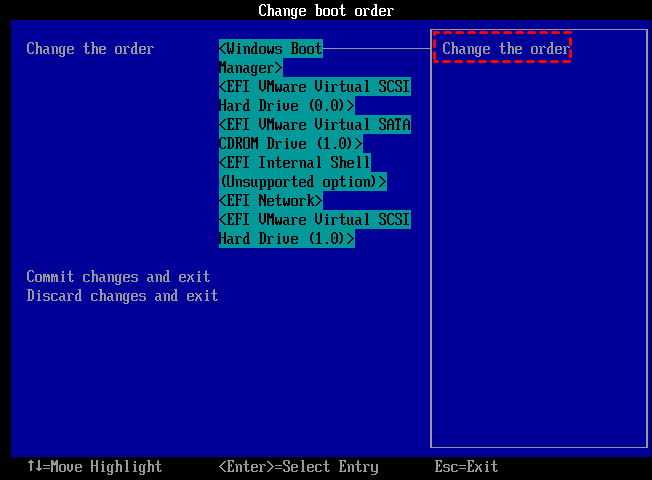
Step 3. After completing the steps to create a Windows 10 installation USB using Qiling Disk Master, boot Windows 10 from the USB. This will initiate a fresh installation process if the USB was created using Qiling Disk Master.
For alternative solutions to install Windows without a product key, you can check out the article that provides additional options.
Conclusion
To reinstall your system or fix startup errors, use Qiling Disk Master to create a boot disk or installation disk. Before starting, prepare a suitable USB and format it as FAT32. Then, set up Windows 10 to boot from USB by following the solutions in this article.
To enjoy the same Windows 10 configuration on multiple computers, create a bootable USB using the Windows Media Creation Tool and follow the guide to boot from USB. This allows you to replicate the same setup on different machines.
FAQs About Boot Windows 10 from USB
Please read on if you have more questions about boot Windows 10 from USB.
1. How do you boot from USB Windows 10 without BIOS?
If you don't have access to the BIOS, you can log in to Windows directly and change the boot drive using the Windows Settings.
Step 1. Connect USB to Windows computer and open Settings.
Step 2. Navigate to System > Recovery > Advanced Startup.
Step 3. Select the Restart Now button on the right side.
2. How do I repair Windows 10 from USB?
Follow the steps to repair Windows 10 from USB:
Step 1. Create a bootable USB.
Step 2. Boot Windows from bootable USB.
Step 3. Choose the right tool to repair Windows 10.
To repair Windows 10 from a USB drive, you'll need to create a bootable USB drive with the Windows 10 installation media. Here's a simplified step-by-step guide:
3. How can I install Windows 10 from USB from BIOS?
To install Windows 10 from a USB drive, follow these steps:
- Create a bootable installation USB using Qiling Disk Master.
- To change the BIOS order on your PC so that it comes first, you can enter the BIOS settings by pressing a specific key (usually F2, F12, or Del) when your PC is starting up. Once in the BIOS settings, navigate to the section that controls the boot order and select the device you want to prioritize (e.
- Restart the PC from bootabe USB.
- Follow the on-screen instructions to install the Windows 10 operating system.
Related Articles
- Don't Miss Best FAT32 Formatter: Free FAT32 Format Tools Recommend
- Xbox 360 Hard Drive Upgrade: Step-by-Step Guide
- Solved: Win10 Disk Management Not Loading - 10 Fixes
If Win10 Disk Management is not loading and causing you headaches. Our step-by-step guide provides a practical and effective solution to resolve loading or responding problems, ensuring you can access and manage your disk with ease. - FIXED: DISM /Online/Cleanup-Image/Restorehealth Stuck🔥
If DISM /Online/Cleanup-Image/Restorehealth is stuck, try running the command with the /forcerestore option, or use the System File Checker (SFC) tool to scan and replace corrupt system files, and if that doesn't work, consider using a more comprehensive tool like the System Update Readiness Tool or - How to Fix Samsung Magician Won't Recognize SSD [Full Guide]
Looking to troubleshoot the frustrating issue of Samsung Magician won't recognize SSD? This comprehensive guide offers detailed solutions to help you unleash the full potential of your Samsung SSD. Whether you're a tech novice or an experienced user, the step-by-step instructions will help you. - Samsung SD Card Format Tool Free Download 2024 [Step-by-step Guide]
If you're looking for tools to format your SD Card, this post provides an introduction to the Samsung SD Card Format Tool, as well as other effective format tools, along with step-by-step instructions.
Products
Articles & Tutorials
- Data Recovery
- Data Backup
- File Recovery
- File Backup
- System Backup and Restore
- Disk and Partition Clone
- Technical articles
- Mobile articles
- Disk Master Help
- Windows Data Recovery Tutorials
- Windows Secure Delete Tutorials
- Windows Partition Management Tutorials
- Windows File Backup and Restore Tutorials
- Windows System Backup and Restore Tutorials
- Windows Disk Backup and Restore Tutorials
- Windows Clone Tutorials