How to Fix Windows 10 Won't Install on SSD | 100 % Working⭐
Windows 10 won't install on an SSD due to various reasons, including computer hardware issues, SSD errors, and installation media errors, as well as outdated BIOS that may prevent the SSD from showing up during installation.
If you're experiencing issues installing Windows 10 on a new SSD or HDD, Qiling Software offers a detailed guide to help resolve the problem. Their solution provides a comprehensive fix for Windows 10 installation issues on SSDs.
| ⏱️Duration | 5-8 minutes of reading |
| 🧑💻Suitable for | You're unable to install Windows 10/11 on a Solid-State Drive (SSD) or a combination of SSD and Hard Disk Drive (HDD). |
| 🧰Tools | SSD, Qiling Disk Master, Windows Media Creation Tool |
| ✏️Solutions |
✔️Quick Fixes to Windows 10 Won't Install on SSD ✔️Recreate the Windows Installation Media and Install Windows 10 |
Quick Fixes to Windows 10 Won't Install on SSD
If you're unable to install Windows 10 on an SSD, try the following quick solutions. You can check if the SSD is properly connected and recognized by the system, or try reinstalling the UEFI firmware to ensure compatibility.
- Plug all cables Connect the SSD to the PC, ensuring it's properly seated and securely fastened, then restart the PC to see if the BIOS recognizes the SSD, thus potentially resolving the issue of a corrupt BIOS connection.
- Turn on the SATA port: If the SATA port is turned off in the system setup (BIOS), the new SSD drive may not be visible in the BIOS.
- Check if the SSD is damaged: To see if the SSD can be recognized in the BIOS, plug it into another computer that is working properly.
- Install the latest BIOS: Updating the BIOS before installing Windows is crucial to ensure your SSD/HDD runs smoothly on the operating system. The BIOS plays a vital role in facilitating the communication between your computer's hardware and the Windows operating system, and any issues with it can lead to problems with your storage device. Therefore, it's recommended to update the BIOS before installing Windows to prevent any potential issues and ensure a seamless user experience.
- Enable AHCI mode: If the SSD isn't shown in the Windows 10 installation, set the SATA operation mode to AHCI.
If the above methods can't help you fix the installation issue on the SSD/HDD, consider trying more advanced solutions.
For alternative solutions to install Windows without a product key, please refer to the article mentioned below.
Method 1. Convert the Disk to GPT/MBR
If your computer uses Legacy boot mode, you'll need to convert your SSD to Master Boot Record (MBR). However, if your Windows 10 computer supports UEFI boot mode, you can switch to it by enabling UEFI mode in the BIOS setup. To install Windows, you'll need a GUID Partition Table (GPT) disk, which is compatible with UEFI. You can use Qiling Disk Master to convert your MBR disk to GPT.
Qiling Disk Master Professional is a reliable partition management tool that allows users to perform various advanced operations, including converting FAT to NTFS and resizing partitions, without losing data, all through a simple interface.
Step 1. Download and launch Qiling Disk Master on your computer.
Step 2. Go to Disk Converter, select the "Disk management" tab page to continue.
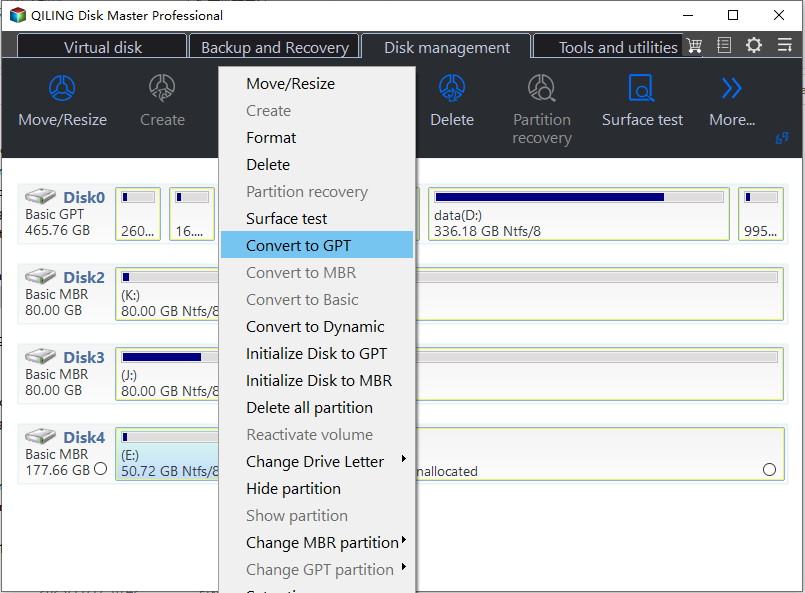
Step 3. To convert a target MBR disk to GPT, right-click the disk and select "Convert to GPT" from the context menu. This initiates the conversion process.
If Windows 10 can display SSD but still have the problem of not being able to install Windows 10, try converting the GPT to MBR.
Method 2. Recreate the Windows Installation Media and Install Windows 10
If your Windows installation media or ISO file is corrupted, you won't be able to install Windows on your SSD. To fix this, recreate the Windows installation media and install Windows 10/11 on your SSD again. Alternatively, you can install Windows 10 on your M.2 SSD.
Stage 1. Get the Microsoft Windows 10 ISO file:
https://www.microsoft.com/en-us/software-download/windows10
Stage 2. Burn the ISO file using Qiling Disk Master
Prepare a FAT32 formatted USB and download Qiling Disk Master, a professional ISO burner, to successfully burn ISO files and create bootable installation media.
Step 1. Launch Qiling Disk Master and go to the Tools section, then click Create bootable media.

Step 2. You can select the ISO image that you have created on your PC by opening the file explorer, navigating to the location where you saved the ISO file, and selecting it. This will allow you to access the ISO image and use it as needed.

Step 3. Click "Proceed" to execute the operation.
Qiling Disk Master supports burning Windows 11 23H2 ISO to USB, allowing users to enjoy its benefits after downloading the software.
Stage 3. Change the Boot Order and Boot from USB
- Restart the computer after inserting the bootable USB flash drive.
- To set your computer to boot from a USB drive, press and hold the F2/Del key as soon as your computer starts up. This will take you to the BIOS setup, where you can adjust the boot order to prioritize the USB drive over other devices.
Stage 4. Install Windows on SSD
To install Windows 10 from a USB drive, start by booting from the USB. Then, click "Install Now" and enter the product key. Proceed with the installation by selecting "Custom: Install Windows only(advanced)" to install Windows 10 on the computer.
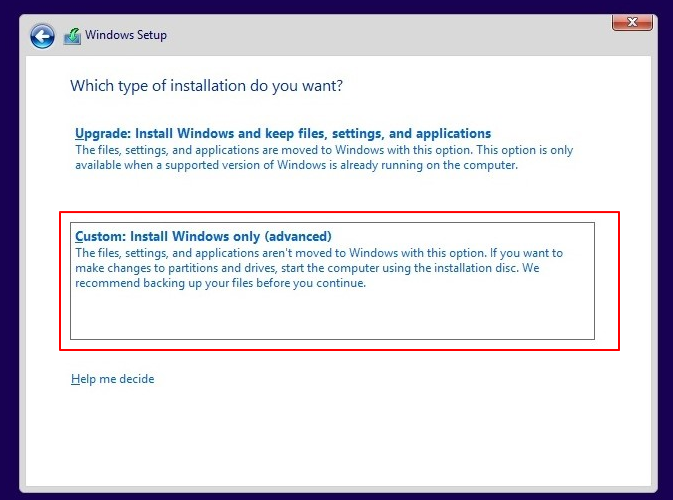
After following the on-screen instructions to set up Windows, wait for the Windows 10 installation to finish.
You May Also Like:
Method 3. Use the Windows 10 Media Creation Tool
If the Windows media is corrupted and you're unable to use the SSD, you can use the Windows 10 Media Creation Tool to reset your computer to reinstall Windows 10.
Step 1. Visit the Microsoft software download site and download the Windows 10 Media Creation Tool.
Step 2. When creating installation media for a different computer, you will be prompted to choose the language, edition, and architecture. This allows you to tailor the installation media to the specific needs of the target computer, ensuring a smooth and compatible installation process.
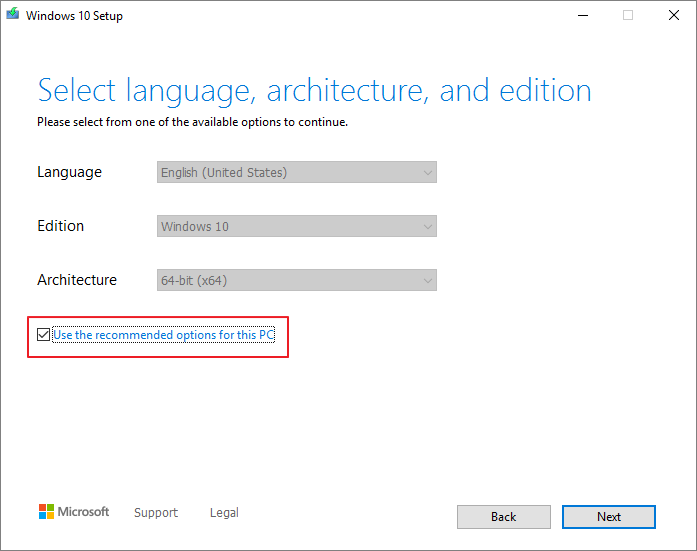
Step 3. Create the installation media by following the instructions.
Step 4. Open the created installation media, select the language and other preferences, and click Next to proceed.
Step 5. To access System Restore, go to the Troubleshooting menu, which can be accessed by selecting "Repair your computer" followed by "Select an option", and then choose "Troubleshooting". From there, select "Advanced Options" and then "System Restore".
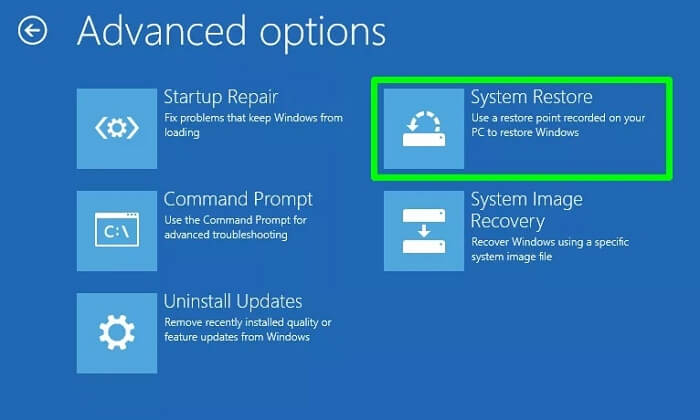
Step 6. Click Reset this computer to install Windows 10 again.
BONUS: Turn to Windows Installation Service
For non-For technical users, resolving Windows 10 installation failure errors on SSD disk drives can still be a complex process. However, Qiling experts with roundup solutions are here to help, providing professional assistance to overcome this issue.
Qiling experts offer one-on-one manual services 24/7 to resolve various Windows configuration issues, providing free evaluation services and using their decades of experience to diagnose and resolve Windows update errors, installation, and daily OS issues.
- 1. To fix Windows update errors, such as update failure or unable to upgrade Windows, try restarting your computer, checking for corrupted system files, and running the Windows Update Troubleshooter. If the issue persists, run the System File Checker (SFC) and DISM tools to scan and repair corrupted system files.
- 2. Serve to download and install the latest Windows operating system on PC with success.
- 3. To resolve daily Windows system errors, focus on updating drivers, adjusting permission settings, and optimizing account configurations. Ensure all drivers are up-to-date to prevent hardware-related issues, and tweak permission settings to grant necessary access without compromising security. Additionally, review and adjust account settings to ensure proper user authentication and access control.
Why Windows 10 Won't Install on SSD
Many users have reported that Windows 10 won't install on a brand-new SSD, with some common issues including the installation process freezing or failing to complete, or the SSD not being detected by the installation process.
Don't worry. This article provides you with a detailed solution. Besides that, we will analyze the reasons that may cause Windows 10 can't be installed on SSD or HDD, such as:
- SSD is not properly formatted: If the SSD you've chosen has an MBR partition table, you'll need to convert it to GPT for Windows 10 to install on it.
- Installation media error: Windows installation can't be completed successfully if the bootable installation USB is corrupted or the ISO file is incorrect.
- Incorrect controller mode: Please set the SATA operating mode to AHCI.
- SSD not recognized by BIOS or UEFI firmware: An outdated BIOS or a corrupted SSD may cause this issue.
- SSD driver is outdated, or the required driver for the SSD is not installed.
To fix Windows 10 won't install on SSD, follow the solution in this article, and don't forget to share it with others who may need it.
Conclusion
If you're having trouble installing Windows 10/11 on a new SSD, try converting it to the correct MBR or GPT format using Qiling Disk Master, and then use the remaining troubleshooting options.
FAQs About Windows 10 Won't Install on SSD
This section addresses common questions and answers about the issue of Windows 10 not installing on an SSD. It provides a concise solution to the confusion surrounding this problem.
1. Why is my SSD showing up in BIOS but not Windows install?
A Windows installation on a Solid-State Drive (SSD) may not be detected due to several reasons, including a faulty SSD, incorrect BIOS settings, a malfunctioning USB port or cable, or a problem with the Windows installation media. Additionally, the SSD may not be recognized if it's not properly initialized or formatted, or if the drivers for the SSD are not installed correctly.
- The driver is outdated or corrupted
- SSD is not properly formatted or initialized
- The installation media is corrupted
- The ISO file is corrupt
To fix the issue, check out the detailed options in this article.
2. Why won't my SSD allow my PC to boot?
If your computer won't boot on an SSD drive, there are several potential reasons. These include issues with the SSD drive itself, such as a faulty drive or incorrect settings, or problems with the computer's BIOS or UEFI settings.
- Windows system errors or system updates
- Internal SSD disk error
- Incompatible or outdated BIOS
- Wrong boot sequence
3. Can I install Windows 10 directly on SSD?
If you want to install Windows 10 directly on the SSD, make sure the SSD is initialized with the correct partition style before doing so.
Related Articles
- How to Allocate a Hard Drive to Add Space to Another Partition in Windows 11/10/8/7
- Top 8 Free SD Card Speed Test Tool 2024 New Checklist
- Windows 11/10 Search Not Working 2024? Fix It Now!
- Blue Screen While Playing Games? 2024 Fixes Here
If your computer crashes with a blue screen while playing games, there are several solutions you can try. One approach is to use automatic repair tools, such as Windows' built-in diagnostic and repair tools, to identify and fix the problem. - Tutorial: Check Disk Space on Windows 10 Using CMD 2024
Do you know how to check disk space on Windows via CMD? CMD is a disk utility built-in in Windows. This article provides a full tutorial to check disk space in Windows 10 CMD. Dive into learning. - How to Check Total Disk Space in Windows 11 [Best Solutions Here]
Want to learn how to check the total disk space in Windows 11? this guide will provide three ways to do so, using a professional disk space analyzer, Windows Settings, Disk Management, and CMD to check hard drive space.
Products
Articles & Tutorials
- Data Recovery
- Data Backup
- File Recovery
- File Backup
- System Backup and Restore
- Disk and Partition Clone
- Technical articles
- Mobile articles
- Disk Master Help
- Windows Data Recovery Tutorials
- Windows Secure Delete Tutorials
- Windows Partition Management Tutorials
- Windows File Backup and Restore Tutorials
- Windows System Backup and Restore Tutorials
- Windows Disk Backup and Restore Tutorials
- Windows Clone Tutorials