Tutorial: Check Disk Space on Windows 10 Using CMD 2024
Qiling aims to teach users how to check hard disk usage on Windows 10 using the Command Prompt (CMD). The article also provides an alternative and more straightforward method to check disk space on Windows 10, which can be found in a table.
| Features |
🥈CMD |
|
|---|---|---|
| 🎲Calculate the size of the hidden space | Yes | No |
| 📁 Find duplicate files | Yes | No |
| ❎ Delete files directly | Yes | No |
| 🕑 Show the percentage of occupied space | Yes | No |
| 💰 Free or Paid | Free | Free |
Various things can take up space on your hard disk drive, including files you download from the internet, e-mail attachments, installed applications, and temporary files created when using programs or visiting websites.
How to Check Disk Space on Windows 10 Using CMD
Command Prompt is an interpreter application that performs tasks through various command lines, and is known as the Windows Command Processor or CMD. To check disk space, you can use the CMD command.
- Notice:
-
1. Command Prompt lists a huge number of hard drive space in MB, which is not very clear in GB or TB.
2. The Command Prompt requires administrator privileges to help you view space usage.
3. For advanced users, using CMD to check the total hard drive size is an option, but for novice users, it's recommended to explore alternative methods, as CMD may not be the most user-friendly approach.
To learn how to use the app, follow these steps:
Step 1. To type Command Prompt in the search box on your Windows 10 PC, click on the Start button, click on the "Search" button, type "Command Prompt" in the search box, and click on the Command Prompt result to open the Command Prompt window. Alternatively, you can type "cmd" in the search box or press the Windows key + R, type "cmd" in the Run dialog box, and press Enter to open the Command Prompt window.
Step 2. Select Command Prompt and click Run as Administrator.
Step 3. Type wmic diskdrive get size, and press Enter.
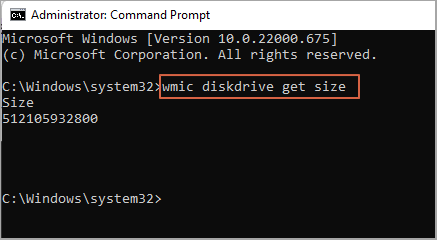
💡Notice: To check the disk space in GB, you can divide the total MB by 1024. For example, if you have 5120MB, you can divide it by 1024 to get 5GB. This is because 1GB is equal to 1024MB. So, to convert MB to GB, simply divide the total MB by 1024.
Checking disk space can be a challenge for non-experienced users, so it's often more convenient to use a reliable free disk space analyzer instead of relying on the CMD. This approach offers several benefits, including the ability to easily identify and manage disk space usage, making it a more user-friendly option for those who are not familiar with CMD commands.
✅Clear results will be displayed.
✅One-click locates and deletes the large files.
✅Easier to use without requiring any commands.
To check the disk space, a more efficient alternative to CMD is using PowerShell. You can click the link below to learn how to get disk space via PowerShell.
Read Also: PowerShell Get Disk Space
Best Alternative to CMD to Check Disk Space - Qiling Disk Master Free
To check the total disk space on Windows 10, you can use a professional disk space analyzer like Qiling Disk Master Free. This tool not only displays the total disk space, but also shows the free and used space on the disk, and provides a percentage breakdown of each file, allowing you to identify and delete large files and clean up your disk.
Download this powerful tool for free:
If you're running low on disk space, there are several ways to free up hard drive space. You can try deleting unnecessary files and programs, emptying your recycle bin, and uninstalling unused software.
- Extend disk partition
- Delete unnecessary files and programs
- Empty the trash can on your desktop
- Enable Storage Sense
Qiling Disk Master is a comprehensive disk space management tool that offers a range of features to improve hard disk performance and expand free space, providing users with a more efficient and organized disk space management experience.
Conclusion
If you want to analyze disk space on Windows 10, you have two options. The command line can only show the total space, but it won't provide specific usage details. Alternatively, you can use Qiling Disk Master Free, which can check disk usage, including hidden space, and provide faster and more accurate results.
This tool allows you to expand your disk and resolve low disk space issues by adjusting partitions, shrinking or extending partitions, and cleaning files, among other features. It also helps you check your computer's hard drive storage and usage, making it a useful download for monitoring your computer's storage.
Check Disk Space Windows 10 CMD FAQs
Here are some common issues you may encounter when checking disk space on Windows 11/10, and how to resolve them:
1. Can wmic diskdrive get size command to show the disk space in GB?
You can check the total disk space in CMD by typing "wmic diskdrive get size", but the result will be in MB, so you'll need to convert it to GB.
2. What's the command to check disk space in Windows using PowerShell?
To check disk space in Windows, you can use PowerShell and type commands such as "Get-PSDrive" or "Get-PSProvider" to view available drives and providers, then use "Get-ChildItem" with the "-PSPath" parameter to check disk space for a specific drive, or use "Get-PSDrive" with the "-PSProvider" parameter set to "FileSystem" to view disk space for all drives. You can also use the "Get-PSDrive" command with the "-PSProvider" parameter set to "FileSystem" and the "-PSDrive" parameter set to the drive letter you want to check, such as "C" or "D", to view disk space for a specific drive.
- Show all the drives and space allocation: Get-Volume
- Show the free disk space of all drives: Get-PSDrive
If you're a beginner in computing, Qiling Disk Master is a more suitable option due to its user-friendly interface. Its "Disk Space Analyzer" feature can display both free and used disk space, allowing you to identify areas for optimization. Once you've analyzed the disk space, you can use the tool to delete, extend, or shrink the target drive, making it a helpful tool for managing your disk space.
3. How to check SSD Storage in CMD?
Analyzing the disk space for an SSD is important due to its limited storage capacity. There are various ways to acquire SSD storage, and one method is using the Command Prompt (CMD) to determine the total disk space of the SSD.
Step 1. Launch Command Prompt and run it as an administrator.
Step 2. Type the command in the CMD prompt:
wmic diskdrive get size
There are many third-party tools that can help you analyze disk usage, providing detailed information about what's taking up space on your computer. These tools can help you identify which files and folders are consuming the most space, and even offer suggestions for freeing up disk space.
Related Articles
- How to Fix My Computer Freezes When USB Plugged in Windows 11/10/7
- Which Command Is Used to Format a Disk Partition as EXT4? Check and Find Answer Here
- Best System Clone Service for Windows and Windows Server Users [Your Best Practice]
- Top 5 Best SD Card Benchmark Software Recommend 2024
- [Server Helper] Convert NTFS to FAT32 in Server 2008/2012/2016/2022 without Data Loss
Learn how to convert NTFS to FAT32 in Windows Server without data loss using safe partition and file system methods. - How to Copy Games from PC to USB or Pen Drive Efficiently
How do I copy a game from my computer to a USB flash drive? Read this post and learn how to copy games from PC to USB or pen drive using an easy PC app migration tool. This tool also enables you to transfer games from PC to PC without re-downloading.
Products
Articles & Tutorials
- Data Recovery
- Data Backup
- File Recovery
- File Backup
- System Backup and Restore
- Disk and Partition Clone
- Technical articles
- Mobile articles
- Disk Master Help
- Windows Data Recovery Tutorials
- Windows Secure Delete Tutorials
- Windows Partition Management Tutorials
- Windows File Backup and Restore Tutorials
- Windows System Backup and Restore Tutorials
- Windows Disk Backup and Restore Tutorials
- Windows Clone Tutorials