Best System Clone Service for Windows and Windows Server Users [Your Best Practice]
In this article, you'll learn:
- What Is System Clone Service
- To get the System Clone Service from System Clone Software, Windows users can follow a straightforward process. First, they need to download the System Clone Software from the official website. Once the download is complete, they can run the setup file and follow the on-screen instructions to install the software.
- #2: Get System Clone Service - For Windows Server and Business Users
- Who Needs System Clone Service
Key Takeaways of System Clone Service:
- 1. The System Clone Service is available for both Windows and Windows Server users.
- 2. When looking for a reliable system clone service, it's best to turn to trusted providers rather than unknown software or products. This ensures that your system is cloned securely and accurately, minimizing the risk of errors or data loss.
The system clone service is designed for Windows and Windows Server users, allowing them to easily clone and migrate operating systems to a new drive or computer.
What Is System Clone Service
The System Clone Service helps users create a duplicate clone of their Windows operating system on another disk or computer, provided by third-party software manufacturers or IT service providers.
The System Clone Service can assist all types of Windows users and business owners to easily execute various operations, including creating a system image, deploying the image to multiple computers, managing cloned systems, and more, making it a valuable tool for those who need to quickly set up and manage multiple Windows systems.
- Clone and migrate OS to a new HDD or SSD disk.
- Copy the system from the C drive to another drive.
- Clone Windows to multiple disk drives.
- Clone Windows system to multiple computers.
- To transfer a Windows Server system to a new disk, such as a hard disk drive (HDD) or solid state drive (SSD), you can follow a series of steps to ensure a smooth transition. This process typically involves backing up the system, creating a bootable installation media, and then transferring the operating system and data to the new disk using the built-in Windows tools or third-party software.
- Clone Windows Server OS to various computers.
#1. Get System Clone Service from System Clone Software
- Target users: Individual Windows users.
- Applies to: To clone and copy Windows to a new disk or cloning Windows OS to a new computer, you can use a tool like Qiling Backup. These software programs allow you to create a backup image of your existing Windows installation and then restore it to a new disk or computer.
Many individual Windows users prefer a free and reliable system clone software to switch their OS disk or make a copy clone of the operating system to a new computer independently. For those who are looking for a free and reliable solution, there are system clone software options available that can provide this service without any cost.
Qiling Disk Master, with its clone feature, allows for a seamless system copy and clone to a new drive, ensuring success.
Guide 1: Clone System and Migrate OS to a New Local Drive
To migrate your operating system from a hard disk drive (HDD) to a larger HDD or faster solid-state drive (SSD), start by backing up all your important files and data to an external drive or cloud storage. Next, connect the new drive to your computer, initialize, and format it to ensure it's ready for the OS migration.
Note: When migrating your OS to a new SSD or HDD, be aware that the process will erase all existing partitions and data on the target disk if it doesn't have enough unallocated space. Don't forget to back up any important data from the target disk to an external hard drive beforehand.
Step 1. Select "Tools" tab page. Select the "System clone".
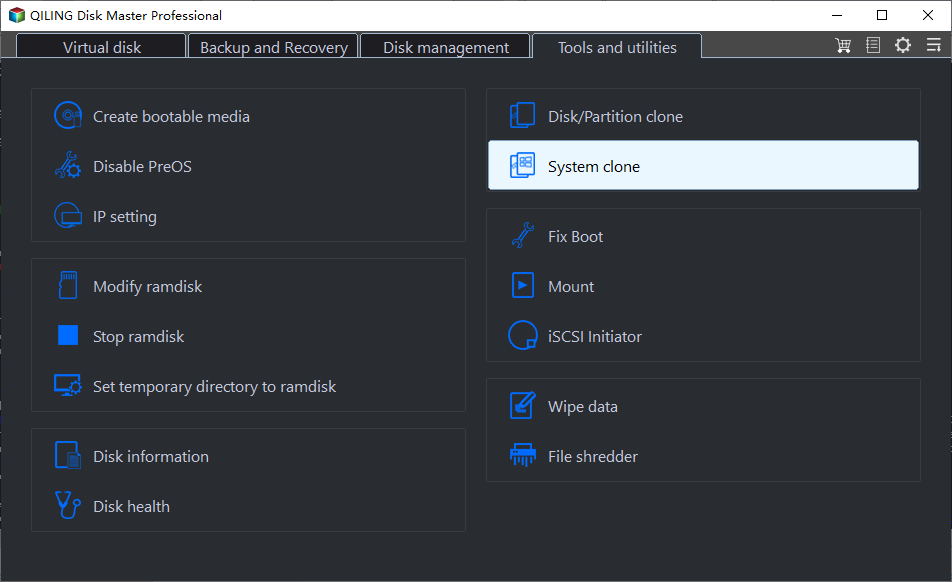
Step 2. Select the target disk you want to clone. Click "Next".

Step 3. Preview the layout of your target disk, and customize it if needed. Click "Proceed" to start migrating your OS to the new disk.

Step 4. To proceed with the disk replacement, click "Yes" after acknowledging the warning message. This will result in the deletion of data and partitions on the target disk, so it's crucial to have backed up any important data beforehand. If you haven't already, take this opportunity to create a backup of your essential files and data. Once you've confirmed this, you can proceed with the replacement.
- Reboot Now: To reboot the PC and boot OS from the new disk immediately means to restart the computer and start the operating system from the newly installed disk, rather than the original one.
- Done: it means to make the changes later.

Guide 2: Clone Entire OS Disk to a New HDD or SSD Disk
If you want to replace the entire OS disk or clone everything on your OS disk to a new drive and use it on a new computer, this guide can help. It will walk you through the process of creating a bootable clone of your current OS disk, which can then be used to set up your new computer.
Step 1. Launch Qiling Disk Master, go to the Tools tab, select "System Clone" from the dropdown menu.
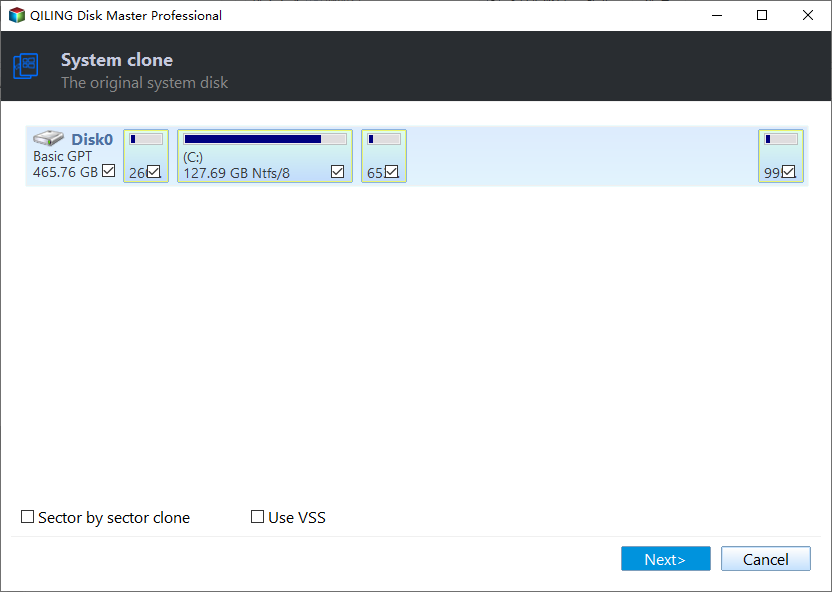
Step 2. Select the target new drive where you want to clone the OS to, and click "Next".
Step 3. The process of cloning an operating system involves creating an exact replica of the existing OS on another disk or partition. This can be useful for upgrading to a newer version of the OS, or for creating a backup of the current setup.
To confirm that you want to continue the OS disk cloning process, click "Yes".
After setting up the new disk, you'll need to reboot your PC and configure the BIOS settings to boot from the new disk. For a step-by-step guide on how to do this, you can refer to this guide.

Whether you've manually installed Windows 11/10 on an SSD or automatically migrated the system to SSD with third-party software, you need to set the installed SSD as the boot drive to boot up your PC from the SSD.

#2: Get System Clone Service
- Target users: Windows Server users and business users.
- Applies to: Cloning and copying a Windows Server or OS to a new disk or multiple computers involves using specialized software to create an exact replica of the original operating system. This process, also known as disk imaging, allows for the efficient deployment of identical operating systems across multiple machines.
To clone the OS on Windows Server, you can use a reliable system clone service that supports Windows Server OS. This service will help you to clone the OS to a new computer or multiple computers with ease. You can search online for a reputable service provider that offers system cloning for Windows Server OS.
For Individual Windows Server users:
Personal or individual Windows Server users can use Qiling Disk Master Enterprise to get reliable system clone service for help.
Qiling Disk Master Enterprise
Your trustworthy Windows Server disk manager.
- Extend System drive, combine/split partitions.
- Clone disk, migrate OS to HDD/SSD.
- Convert MBR to GPT, GPT to MBR, no data loss.
- 1-click adjust disk layout, create volumes at one time.
For Business Users or Service Providers:
Business users or service providers can either use Qiling Disk Master Enterprise to get system clone service or customize a 1-for-1 system clone service from Qiling tech support team by clicking the provided service access.
System Clone Service by Qiling
- Clone Windows Server OS to new disk - HDD/SSD.
- Clone Windows or Windows Server to multiple computers.
- Make a cloned system bootable on new computers without reinstalling Windows O.
Who Needs System Clone Service
So who needs the system clone services? There are two types of persons who need help:
- Windows beginners: Windows beginners who know nothing about computing skills and want to switch the OS disk can turn to a reliable system clone software or system clone service for help.
- Administrators or professionals: Professionals, administrators, or IT service providers who need to clone systems to multiple disks or several computers will require a system clone service.
When do you need system clone software or service? You may need system clone software or service when you want to create a duplicate of your existing system, such as when upgrading or replacing your computer, or when you want to create a backup of your system for disaster recovery purposes. You may also need it when you want to transfer your system to a new computer or when you want to create a portable version of your system.
System Clone Service Checklist 2024:
| Checklist | System Clone Software | System Clone Service |
|---|---|---|
| Number of Owned Computers | 1-3 computers | 5+ or multiple computers |
| Purposes of System Clone | For personal purposes, individual usage. | For commercial purposes, business usage. |
| Complex Level | Easy | Complex |
| Price | $0 - $59 | $159+ |
- If you need to clone a system to a new computer, consider using system clone software or a system clone service, which can provide a free or reasonable solution to transfer your system to a new device.
- As a business owner, if you need professional assistance in cloning Windows systems to multiple computers, consider taking advantage of a system clone service to streamline your operations.
Conclusion
The system clone service allows users to create a duplicate of their operating system, which can be useful for various purposes. Individuals who need system clone service include those who want to create a backup of their system, test new software or hardware without affecting their main system, or create a duplicate for a colleague or team member.
- For individuals, Turning to reliable system clone software like Qiling Disk Master is a perfect choice, as it ensures a seamless and efficient cloning process, minimizing the risk of data loss or corruption, and providing a hassle-free experience for users.
- For business or service providers, Turning to a system clone service can make the system disk replacement work more efficient and fast, and Qiling Disk Master tech support team can fulfill your demands.
FAQs about System Clone Service
System cloning can be a challenging task for most ordinary users, and if you're still unsure about the process, rest assured that you'll find answers to your doubts here.
1. What does a system clone do?
System Clone creates an exact replica of your operating system, settings, programs, and files from the original OS disk and transfers everything to a new disk, allowing for either upgrading the OS disk or duplicating the OS to a new computer.
2. What's the difference between a system clone and a disk clone?
System Clone duplicates the operating system, OS-related volumes, and OS settings to a new disk, only copying the OS and related partitions such as the system partition, EFI system partition, and recovery partition.
Cloning a disk with an operating system copies everything, including the OS, installed programs, and data, to a new drive.
3. What does it mean to clone a hard drive?
Cloning a hard drive involves creating an exact replica of the original drive, including all data, files, settings, and file system details, onto a new disk drive.
Related Articles
- What Is exFAT Format: Everything You Need to Know
- Delete All Partitions on Windows 11/10/8/7 PC at One Time [Tested & Effective]
- Can I Run Windows Disk Speed Test with Command Line? Sure, Your Guide Is Here
The speed of your drive is crucial for a faster and smoother experience, as it gets data to the processor quickly. To assess this, two reliable approaches for a Windows disk speed test command line are available. - Samsung SD Card Format Tool Free Download 2024 [Step-by-step Guide]
If you're looking for tools to format your SD Card, this post provides an introduction to the Samsung SD Card Format Tool, as well as other effective format tools, along with step-by-step instructions. - Here's What to Do With Unallocated Space on SSD After Cloning
Confused about unallocated space after cloning a HDD, SSD, or migrating an OS? This post provides answers on how to utilize the empty space as a storage drive. - Convert Unallocated Space to Free Space Windows 11/10
Using Qiling's free partition manager to convert unallocated space to free space is essential in making full use of storage in Windows 11/10.
Products
Articles & Tutorials
- Data Recovery
- Data Backup
- File Recovery
- File Backup
- System Backup and Restore
- Disk and Partition Clone
- Technical articles
- Mobile articles
- Disk Master Help
- Windows Data Recovery Tutorials
- Windows Secure Delete Tutorials
- Windows Partition Management Tutorials
- Windows File Backup and Restore Tutorials
- Windows System Backup and Restore Tutorials
- Windows Disk Backup and Restore Tutorials
- Windows Clone Tutorials