How to Check Total Disk Space in Windows 11 [Best Solutions Here]
Knowing a hard drive's total space can help us better manage the programs and data inside it, especially when installing multiple applications, like larger game programs, by knowing each hard drive's total capacity and partition capacity.
Checking total disk space allows us to see how much space is used and available on the hard disk, enabling us to identify what is taking up space on our SSD and take steps to free up space when we run low.
View the Necessary Information to Check Total Disk Space Windows 11:
| ⏱️ Duration | 1-5 minutes (depending on the method) |
| 💻 Supported System | Windows 11 |
| ⛏️ Required Tools | Space Analyzer, Windows Storage, Disk Management, CMD |
| ✍️ Operation Difficulty |
Easy - Space Analyzer Difficult - CMD |
| 👣 Specific Steps |
✔️3 steps to use professional tools...Full steps ✔️4 steps to use Windows Storage...Full steps ✔️3 steps to use Disk Management...Full steps ✔️2 steps to use CMD...Full steps |
How to Check Total Disk Space in Windows 11
To check the total hard disk space, you can either manually add up the capacities of multiple partitions through File Explorer or use a free disk space analyzer to get a comprehensive view of disk usage.
To view the total disk space, you can use one of the four efficient methods described below. Each method provides a visual representation of the total size of your hard disk, making it easy to see the total capacity without having to calculate it. The methods include a step-by-step guide, allowing you to quickly and easily view the total disk space.
🔥Further Reading: How to Find Large Files on Windows 10
Check Total Disk Space via Space Analyzer
To check total disk space, use a professional disk space analyzer like Qiling Disk Master Free. It shows the total, free, and used space on the disk, and provides the percentage of each file. Additionally, it allows you to perform other operations after analyzing the disk space.
Get the free tool to analyze your disk space on Windows 11 and start optimizing your storage today!
Qiling Disk Master is a comprehensive disk management tool that offers many additional features to help improve hard disk performance, including disk cleanup, disk defragmentation, disk encryption, and more.
Check Total Disk Space via Windows Storage
To view total disk space via Windows Storage, go to Settings > System > Storage, where you can see the total disk space and the amount of space occupied by each disk. You can also view the space occupied by different file types and analyze disk space usage.
Step 1. Right-click on the Windows icon and open Settings>System>Storage.
Step 2. To see the target drive's capacity, double-click on it. This will display detailed information about the drive's storage capacity.
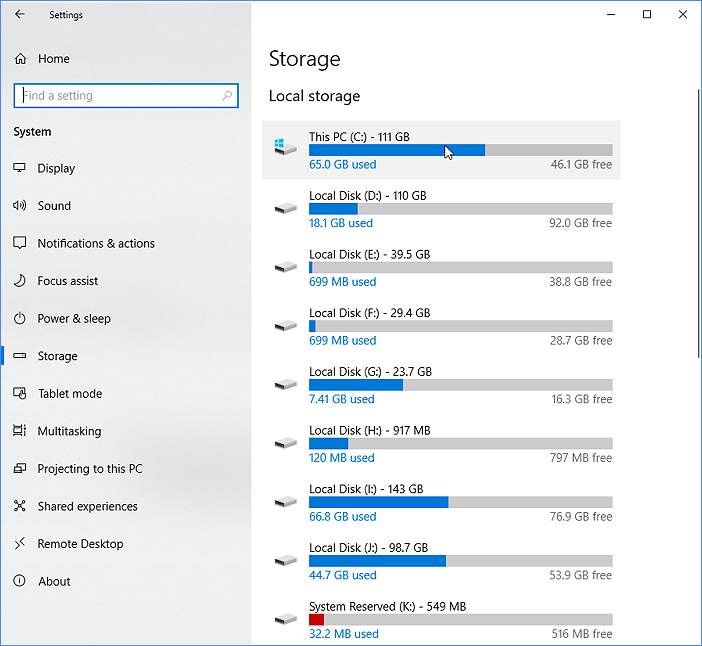
Step 3. The program shows the total amount of space occupied by all files and the amount of space occupied by each type of file.
If you want to check the total hard drive space using Windows built-in tools, you can use the built-in tools to get the information. You can share this information with others by clicking the social buttons below.
Check Total Disk Space via Disk Management
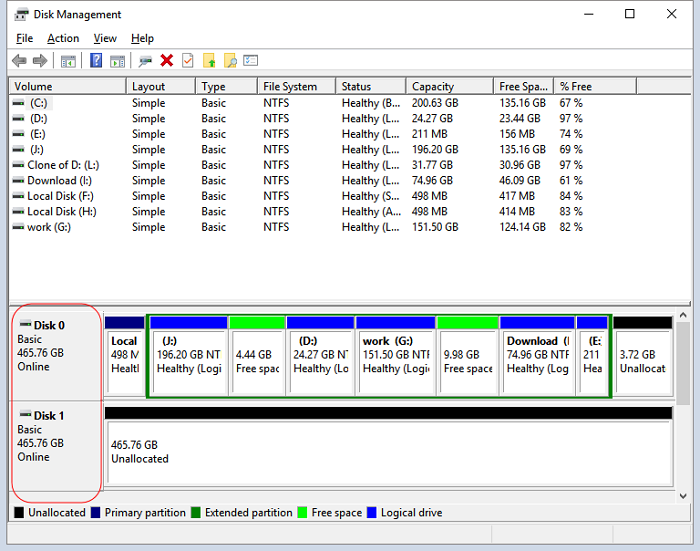
Disk Management allows you to view the total space on your Windows 11 hard disk at a glance, but it doesn't visually display the total disk space, making it less user-friendly for inexperienced users.
Step 1. Press and hold Windows+R to open the Run window.
Step 2. Type diskmgmt.msc and press enter.
Step 3. View the hard disk and its space size in Disk Management.
Check Total Disk Space via CMD
To check the total disk space in Windows 11, you can use the following commands in the Command Prompt: `wmic diskdrive get size`, `wmic disk get size`, or `wmic disk get size capacity`. These commands will display the total size of each disk drive connected to your computer, allowing you to easily identify the total disk space available. You can also use the `dir` command with the `/s` and `/w` options to display a detailed list of files and folders on your disk, which can help you identify the disk space usage. By mastering these commands, you can efficiently manage your computer's disk space and troubleshoot common issues.
Step 1. To access the Command Prompt in Windows 11, search for "Command Prompt" in the Start menu, right-click on the result, and select "Run as administrator" from the context menu. This will open the Command Prompt with elevated privileges, allowing you to execute commands that require administrator access.
Step 2. Type wmic, disk drive get size, and press Enter.
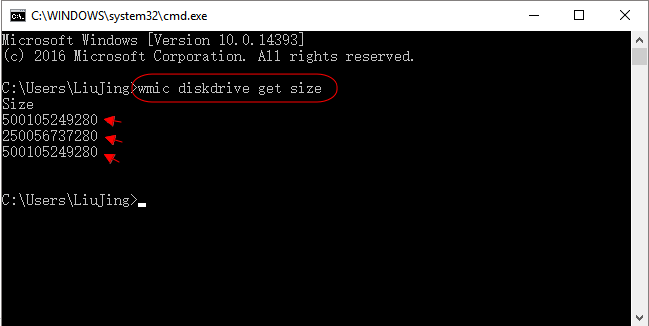
Then, you can view the total disk size in numeric mode. You can change it to the number of disks in GB by calculating: 1GB = 1000MB, 120,000MB.
What To Do After Checking Total Hard Disk in Windows 11
To check the total capacity of your hard drive, you can use one of four methods. If your hard drive is too small, consider replacing it with a larger one. Alternatively, you can use Qiling Disk Master to clone your disk, which can save you the hassle of reinstalling programs. Download and try Qiling Disk Master now!
Windows 11 allows you to see how much space is used on your hard drive, and you can free up hard drive space if you have low disk space. This can be done by deleting unnecessary files, uninstalling unused programs, and cleaning up temporary files, among other methods.
- Extend the hard disk partition
- Delete unneeded files and programs
- Empty the recycle bin
- Enable Storage Sense
To free up disk space on your PC, you can delete unnecessary files, empty the recycle bin, and remove temporary files. You can also check for and remove duplicate files, and consider uninstalling unused apps and deleting browser cache.
Conclusion
To check the total disk space in Windows 11, you can use various tools and methods, including Windows Settings, File Explorer, Disk Management, Command Line, and Space Analyzer. Additionally, you can use Qiling Disk Master, which provides a comprehensive solution for managing and optimizing disk space, allowing you to analyze and resolve disk space issues.
FAQs About How to Check Total Disk Space in Windows 11
In Windows 11, you can check the total disk space in four ways. Firstly, you can click on the Start button and type "This PC" to open the File Explorer, then click on "This PC" in the left sidebar and look at the "Capacity" column to see the total disk space. Secondly, you can right-click on the Start button and select "System" to open the System settings, then click on "Storage" to see the total disk space.
1. Why my C drive is full without reason?
The C drive can become full without apparent reason due to various factors, including a large number of temporary files, a buildup of system logs, a proliferation of executable files, and a lack of disk space management. Additionally, the presence of malware or viruses can also contribute to a full C drive, as they often create temporary files and folders that consume disk space.
- Viruses and malware create extra files.
- The default download folder is set to the C drive, where large files are saved.
- Files such as page files, temporary files, and other data may be taking up space on the C drive.
If your C drive is full, don't worry, there are many ways to fix it. You can delete unnecessary files, remove temporary files, uninstall unused programs, compress files to free up space, or even upgrade your storage capacity by adding an external hard drive or solid-state drive.
2. How to find my C drive on Windows 11?
On Windows 11, you can view the installed drive through File Explorer, where you can see the total capacity and used space of each drive, as well as the available space. This allows you to monitor the storage usage of your system and manage your drives effectively.
Step 1. Press and hold Windows+E to open File Explorer.
Step 2. Select this PC on the left side to see all the drives.
3. What is taking up my hard drive space?
To free up disk space, you can use File Explorer to identify and delete large files or folders that are taking up unnecessary space, or consider compressing or archiving less frequently used files to free up space. This can include deleting temporary files, emptying the recycle bin, and removing unnecessary system files. Additionally, you can also consider uninstalling unused applications or deleting unnecessary system updates.
- Applications and files
- Temporary files and cache files
- Large videos and multiple accounts
Space Analyzer allows users to view the types of files that are taking up space.
Related Articles
- How Do I Run Fdisk on Windows 10/11: A Beginner's Guide
- How to Clone Partition or Hard Drive with Partition Copy Software
- Surface Pro Stuck on Windows Logo - Reasons & Fixes
- How to Fix Dell Laptop Running Slow on Windows 10/11
- How to Clone OS from HDD to SSD Windows 11/10 Easily
With the help of Qiling Partition Master, you can easily clone OS to SSD on Windows 11/10 without reinstalling. Cloning operating system to SSD can improve your computer performance in many aspects, like faster startup process and quicker application response. - Download Corrupted Memory Card Formatting Software for Free
If you're looking for a solution to format and repair a corrupted or damaged SD memory card, this page can guide you through the process using a corrupt memory card formatting tool and command prompt to fix issues with your SD card, USB flash drive, pen drive, or other storage media.
Products
Articles & Tutorials
- Data Recovery
- Data Backup
- File Recovery
- File Backup
- System Backup and Restore
- Disk and Partition Clone
- Technical articles
- Mobile articles
- Disk Master Help
- Windows Data Recovery Tutorials
- Windows Secure Delete Tutorials
- Windows Partition Management Tutorials
- Windows File Backup and Restore Tutorials
- Windows System Backup and Restore Tutorials
- Windows Disk Backup and Restore Tutorials
- Windows Clone Tutorials