[Fixed] Seagate External Hard Drive Slow on Windows 11/10
On online forums, users often discuss their frustrations with slow Seagate drives, including sluggish write speeds and transfer times for external hard drives. This issue can be a major concern for those who rely on these drives for data storage and transfer. However, before considering a replacement, there are more cost-effective solutions to address this problem. Understanding the factors that contribute to slow Seagate external hard drive speeds is essential to finding a suitable fix.
Why Is My Seagate External Hard Drive Slow?
A Seagate external hard drive can be slow in two ways: it may become unresponsive or slow to transfer files, and it may have a slow read/write speed. Several reasons can cause these issues, but they often share commonalities. These include various factors that can affect the drive's performance, leading to slow write speeds or transfer speeds.
- To improve the speed of retrieving files from the Seagate external drive, consider consolidating the fragmented files into a single location, which can be achieved by using the built-in disk defragmentation tool or a third-party software. This will help to reorganize the files in a more efficient manner, reducing the time it takes to access and retrieve them.
- Seagate external drives are experiencing issues due to bad sectors, leading to slow transfer speeds or complete failure.
- Faulty cables or outdated drivers can cause a connection issue between the computer and the external hard drive.
- The Seagate external hard drive is experiencing slow performance and is currently out of free space.
- A Seagate external hard drive can become infected with a virus or malware, leading to slow performance. This can happen if the drive is connected to a computer that has a virus or if someone intentionally downloads malicious software onto the drive.
Once you've identified the root cause of the problem, you can take reasonable steps to fix it. This article provides various solutions for different issues, and if you find them helpful, you can share this guide on social media to assist others.
How to Fix Seagate External Hard Drive Slow?
To restore the performance of your Seagate external hard drive and make it faster, you can choose the right option to fix the slow problem.
- Solution 1. Check and Replace the Cable
- Solution 2. Test External Hard Drive Speed
- Solution 3. Defragment of the External Drive
- Solution 4. Check and Repair Bad Sectors
- Solution 5. Update Driver
- Solution 6. Enable Write Cache
- Solution 7. Free Up Space on External Drive
- Solution 8. Run Antivirus Software
- Solution 9. Reformat the External Hard Drive
Below is a step-by-step guide to fixing slow read speeds or slow transfer speeds on Seagate.
Solution 1. Check and Replace the SATA Cable
If your external hard drive is experiencing slower read/write speeds or response times, it's possible that the SATA cable is causing the issue. To troubleshoot, make sure the external hard drive cable is in good condition, and then try switching the SATA cable port to see if that resolves the problem.
Step 1. If the disk is not connecting properly, check the SATA port on the front or rear panel to ensure it is securely connected to the disk. If the issue persists, try replacing the disk with a different SATA port on the front or rear panel.
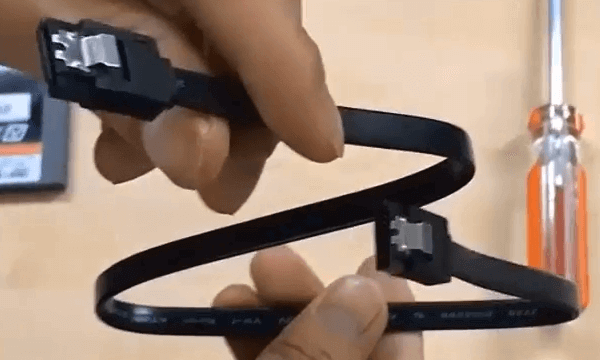
Step 2. Use USB 3.0 or switch to a compatible port.
If there is no problem with the cable, please continue to try other fixes.
Solution 2. Test External Hard Drive Speed
By checking the drive's speed, you can identify the problem more precisely. This can be done by comparing it with its normal speed to see if it is getting slower. Additionally, tools like Qiling Disk Master can help test the hard drive's read and write speed, providing a user-friendly interface to manage the drive.
To run a speed test on your hard drive using this benchmark tool, simply download and install it on your Windows device, and then follow the on-screen instructions to initiate the test. This will provide you with detailed information about your hard drive's performance and speed, allowing you to assess its capabilities and identify any potential issues.
Step 1. Launch Qiling Disk Master, click the download button to activate the "Surface test" feature under the "Disk management" section.

Step 2. Select the target drive, test data, and block size from the drop-down menus.

Step 3. Once everything is configured, clicking "Proceed" will initiate the disk test. This will display the Sequential read speed, I/O, and Delay data.
The Seagate external drive should be close to its advertised speed. If it does slow down, there could be several reasons for this, and we can investigate and try to resolve the issue together.
Read Also:
Solution 3. Defragment of the External Drive
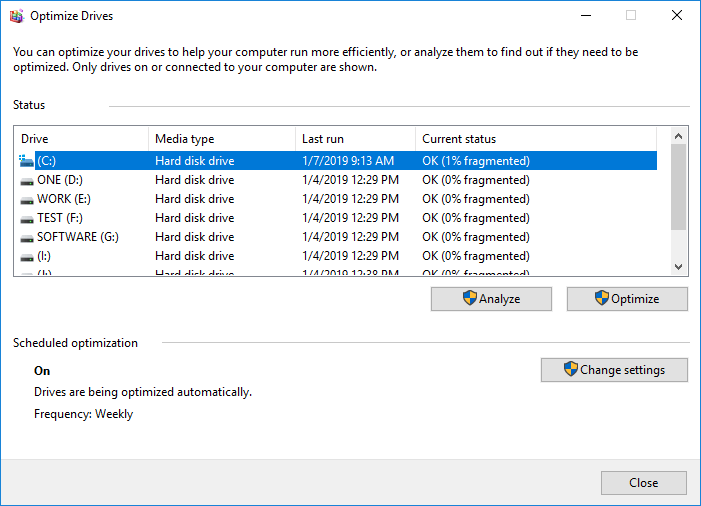
Windows provides a disk defragmenter to help the drive rearrange the fragmented data, improving its efficiency, especially if it's been a long time since the last defragmentation. This can also address external hard drive slowness.
Step 1. To connect a Seagate external hard drive to your Windows 11/10 computer, start by ensuring the drive is properly powered on and the cable is securely connected to both the drive and the computer. If you're using a USB cable, insert it into a free USB port on your computer.
Step 2. Hold down Windows + R to open the Run window.
Step 3. Type dfrgui to open the optimization window.
Step 4. Select the slow Seagate external drive and click Analyze.
Step 5. Click Optimize and wait until the analysis is complete.
Solution 4. Check and Repair Bad Sectors
A corrupt file system or bad sectors may cause the Seagate external drive to slow the transfer speed. To solve the problem quickly, I recommend using a professional repair tool to check the file system and repair errors, improving the transfer rate of the Seagate external hard drive. This tool can also check the disk surface to solve the issue.
Free download this repair tool and follow the steps:
Step 1. Right-click the target partition that has a problem.
Step 2. Choose "Advanced" > "Check File System".
Step 3. Confirm if you want to hide the partition or not.
Step 4. In the Check File System window, select the "Fix the error on the disk" option.
Step 5. Click "Proceed" to check errors on your partition.
Further Reading:
Solution 5. Update Driver
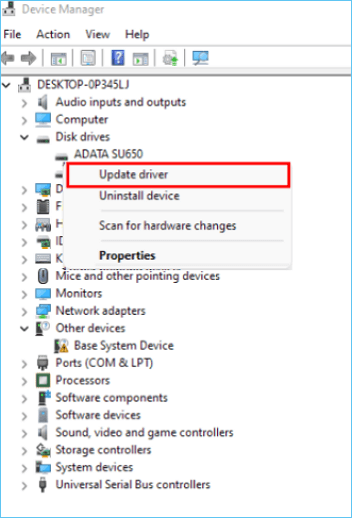
If the driver connecting the Seagate external drive to your computer is outdated or corrupted, you can fix the slow speed problem by updating the outdated driver in Device Manager. To do this, simply open Device Manager, locate the Seagate external drive, right-click on it, and select "Update driver" to update the driver to the latest version. This should resolve the issue and improve the drive's performance.
Step 1. Right-click and select the Windows icon and click Device Manager.
Step 2. Select the target driver and expand the right arrow.
Step 3. Right-click and select the problematic driver and click Update driver.
Solution 6. Enable Write Cache
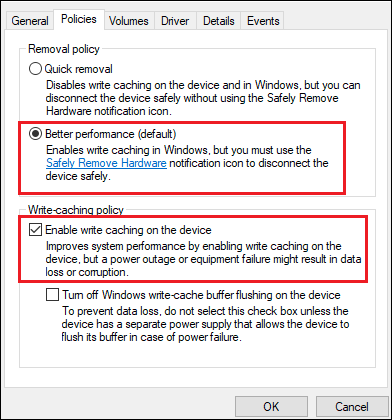
Caching improves performance by temporarily storing writes collected by volatile memory, allowing the computer to save them until they are written to an external storage device. This process enables faster data processing and reduces the time it takes to access and write data, ultimately enhancing overall system performance.
Step 1. Open Device Manager and expand Disk Drives.
Step 2. Right-click on the target drive and click Properties.
Step 3. Under the Policies tab, check the Better Performance box.
Step 4. Check Enable write caching on the device.
Solution 7. Free Up Space on External Hard Drive
Running out of disk space can significantly slow down the transfer rate of your hard drive. To free up disk space, consider deleting extra files and applications, cleaning up large files, and extending partitions, among other options. For more information on how to free up space on external drives, you can click on the provided link.
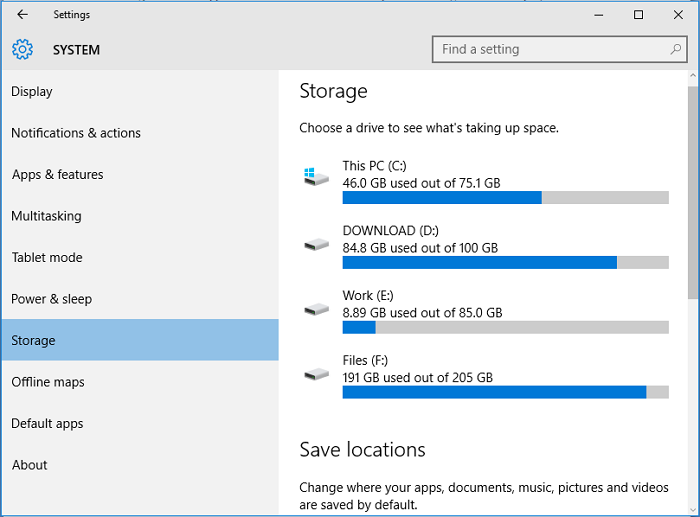
To free up hard drive space in Windows 10/11, start by deleting temporary files and system files. Open the Disk Cleanup tool, select the drive you want to clean, and choose what you want to delete.
Many people struggle with clutter on their hard drive, whether it's due to a lack of space for new applications or games, or simply because they can't stand the visual chaos.
Solution 8. Run Antivirus Software
If a hard drive is connected to an insecure machine, it may become infected with viruses, which can cause it to slow down. To prevent this, it's recommended to have a tool to protect your device from virus attacks.
Step 1. Open an anti-virus tool. (e.g., AVG)
Step 2. Scan for viruses.
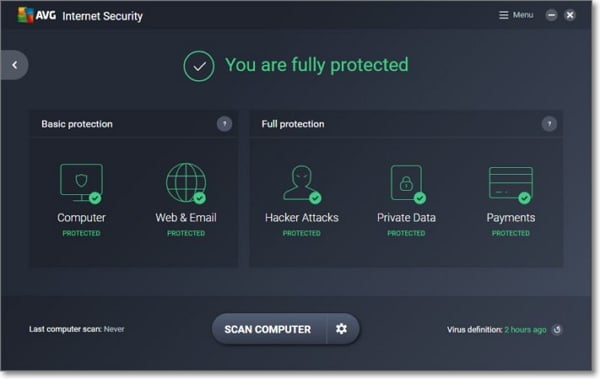
Once the scan is complete, you can deal with the viruses with the help of an anti-virus tool.
Solution 9. Reformat the External Hard Drive
Formatting an external hard drive is a simple way to resolve slow speeds, and Qiling Disk Master offers a fast and secure formatting feature, allowing users to clean up their drive and solve hard drive issues by formatting to NTFS, FAT32, exFAT, or EXT3 file formats.
Download this powerful tool and follow the steps to format an external hard drive, which will erase all data on the drive, making it ready for new files and data to be saved.
Step 1. Launch Qiling Disk Master, right-click the partition on your external hard drive/USB/SD card which you want to format and choose the "Format" option.

Step 2. Assign a new partition label, file system (NTFS, FAT32, EXT2, EXT3, EXT4, exFAT), and cluster size to the selected partition.

Step 3. The process of formatting an external hard drive, USB, or SD card involves erasing all data on the device and preparing it for new data storage. This process is usually initiated by clicking the "Proceed" button on the device's management software or the operating system's built-in formatting tool.

Step 4. In the Warning window, click "Yes" to continue.
Conclusion
Seagate external hard drives can be slow due to various reasons, but using the solutions provided in this article can improve their performance. Qiling Disk Master offers a range of solutions that can help test the speed of your external hard drive and provide ways to optimize its performance after the test, making it easier to achieve better speeds.
FAQs About Seagate External Hard Drive Slow
If your Seagate external hard drive is running slowly, there are nine potential solutions to try. If you have further questions about this issue, you can find additional information in the FAQs below.
1. How to speed up Seagate hard drive?
To speed up Seagate external hard drives, consider upgrading to a faster interface such as USB 3.0 or Thunderbolt, which can significantly improve transfer speeds.
- Switching SATA cables
- Perform defragmentation
- Repair bad sectors
- Enable write caching
This article also provides very many additional ways to speed up your drive. You can see a detailed step-by-step guide in this article.
2. Why my external hard drive takes so long to load?
If your external hard drive is taking a long time to open, it may be due to bad sectors or a corrupted file system, or other factors like lack of disc space.
3. How fast is the Seagate 2TB hard drive?
The Seagate 2TB external hard drive features a 7200rpm spin speed and 64MB cache to minimize latency and loading times. It also offers fast transfer speeds of up to 600MB/s, making it suitable for demanding users. Additionally, if you have a Seagate drive, you can verify its authenticity using Qiling Disk Master.
Related Articles
- How to Check SD Card Health on Windows [Safe & Efficient]
- Failed to Format the Device? How to Fix HP USB Format Tool Write Protected
- Failed to Open Device Getlasterror()=32: Fix Guiformat Error [100% Working Guide]
- How to Fix HP Laptop Running Slow on Windows 11/10 [2023 Newest]
- How to Format C Drive in Windows 7/8/10 Successfully? [Two Ways Offered]
This post shows how to format Windows 7 C drive using USB when you don't have Windows installation CD/DVD; or from Command Prompt if you have CD/DVD. - The Top Six Ways to Fix Windows 7 running slow
Stuck with “Windows 7 slow” issue but have no idea? Read this post to learn how to speed up a Windows 7 PC and improve its performance.
Products
Articles & Tutorials
- Data Recovery
- Data Backup
- File Recovery
- File Backup
- System Backup and Restore
- Disk and Partition Clone
- Technical articles
- Mobile articles
- Disk Master Help
- Windows Data Recovery Tutorials
- Windows Secure Delete Tutorials
- Windows Partition Management Tutorials
- Windows File Backup and Restore Tutorials
- Windows System Backup and Restore Tutorials
- Windows Disk Backup and Restore Tutorials
- Windows Clone Tutorials