Failed to Open Device GetLastError()=32: Fix Guiformat Error
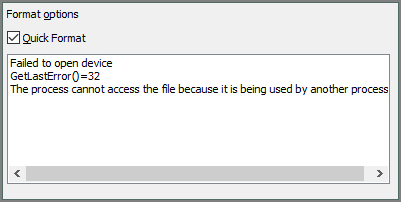
Whenever I attempt to format the SD card with guiformat, I get the error below:
Error:
Failed to open device
GetLastError()=32
The error message indicates that the file is currently being accessed by another process, preventing the current process from accessing it. This is likely due to the file being locked by another program or process, and the current process is unable to obtain the lock on the file.
- from Gbatemp
If you're experiencing the "failed to open device getlasterror()=32" error while using Guiformat, don't worry, this article provides can help. It provides a solution to this issue, helping you overcome the problem and continue using Guiformat without any further hassle.
Why Is the "Failed to Open Device Getlasterror()=32" Error?
Guiformat utility is also known as FAT32 Format utility. The FAT32 file system is mainly used to format disks larger than 32G. However, sometimes there are errors when using this command. Before we explain how to do it, we need to know why the error "failed to open device getlasterror()=32" appears. There are two main reasons for this.
1. The file or program is being used in another program.
2. There is no administrator privilege to run the FAT32 utility.
How to solve these two problems? Don't worry. It's very simple. Keep reading!
How to Fix the "Failed to Open Device Getlasterror()=32" Error?
"Failed to open device getlasterror()=32" may occur due to two reasons. To resolve the issue, you need to either close any files and programs that may be using the device or run the FAT32 Format as an administrator. Follow the steps accordingly.
Guide 1. Close Files or Programs
If the tool detects that a file is being used by another process, you can resolve the "failed to open device getlasterror()=32" error by closing or disabling the program that's using the file, typically by clicking the "X" icon or accessing its settings.
Step 1. Open the Windows button and click on "Apps."
Step 2. Select "Startup" at the bottom.
Step 3. To close a file, select the file you want to close and click the "On" button on the right side.
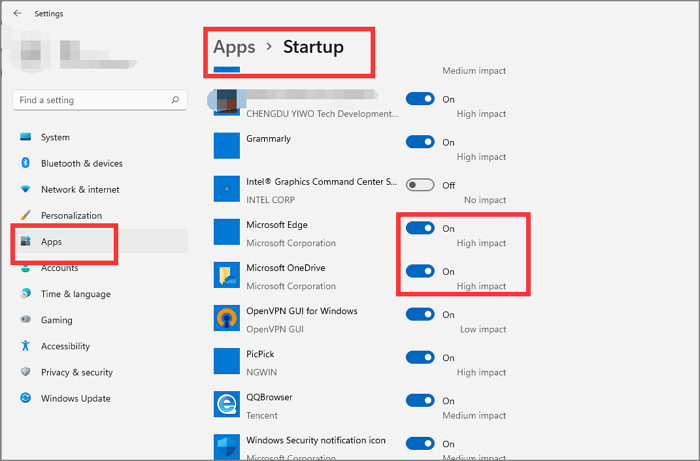
Step 4. Close the "Settings" window.
Step 5. Restart your computer to see if the "failed to open device getlasterror()=32" error is fixed.
To end the task, you can open the Task Manager, click on the "Processes" tab, find the task you want to end, right-click on it, and select "End task" from the context menu. Alternatively, you can also click on the "Details" tab, find the task, right-click on it, and select "End task".
Guide 2. Run with Admin Rights
The "failed to open device getlasterror()=32" error can occur if you're not running with administrator privileges, and can be resolved by running the guiformat.exe file with administrator privileges, which involves only two steps.
Step 1. To resolve the issue, find the Guiformat file and right-click on it to select "Run as administrator."
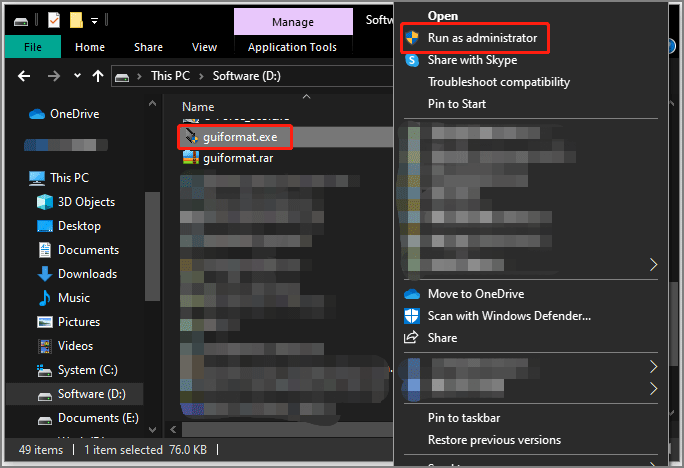
Step 2. Open FAT32 Format and try to format the drive again.
If you're still experiencing error messages, try closing all files and programs and running FAT32 Format as an administrator. If this doesn't resolve the issue, you can consider alternative methods to format.
Professional Alternative to Fix "Failed to Open Device Getlasterror()=32" Error
When you can't format with Guiformat, you can also format with other tools on Windows, such as Qiling Disk Master Free, which is a simple yet professional software that can be used as an alternative to Guiformat.
| Comparison | Qiling Disk Master | Guiformat (or FAT32 Format) |
|---|---|---|
| Supported File Systems | NTFS, EXT2/3/4, FAT12/16/32, ReFS, exFAT | FAT32 |
| Supported Operating Systems | Windows 11/10/8.1/8/7/Vista/X | Win7/WinXP/Win10 |
Qiling Disk Master supports formatting more file systems and does so at a faster speed than other tools. It is also versatile and can work with various systems, making it a convenient option. The process is straightforward and easy to operate, with simple steps to follow.
- Right-Connect the external drive or USB to your computer. Click on the drive to select it.
- Set the Partition label, File system (NTFS/FAT32/EXT2/EXT3/EXT4/exFAT), and Cluster size.
- Click the "Proceed" to format the hard drive partition.
- Click "Yes" to continue.
What Else Can Qiling Disk Master Do?
Qiling Disk Master supports a wide range of file system formats and, as an all-in-one disk performance optimizer, it also offers additional features.
- Initialize disks to MBR/GPT
- Upgrade disks without losing data
- Easily wipe disk partitions and data
- Convert NTFS to FAT32 without data loss.
- Check disk and repair corrupted file systems
- Convert primary partitions to logical directly
Qiling Disk Master is a disk management software that is well worth trying, making it a perfect essential tool for managing disks on your computer.
Conclusion
Guiformat is a tool that allows users to easily set file formats larger than 32GB to the FAT32 file system, but it must be used with only one file or program open to avoid errors.
If you're struggling with the Guiformat problem, don't worry - there's a better alternative. Qiling Disk Master offers a faster and more comprehensive disk formatting feature, supporting not only FAT32 but also other file system formats.
FAQs About Failed to Open Device Getlasterror()=32
This article solves the problem you will meet when formatting to FAT32 with Guiformat. Here are some more questions about the FAT32 format.
1. What is FAT32?
FAT32 is a widely used disk format for USB drives, flashcards, and external hard drives, based on the 32-bit version of the FAT file system.
2. What is the FAT32 format tool?
This free and convenient program can format hard drives, SD cards, and USB drives over 32GB to the FAT32 file system.
3. Can a 2 TB drive be formatted in FAT32?
You can format a 2TB drive to FAT32, but the built-in tools in Windows, such as Disk Management, Diskpart, and File Explorer, only support formatting drives smaller than 32GB, so you'll need to use a third-party FAT32 Format tool instead.
Related Articles
- NTFS or exFAT, Which is Better for HDD, SSD, M.2, or NVMe? Find Your Answer Here
- How to Clone Windows 7 to USB [Full Guide]
- How Do I Run External SSD Speed Test on My Own? Your Guide Is Here
- How to Boot Windows 10 from USB Flash Drive
- How to Fix HP Laptop Running Slow on Windows 11/10 [2024 Newest]
If your HP laptop is running slow on Windows 11/10. This article offers 8 practical solutions to help you overcome the issue and get your laptop back to its optimal performance. - Solved: HP Recovery Drive Full on Windows 10/8/7
The HP recovery drive can get full due to various reasons, including the presence of unnecessary system restore points, duplicate files, and other system data. Additionally, you can also try using the HP Recovery Drive Cleanup tool, which is specifically designed for HP devices.
Products
Articles & Tutorials
- Data Recovery
- Data Backup
- File Recovery
- File Backup
- System Backup and Restore
- Disk and Partition Clone
- Technical articles
- Mobile articles
- Disk Master Help
- Windows Data Recovery Tutorials
- Windows Secure Delete Tutorials
- Windows Partition Management Tutorials
- Windows File Backup and Restore Tutorials
- Windows System Backup and Restore Tutorials
- Windows Disk Backup and Restore Tutorials
- Windows Clone Tutorials