How to Clone Windows 7 to USB [Full Guide]
Microsoft ended its support for Windows 7 in 2020, but it's still used by some users today. You may want to clone Windows 7 to a USB drive and use it as a bootable disk for various reasons, such as having a backup or a portable version of the operating system.
Can I Copy Windows 7 to USB? How to Do So?
The answer to this question depends on the tool you choose to use for copying Windows 7 to a USB flash drive or a USB external drive.
The disk management tool with Windows 7, such as Disk Management and Diskpart, doesn't support cloning Windows 7 to USB, but there are alternative methods available.
This article provides a reliable Windows cloning software, Qiling Disk Master Professional, to help you easily clone Windows 7 to USB.
NOTICE: Make sure you follow the full guide on this page to accomplish the task in cloning Windows 7 to a USB drive.
🚩Further Reading: Simplest USB Clone Tool to Clone USB Stick
Preparation for Cloning Windows 7 to USB
To clone Windows 7 to USB without losing data, prepare the USB drive by backing up its contents, formatting it to the correct file system, and ensuring it's large enough to hold the Windows 7 installation. Then, download the necessary cloning software, such as Qiling Backup, and follow the software's instructions to clone the Windows 7 installation to the USB drive.
1. Back up the data on the USB
To clone Windows 7 to a USB drive, the cloned data will overwrite the USB's contents. If you have important data on the USB, you can use Windows' built-in backup tool or a professional backup software to backup the data before proceeding.
2. Ensure storage space on the USB is enough
To successfully clone all Windows 7 data without losing any, ensure the available space on the USB drive is larger than the used space on the Windows 7 hard disk. Check this by opening File Explorer or Disk Management to verify the USB drive's storage capacity.
3. Make sure the format of the USB
To clone Windows 7 to a USB drive, the USB drive format needs to match the operating system's disk format. Formatting the USB drive using the command line (CMD) or other formatting tools will provide enough space for the cloning process. The USB drive can be initialized to either Master Boot Record (MBR) or GUID Partition Table (GPT) format.
4. Download a reliable cloning tool
To clone Windows 7 to a USB drive, you can download Qiling Disk Master, a tool that supports system and partition cloning, allowing you to safely clone all Windows data. This alternative to a built-in cloning tool provided by Windows can help you transfer your operating system and files to a new device.
How to Clone Windows 7 to USB with A Step-by-Step Guide
Qiling Disk Master is an all-Disk Utility is a user-friendly tool that supports all Windows versions, including Windows 7/8/10/11 and XP/Vista. It features a simple interface that allows users, even those new to cloning, to easily clone Windows to an external hard drive. To clone Windows 7 to a USB drive, follow these steps.
Step 1. Launch Qiling Disk Master, go to the Tools and utilities tab, select System Clone.
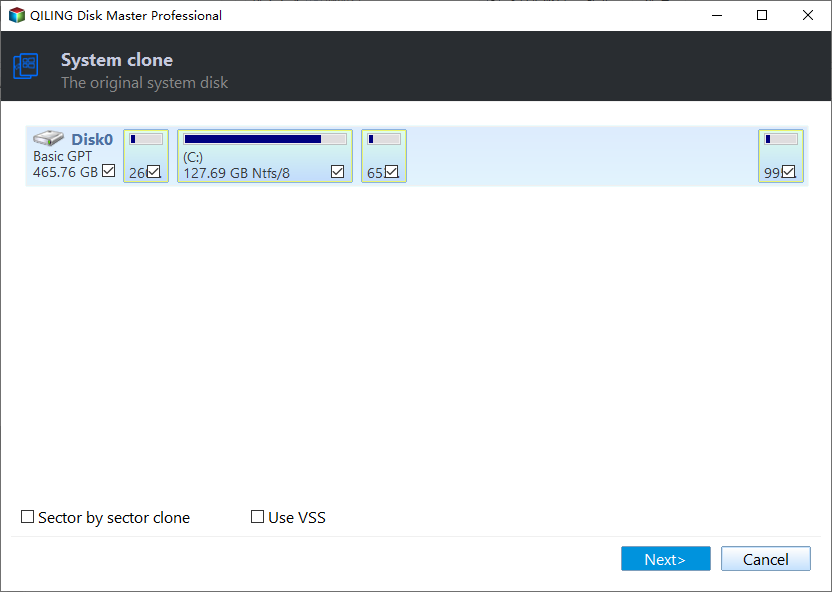
Step 2. Select the target new drive where you want to clone the OS to, and click "Next".

Step 3. The system will display the disk layout, allowing you to choose the destination disk for the OS clone. Once you've selected the disk, click "Proceed" to initiate the cloning process.

Confirm that you want to continue the OS disk cloning process.

Step 4. When the process finishes, you'll see a confirming message, asking if you want to start up your computer from the cloned target disk.
- Reboot Now To reboot your PC and configure the computer to boot OS from the new disk immediately, you would perform a cold boot by restarting your computer and then configuring the BIOS or UEFI settings to prioritize the new disk as the primary boot device. This process typically involves entering the BIOS or UEFI settings during the boot process, navigating to the boot order settings, and selecting the new disk as the primary boot device.
- Done means you want to make the changes later.
Tip to Set Windows 7 Boot from USB
To boot Windows 7 from a cloned USB drive, connect the USB drive to the source computer and set the cloned USB as the boot disk. This can be done by entering the BIOS settings, navigating to the boot order, and selecting the USB drive as the primary boot device. Once set, save the changes and restart the computer.
❗Windows 7 can only be booted from a USB on the source computer.
Step 1. Connect the USB to the computer.
Step 2. To resolve the issue, simply reboot your computer and press and hold the F2/F8/Del keys to enter the BIOS environment. This will allow you to access and configure various settings, potentially resolving the problem.
Step 3. Set the cloned USB as the boot device on the right side, allowing the computer to boot from it instead of the original hard drive. This will enable the computer to load the operating system and other programs from the USB drive, effectively replacing the original hard drive.

Step 4. Save the changes.
Qiling Disk Master is a powerful tool that allows you to clone Windows to another drive or clone Windows to a new SSD, making it a convenient option for disk partitioning.
Why Clone Windows 7 to USB
Cloning Windows 7 to a USB drive allows you to transfer the entire operating system, including data and applications, to the USB device, providing a convenient way to have a backup or portable version of your Windows 7 installation. This can be useful for various purposes, such as having a backup of your system, creating a portable version for use on different computers, or for troubleshooting purposes. The process involves copying the entire Windows 7 installation, including the operating system, applications, and user data, to the USB drive. This can be achieved using various software tools, such as Qiling Backup, which can clone the entire Windows 7 installation to a USB drive.
1. Create a backup and avoid OS failure
Windows 7 is an older system that is susceptible to system crashes, but cloning it to a USB drive can be a lifesaver in such situations, as it allows for the restoration of data in the event of a system failure.
2. Create a removable bootable disk
Cloning Windows 7 to a USB drive creates a portable Windows installation that can be used to boot Windows on other computers in case of an emergency or need, providing a convenient and self-contained Windows environment.
3. Avoid the hassle of reinstalling Windows
When you copy the OS, applications, and data to a USB, you can install Windows programs directly on a new computer, making the process faster and more efficient.
Cloning Windows 7 to USB is a great idea, allowing you to boot your computer via USB and use your Windows 7 system even if your computer fails.
Conclusion
Cloning Windows 7 to USB is necessary for various reasons, including the need to create a portable and self-contained operating system, which can be useful for troubleshooting, testing, or running a Windows environment on a different machine. To successfully clone Windows 7 to USB, preparation is key, involving tasks such as ensuring the USB drive is large enough to hold the Windows installation, backing up any important files, and disabling any security features that may interfere with the cloning process. The actual cloning process involves using a tool, such as a cloning software, to create a bit-for-bit copy of the Windows installation on the USB drive, which can then be used to boot up a computer and run Windows 7 from the USB drive.
With Qiling Disk Master, cloning is no longer a problem, and it has other great features, making it a highly recommended tool.
FAQs About How to Clone Windows 7 to USB
Here are some questions that people often ask, with some short answers. I hope this will be helpful to you.
1. Can you clone Windows to a USB drive?
While Windows doesn't natively support cloning to a USB drive, you can still achieve this using reliable third-party software, such as Qiling Disk Master. This allows you to create a duplicate of your Windows installation on a USB drive, providing a convenient backup and recovery option.
2. How to copy Windows 7 to USB?
This article provides a step-by-step guide to cloning Windows 7 to USB using Qiling Disk Master, a simple cloning tool.
Step 1. To clone a disk, download Qiling Disk Master and open it, then select "Disk Clone" from the left side of the interface.
Step 2. Select "Clone OS Disk" and click "Next."
Step 3. Select the target USB and click "Next" and "Yes" in the pop-up window.
Step 4. Click "Start" to start cloning Windows 7 to USB.
3. Can I make a bootable Windows 7 USB?
You can use Qiling Disk Master to clone Windows 7 to a USB drive, then enter the BIOS settings and change the boot order to boot from the cloned USB drive.
Related Articles
- 5 Best FAT32 Format Tools Free Download for Windows🔥
- Windows 11 Gets/Adds a Watermark on Unsupported Hardware, How to Remove It
- NTFS or exFAT, Which is Better for HDD, SSD, M.2, or NVMe? Find Your Answer Here
- Can't Install Windows 7 on Dynamic Disk - 3 Fixes 🔥
- How to Crack Windows Password [Step-by-Step]
Forgetting your Windows password can be frustrating, but there are solutions available. You can either crack the password without using software or utilize a reliable third-party tool like Qiling Disk Master, which can help you regain access to your Windows 11, 10, and 7 systems. - How to Create Bootable USB to Wipe Hard Drive
Want to securely erase your hard drive before selling a computer or reinstalling Windows? Follow this guide to create a bootable USB drive that will wipe your hard drive clean, giving you peace of mind as you prepare to let go of your old device or start fresh with a new OS.
Products
Articles & Tutorials
- Data Recovery
- Data Backup
- File Recovery
- File Backup
- System Backup and Restore
- Disk and Partition Clone
- Technical articles
- Mobile articles
- Disk Master Help
- Windows Data Recovery Tutorials
- Windows Secure Delete Tutorials
- Windows Partition Management Tutorials
- Windows File Backup and Restore Tutorials
- Windows System Backup and Restore Tutorials
- Windows Disk Backup and Restore Tutorials
- Windows Clone Tutorials