How to Clone Windows to Another Drive [Newest Solution]
Disk cloning is the process of creating a one-to-one copy of a hard drive or solid-state drive, which means copying the operating system, programs, and data from one drive to another, resulting in an identical copy on the target drive.
Cloning Windows to another drive can be a useful procedure, and there are several reasons why you might want to do it. Before we dive into the method, let's consider the benefits: you can have a backup of your operating system and programs, which can be especially helpful in case your original drive fails or becomes corrupted. You can also clone Windows to another drive to upgrade your storage capacity or to create a portable version of your operating system that you can take with you on a USB drive.
Why Clone Windows to Another Drive
Cloning Windows to another drive can be a helpful process, such as when upgrading to a faster SSD, and there are several reasons for doing so. For instance, it can improve the read and write performance of your computer, making it run more efficiently. Additionally, cloning Windows to another drive can be a useful backup strategy, allowing you to easily restore your operating system and data in case of a system failure or other issue.
- Create a backup: Cloning Windows to a drive creates an exact copy of your computer, allowing you to recover data in case of a system crash or data loss.
- Upgrade to a larger drive: If your current drive is running low on storage space, you can either clone Windows to a larger drive to free up space, or completely wipe the hard drive to gain more free space on the original drive.
- Migrate OS: Cloning Windows to another drive can save time and effort by automatically transferring all the operating system components, making it a convenient option for avoiding the manual process of reinstalling the OS.
If you want to clone Windows to another drive, finding a reliable method is key. Traditional copy-and-paste methods are time-consuming, and Disk Management and Diskpart only work for partitioning and formatting disks. Fortunately, a tool like Qiling Disk Master Professional can make the process much easier, allowing you to clone Windows to another drive with just one click.
We will learn how to clone Windows to another drive using a professional tool. Next, we will cover this topic.
- Tip
- Before cloning Windows to another drive, you need to ensure two things: that the target drive is at least as large as the source drive, and that the target drive is not already in use by Windows. This will prevent any potential issues or data loss during the cloning process.
- 1. The target drive should have more storage space than the source drive.
- 2. It's recommended to back up all essential data on the target drive before proceeding to avoid data loss.
How to Clone Windows to Another Drive
Qiling Disk Master is a comprehensive software that supports cloning partitions, including NTFS and FAT partitions, and offers a one-click migration of the operating system, featuring a "Clone OS disk" function to migrate Windows to another drive.
You can easily clone Windows to another drive using the tool, which is easy to use even if you're new to the cloning process. Just follow the steps, and you'll be able to complete cloning Windows to another drive. Once done, you can set the drive as a bootable drive.
Guide 1. Clone Windows to Another Drive
To begin, download Qiling Disk Master and follow the steps below to complete the cloning process.
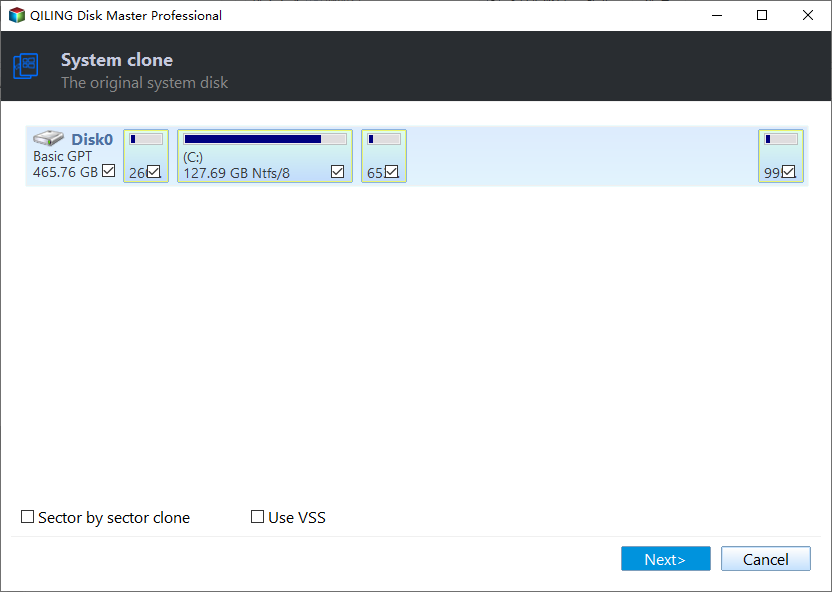
Step 1. Launch Qiling Disk Master, go to the Tools tab, and select "Clone System Disk" from the options available.
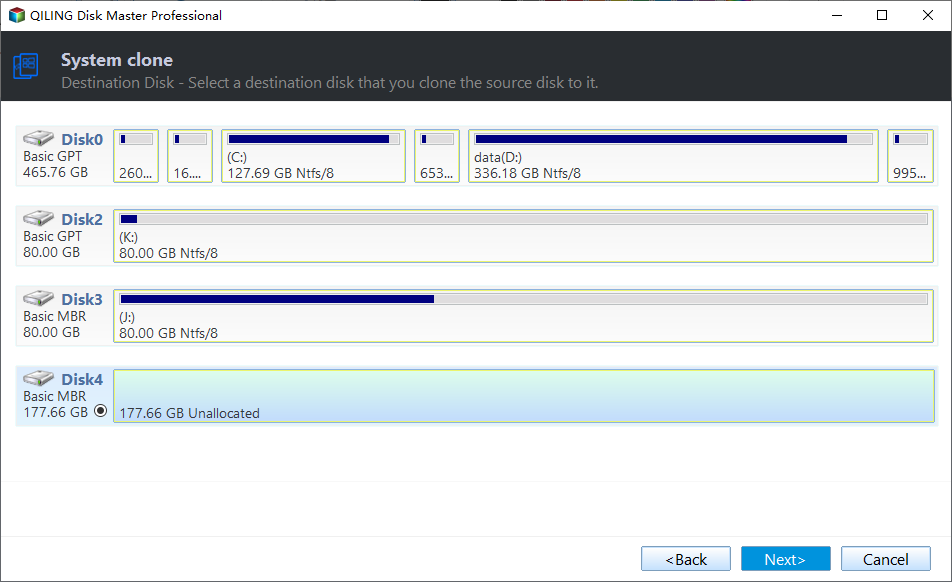
Step 2. Select the target new drive where you want to clone the OS to, and click "Next".
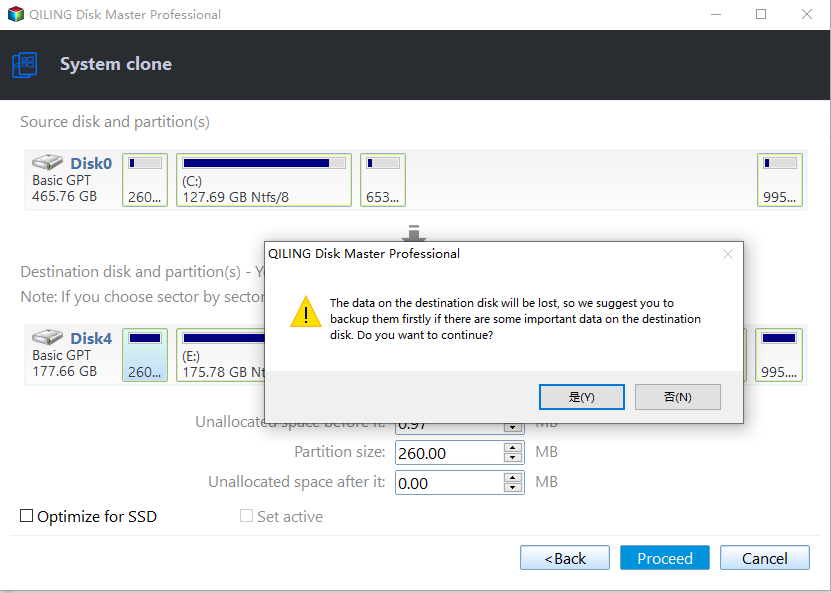
Click "Yes" to confirm that you want to continue the OS disk cloning process.
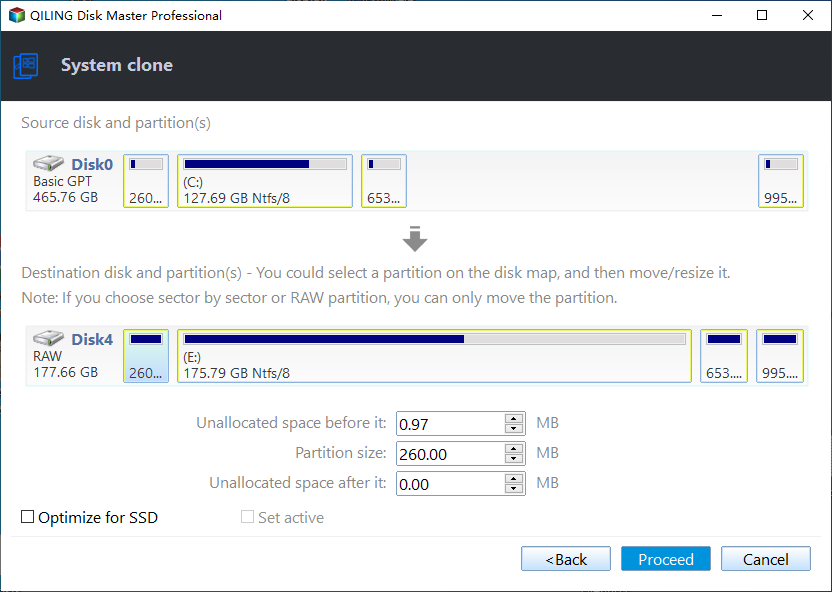
Step 3. The process of cloning an operating system involves creating an exact copy of the existing OS on a new disk, including all installed applications, settings, and data. This is typically done using specialized software that can read the existing OS and replicate it on the new disk.
Step 4. When the process completes, you'll see a confirming message asking if you want to start up your computer from the clone target disk.
- Reboot Now To "reboot and reconfigure" means to restart your PC and set it to boot from a newly installed operating system on a different disk, so it loads from that disk the next time it starts up.
- Done means you want to make the changes later.
- Notice:
- If you want to clone Windows to a new SSD or hard drive, initialize the new drive to MBR (Master Boot Record) or GPT (GUID Partition Table) format with Qiling Disk Master before using it.
Guide 2. Boot From the Cloned Drive
After successfully cloning Windows to another drive, you need to change the boot drive. This will allow you to boot your computer from the cloned drive. Please follow the steps below to boot your computer from another drive.
Step 1. To enter the BIOS environment, turn on your computer and press F2/F8/Del, depending on the computer model, to access the BIOS settings. This allows you to configure basic settings such as boot order, time and date, and other low-level settings.
Step 2. To change the boot order and make the cloned drive bootable, navigate to the boot menu on the right side, select the cloned drive as the primary boot device, and save your changes. This will allow the computer to boot from the cloned drive.
Step 3. Once the setup is complete, you can exit the BIOS.
- Important
- If a cloned drive won't boot, it's essential to identify the reason first. This may involve checking for bad sectors or incomplete cloning. Once the cause is understood, you can proceed to find a solution to resolve the issue and restart the disk cloning process.
Cloning Windows to another drive and booting from it without reinstalling the operating system is possible with the steps outlined in the guides. Qiling Disk Master is a powerful tool that can make this process convenient, allowing you to clone your Windows installation and boot from the new drive without having to reinstall the operating system.
- To maintain the performance of the cloned SSD, it's recommended to align the 4K sectors of the original and cloned SSDs. This ensures that the cloned SSD can read and write data efficiently, as the 4K alignment helps to minimize the number of read and write operations required.
- Clone a hard drive to a larger drive to extend the space of your computer's disk.
- Migrate OS to SSD: Avoid the hassle of reinstallation
- Cloning your hard disk drive (HDD) to a solid-state drive (SSD) can significantly improve the read and write performance of your computer. By transferring the contents of your HDD to an SSD, you can enjoy faster loading times, quicker application launches, and improved overall system responsiveness.
Download Qiling Disk Master to solve more disk partition related problems.
Conclusion
Cloning Windows to another drive offers several benefits, and the best way to do it is with Qiling Disk Master. This tool allows for efficient cloning, and can also be used to copy partition to another drive with its Clone Partition feature.
FAQs About Clone Windows to Another Drive
These questions about cloning are accompanied by simple answers, aiming to provide helpful information.
1. Can you clone Windows to an external SSD?
You can clone Windows to an external SSD or other storage devices using a professional tool.
2. Is cloning Windows from HDD to SSD safe?
Cloning Windows from a hard drive to a solid state drive (SSD) is a safe process when done using a professional tool, allowing users to avoid the hassle of reinstalling the system and better protect and manage their data.
3. Can I clone the C drive to the D drive?
You can clone the C drive to the D drive, including files, folders, and programs, using the "Clone Partition" function of Qiling Disk Master. This allows you to create a duplicate of the C drive partition on the D drive.
Related Articles
- Fixed: Blue Screen of Death Error 0x000000C5 | Top Ways
- 5 Best SD Card Formatter FAT32 Free Download for Windows
- [2024] Three Ways to Convert MBR to GPT Disk on Windows 11/10
- C Drive is Full in Windows 11
- How to Create a (New) Partition in Windows 8? [QuickStart]
How to create a partition in Windows 8? If you do not know, this guide can help. This article will describe the reasons for creating a partition and share two partitioning software in Windows 8 to help you manage drives. - Use Diskpart to Create Primary Partition or Volume on Windows [For Beginners]
If you're looking for a way to create a primary partition, this article provides two methods to achieve that. One method involves using Diskpart, which is a built-in tool that allows you to create a partition right away.
Products
Articles & Tutorials
- Data Recovery
- Data Backup
- File Recovery
- File Backup
- System Backup and Restore
- Disk and Partition Clone
- Technical articles
- Mobile articles
- Disk Master Help
- Windows Data Recovery Tutorials
- Windows Secure Delete Tutorials
- Windows Partition Management Tutorials
- Windows File Backup and Restore Tutorials
- Windows System Backup and Restore Tutorials
- Windows Disk Backup and Restore Tutorials
- Windows Clone Tutorials