How to Create a (New) Partition in Windows 8? [QuickStart]
Page Content
The Reasons to Create A Partition in Windows 8/8.1
To create a new partition in Windows 8 using partitioning software, you'll need to download and install a third-party partition manager like Qiling Partition Master. Once installed, launch the software and select the disk where you want to create the new partition.
Use Disk Management to Create a Partition in Windows 8/8.1
The Reasons to Create A Partition in Windows 8/8.1
In Windows 8 or 8.1, creating a partition can be a useful way to organize your files and systems, making it easier to declutter your hard drive and keep your computer running smoothly.
There are a few reasons you may want to create a partition in Windows 8 or Windows 8.1.
Create a separate area for work and play.
You can create a recovery partition to ensure system recovery in case of failures, which is a relatively straightforward process.
Creating partitions in Windows 8 can be achieved through two primary methods: Qiling Disk Master and Disk Management. Qiling Disk Master offers a user-friendly interface and is ideal for those who need to create partitions quickly and easily, while Disk Management provides a more detailed view of the disk and is suitable for users who require more control over their partitioning process. Ultimately, the choice between these two methods depends on individual needs and preferences.
- Qiling Disk Master Free is a user-friendly tool that allows beginners to create partitions in just a few steps. The software also enables users to adjust partition sizes using a simple handle, making it easy to customize storage space according to their needs.
- The Disk Management tool in Windows is a built-in utility that allows users to manage and configure their computer's disk storage. However, to create a new partition, users must first create unallocated space on their disk, which can be done by deleting an existing partition or by extending an existing partition to make room for the new one.
How to Create A New Partition in Windows 8 with Partitioning Software
Qiling Disk Master is a user-friendly third-party partitioning tool that offers a wide range of features and is relatively easy to use, even for those who are not tech-savvy.
Option 1. Extend System C drive with unallocated space
- 1. Right-click on the System C: drive and select "Resize/Move".
- 2. To increase the size of the C: drive, you need to expand the system partition into the adjacent unallocated space, effectively merging the two into a single larger partition. This will provide more storage space for your operating system and any programs installed on it.
- 3. Click "Proceed" to execute the operations and extend the C drive.
Option 2. Extend System C drive without unallocated space
- 1. Right-click a big partition with enough free space on the system disk, select "Allocate Space".
- 2. Select the system drive at the "Allocate Space From" (*) To section, and drag the end of the System C drive into the unallocated space.
- 3. Click "Proceed" to save the changes and extend the C drive.
0:00-To extend the system drive, first, ensure there is unallocated space available. If there is, you can extend the system drive using the Disk Management tool.

How to Partition Hard Drive Disk without Formatting
This page provides a solution for partitioning a hard disk in Windows 11/10/8/7/XP/Vista without formatting, meeting the need to create a partition without erasing the disk's contents.

Other system you may concern about:
Use Disk Management to Create a Partition in Windows 8/8.1
To look for a Windows built-In Disk Management, you can resize a volume without losing data, but you need to manually adjust the volume size.
Disk Management, on the other hand, is a built-in Windows tool that is slightly more limited in features compared to other tools, but still straightforward to use.
To manage your disk, open Disk Management and look for unallocated space on the drive. If you find it, you can select a step-by-step tutorial to guide you through the process. Alternatively, you can use partitioning software to simplify the process.
1. No Unallocated Space
Step 1. Right-click the Start icon and choose Disk Management.
Step 2. Right-click on a partition and choose "Shrink Volume".
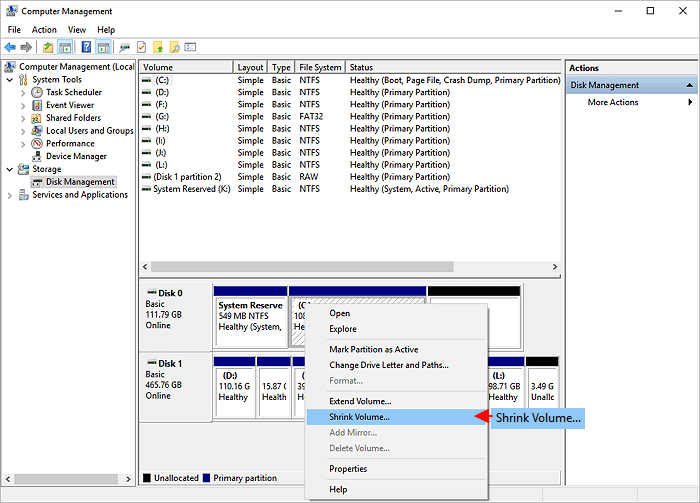
Step 3. Enter the size to shrink.
Step 4. Click "Shrink" and you can get an unallocated space.
Step 5. Right-click the unallocated space on your drive and select "New Simple Volume".

Step 6. To create a new simple volume, open the "New Simple Volume Wizard" and select "Next". Then, enter the desired volume size and choose "Next" to proceed.
Step 7. Assign the drive letter and click "Next".
Step 8. In the Format window, select "Next" to format the partition, then click "Finish".
2. Disk Has Unallocated Space
Step 1. To open the Disk Management tool, press the "Windows key + R", type "diskmgmt.msc" into the Run dialog, and press Enter.
Step 2. To create a new partition on your hard drive, you'll need to find an unallocated area large enough to hold the partition, then right-click on it and select "New Simple Volume."
To create a new partition, follow the prompts to select the disk where you want to create the partition, choose the size and file system type, and assign a drive letter. You can also format the partition as needed. Once you have completed these steps, the new partition will be created and you can use it as needed.
Partition Windows 8.1/8 FAQs
How can I partition my c drive in windows 8 without formatting?
To partition your C drive in Windows 8 without formatting, you can use a partition manager. This type of program allows you to create, resize, and delete partitions on your hard drive without losing any data, making it a useful tool for managing your disk space.
How many partitions does windows 8 create?
Windows 8 creates two essential partitions: the System Reserved partition and the boot partition. The System Reserved partition holds vital system files, whereas the boot partition contains the operating system and all installed programs. Together, these partitions keep your computer organized and running smoothly.
How do I add a drive in windows 8?
1. To access the Computer Management console, open the Control Panel, select Administrative Tools, and double-click on "Computer Management."
2. In the left-hand pane of the resulting window, select Storage and Disk Management from the list of options.
3. Right-click on the unallocated space and select "New Simple Volume" to add it to your drive.
To complete the process, follow the prompts to format the new drive, and then give your new drive a letter so that it can be accessed from Windows Explorer. 1.
How do I split my c drive?
You can split your C drive into multiple partitions using a partitioning tool like Qiling Disk Master, which allows you to create separate partitions on your hard drive. Alternatively, you can manually split your C drive by reformatting your hard drive and creating multiple separate parts.
Related Articles
- Fixed: Green Screen of Death on Windows 10/11 - 6 Tips 💡
- How to Move Recovery Partition Windows 10 (Easy & Safe)
- Windows 11 Is Not Booting? Your Fixes Are Here!
- Guide on Convert GPT to MBR with 3 GPT to MBR Converters
- How to Format External Hard Drive to FAT32 on Windows 10? [FAT32 Guide]
How to format external hard drive to FAT32 on Windows 10? You will see the five instructions in this article if you have tried to format an external hard drive to FAT32 in Windows. - How Do I Format Hard Drive on Windows 11? 2024 Complete Guide
Briefly state the goal of this page, and call Windows users to follow this guide, tell them they'll successfully format their external hard drive without losing any data on Windows 11/10/7 computers.
Products
Articles & Tutorials
- Data Recovery
- Data Backup
- File Recovery
- File Backup
- System Backup and Restore
- Disk and Partition Clone
- Technical articles
- Mobile articles
- Disk Master Help
- Windows Data Recovery Tutorials
- Windows Secure Delete Tutorials
- Windows Partition Management Tutorials
- Windows File Backup and Restore Tutorials
- Windows System Backup and Restore Tutorials
- Windows Disk Backup and Restore Tutorials
- Windows Clone Tutorials