How to Format External Hard Drive to FAT32 on Windows 10? [FAT32 Guide]
Drive Smaller than 32GB:
To format an external hard drive to FAT32 using a free partition manager, Techradar recommends using Qiling Partition Master. This software allows you to format the drive to FAT32, making it compatible with older operating systems and devices. Simply download and install Qiling Partition Master, select the external hard drive from the list of available drives, and choose the FAT32 format option.
To format an external hard drive to FAT32 using the Command Prompt and DiskPart command, follow these steps:
Method 3. Format FAT32 Windows 10 by PowerShell
Method 4. Use File Explorer to Convert FAT32 Format
Drive Larger than 32GB:
Format External Hard Drive to exFAT
Can You Format External Hard Drive to FAT32? See Size Limits
External hard drives larger than 32GB If your storage device will be used on multiple operating systems, it's recommended to format it to exFAT instead of other file systems like FAT32 or NTFS. This is because exFAT is a more versatile and widely supported file system that can be read and written by a variety of operating systems, including Windows, macOS, and Linux.
External hard drives larger than 32GB can be formatted to FAT32, but they come with some limitations. The maximum file size limit of FAT32 is 4GB, so files larger than that need to be split into smaller chunks to avoid the "the volume is too big for fat32" error. Additionally, larger drives may experience slower data transfer rates due to the increased number of files, making it generally recommended to format them as exFAT instead.
External hard drives smaller than 32GB - You can Format to FAT32.
Smaller external hard drives can be safely formatted as FAT32 without issues, as the 32GB limit is sufficient for storing most files, and data transfer rates remain unaffected.
You May want to format USB or SD card:
[Smaller than 32GB] How to Format External Hard Drive to FAT32 on Windows 10
For beginners - Run Qiling Disk Master Free and File Explorer. The Qiling Disk Master Free is a safe tool that allows you to safely navigate and manage your disk, and File Explorer is a built-in tool in Windows that allows you to view and manage files and folders on your computer. You can use Qiling Disk Master Free to safely navigate and manage your disk, and then use File Explorer to view and manage the files and folders on your disk. This combination of tools will allow you to safely and effectively manage your disk and its contents.
For advanced users - You can go with PowerShell and DiskPart.
- Warning
- Formatting a hard drive will completely erase all data on it, so it's essential to back up any important files before proceeding. This includes personal documents, photos, and other sensitive information. To do this, you can use an external hard drive, cloud storage services like Google Drive or Dropbox, or even a USB drive.
Method 1. Format External Hard Drive to FAT32 with Free Partition Manager
You can format your external hard drive to FAT32 using Qiling Disk Master Free on a Windows 10 computer. This free partition manager makes it easy to complete the formatting process in just three steps, making it a convenient option.
Step 1. Launch Qiling Disk Master, right-click the partition on your external hard drive/USB/SD card which you want to format and choose the "Format" option.

Step 2. Assign a new partition label, file system, and cluster size to the selected partition.

Step 3. Click the "Proceed" to start formatting your external hard drive/USB/SD card.

Step 4. In the Warning window, click "Yes" to continue.
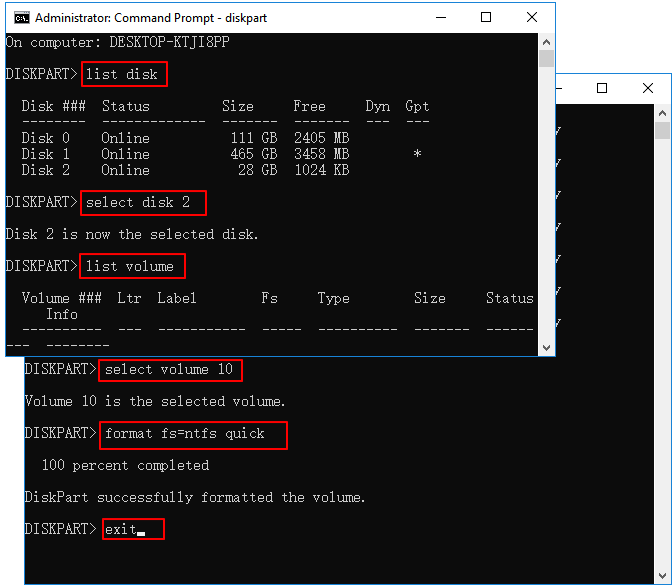
Method 2. Use Command Prompt(DiskPart Command) - Format External Hard Drive to FAT32
The Windows 10 built-You can use DiskPart to format a disk to FAT32 using flexible command lines, providing a utility for managing disk partitions.
✔️Notice: Be sure to type the correct drive letter for the target disk to avoid accidental data loss.
1. Plug the external hard drive into the PC.
2. To check the drive number of the external device, open File Explorer and click on "This PC". Then, navigate to the "Devices and drives" section and note down the drive letter, which is usually represented by a letter such as D, E, or F. This drive letter will be used to identify the external device in the system.
3. To run Command Prompt as an administrator in Windows, simply type "Command Prompt" in the Windows search, right-click on the best match, and select "Run as Administrator" from the context menu.
4. Type the command and press Enter after each command.
- diskpart
- list disk
- select disk X (Replace X with your external drive number.)
- create partition recovery
- select partition 1
- active
- format fs=fat32
- assign
- exit
Method 3. Format FAT32 Windows 10 by PowerShell
1. Connect the external hard drive to the computer.
2. To open PowerShell, click the Start icon, type "PowerShell" in the search box, and then click on Windows PowerShell.
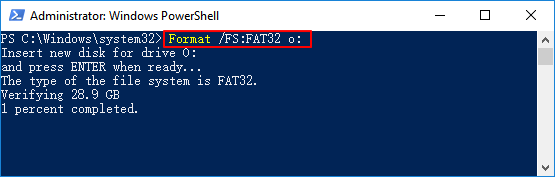
3. Type the command and hit Enter.
To format your external hard drive using the command line, you can use the format command followed by the drive letter and the FS option. For example, if your external hard drive is labeled as "X", you would enter the command "format /FS:FAT32 X:" (without quotes). This will format the drive using the FAT32 file system.
Method 4. Use File Explorer to Convert FAT32 Format
1. Connect your external hard drive to your PC.
2. Click "This PC" from the left panel.
3. To format an external hard drive, go to the "Devices and drives" tab, right-click on the external hard drive, and select "Format" from the menu.
4. Select FAT32 as your file system.
5. Name your volume label.
6. Check the "Quick Format" box.
7. Click "Start".
Wait until the formatting is complete, then click OK.
[Larger than 32GB] Format External Hard Drive to exFAT
To format hard drive to exFAT by Disk Management:
Step 1. Right-click the Start icon and select Disk Management.
See more ways to access Windows Disk Management:
Step 2. Right-click the drive you want to format to exFAT, and select "Format".
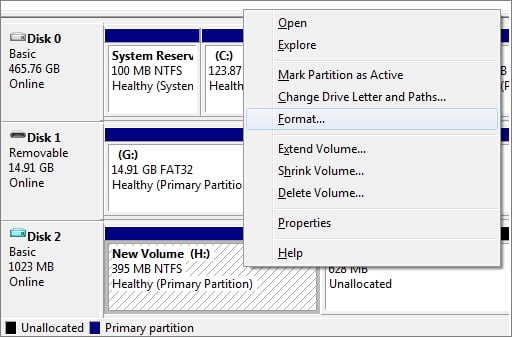
Step 3. Choose the file system as exFAT, then click OK.
Conclusion
This tutorial will guide you through the process of formatting an external hard drive to FAT32 on Windows 10.
One option is to use a third-To create a bootable USB drive, you can use a party tool like Qiling Disk Master Free, which is easy to use, or run the built-in Disk Management tool in the Control Panel. Alternatively, you can use the command-line tool Diskpart or PowerShell, which require more knowledge and expertise.
Format External Hard Drive to FAT32 Windows 10 FAQs
Want to know more tips about formatting drives? Check the following frequently asked questions, which provide additional information on formatting drives. (Note: There is no actual content provided, so I just paraphrased the original text)
1. How do I format FAT32 instead of exFAT in Windows 10?
To format a drive as FAT32 in Windows 10, you can follow these steps:
1. To format a drive, open "This PC" and select the drive you want to format.
2. Right-click on the Drive and select Format.
3. In the File System drop-down, select FAT32.
4. Click Start to format the drive.
2. Can you format 1TB HDD to FAT32?
To format a 1TB HDD to fat32, open "My Computer" on a Windows computer, right-click the HDD, select "Format", choose "fat32", and click "Start" after confirming the format. This process may take a few minutes and will result in the HDD being formatted to fat32.
3. Why can't I format it to fat32?
Your disk may be larger than 32GB.
Related Articles
- SanDisk Write Protected? Check SanDisk Write Protection Removal/Formatting Tool
- How Do I Perform Windows Password Reset with USB? 2023 Guide
- Disk Read Only Fix: How to Change Drive from Read Only to Read Write (5 Ways)
- Top 5 Best Free USB Formatter Software for Windows Recommend 2023
- How to Fix Nintendo Switch Not Reading SD Card Error
Is your Nintendo Switch not recognizing your SD card? Find out what could be the cause and how to fix Nintendo Switch no reading SD card issue in this guide. - [FIXED]No Bootable Image Found, Notebook Will Be Shutdown
When you receive the error message 'No bootable image found, notebook will be shutdown', it means your computer is unusable. Fortunately, Qiling offers 6 effective fixes, providing both professional technical advice and experimentation to help resolve the issue.
Products
Articles & Tutorials
- Data Recovery
- Data Backup
- File Recovery
- File Backup
- System Backup and Restore
- Disk and Partition Clone
- Technical articles
- Mobile articles
- Disk Master Help
- Windows Data Recovery Tutorials
- Windows Secure Delete Tutorials
- Windows Partition Management Tutorials
- Windows File Backup and Restore Tutorials
- Windows System Backup and Restore Tutorials
- Windows Disk Backup and Restore Tutorials
- Windows Clone Tutorials