Top 5 Best Free USB Formatter Software for Windows Recommend 2024
Key Takeaways of Best USB Formatter for Windows:
- 1. The USB formatter for Windows is now available for free download here.
- 2. The USB formatter helps to set up your USB storage devices quickly by formatting them, but make sure to back up any valuable content on the USB before using it.
This page highlights the top 5 best USB formatters for Windows operating systems, providing old and new Windows users with a reliable solution to set up their USB storage devices for specific purposes, such as formatting them for use with their Windows system.
If you're a Mac user in need of a reliable USB formatter tool to help set up a USB drive on your Mac, check out the tutorial guide at Top 3 USB Format Tools For Mac for assistance.
- Important
- To avoid losing important data, create a backup of your USB drive's content to a safe location before reformatting it. This ensures that your valuable files and information are preserved.
To get a reliable USB formatter for Windows, refer to the next guide, which lists the top 5 best free USB formatters that all Windows users can apply to easily manage and format their USB drives.
Top 5 Best Free USB Formatter Windows Free Download
We compared over 20 formatting utilities and selected the top 5 best free USB formatter Windows programs and tools, making it easy to set up a USB drive with just a few clicks.
Get one of the best free USB formatter tools here now and check it out to format your USB drive with ease and efficiency.
- #1. Qiling Disk Master Free
- #2. File Explorer
- #3. Disk Management
- #4. HP USB Disk Storage Format Tool
- #5. FAT32 Format
Among the 5 USB formatters for Windows, Qiling Disk Master Free is a good choice for an all-in-one formatting utility.
Windows users who don't want to install third-party formatting software can format their USB devices using File Explorer or Disk Management. Alternatively, they can also use online tools from this list of reliable USB formatters to format their storage devices.
#1. Qiling Disk Master Free
All-in-One USB Formatter
Qiling Disk Master Free is a reliable free partition manager software that offers Windows users full functionality in managing disk space and optimizing disk performance with ease. Its advanced formatting feature, utilizing an optimized algorithm, sets it apart from other disk management software worldwide.

How to Download:
Qiling Disk Master Free is available for download, allowing users to format their USB drives immediately after installation.
Features Of Qiling USB Formatter Windows:
- Format USB to FAT32, NTFS, exFAT, EXT2, EXT3, EXT4.
- Format Raw USB to NTFS or other formats.
- Format USB for both Windows and Mac.
- Create partition, merge, split, delete, wipe partitions on USB.
- Check and fix file system errors on USB drives.
- Convert USB drive between NTFS and FAT32 without formatting.
- Hide or unhide the USB drive partition.
- Clone USB drive.
- To make Qiling Disk Master portable and create a bootable USB drive, you can follow these steps. First, download the Qiling Disk Master software and extract the files to a folder on your computer.
- Support Windows 11/10/8.1/8/7/XP/Visa and all Windows Server systems.
This software allows users to manage USB drives by compressing, splitting, merging, and encrypting files, as well as wiping and formatting drives. It also optimizes internal hard disk drives and improves Windows operating system performance.
Editors' Review:
Why Choose It
Here are the two reasons why we think you should choose Qiling Disk Master Free:
- 1. You can switch between NTFS and FAT32 on a USB drive without formatting, making it free to convert between the two file systems.
- 2. Qiling Disk Master supports Linux file system formats, including EXT2, EXT3, and EXT4, making it useful for setting up drives for Linux users, and it's free.
Tutorial:
- Right-To format an external drive or USB, click on the drive you intend to format and select the "Format" option.
- Set the Partition label, File system (NTFS/FAT32/EXT2/EXT3/EXT4/exFAT), and Cluster size.
- Click the "Proceed" button to format the hard drive partition.
- Click "Yes" to continue.
#Free USB Formatter#Qiling USB Format Tool#USB Formatter Software#Windows
#2. File Explorer
Beginners' USB Formatter on Windows
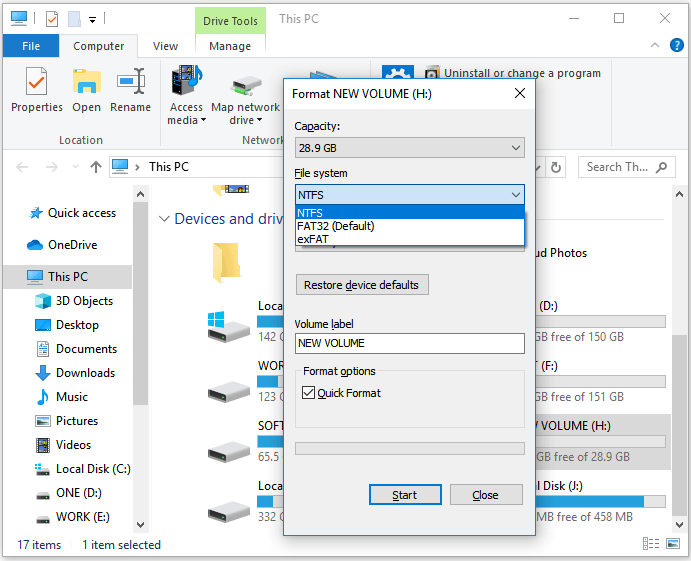
File Explorer, also known as Windows Explorer, is a tool that allows users to access and view the contents of their computer's internal and external storage devices. It also has a formatting feature that enables users to format existing volumes on internal and external storage drives.
How to Download:
File Explorer is a built-in Windows utility that comes pre-installed with the operating system, so there's no need to download or install it.
Features of File Explorer - Windows USB Formatter:
- Perform a quick format on USB or other types of storage devices.
- Delete files or content on storage devices.
- Copy and paste files and folders for file transferring.
- Quick access storage device content.
- Safely eject USB, SD card, or external hard drives.
- Rename files and folders or change file extensions.
- Change file access permission, etc.
- Support Windows 11/10/8.1/8/7/XP/Visa and all Windows Server systems.
Why Choose It
We suggest beginners use File Explorer to format a USB drive on Windows because it's the easiest tool that all Windows users can access and apply to format a USB drive.
Tutorial:
- To get started, plug the USB drive into your PC and then press the Windows key + E keys on your keyboard to open the File Explorer, which will allow you to access and view the contents of the USB drive.
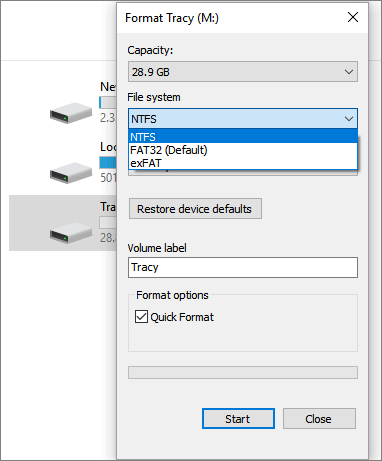
- Right-click target USB drives, and select "Format".
- Select the USB drive, click "Quick Format", choose a file system (FAT32 or exFAT), and click "Start" to format the USB drive.
#Windows USB Formatter#USB Format Utility#Format USB Free#Free
#3. Disk Management
Similar USB Formatter to Windows File Explorer
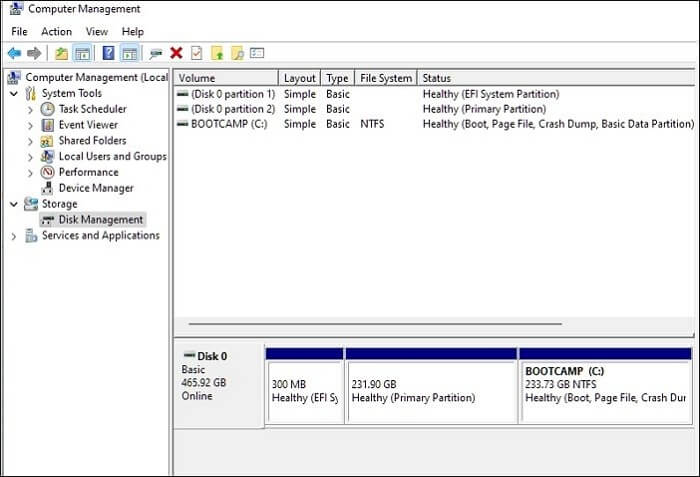
Windows Disk Management is a built-in tool that allows users to format storage devices, in addition to its other features.
How to Download:
You can access Disk Management without downloading or installing any software, simply by right-clicking the Windows icon and selecting "Disk Management" from the Windows menu.
Features of USB Formatter - Windows Disk Management:
- Format USB to NTFS, FAT32, exFAT.
- To manage partitions on a USB drive, you can create, delete, extend, shrink, and merge partitions. This can be done using various tools and operating systems, such as Windows Disk Management or a Linux terminal.
- Convert disk to MBR, GPT, Dynamic.
- Explorer partition content.
- Support Windows 11/10/8.1/8/7/XP/Visa and all Windows Server systems.
Why Choose It:
The main reason users prefer Disk Management is that it's already available on all Windows computers, eliminating the need to download and install it. Additionally, it's free, making it a convenient and cost-effective tool.
Tutorial:
- Connect the USB to the Windows computer.
- Click the Windows icon, select "Search", and type "Create and format hard drive partition" to open the Disk Management tool.
- Click to open Disk Management from the search result.
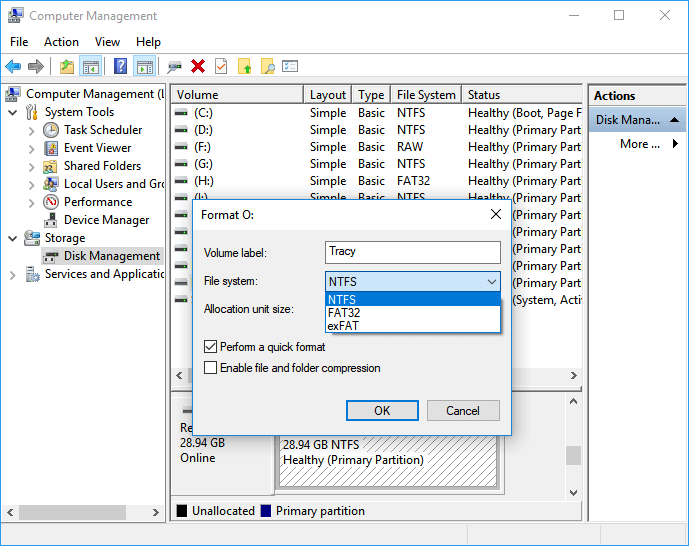
- Right-click on USB and select "Format".
- To format a USB drive, select the new format to USB, tick "Perform a quick format" and click "OK".
#Windows USB Formatter#Format USB Windows#Free#Windows Tool
#4. HP USB Disk Storage Format Tool
A Light USB Format Tool Provided by HP
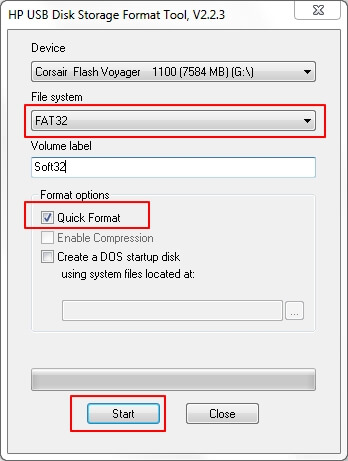
HP USB Disk Storage Format Tool is a utility that allows users to format USB drives without installing any software, similar to Qiling Disk Master. It can be launched by simply running its.exe file.
How to Download:
The HP USB Disk Storage Format Tool is no longer available on the official HP website, but can be downloaded from third-party sites such as CNET. You can access it by opening this link: https://download.cnet.com/HP-USB-Disk-Storage-Format-Tool/3000-2094_4-10974082.html.
Features of HP USB Disk Storage Format Tool:
- Portable USB formatter, it doesn't require software installation.
- Format USB to NTFS, FAT32, FAT.
- Support Windows 10/8/7.
Editors' Review:
Why Choose It:
Main Windows users can quickly format USB drives using this free utility.
Tutorial:
- Connect USB to PC.
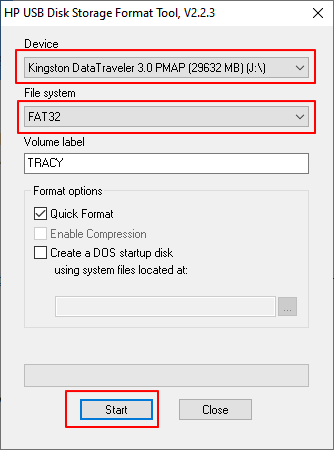
- Run the HP USB Disk Storage Format Tool and select the USB drive to format it.
- Select the file system - NTFS or FAT32, tick "Quick Format", and click "Start".
#HP USB Formatter#Free USB Formatter#Free#Windows
#5. FAT32 Format
Light USB Formatter for Windows, Mac, Linux
FAT32 is also a third-Get ready to party with your USB drives! Introducing the ultimate formatting tool that's compatible with multiple operating systems, making it a party for all! Simply apply it to your USB drives and get ready to groove with a freshly formatted drive, ready to rock with your favorite files and data.
How to Download:
The FAT32 Format is similar to the HP Disk Storage Format Tool, which is no longer supported by its producer. However, users can still download it from some websites, such as https://fat32-format.en.softonic.com/download.
Features of FAT32 Format:
- Format USB across platforms.
- Only supports FAT32 format.
- To format a USB drive larger than 64GB to FAT32, you'll need to use a third-party formatting tool like Rufus or Qiling Disk Master. These tools allow you to create a FAT32 partition on the drive, which can be used to store files that are compatible with older operating systems or devices.
Why Choose It:
The FAT32 Format utility is a popular choice among users due to its ability to format USB drives on multiple operating systems, including Linux and Ubuntu, with stability. This makes it a convenient option for users who need to format their drives across different platforms.
Tutorial:
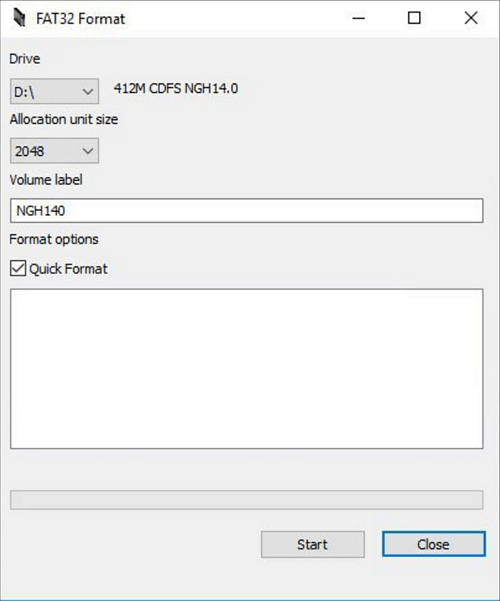
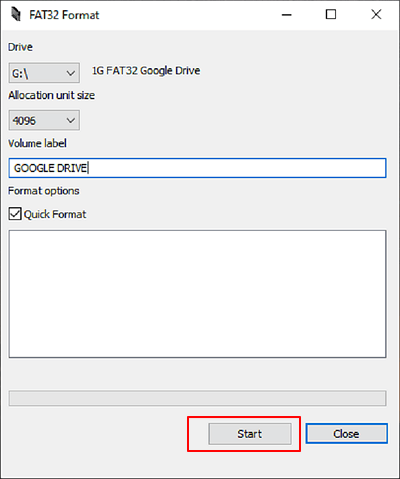
- Connect USB to PC, run FAT32 Format.
- Select the USB drive from the Drive section, check the "Quick Format" box, and click the "Start" button.
#FAT32 Formatter#Free USB Formatter#Windows
If you are looking for a step-by-step format a USB drive on Linux or Ubuntu, follow these steps: First, open the terminal and type "sudo fdisk -l" to list all available storage devices. Next, identify the USB drive you want to format and note its device name.
What Is USB Formatter Windows
USB Formatter Windows A USB format tool is a utility that assists users in resetting or changing the file systems of USB drives, formatting, or reformatting their USB devices on Windows computers.
Features of a Reliable USB Formatter for Windows
A USB formatter for Windows utility can offer various features such as formatting USB drives, creating bootable USB drives, and converting file systems. It can also provide options for setting the drive letter, file system, and cluster size.
- To change the file system of a USB drive to NTFS, FAT32, exFAT, or other formats, you can use a computer with an operating system that supports the desired file system. For instance, if you want to change the USB drive to NTFS, you can connect it to a Windows computer, right-click on the drive, and select "Format" to change its file system to NTFS.
- Organize and clean up saved files like documents, images, videos, audio files, etc., efficiently with a few simple steps.
- Reset or restore old USB drives to full size instantly.
- Set RAW USB to a healthy state.
Tech Specification of USB Formatter Windows:
- Supported OSes: Windows 11/10/8.1/8/7XP/Vista and all Windows Server systems.
- Supported USB drives: USB flash drives, also known as USB pen drives or memory sticks, come in various types, including USB 2.0, 3.0, and 4.0, as well as USB hard drives and SSDs. There are also different physical connectors, such as mini-USB and USB-C, which offer faster data transfer speeds and smaller form factors. These portable storage devices are widely used for storing and transferring files, and are often used with computers, laptops, and mobile devices.
- Hardware Requirements: USB drives has no physical damage issues.
To find a reliable USB formatter for Windows, consider the following tips: look for a tool that is specifically designed for Windows, check the reviews and ratings of the software, ensure it is compatible with your Windows version, and verify that it has a user-friendly interface and advanced formatting features. You can also search online for reputable sources that offer USB formatting tools, such as Microsoft or reputable software websites, and read the documentation and tutorials provided by the software developer to understand its capabilities and any potential limitations. By following these steps, you can increase the chances of finding a reliable USB formatter for your Windows device.
| Risk-Free: | The USB formatter Windows utility must be completely free of any viruses, malware, or other harmful software, ensuring that it does not pose any security risks to the user's computer when used. |
| High compatibility: | It should be compatible with your current operating system. |
| Reasonable Price: | The price of a USB formatter should be affordable and not excessively high, making it a reasonable purchase for those who need it. |
| Support Most File Systems: | The USB formatter enables you to choose the preferred file system format for your USB drives. |
What Can I Do with USB Formatter for Windows [Pros & Benefits]
Using a USB formatter for Windows offers numerous benefits, including the ability to format and set up USB drives efficiently, making them ready for use. This can be particularly useful for formatting or setting up USB drives, and a reliable USB formatting tool can provide a range of pros and benefits, including improved performance, increased storage capacity, and enhanced security features. By utilizing a USB formatter, users can ensure their USB drives are properly formatted and ready for use, making it a valuable tool for anyone looking to optimize their USB drive usage.
| Pros of USB Formatter for Window | Benefits of Using USB Formatter Windows |
|---|---|
|
|
You can use a reliable USB formatter for Windows to perform most USB formatting tasks for Windows usage. However, for specific tasks like setting USB to FAT32 or formatting write-protected USB, you may need additional USB formatters for assistance.
Final Verdict
When your USB drive becomes full, inaccessible, or shows a "RAW" file system, you'll need to format it to reuse it for other purposes. In such cases, a reliable USB formatter can come to your rescue.
If you're looking for a free USB formatter for Windows, we've can help. On this page, we've selected the top 5 best options to help you format your USB devices efficiently. If you're still unsure which one to choose, our tips suggest that any of these top-rated formatters will get the job done, so you can't go wrong with any of them.
- Windows Beginners can use either Qiling Disk Master or File Explorer for assistance.
- Mac users can use FAT32 format for their USB drives, allowing them to be compatible with multiple operating systems.
If you need to switch between NTFS and FAT32 file systems on a USB drive without formatting it, Qiling Disk Master Free is a good choice.
FAQs About USB Formatter Windows
Here are the top 3 concerned questions about formatting USB or USB formatters, answered shortly:
1. How do I format my USB 128GB to FAT32?
- Connect USB to PC and launch Qiling Disk Master.
- Right-click on the USB and select "Format".
- Set the new file system to USB, select the option to "Perform a quick format", and click "OK" in the dialog box.
2. How do I format USB 2.0 to FAT32?
- Connect USB 2.0 to PC.
- Open File Explorer, right-click on USB 2.0 device, and select "Format".
- Tick "Quick Format", and set a new file system - FAT32 to USB, click "Start".
- Click "OK" when the process completes.
3. How do I format my USB 32GB to FAT32?
- Connect a 32GB USB drive to your PC and open Disk Management.
- Right-click on the USB drive, and select "Format...".
- To quickly format a drive, click "Perform a quick format", select FAT32 as the file system, and click "OK".
Related Articles
- How to Merge Partitions on USB Drive in Windows 10/11 [New Solutions]
- How to Format An Internal Hard Drive Windows 10? [Latest Tip]
- DiskPart Format: How to Format Hard Drive Using DiskPart [Free]
- Fixes for Windows Cannot Be Installed to Disk 0 Partition 1 Error
- How to Create UEFI Bootable USB Drive on Windows 10 to Boot and Repair your Computer
Here are 3 easy ways to create a UEFI bootable USB drive on Windows 10 to boot and repair your computer: you can create UEFI bootable USB with Windows 10 installation media, Diskpart, or Rufus, making it easy to boot and repair your computer. - How to Create Volume/Partition Using Diskpart? [Full Guide]
Diskpart is a built-in disk tutility that offers multiple ways to assist you creating partition and handling volumes in Windows 11/10.
Products
Articles & Tutorials
- Data Recovery
- Data Backup
- File Recovery
- File Backup
- System Backup and Restore
- Disk and Partition Clone
- Technical articles
- Mobile articles
- Disk Master Help
- Windows Data Recovery Tutorials
- Windows Secure Delete Tutorials
- Windows Partition Management Tutorials
- Windows File Backup and Restore Tutorials
- Windows System Backup and Restore Tutorials
- Windows Disk Backup and Restore Tutorials
- Windows Clone Tutorials