Top 5 Best USB FAT32 Formatter [Free Download]
You can format your USB to FAT32, a process that's often overlooked by flash drive users. Qiling recommends the top 5 best USB FAT32 formatters to help you easily format and switch your USB file system to FAT32 in just a few clicks.

Formatting a flash drive is the best way to prepare it for computer use, as it frees up space and allows for more storage. Most operating systems use FAT and FAT32 due to their speed and low memory consumption. The exFAT format, which combines features from NTFS and FAT, enables faster writing and reading of larger files. Regularly reformatting your flash drives can help maintain their peak efficiency and ensure you have enough space.
Top 5 Best USB FAT32 Formatter in 2024 [Pros & Cons]
You can make a USB drive as long as it is under 32GB using any of the tools listed in this article, but if the USB drive's capacity is greater than 32GB, you'll need to use more sophisticated methods or fat32 format tools like the 5 utilities listed here.
- 1- Qiling Disk Master
- 2- FAT32 Format
- 3- HP USB Disk Storage Format Tool
- 4- File Explorer
- 5- Disk Management
Comparing different methods to format a USB drive to FAT32 can help determine the best approach. If this article is helpful in choosing a USB FAT32 formatter, consider sharing it with someone who needs it.
1- Qiling Disk Master

The standard Windows formatting tools have limitations, particularly when it comes to formatting USB drives with capacities over 32GB, as FAT32 is not an accessible option. To overcome this limitation and format hard drives and USB devices without size restrictions, using a third-party tool like Qiling Disk Master Free is recommended. This tool offers a range of advanced features, including resizing, creating, deleting, merging, dividing, and copying partitions, as well as converting MBR to GPT drives and vice versa, making it a more versatile and powerful alternative to the built-in Windows tools.
You can now download the application and use the straightforward instructions to format any size USB flash drive to FAT32.
Features
- Convert FAT32 to NTFS without losing data.
- Convert MBR to GPT for Windows 11.
- Migrate Windows 11 to New SSD in one 1-Click.
- Fix the hard drive won't boot.
Qiling Disk Master has updated with new features, and you may follow this video to get more fantastic features:
How to Format USB to FAT32:
Step 1. Select the USB drive to format.
To format a USB drive, connect it to your computer, download and launch Qiling partition software, then right-click the USB drive and choose "Format".
Step 2. Set the drive letter and file system on USB.
Assign a new partition label, file system (NTFS, FAT32, EXT2, EXT3, EXT4, exFAT), and cluster size to the selected partition.
Step 3. Click Proceed button to format.
Click the "Proceed" button to format the USB drive.
Step 4. Check "Yes" to confirm formatting USB.
If you see a warning window, click "yes" to proceed, but be sure to back up any important data on the computer first.
#FAT32 Formatter#FAT32 Format Tool#USB FAT32 Formatter#USB Formtter FAT32#Windows
2- FAT32 Format
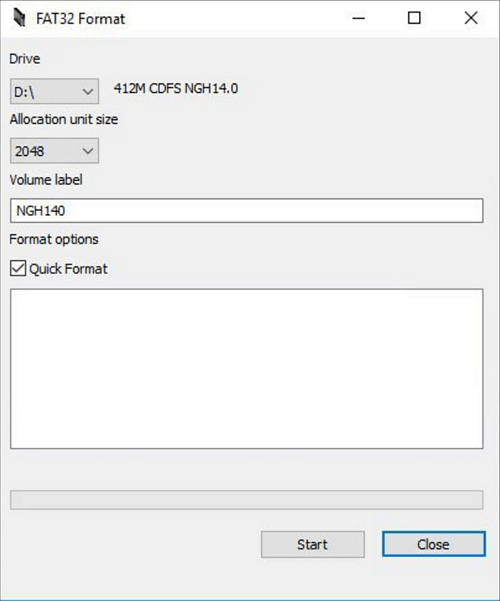
This program is compatible with various devices and operating systems, including Norton Ghost 2003, Apple Mac, iOS, Linux, Microsoft Windows PC, XP, and media players and NAS boxes, but may encounter issues with setting more than 32 GB of data, with Windows PCs being particularly problematic when formatting the file system.
Here are some features of FAT32 Format
- FAT32 supports partitions up to 2 terabytes, while FAT16 is limited to 2GB.
- FAT32 uses less disc space on huge partitions due to its 4KB minimum cluster size for partitions under 8GB.
- Compatible with a multitude of operating systems
Let's explore some of its steps below:
Step 1. Open the Application
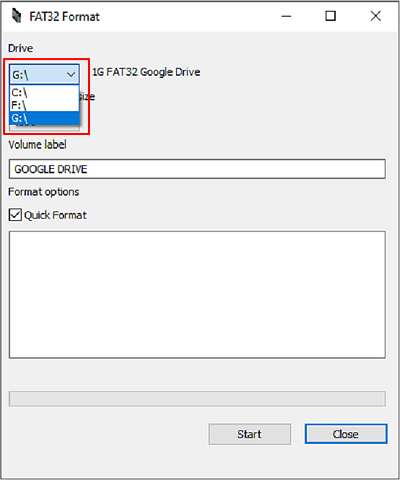
To format a flash drive or disc, find a 32 GB or larger device that needs to be formatted and open the application. Then, select the appropriate partition by choosing the letter from the dropdown menu, such as C, E, etc.
Step 2. Check/Uncheck Quick Format
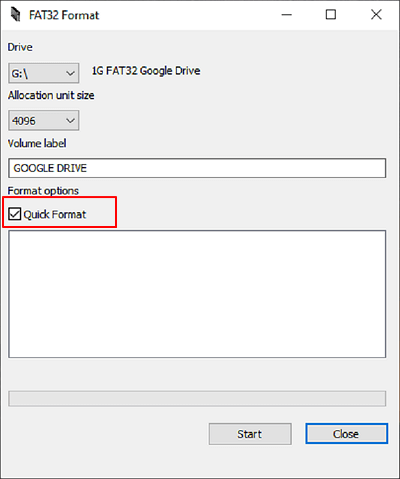
Selecting the "Quick Format" option will allow the computer to quickly convert the file to FAT32 format, making the configuration process faster.
Step 3. Select Start
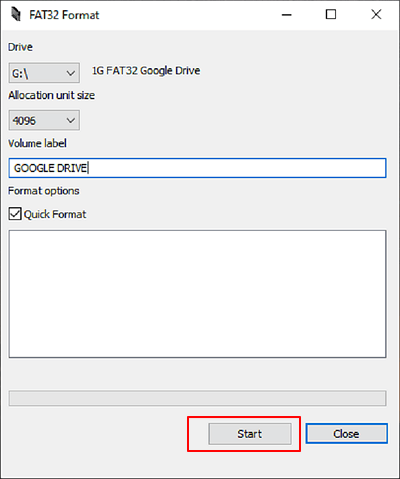
When using the "Quick Format" method on a corrupt drive, it's recommended to avoid using the prompt execution option to determine if a partition is malicious. Instead, run a full format, which may take longer, but provides greater confidence that the information is secure. This approach is advised to ensure the security of data, even if it takes an extra two minutes.
#USB Formatter FAT32#Format Tool FAT32#FAT32 Format App#Windows
3- HP USB Disk Storage Format Tool
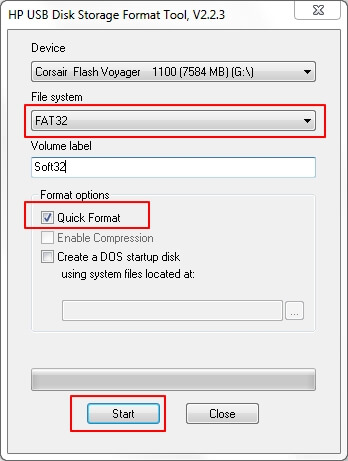
HP USB Disk Storage Format Tool is a free and portable utility that can format USB devices on PCs running Windows 10/8/7 and Windows Vista/XP, created by HP.
Features
The HP USB Disk Storage format tool offers various free services that can be utilized on Windows USB drives, including formatting, creating a bootable USB drive, and converting a USB drive to a bootable device, as well as creating a bootable USB drive from a CD or DVD, and creating a bootable USB drive from a Windows installation CD. Additionally, it can be used to create a bootable USB drive with a custom operating system, and to convert a USB drive to a bootable device with a custom operating system. These services are free and can be used by most Windows users.
- Any USB device can be formatted to the NTFS, FAT32, or FAT file systems.
- System files are used to create a DOS startup disc.
Here are some steps to follow;
Step 1. To format a flash drive, connect it to a Windows computer and ensure it's recognized. Then, download the HP USB Disk Storage Format tool from the HP website to your computer.
Step 2. Right-click the application icon and select Run as Administrator from the context menu, then select Yes.
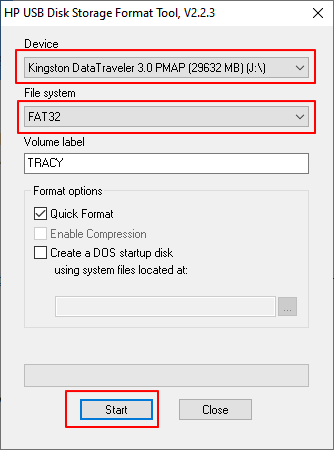
Step 3. Select the suitable USB drive from your computer's list of accessible removable discs.
Step 4. In Windows 7, you can select the file system for a drive as FAT32 or NTFS.
Step 5. To format a USB flash drive, select "Quick Format" and then click "Start" after specifying a volume label if desired.
#FAT32 Formatting Tool#FAT32 Tool#Program to Format USB to FAT32#USB Formatter
4- File Explorer
When you plug a USB drive into a Windows computer or laptop, Windows will automatically detect the drive and assign it a drive letter, allowing you to access its contents.
Features
- USB operates more quickly because write operations are reduced.
- Decreased memory utilization
- Scan the disc.
- Almost universal compatibility with operating platforms.
- To free up more space, less space is allocated to file system data, allowing for more space to be retained for other data.
Examine the drive in Windows Explorer, then format it to FAT32 using your preferred method.
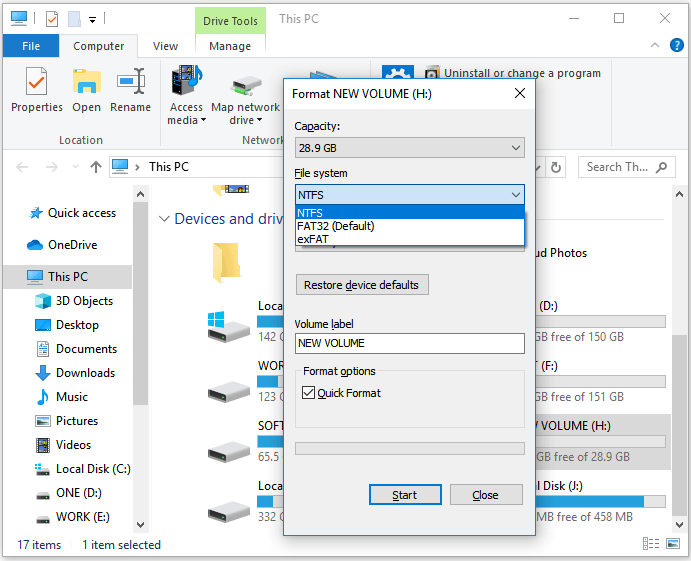
Step 1. Launch File Explorer by pressing Windows + E.
Step 2. Select Format with a right-click on your USB device.
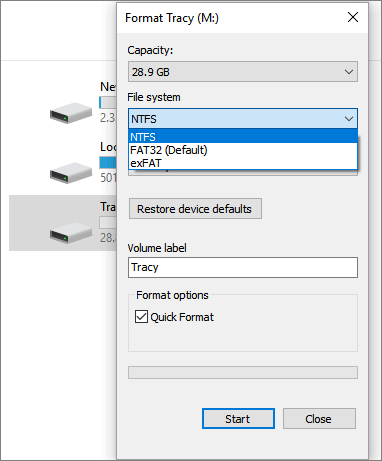
Step 3. Select FAT32 as the target file system, check Quick Format, and then click Start.
#Windows FAT32 Formatter#USB FAT32 Format Tool#File Explorer#Windows
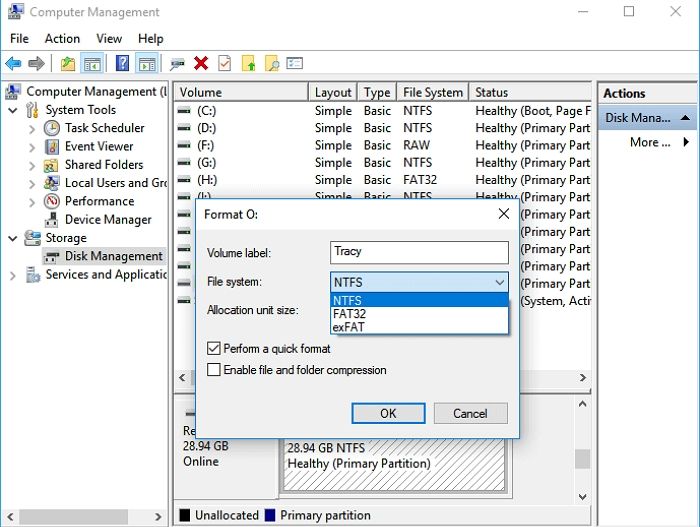
5- Disk Management
Here are some features of Disk Management: It allows you to create, delete, and format partitions on your computer's hard drive or other storage devices. You can also check the disk space and partition size, and extend or shrink partitions as needed. Additionally, you can convert a partition from one file system to another, such as converting a FAT32 partition to NTFS. Furthermore, you can initialize a disk, which is useful when preparing a new hard drive for use.
Initializing a new drive can be used to set up a new drive.
To expand a volume into a location not already occupied by a volume on the same drive, you can use the built-in Disk Management tool in Windows. First, open the Disk Management tool by searching for it in the Start menu or by typing "diskmgmt.
Here are some steps to follow;
Step 1. In Windows 10 or Windows 7, click on "This PC" or "My Computer" and select "Manage" from the context menu.
Step 2. Select Disk Management from the Storage menu.
Step 3. Select Format with a right-click on your USB device.
Step 4. Select FAT32 from the File system drop-down box and click OK.
#Format FAT32 Program#USB Format FAT32 Tool#Disk Management#Windows
Conclusion
Formatting a USB drive to FAT32 can be easily done using various tools, including the ones listed in this post. Given the limitations of Windows File Explorer and Windows Disk Management in handling USB drives larger than 32 GB, these tools provide a convenient solution to format a USB drive to FAT32.
To format a large USB drive (64GB or 128GB), you can use Qiling Disk Master Free, which is a suitable option for formatting to FAT32, regardless of the drive size. It's easy to use and doesn't require much storage.
FAQs about USB FAT32 Formatter
If you're unsure about something, reviewing the frequently asked questions section can provide clarity and help resolve your doubts.
1. How do I format a USB for free?
Step 1. Activate File Explorer.
Step 2. From the left pane, select "This PC."
Step 3. Right-click the USB flash drive that is attached and choose "Format."
Step 4. To set the USB's file system to NTFS, FAT32, or exFAT, navigate to the File System section in the settings. From there, select the desired file system type, such as NTFS, FAT32, or exFAT, and confirm the change.
Step 5. Select "Quick Format" and then press "Start."
2. What is a FAT32 formatter?
The files stored on a disc drive are organized using the FAT32 disc format. The File Allocation Table (FAT) is located at the beginning of the drive, and the drive is divided into addressable sectors, allowing the host computer to locate specific information within each file.
3. Can a 64GB USB be formatted to FAT32?
Windows can't format a partition larger than 32GB as FAT32 due to its limitations. This means a 64GB memory card or USB flash drive can't be immediately formatted to FAT32.
Related Articles
- How to Format to FAT32 in Windows 10 [Step by Step Guides]
- How to Remove MBR Partition in Windows 7/8/10/11
- How to Replace Hard Drive in Dell Laptop [Step-by-Step]
- Can't Format/Clean USB Bootable Flash Drive, How to Fix
Why can't format/clean WinTo USB bootable flash drive? How can you fix this error efficiently? This article will guide you on how to remove this error. - How to Convert MBR to GPT without Losing Data Windows Server
To convert a Master Boot Record (MBR) to a Globally Unique Identifier Partition Table (GPT) on Windows Server without losing data, you can use the built-in Diskpart command. This method supports various Windows Server versions, including 2003, 2008 (R2), 2012 (R2), 2011, 2016, and 2019. - [Server Helper] Convert NTFS to FAT32 in Server 2008/2012/2016/2022 without Data Loss
There are some effective ways to convert NTFS to FAT32 without data loss, including using a third-party software tool, such as EaseUS Partition Master or MiniTool Partition Wizard, which can convert the file system without deleting any data. However, it
Products
Articles & Tutorials
- Data Recovery
- Data Backup
- File Recovery
- File Backup
- System Backup and Restore
- Disk and Partition Clone
- Technical articles
- Mobile articles
- Disk Master Help
- Windows Data Recovery Tutorials
- Windows Secure Delete Tutorials
- Windows Partition Management Tutorials
- Windows File Backup and Restore Tutorials
- Windows System Backup and Restore Tutorials
- Windows Disk Backup and Restore Tutorials
- Windows Clone Tutorials