How to Remove MBR Partition in Windows 7/8/10/11
The Master Boot Record (MBR) partition is a partition on a computer's fixed disk or removable drive, usually located at the beginning, that supports up to 2 TB of space and can create four primary partitions, containing the boot instructions for other partitions.
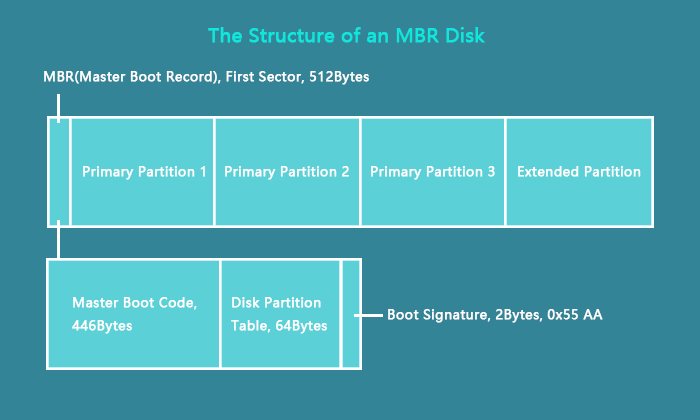
You can remove the MBR (Master Boot Record) partition, but it's essential to understand its importance first. This article provides a detailed step-by-step guide on how to remove the MBR partition, so you can proceed with confidence.
Why Do I Need Remove MBR Partition
You may need to remove or delete an MBR partition due to its limitations, such as only supporting hard drive partitions of up to 2TB, or because you want to convert it to a more flexible GPT partition system to create more partitions.
- To remove the MBR partition and reinstall a new operating system, such as Linux, follow these steps:
- To resolve the low disk space issue, remove a single MBR partition. This will free up space on the disk and allow for more storage capacity.
- To resolve issues with a messed up, missed, or compromised MBR partition, create a new partition using a tool like Qiling Partition Master. These software tools allow you to safely resize, merge, or delete existing partitions, and create a new one without affecting the original data.
If the MBR partition is infected with a virus, it's best to remove or delete it. However, be aware that deleting the MBR can prevent access to the entire hard drive, so always back up essential data before proceeding.
How to Remove MBR Partition - Three Ways
To remove an MBR partition, there are three ways to do so. You can delete a single MBR partition, all MBR partitions, or remove the MBR partition altogether using these three methods.
1. Reliable third-party software: Qiling Disk Master
Qiling Disk Master is a professional partition management software with a user-friendly interface, making it suitable for all users.
2. Windows built-in tool: Disk Management
Disk Management makes it easy to delete MBR partitions, but it only allows users to remove one partition at a time.
3. Windows built-in tool: Diskpart
The Windows command line tool allows users to remove the MBR partition using a convenient command. However, this feature is more suited for advanced users who are skilled in computers and have experience with partition management.
To remove the MBR partition, you first need to choose a method, such as using a bootable USB drive or a Linux live CD. Once you have selected your method, you can proceed with the steps to remove the MBR partition.
Method 1. Remove MBR Partition via Qiling Disk Master
Qiling Disk Master is an excellent disk partition tool that allows for easy removal or deletion of single or multiple MBR partitions on Windows operating systems, including 7, 8, 10, and 11.
Step 1. Launch Qiling Disk Master, and click "Partition Manager".
Make sure to back up your important data before deleting any partition on your disk. This will ensure that your files and programs are safe, and you won't lose any valuable information.
Step 2. To delete a partition on a hard drive, you can select the option to delete the partition, which will remove the partition table and any data stored within it. Alternatively, you can choose to delete all partitions, which will completely wipe the drive, removing all data, operating systems, and other software.
- Delete single partition: Right-click on a partition that you want to delete and select "Delete".
- Delete all partitions: To delete all partitions on a hard drive, right-click on the drive and select "Delete All".
Step 3. Click "Yes" to confirm the deletion.
Qiling Disk Master is a feature-rich partitioning software that can clone MBR HDD to GPT SSD, rebuild MBR, and repair corrupted MBR partitions.
Method 2. Remove MBR Partition via Disk Management
Disk Management is a feature that allows users to easily perform operations on MBR partitions, such as changing the type, resizing, or deleting a partition. However, it can only delete one partition at a time, requiring multiple deletions to remove an entire MBR partition.
Step 1. Open Disk Management by right-clicking the Windows icon.
Step 2. Choose the MBR partition you want to remove.
Step 3. Right-click the MBR partition and select "Delete Volume".
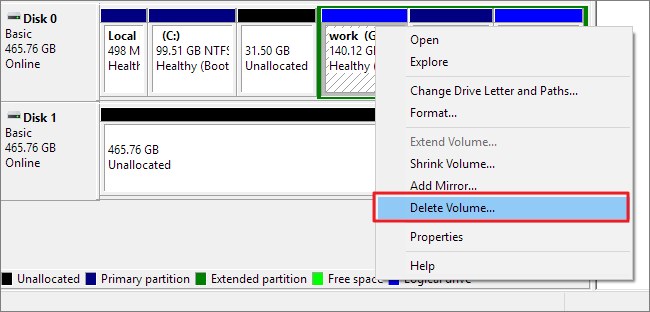
Step 4. Click "Yes" to delete the single MBR partition.
- Notice:
- Sometimes, you will find the Delete Volume greyed out. This can be caused by page files or virtual memory files, or you may see an error message saying "Windows cannot delete the active system partition on this disk". In such cases, you can seek assistance from Qiling Disk Master.
Method 3. Remove MBR Partition via CMD
The Diskpart command has more features than Disk Management and supports removing all MBR partitions at once. To use Diskpart to remove an MBR partition, enter the command carefully to avoid data loss.
To remove all MBR partitions and convert them to GPT, follow these steps: First, boot from a live USB or CD, then run the command `gdisk /dev/sda` (replace `sda` with the actual device name) to open the GPT fdisk tool. Next, select the first partition (`1`) and type `x` to enter the expert menu, then select `z` to zap the MBR.
Step 1. Press the Windows icon and choose "Run."
Step 2. Type "diskpart" and press "Enter."
Step 3. To execute these commands, type them in order and hit "Enter" after each one: `cd ~` to change the current directory to your home directory, followed by `ls` to list the files and directories there; then `cd Documents` to move into the "Documents" directory and `ls` to see its contents; `cd..
list disk
select disk 2
clean
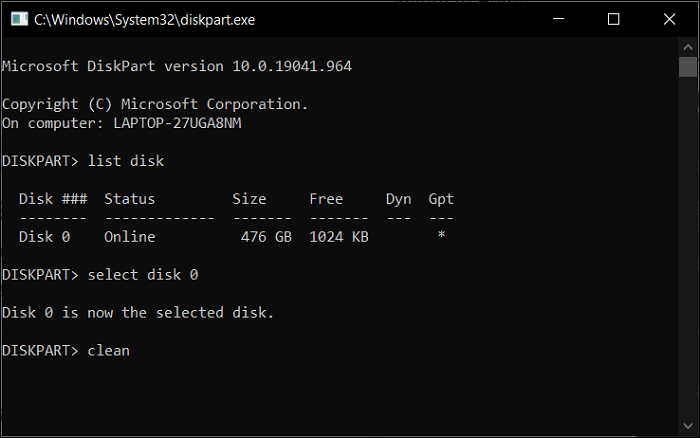
Step 4. Type "exit" to finish removing MBR partitions.
FAQs About How to Remove MBR Partition
Here are three frequently asked questions about MBR partition:
1. Can you delete MBR partition?
You can delete one or more MBR partitions in Windows at a time using the "Delete Volume" function of Disk Management or the "Clean" command of Diskpart, or a reliable third-party tool like Qiling Disk Master.
2. How do I change from MBR to GPT in Windows 10?
To convert MBR to GPT in Windows 10 without losing data, you can use either Qiling Disk Master or Disk Management. With Qiling Disk Master, the process is straightforward, allowing you to easily convert your disk format. Alternatively, you can also utilize Disk Management, a built-in tool in Windows, to achieve the same result.
Step 1. Open Disk Management and select the MBR partition.
Step 2. Right-click on the MBR partition and select "Delete Volume."
Step 3. Right-click on the MBR partition and select "Convert to GPT."
3. What happens if you delete MBR partition?
Deleting the MBR partition will prevent the computer from accessing the hard drive, making it impossible to boot Windows. However, you can create a bootable disk using Qiling Disk Master to access the unbootable operating system.
Related Articles
- How to Clone Hard Drive to Samsung SSD | 2024 Tutorial
- Failed to Create a New Partition on the Selected Unused Space? Fix Now!
- Fix Windows Cannot be Installed to This Disk MBR on Windows 11
- Best PC Clear And Optimizer for Windows 10 & 11
Apart from built-in tools, which is the best PC cleaner and optimizer for Windows 10 or 11 computer? You can find the best PC cleaner for Windows PC from this article. - Primary Partition, Logical Partition and Extended Partition
A disk partition is a defined storage space on a hard drive. All Windows operating systems can let users divide a hard disk into multiple partitions. - Free Format Hard Drive Partition with Qiling Disk Master
To free format a hard drive partition, you can use Qiling Disk Master, a software that allows you to separately format each partition on a hard drive.
Products
Articles & Tutorials
- Data Recovery
- Data Backup
- File Recovery
- File Backup
- System Backup and Restore
- Disk and Partition Clone
- Technical articles
- Mobile articles
- Disk Master Help
- Windows Data Recovery Tutorials
- Windows Secure Delete Tutorials
- Windows Partition Management Tutorials
- Windows File Backup and Restore Tutorials
- Windows System Backup and Restore Tutorials
- Windows Disk Backup and Restore Tutorials
- Windows Clone Tutorials