Failed to Create a New Partition on the Selected Unused Space? Fix Now!
Page Content
Receive Error Message While Installing Windows?
The error "Failed to Create a New Partition on the Selected Unused Space" occurs when the system fails to allocate space for a new partition. This could be due to various reasons such as insufficient disk space, corrupted disk, or issues with the disk management system.
To fix the error "Failed to Create a New Partition on the Selected Unused Space", you can try using the Disk Management tool in Windows, which may allow you to create a new partition on the unused space. Alternatively, you can use a third-party partition manager software like Qiling Partition Master or MiniTool Partition Wizard, which can help you resize or move existing partitions to create space for a new one.
Receive Error Message While Installing Windows?
Catch a real case from answer.microsoft.com:
When installing Windows from a removable device, selecting an unallocated space to install Windows may result in an error message, specifically "Failed to create a new partition on the selected unused space. [Error: 0x8007045d or 0x8004240f]" due to the inability to create a new partition on the unallocated space.
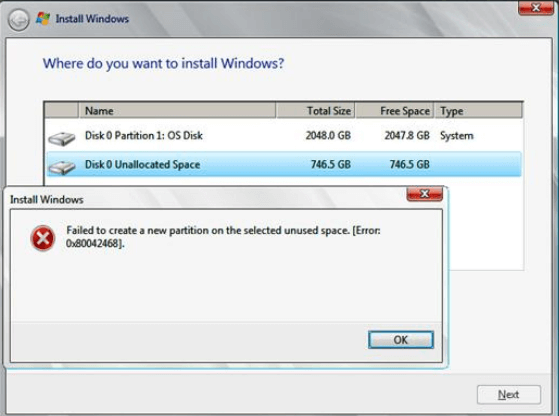
This article offers solutions to fix errors with the help of professional tools.
The Reason for "Failed to Create a New Partition on the Selected Unused Space"
If you get the error message "Failed to create a new partition on the selected unused space," it's likely due to the space being too small or there being too many partitions already on the disk, preventing the disk management tool from creating a new partition.
Other common installation error:
Methods to Fix "Failed to Create a New Partition on the Selected Unused Space"
To fix the "Failed to create a new partition on the selected unused space" error, you can use either the Command Prompt or a third-party partition manager. The first method involves using the Command Prompt, while the second method utilizes a third-party tool to resolve the issue. Both methods will be covered in this article.
If you're experiencing issues with using the commands, you can try clicking method 2 to resolve the "Failed to create a new partition on the selected unused space" error.
To clean and create a new partition using the Command Prompt, open the Command Prompt as an administrator, type "diskpart", and press Enter. Then, type "list disk" to see a list of available disks, and note the disk number of the one you want to clean and partition. Next, type "select disk X" (where X is the disk number) and press Enter.
Solution 2. Merge Partitions with Qiling Disk Master
Solution 1. Use Command Prompt to Clean and Create New Partition
Note: Don't exit the Windows installation screen. Stay here and follow the steps to run Diskpart.
Step 1. Press the Shift + F10 shortcut key in Windows Setup to open the Command Prompt window.
Step 2. When the Command Prompt open, type the commands:
Type diskpart and press Enter.
Type `select disk X` (where X is the target disk number) and press Enter. This will display "Disk X is the selected disk".
Type clean all and hit Enter. (It will take some time. Then you get "DiskPart succeed in cleaning the disk.")
Step 3. Create a single partition.
Type create partition primary size=102400 and then press Enter.
Type exit and press Enter.
Solution 2. Merge Partitions with Qiling Disk Master
Qiling Disk Master Free is a safe and great software for managing partitions, allowing you to merge, create, delete, and resize them without data loss. This partition manager can also extend, split, and convert dynamic disks to basic, as well as convert MBR to GPT for Windows operating systems. With its FREE ALL-IN-ONE partition solution and disk management freeware, Qiling Disk Master Home Edition is a helpful tool for merging partitions without losing any data.
Step 1: Select the target partition
Right-To add space to a partition, click on the partition you want to expand and select the "Merge" option. This will allow you to merge the selected partition with the adjacent unallocated space.

Step 2: Select a neighbor partition to merge
Select the next partition to merge with the current one.

Step 3: Execute operation to merge partitions
1. Click the "Proceed" button to start.
2. The program will merge and add files from the second partition to the first partition.

People Also Want to Know
How do I create a partition with unallocated space?
To Create a partition from unallocated space:
1. Right-click the Windows icon and select Disk Management.
2. Select the disk on which you want to create a partition.
3. Right-click the unallocated space and select New Simple Volume.
4. Enter the partition size and click Next.
cannot create partition from unallocated space?
If you're unable to create a new partition, it might be because there are too many peripherals connected to your computer at the same time. Try disconnecting all external drives to see if that resolves the issue.
How do I fix the new partition error in Windows 10 installation?
To create a new partition using DiskPart, exit the setup wizard after getting the new partition error, select the Repair option, then choose Advanced Tools and finally Command Prompt.
Then type commands to create partition.
Related Articles
- How to Resize (Extend & Shrink) Partition Without Losing Data
- How to Change Dynamic Disk to Basic Disk Safely
- 3 Solutions to File Record Segment is Unreadable
- 4 Top Best Windows 11 Formatter Free Download with Tutorials
- How to Tell If a Hard Drive Is Dead [Step-by-Step-Guide]
To determine if your unbootable hard drive is dead or temporarily failing, refer to this comprehensive guide. It provides a step-by-step process to quickly check the health state of your hard drive and offers guidance on what to do when it is no longer functional. - What Is HP Default Admin Password & How to Reset It
HP Default Administrator Password is not a fixed password, but rather a default account name, which is “Administrator”. The password for this account is not provided by HP, and users are advised to create their own strong password for security reasons.
Products
Articles & Tutorials
- Data Recovery
- Data Backup
- File Recovery
- File Backup
- System Backup and Restore
- Disk and Partition Clone
- Technical articles
- Mobile articles
- Disk Master Help
- Windows Data Recovery Tutorials
- Windows Secure Delete Tutorials
- Windows Partition Management Tutorials
- Windows File Backup and Restore Tutorials
- Windows System Backup and Restore Tutorials
- Windows Disk Backup and Restore Tutorials
- Windows Clone Tutorials