How to Tell If a Hard Drive Is Dead [Step-by-Step-Guide]
To determine if your hard drive is dead or failing, look out for these signs: sudden shutdowns, slow performance, unusual noises, and error messages. You can also run a check on your disk using built-in tools like the built-in Check Disk (chkdsk) command in Windows or the Disk Utility app in macOS. If you're experiencing any of these issues, it's likely your hard drive is failing or dead, and you should take steps to back up your data and consider replacing it.
In this article, you'll learn:
- #1. Check If Hard Drive's Outlook or Appearance Is Damaged/Broken
- #2. Check If the Hard Disk Is Bootable/Detectable
- A test can be performed to check the health state of a hard disk and determine if it is dead. This test involves running a disk check tool to scan the disk for any errors or bad sectors. If the disk check tool identifies any issues, it can indicate that the disk is failing or dead.
- What to Do When Hard Drive Is Dead
Key Takeaways of Tell If Hard Drive Is Dead:
- When your hard drive suddenly stops working, stay calm and stop using it immediately to prevent any further damage.
- If you suspect that your hard drive is dead, there are some steps you can take to determine if it's truly gone for good. You can start by checking if the drive is recognized by your computer, and then try running a diagnostic test to see if the drive can be accessed. If the drive is still not responding, you can try using a different computer or a USB drive to see if the issue is specific to your current setup.
- You can also learn what to do when a hard drive is dead by visiting the provided link. Additionally, other relevant information can be found by searching for "what to do when a hard drive is dead".
Supported hard drive types: The various types of storage devices include SATA hard drives, which are traditional spinning disk drives, and external hard drives, which are portable storage devices that can be connected to a computer via USB. SATA SSDs are solid-state drives that use flash memory to store data, while M.2 SSDs are a type of SSD that uses a smaller form factor and can be used in laptops and desktops.
What Can I Do to Confirm If a Hard Drive Is Dead or Not?
To determine if a hard drive is dead or temporarily failing, you can check the following signs: sudden shutdowns, unusual noises, slow performance, data corruption, and failure to boot. You can also check the drive's SMART data, which provides information on its health and potential issues. Additionally, running a diagnostic test, such as a chkdsk or a disk check, can help identify any problems.
| Workable Solutions | Targets | Duration |
|---|---|---|
| 🔦#1. Check Hard Drive Outlook or Appearance | To determine if a hard drive is physically damaged, crashed, broken, or so, you can check for visible signs of physical harm, such as dents, cracks, or burn marks on the exterior. Additionally, you can try to power it on and see if it makes any sounds or lights up, which can indicate that it's still functional. | 1-3 minutes |
| 🔍#2. Check If the Hard Disk Is Bootable/Detectable | To determine if the hard drive is openable, accessible, bootable, or totally undetectable. | 2-5 minutes |
| 🩺#3. Test Disk Health State | Run a disk check tool like CrystalDiskInfo to check the hard drive's health status and confirm whether the disk status is bad or already dead. | 2-5 minutes. |
Qiling Editor's Thoughts:
If a hard drive experiences 2 or 3 of the issues listed in the table, it is likely that the drive is dead or failing, with a 90-98% probability.
If you here are also some tips that you may follow to define your hard drive state precisely:
To determine if your computer's hard drive is dead or temporarily failing, you can try the following methods, which are also useful for checking removable storage devices.
#1. Check If Hard Drive's Outlook or Appearance Is Damaged/Broken
- 👔Applicable to: all levels of users
- 🛠️Tools: A hard drive can be inspected visually with the naked eye, and if necessary, taken to a local disk repair center where experts specialize in maintaining and repairing disks.
To determine if a hard drive is dead, check its physical appearance. If your disk shows 2 or 3 of the following symptoms, it's likely 98% dead:
- The hard drive is burnt heavily
- The hard drive is partially damaged
- The hard drive is smashed into pieces or broken
- The hard drive contains scratches
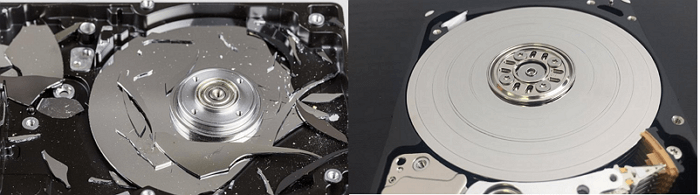
When you encounter this issue on your disk, it's almost certain that you won't be able to recover or repair the damaged hard drive on your own.
If you're experiencing issues with your disk, such as it being physically dead, you may want to stop troubleshooting and consider replacing it. If you're not sure, you can try running a disk check or using a data recovery tool to see if the issue can be resolved. If the issue persists, it may be best to seek professional help or replace the disk.
If your hard drive is not working, you can send it to a local repair center to fix it. If you have important files on the drive, you can also ask the repair center to try and recover them.
If your disk is only partially broken or the core components are safe, you may connect the disk to a healthy computer and continue to follow the guidelines below.
#2. Check If the Hard Disk Is Bootable/Detectable
- 👔Applicable to: all levels of users
- 🛠️Tools: Hard drive, connection cable, screwdriver, a healthy Windows computer.
When the out appearance of your hard drive is all good, you can follow the tips here to check and confirm if the hard drive is detectable, accessible or bootable on your computer:
- Boot your computer and connect the hard drive to your PC.
- Open Disk Management and see if the hard drive is detected on your computer. If it is, you can then proceed to format it.
If the disk is not recognized, check the disk status and see if it's healthy, unknown, no media, or empty.
- To check if a hard drive is bootable or accessible on a computer, you can try booting the computer from the hard drive. If the computer boots successfully, it means the hard drive is bootable.
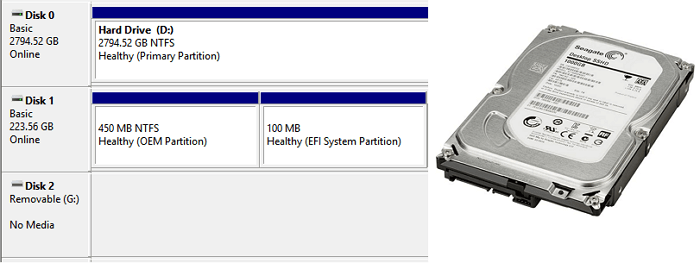
If a disk can't boot up, it's likely dead. If hard disk drives are undetectable or not showing up on a PC, try the following:
#3. Test Hard Disk Health State to Check If Disk Is Dead
- 👔Applicable to: all levels of users
- 🛠️Tools: A healthy Windows computer with a reliable hard drive, checked with trustworthy hard disk health check software.
If you're experiencing issues with your hard drive, a reliable health test tool is the way to go. Qiling Disk Master's DiskHealth feature is a free and simple way to scan and detect if your hard drive is dead or not, providing you with a SMART data result in just one click.
To test whether the disk is dead or not with Qiling Disk Master, you can follow these steps: First, ensure that the Qiling Disk Master software is installed and running on your computer. Next, insert the disk you want to test into your computer's disk drive.
- Launch Qiling Disk Master, and click "DiskHealth" in the Discovery section.
- Select the target hard drive that you suspect it's dead, and let the software scan this disk.
- To check if a hard drive is dead, scan it using a tool like Disk Utility or a third-party software. This will help identify any issues or errors on the drive.

- Tips for defining if the hard drive is dead:
- If the Status section shows GoodThe command "chkdsk" is used to check the hard drive for errors, and if it comes back clean, it means your hard drive is healthy, and everything is fine.
If the Status shows as UnknownThe disk itself isn't visible, but the drive might be working properly.
If the Status shows Bad, your drive could be dead.
If you're looking for a simple and suitable method to check the health of your hard drive, this video may provide the information you need.
What to Do When Hard Drive Is Dead (Tips You Need to Know)
If you're 99% or 100% sure your hard drive is dead, don't give up hope on recovering your valuable data. Qiling data recovery experts suggest trying the following:
- Stop using the hard drive immediately as it won't boot up or become accessible.
- If your hard drive wasn't physically damaged or broken, consider turning to a reliable data recovery service in your local community.
- If you have important data on a damaged or broken hard drive, send it to a local disk repair center for repair. This will help recover your essential data.
- Once you've confirmed that a hard drive is dead and can't be repaired, it's a good idea to destroy it to protect your personal data.
- Having a backup plan, such as purchasing a new disk, is crucial in case the dead disk can't be repaired. This ensures you're prepared for any situation and don't rely solely on the repair center's success.
Conclusion
To determine if a hard drive is dead, you can use the practical and efficient methods outlined on this page. Among them, Qiling Disk Master's DiskHealth feature stands out as a one-click solution to scan and test a hard drive's condition, providing an all-in-one and easiest access to check if it's dead.
This software provides you with some hard drive performance optimization features to improve your disk drives on Windows PC, such as.
- Test hard drive speed
- Check file system error
- Run Surface test
- 4K align SSD
- Change hard drive cluster size, etc.
If you think the tips on this page are helpful in determining if a hard drive is dead, feel free to share this tutorial on your social media to help more people online.
FAQs About Tell If a Hard Drive Is Dead
Here are some topics related to determining if a hard drive is dead:
1. Can dead hard drive data be recovered?
If a Windows computer can detect the hard drive, a professional data recovery service may be able to restore the data. However, if the disk is unbootable or severely damaged, data recovery may not be possible.
2. How do I know if my hard drive is seriously burnt or partially?
You can check the disk cover or appearance to confirm if the disk is fully burnt or not, by looking for any signs of damage or wear.
If your external hard drive isn't working, try connecting it to your computer to see if it's recognized. If it is, back up your valuable files right away. If not, the drive might be damaged beyond recovery.
3. How to prevent a hard drive from dying?
Here is a list of tips that you can follow to prevent a disk from dying and keep your personal data intact: Regularly back up your data to an external drive or cloud storage service, avoid overheating your computer, keep your disk clean and free of dust, avoid sudden movements or impacts, and update your operating system and software regularly to ensure you have the latest security patches and bug fixes.
- For a new disk: To ensure the optimal performance and longevity of your drive, set the file system format to NTFS by default, and regularly check and fix any file system errors that may occur. Additionally, it's essential to scan your drive for any virus infections and remove them to prevent potential damage to your files and system.
- For an old disk (3-5 years or longer): Test bad sectors, scan disk health status timely, and back up valuable data to an external disk or a cloud drive.
Related Articles
- How to Fix System Partition is Not Allowed to Be Formatted
- How to Format SSD for Xbox One? Check and Learn How-To [2024 Tutorial]
- How to Safely Delete Recovery Partition in Windows 10/8/7 PC and Laptop
- WD External Hard Drive Won't Format? How to Fix?
If you're experiencing formatting issues with your WD external hard drive, this article provides practical solutions to resolve the WD External Hard Drive Won't Format error. - 3 Easiest Ways to Run USB Speed Test in Windows 10 in 2024
If you want to run a speed test of your USB drive on your Windows 10 PC but don't know how, this article is for you. We'll share everything you need to know about running a speed test and also provide bonus tips to improve USB speeds. - What Is USB Write Protected Formatter and How to Use It? [2024 Guide]
If your USB drive is write-protected and you need to format it, reliable tools can help remove write protection and format the USB drive so it works normally again.
Products
Articles & Tutorials
- Data Recovery
- Data Backup
- File Recovery
- File Backup
- System Backup and Restore
- Disk and Partition Clone
- Technical articles
- Mobile articles
- Disk Master Help
- Windows Data Recovery Tutorials
- Windows Secure Delete Tutorials
- Windows Partition Management Tutorials
- Windows File Backup and Restore Tutorials
- Windows System Backup and Restore Tutorials
- Windows Disk Backup and Restore Tutorials
- Windows Clone Tutorials