WD External Hard Drive Won't Format? How to Fix?
If you're experiencing issues formatting your WD external hard drive, don't worry, as we have a solution. Qiling can help resolve the WD External Hard Drive Won't Format error, which we'll explore in this article, including its duration, complexity level, causes, and fixes. We'll break it down in simple terms, explaining why this error occurs and the underlying issues, so you can understand the problem and its solution in just a few sentences.
| ⚙️Complex Level | Low |
| ⏱️Duration | 3-5 Minutes |
| 💻Causes | File system corruption, improper file initialization, write-protection, physical damage to the drive, or other issues can cause a computer to freeze or crash, resulting in lost data and system instability. |
| ✏️Stages |
The WD External Hard Drive Won't Format due to various reasons, including file system corruption or errors, improper drive initialization, write protection, or physical damage to the WD external hard drive.
Issues with formatting a WD external hard drive can prevent access or usability, but understanding the causes can help troubleshoot and find solutions.
Fix WD External Hard Drive Won't Format Error - Qiling Disk Master
If you're having trouble formatting your WD external hard drive, Qiling Disk Master is a powerful tool that can help you resolve the issue with ease. With its user-friendly interface, you can fix the formatting error with just a few simple steps.
Qiling Disk Master is a tool that can tackle common disk-related problems, including removing write protection, checking for file system errors, and formatting a drive like your WD external hard drive to get it back to working condition.
To resolve the issue of a WD external hard drive not formatting, Qiling Disk Master can be used to perform the following:
- Guide 1. Check File System Errors on WD External Hard Drive
- Guide 2. Format WD External Hard Drive
- Guide 3. Remove Write Protection From WD External Hard Drive
To check file system errors on a WD external hard drive using Qiling Disk Master, follow these steps: 1. Connect the WD external hard drive to your computer and launch Qiling Disk Master.
Guide 1. Check File System Errors on WD External Hard Drive
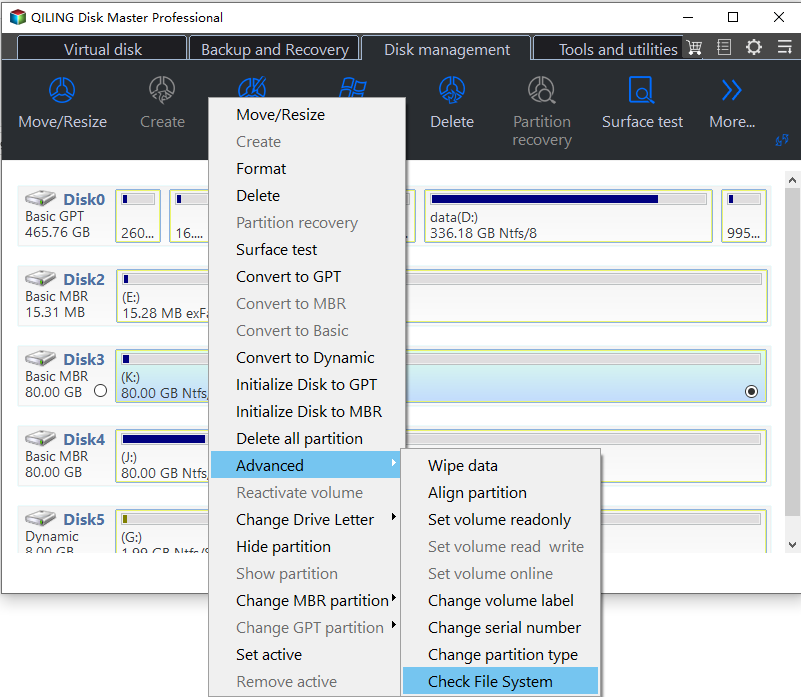
Step 1. To check the file system on a partition in Open Qiling Disk Master, locate the disk, right-click the partition you want to check, and choose "Advanced" > "Check File System".
Step 2. In the Check File System window, select the "Fix the error on the disk" option and click "Proceed".
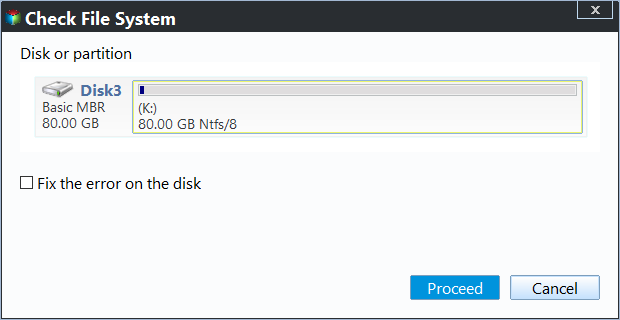
Step 3. The software will start checking your partition file system on your disk. Once it's done, click "Finish".
Guide 2. Format WD External Hard Drive
To format your WD external hard drive using Qiling Disk Master, follow these steps: First, download and install Qiling Disk Master on your computer, then connect your WD external hard drive to the computer. Next, launch Qiling Disk Master and select the WD external hard drive as the target disk, then choose the file system you want to format with, such as NTFS, FAT32, or exFAT.
Step 1. Launch Qiling Disk Master, right-click the partition on your external hard drive/USB/SD card which you want to format and choose the "Format" option.

Step 2. Assign a new partition label, file system (NTFS, FAT32, EXT2, EXT3, EXT4, exFAT), and cluster size to the selected partition.

Step 3. Please insert your external hard drive/USB/SD card into the computer and click the "Proceed" button to start formatting.

Step 4. In the Warning window, click "Yes" to continue.
Guide 3. Remove Write Protection From WD External Hard Drive
To remove write protection from a WD external hard drive using Qiling Disk Master, follow these steps: First, download and install Qiling Disk Master on your computer. Next, connect the WD external hard drive to your computer and launch Qiling Disk Master.
Step 1. Download and install Qiling Disk Master, go to the Disk management section.
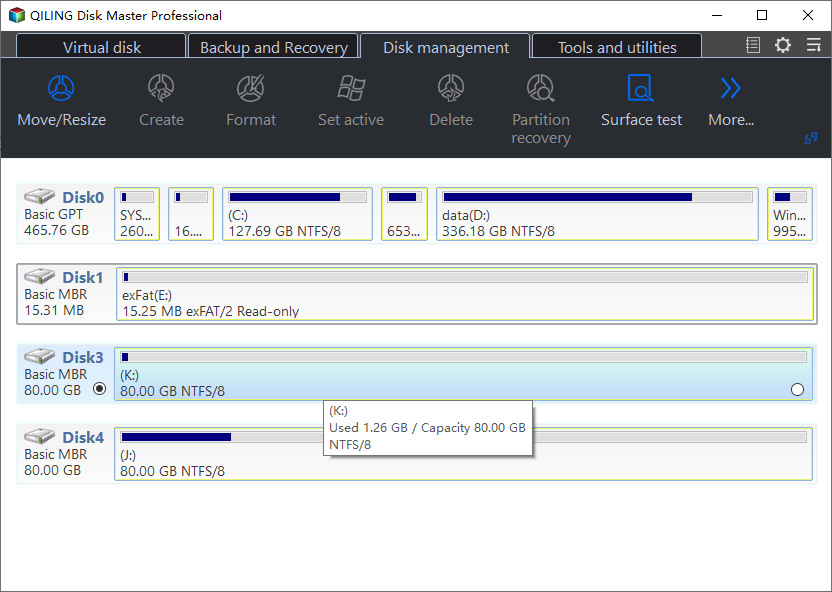
Step 2. Select your write-protected USB, external disk, or SD card, and click "Remove Disk Readonly".

Qiling Disk Master is a reliable solution for fixing WD External Hard Drive formatting errors due to its user-friendly interface and robust capabilities, offering a dependable fix for various disk-related issues.
KEY FEATURES
Qiling Disk Master offers key features such as:
- 💻One-Easily remove write protection from your WD external hard drive with Click Write Protection Removal.
- 💽Perform file system error checking on your WD external hard drive to detect and fix any errors that may be affecting its performance. This process can help identify and resolve issues that could be causing problems with data access, storage, or overall drive functionality.
- 🔦Effortless Drive Formatting: Format your WD external hard drive with a user-friendly interface, such as formatting WD My Passport for PC and Mac.
- 💡To manage your WD external hard drive's partitions, you can resize, move, merge, split, copy, and recover them. This allows you to optimize your storage space, making the most of your drive's capacity.
- 📖Seamlessly transfer data to a new drive or clone your existing drive using data migration and disk clone features.
- 🔎Securely wiping data from your WD external hard drive is crucial to protect your privacy. This process permanently erases data, making it unrecoverable, and ensures that sensitive information is not compromised.
- 🧮The Disk Surface Test is a diagnostic tool used to identify and locate bad sectors on a hard drive, including WD external hard drives. This test scans the drive's surface to detect any issues, such as physical damage, firmware problems, or logical errors, that may be causing data loss or corruption.
Download Qiling Disk Master, the easiest tool to fix "WD External Hard Drive Won't Format Error." Follow the steps above, and you'll be able to regain complete control of your WD external hard drive.
Fix WD External Hard Drive Won't Format Error - CMD
CMD is a command-In Windows, the Command Prompt (CMD) serves as a text-based interface that allows users to interact with computers via commands. When encountering issues with a WD external hard drive not formatting, CMD can be used to access the Diskpart utility, which provides advanced disk management capabilities. With CMD and Diskpart, users can troubleshoot formatting errors, remove write protection, and prepare the drive for formatting, ultimately enabling them to successfully format their WD external hard drive and utilize it as needed.
Guide 1. Format the WD External Hard Drive
Step 1: Connect WD External Hard Drive.
Step 2: Launch Command Prompt as Administrator.
Step 3: To launch Diskpart, type "diskpart" in the CMD window.
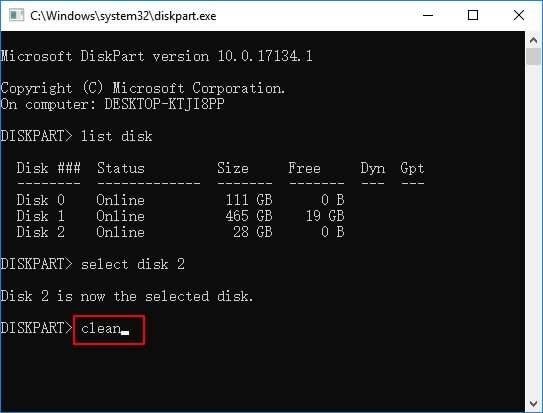
Step 4: To format your WD External Hard Drive, first type "list disk" in the command prompt and press Enter. This will display a list of all connected disks, including your WD external hard drive. Identify the disk number corresponding to your WD external hard drive from the list.
Step 5: To access your WD external hard drive, type "select disk X" (replace X with the disk number) and press Enter, which selects the drive.
Step 6: To erase all data on the selected disk, type "clean" and press Enter. This command will remove all existing partitions and data on the selected disk, effectively wiping it clean.
To format a WD hard drive, start by ensuring it's safely disconnected from your computer. Next, download and install the WD Drive Utilities software from the WD website.
Guide 2. Remove Write Protection From WD External Hard Drive
Step 1: Open Command Prompt (CMD) as Administrator.
Step 2: Launch the Diskpart utility from the command prompt Window.
Step 3: Open Diskpart, type 'list disk', press Enter, identify the disk number of your WD external hard drive, then type 'select disk X' (replace X with the disk number) and press Enter.
Step 4: Type 'attributes disk clear read-only' and press Enter to remove write protection from the disk, then exit Diskpart.
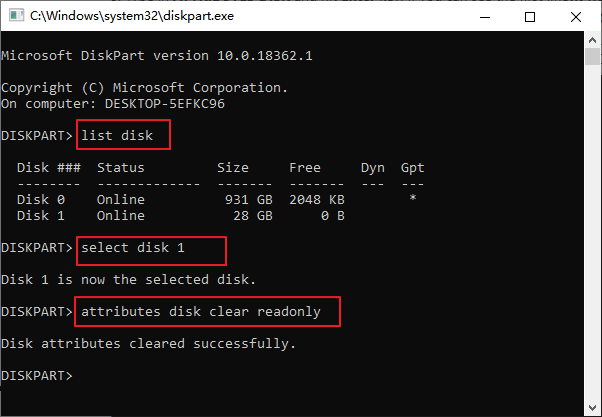
To format your hard disk or perform other read/write activities, follow the steps outlined, ensuring that you take necessary precautions to avoid data loss and system crashes. This involves creating a backup of important files, disabling any unnecessary system components, and running the formatting or write operation in a controlled environment.
Read Also:
Why WD External Hard Drive Won't Format
Here are some common reasons that might result in WD External Hard Drive Won't Format error: The WD external hard drive won't format due to various reasons such as corrupted drive, firmware issues, or incorrect formatting options, which can cause the drive to become unresponsive or fail to format properly, resulting in a WD External Hard Drive Won't Format error.
- 🧮File system error: A WD external hard drive won't format due to file system problems, which occur when the file system, responsible for organizing and managing data, gets corrupted or destroyed, often caused by improper drive ejection, power outages, or software issues.
- 🖨️Write protection: The formatting failure may be caused by write protection, a security feature that prevents data changes on the drive, which can be triggered by malware or viruses.
Further Reading: Remove Write Protection from Pen Drive/ SD Card
- 🧩Viruses: If your WD external hard drive is infected with a virus, it may hinder the formatting process. Run a thorough scan with reputable antivirus software to detect and remove malicious programs, then try formatting the drive again.
If you're having trouble formatting an external hard drive from a brand like WD, Toshiba, Seagate, or others, it's likely due to a software issue rather than a hardware problem. To troubleshoot, try using a different computer or operating system to see if the issue persists.
Conclusion
Encountering the "WD External Hard Drive Won't Format" error can be frustrating, but with the solutions provided in this article, you can overcome formatting issues with your WD external hard drive. Solutions include repairing the file system, removing write protection, and running antivirus scans, among others. If problems persist, contact WD support or seek professional assistance. Share this article with others facing similar problems to help them troubleshoot and resolve the issue.
To keep your WD external hard drive running smoothly, download Qiling Disk Master and take advantage of its features.
WD External Hard Drive Won't Format FAQs
If your WD external hard drive won't format, don't worry! We've can help. To fix the issue, you can try running the WD Drive Utilities software to format the drive, or use a third-party formatting tool.
1. How to format my write-protected WD external hard drive?
If your WD external hard drive is being write-protected, you can't format it, and you'll get an error message saying "The disk is write-protected". To fix this, you can either use Diskpart to clear the readonly attributes or change the Value data of WriteProtect to 0 in Registry Editor.
2. How do I format my WD external hard drive?
To format your WD external hard drive, follow these steps:
Step 1. Connect your WD external hard drive to your computer.
Step 2. Open the Disk Management utility on Windows.
Step 3. To format your WD external hard drive, locate the drive, right-click on it, and select "Format". Choose the desired file system format and assign a volume label.
Step 4. To initiate the formatting process, click on the "Format" button. Please note that this action will remove the existing data, so make sure to have a backup before proceeding.
Step 5. Wait for the formatting process to complete, and then safely eject the WD external hard drive.
3. How to reset WD Elements external hard drive?
To reset a WD Elements external hard drive on Windows:
Step 1. Connect the WD Elements drive to your computer. Open File Explorer.
Step 2. Right-click on the WD Elements drive and select "Format."
Step 3. Choose the desired file system format.
Step 4. Check the "Quick Format" option to format faster, but be aware that it will delete existing data, so make sure to back it up first.
Step 5. Optionally, provide a new volume label.
Step 6. Click "Start" to initiate the formatting process.
Step 7. Wait for formatting to complete; your WD Elements external hard drive is reset.
Related Articles
- How to Tell If a Hard Drive Is New or Used [2024 Tutorial]
- Top 6: HP USB Disk Storage Format Tool Alternative Windows
- Does SSD Speed Matter for Gaming? Select an SSD for Optimizing Gaming Performance
- Factory Reset vs. Format, Can You Tell Me the Difference?
Formatting C drive and factory resetting Windows are different. If you don't know the differences, we will introduce the differences between factory reset vs. format. - How to Delete All Partitions on Windows 11
To delete all partitions from your hard drive in Windows 11, you can use the built-in Disk Management tool. First, open the Disk Management tool by pressing the Windows key + R, typing “diskmgmt. - How to Delete FAT32 Partition [Step-by-Step Guide]
Deleting a FAT32 partition is sometimes necessary, and there are three ways to do it. First, you can use built-in disk management tools, such as Disk Management in Windows or Disk Utility in macOS, to delete the partition.
Products
Articles & Tutorials
- Data Recovery
- Data Backup
- File Recovery
- File Backup
- System Backup and Restore
- Disk and Partition Clone
- Technical articles
- Mobile articles
- Disk Master Help
- Windows Data Recovery Tutorials
- Windows Secure Delete Tutorials
- Windows Partition Management Tutorials
- Windows File Backup and Restore Tutorials
- Windows System Backup and Restore Tutorials
- Windows Disk Backup and Restore Tutorials
- Windows Clone Tutorials