Does SSD Speed Matter for Gaming? Guide to Select an SSD for Optimizing Gaming Performance
The new policy aims to reduce the number of people living in poverty by providing a guaranteed minimum income to all citizens, regardless of their employment status. This would be achieved through a combination of taxes and redistribution of wealth from the wealthy to the poor.
When setting up or upgrading a Gaming PC, four key factors impact the gaming experience: the GPU/CPU, RAM Memory, Graphic Card, and Gaming Disk. Even with a powerful gaming CPU, a high-end graphic card, sufficient RAM, and a suitable motherboard, the final step is selecting a qualified gaming disk.
Here are two factors to consider when selecting a gaming disk:
- How much budget do you have left for the disk - HDD or SSD?
- Does disk speed matter for gaming?
To make it clearer for you, continue reading, and you'll get answers to all these questions in your mind here.
In this article, you'll learn:
- HDD vs. SSD, Which Disk to Pick for Gaming
- When it comes to gaming, the speed of a Solid-State Drive (SSD) does indeed matter, as it can significantly impact your gaming experience. A faster SSD can load games and levels more quickly, reducing loading times and allowing for smoother gameplay. If you're looking to upgrade your storage, consider an NVMe SSD, which offers the fastest speeds and is specifically designed for high-performance applications like gaming. M.
- How to Add and Install SSD for Gaming
HDD vs. SSD, Which Disk to Pick for Gaming
Here we'll compare HDD and SSD to help you quickly understand which is better for gaming with the following factors:
| Comparison | HDD | SATA SSD | M.2 SSD | NVMe SSD |
|---|---|---|---|---|
| Read Speed | 80-160 MB/S | 550 MB/S |
|
|
| Write Speed | 80-160 MB/S | 520 MB/S |
|
|
| Lifespan | Longer | Shorter | Shorter | Shorter |
| Reliability | Lower | Higher | Higher | Higher |
| Price |
|
|
|
|
The comparison table shows that SSDs significantly outperform HDDs in both reading and writing data, while the price difference between the two storage types is relatively small, especially for 250GB and 1TB capacities.
When comparing HDD and SSD as the OS disk in a gaming PC, most PC game enthusiasts conclude that SSDs are the better choice.
- Faster in OS boot time.
- Faster in loading games.
- Smoother in gameplay.
We recommend using an SSD for a gaming PC due to its faster and more reliable performance.
Does SSD Speed Matter for Gaming? Which SSD to Pick, SATA, M.2, or NVMe
SATA, M.2, and NVMe SSDs are three types of solid-state drives with distinct differences. SATA SSDs use a traditional interface, have slower speeds, and are generally less expensive. M.
The comparison table highlights the key differences among the three types of SSDs, revealing distinct variations between each.
| SSDs | Read Speed | Write Speed | Price |
|---|---|---|---|
| SATA | 550 MB/S | 520 MB/S |
|
| M.2 |
|
|
|
| NVMe |
|
|
|
With higher prices in M.2 and NVMe SSDs, M.2 and NVMe SSDs with PICe connectors are even faster than SATA SSDs.
So will they be the difference while loading games? Here is an example of a gaming benchmark test over 120 SSDs from TweakTown, check the image here:
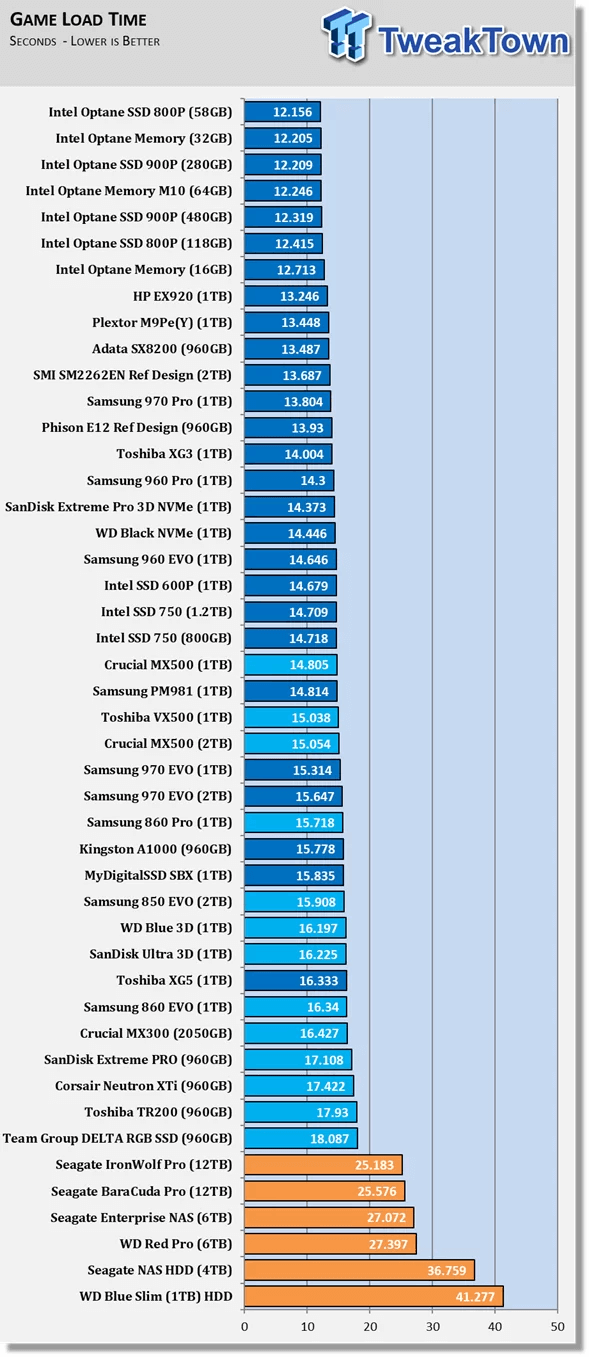
From Tweaktown, Best SSD For Gaming: Over 120 SSDs Tested
The test showed that the difference between SATA and NVMe/M.2 PICe SSDs is not as significant as expected, with most charts being PICe SSDs and game loading times differing by only 3 seconds.
Gamers and tech enthusiasts have noticed significant differences in loading times, but not as much of a difference in actual gameplay and map switching, according to a test by Linus Tech Tips.
In a recent video, Linus Tech Tips explored whether a faster SSD can make a significant difference in gaming performance. The team compared a 1TB NVMe SSD, which is considered fast, to a slower 1TB SATA SSD.
Summary: The comparison table shows that M.2/NVMe SSDs with PCIe connectors outperform SATA SSDs in terms of booting speed and loading games, but the difference is negligible in terms of gaming experience, with players barely noticing the slight improvements.
So, does SSD speed matter for gaming?
- Faster SSDs outperform traditional hard drives in booting PCs and loading games, making them a popular choice for gamers and PC enthusiasts.
- The smoothness and FPS of games don't differ significantly when played on SATA, M.2, and NVMe SSDs.
How to Pick the Right SSD for Gaming? When choosing a solid-state drive (SSD), consider the type of workload you'll be using it for: read-intensive, write-intensive, or a mix of both. If you'll be reading data frequently, an SSD with a high read speed and low latency is ideal.
- For large file transfer, video editing, take PICe SSDs.
- For a single drive with a big capacity, consider using an M.2 PCIe SSD.
- For those with a limited budget, the most reasonable option for storage is a SATA SSD, offering a great price per amount of storage.
How to Add and Install SSD for Gaming
Now that you've chosen the perfect SSD for gaming, it's time to set it up on your gaming PC. We'll walk you through the process in this section, providing a step-by-step guide to get your SSD up and running smoothly.
Following here is the complete process that you can directly try on your computer:
#1. Install SATA/PICe SSD to PC
Step 1. Remove the gaming PC case with a screwdriver.
Step 2. Connect the SSD to PC:
If it's an SATA SSD, plug the SATA-power cable between your SSD and motherboard on your computer.
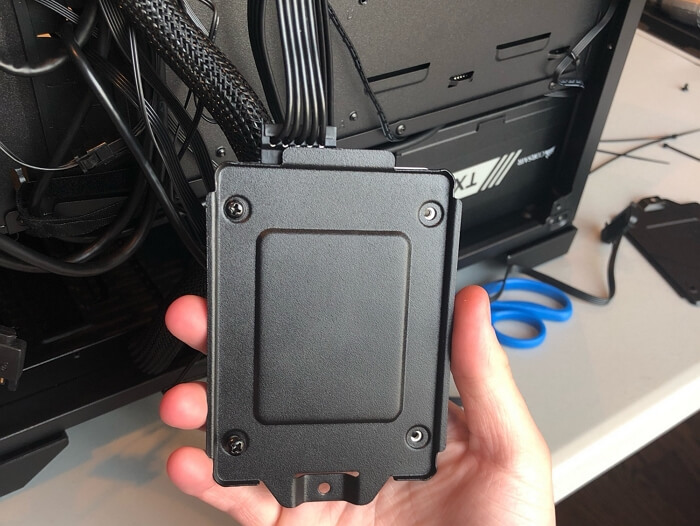
If it's a PICe M.2/NVMe SSD, locate the SSD slot, remove the mounted screws, push the SSD into the slot, and secure the SSD with screws.
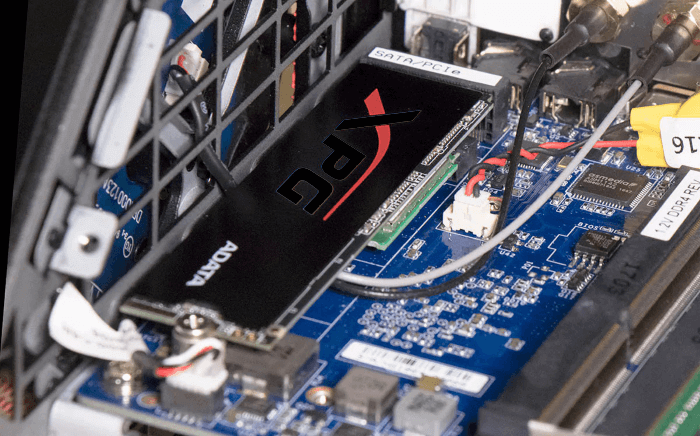
After this, close the computer case and restart your PC.
#2. Initialize SSD
Once you install the SSD, open Disk Management, initialize the SSD, and then assign a drive letter to it. This will allow your system to recognize and utilize the new storage device.
Step 1. To open Disk Management, press the Windows key + R keys to open the Run dialog box, type `diskmgmt.msc`, and then click OK or press Enter. This will open the Disk Management utility, where you can view and manage your computer's disks, including creating, formatting, and deleting partitions.
Step 2. To initialize the SSD, right-click on it, select "Initialize Disk", and choose either "GPT" or "MBR" as the disk type.
Your new SSD should be the same type as the OS drive, so make sure they share the same disk type.
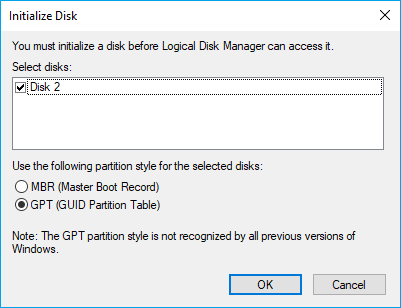
Once done, it's time that you transfer OS from the old disk to the new SSD on your gaming computer.
#3. Migrate OS from Old Disk to New SSD
To ensure a smooth gaming experience on your PC, transfer the OS and games to a new SSD.
Qiling Partition Master with its Migrate OS feature can be a lifesaver in situations where you need to transfer your operating system to a different partition. This tool allows you to easily move your OS to a new location, making it a useful solution for various partition management needs.
Here is how to do so:
Steps to migrate OS to HDD/SSD:
- Run Qiling Partition Master, select Migrate OS from the top menu.
- Select the SSD or HDD as the destination disk and click Next.
- Be aware that the process will delete data and partitions on the target disk. If you haven't backed up your important data yet, do so before proceeding.
- Then click Continue.
- Preview the layout of your target disk, then click Proceed to start migrating your OS to a new disk.
Note: When migrating an operating system to a new SSD or HDD, be aware that it will erase and remove existing partitions and data on the target disk if there is not enough unallocated space available. To avoid losing important data, back up any crucial files to an external hard drive beforehand.
After migrating OS and games to the new disk, you need to configure the disk as a boot drive, which involves setting it as the primary boot device in your computer's BIOS or UEFI settings. This typically involves entering the BIOS or UEFI settings, navigating to the boot order menu, and selecting the new disk as the primary boot device.
#4. Set New SSD as Boot Drive
Step 1. To resolve the issue, restart your PC and, as it boots up, press the F2, F8, F11, or Del key (the exact key may vary depending on your PC model) to enter the BIOS settings.
Step 2. Go to the Boot menu, set the new SSD with migrated OS and games as the boot drive at the BIOS Boot Priority section.
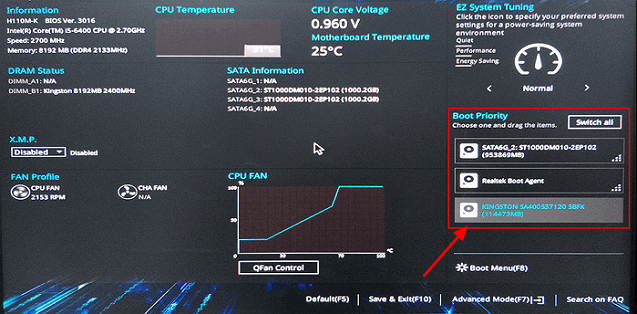
Step 3. Save the changes and restart the PC.
#5. Enjoy Gaming on New SSD
After upgrading to a new SSD, you can now enjoy faster OS booting speed and loading speed while gaming. But that's not all - here are some tips to further optimize your gaming experience:
1. Extend C Drive, Leaving Enough Space for Gaming
To ensure smooth gaming performance with your new SSD on your gaming PC, it's crucial to leave sufficient space. Qiling Partition Master can assist you in extending the C drive with its partition management features, allowing you to optimize your system for gaming.
Here is how to extend C drive:
Option 1. Extend System C drive with unallocated space
- 1. Right-click on the System C: drive and select "Resize/Move".
- To add more space to the C: drive, drag the system partition end into the unallocated space, effectively merging it with the C: drive.
- Click "Proceed" to execute the operations and extend the C drive.
Option 2. Extend System C drive without unallocated space
- 1. Right-click a big partition with enough free space on the system disk, select "Allocate Space".
- 2. To resize the System C drive, select the system drive at the "Allocate Space From" section and drag the end of System C drive into the unallocated space.
- 3. Click "Proceed" to save the changes and extend the C drive.
0:00-To extend the system drive with unallocated space, go to Disk Management, select the disk where the unallocated space is located, and click on Extend Volume. Select the unallocated space and confirm.
2. Moving Big Folders and Files to a Second Drive
Saving and keeping big folders/files on a separate drive, rather than the OS drive, is a good idea. This can be done manually or with the help of reliable PC transfer software, making it easier to manage your files and free up space on your main drive.
Qiling Disk Master can efficiently detect and move big files and folders from one drive to another with its Large File Cleanup feature, allowing for a step-by-step guide as described in "How to Move Large Files from One Drive to Another".
3. Frequent Virus Scanning and Removal Is Necessary
To keep your gaming PC and drives clean of viruses and malware, it's essential to enable Windows Virus Defender and run antivirus software frequently. This will help protect your system from online threats and ensure a smooth gaming experience.
You can rely on well-known antivirus software like Avast, Norton, AVG, Avire, or Eset to protect your digital world from malware and other online threats.
In The End
Comparing HDD with three types of SSDs, it's evident that choosing SSD as the gaming PC's OS disk is a wise decision.
We compared SATA, M.2, and NVMe SSDs from different angles and ran tests from TweakTown and Linus Tech Tips to show that SSD speed doesn't significantly impact gaming performance. However, SSDs still outshine HDDs in areas like data reading and writing, game loading, and OS booting. If budget allows, choosing an SSD for a gaming PC is the way to go.
Related Articles
- How-to: Create USB Bootable Partition Manager to Manage Partitions Safely
- Fix 'The Specified Disk Is Not Convertible' Error in Windows
- Best Answer: Format USB Drive to FAT32 or NTFS
- Fixed: Command Prompt Not Working in Windows 11/10
- Fix 'Invalid Partition Table' Error Dell Computers [100% Working]
If you're experiencing the 'invalid partition table error' on your Dell system, this guide provides multiple methods to resolve the issue, offering a solution to get your system up and running smoothly again. - Top 5 ISO Burner for Windows 10 in 2023 [New Checklist]
If you're looking for a reliable ISO burner for Windows 10, this guide can help. This article lists the top 8 Windows 10 ISO burners and their features, allowing you to choose one that meets your needs.
Products
Articles & Tutorials
- Data Recovery
- Data Backup
- File Recovery
- File Backup
- System Backup and Restore
- Disk and Partition Clone
- Technical articles
- Mobile articles
- Disk Master Help
- Windows Data Recovery Tutorials
- Windows Secure Delete Tutorials
- Windows Partition Management Tutorials
- Windows File Backup and Restore Tutorials
- Windows System Backup and Restore Tutorials
- Windows Disk Backup and Restore Tutorials
- Windows Clone Tutorials