How to Tell If a Hard Drive Is New or Used
Unfortunately, it can be challenging to determine the authenticity of a newly purchased disk. However, here are some steps you can take to increase the chances of buying a brand-new hard drive: Check the packaging and documentation for any signs of reuse, such as stickers or labels that suggest it was previously used. Look for any visible signs of wear or damage on the drive itself, such as scratches or dents. Check the manufacturer's website or contact their customer support to see if they have any information about the drive's history.
Knowing whether a hard drive is new or used is crucial for users, as a used hard drive may have wear and tear, making it less reliable, and potentially contain unknown viruses or malware, posing security risks to users' data and computers.
Ways to Tell If a Hard Drive Is New or Used [3 Main Ways]
This page provides a comprehensive guide on how to determine if a hard drive is new or used. By following these tips, you'll be able to identify whether a hard drive is fresh out of the box or has been previously used. Let's dive into the details.
You can test all your newly purchased storage devices, including SSDs, HDDs, external hard disk drives, USB drives, and even SD cards, to learn their status clearly.
In this article, you'll learn:
- #1. Inspect Hard Drive Physical Outlooks
- #2. Check Hard Drive Warranty Information
- #3. Test Hard Drive S. M. A. R. T State and Read Its Data
To determine if a hard drive is new or used, inspect the physical drive for signs of wear and tear, such as scratches, dents, or dust buildup. Check the SMART data to view the disk's launch time and serial number, which can indicate its age. Additionally, verify the disk's warranty information to see if it's still under manufacturer's warranty, which can suggest it's new.
#1. Inspect Hard Drive Physical Outlooks
- Duration: 1-2 minutes.
- Tools Needed: Hard Drive with its box, and your eyes.
Note: To do so, you'll need to be careful and observe all the details listed here.
To inspect a hard drive's age, look for the following signs: a physical inspection of the drive itself, checking the model number and serial number, and looking for any signs of wear or damage. You can also check the drive's firmware version and compare it to the manufacturer's release notes to see if there have been any recent updates.
- Check if the disk has signs of wear and tear A used hard drive may show signs of wear and tear, such as damage to the packaging or wear on the connectors.
- Check if the hard drive surface covers scratches or scuffs A used hard drive may have scratches or scuffs on its surface.
- Check if the hard drive has any damage or dents A used hard drive may have physical damage or dents on its outer casing.
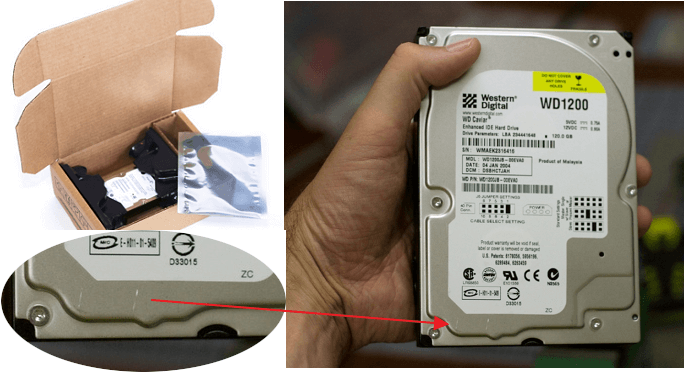
#2. Check Hard Drive Warranty and Serial Information
- Duration: 2-3 minutes.
- Tools Needed: Hard drive, its package, and warranty document.
To determine if a hard drive is new, you can get some basic information about it, which will help you confirm its status. This can be done using various tools and methods, such as running a command in the terminal or using a software tool.
Here are the details:
- Check the warranty information of the hard drive Most new hard drives come with a manufacturer-provided warranty, making them likely to be new if the warranty is still effective from the date of purchase.
- Check the serial number of the disk Most hard drives come with a unique serial number that can be used to identify them as new drives and to check their warranty status. If you can find and match your disk's serial number with its manufacturer, it means your drive is a new one and you can also check its warranty.
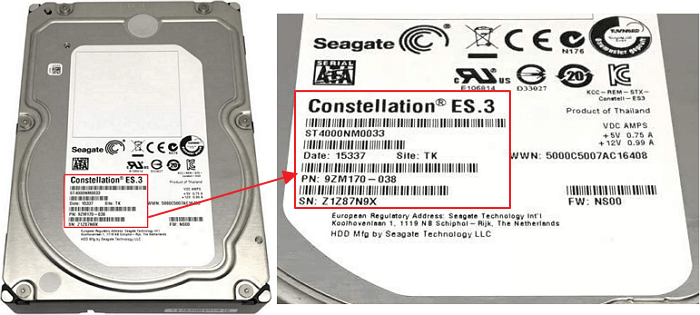
If you're unsure about your hard disk's warranty and serial number, you can simply reach out to your sales person or the customer service team from your disk manufacturer. They will be able to provide you with detailed information about your hard disk drive.
#3. Test Hard Drive S. M. A. R. T State and Read Its Data
- Duration: 2-5 minutes.
- Tools Needed: Hard drive, SATA connection cable, S. M. A. R. T hard drive monitor software.
A reliable way to determine if a hard drive is new or used is to test its S.M.A.R.T (Self-Monitoring, Analysis, and Reporting Technology) data, which can be easily done using a disk S. M. A. R. T test tool, even for those who are not tech-savvy.
Qiling Disk Master allows users to check the health of their hard disk or SSD with just one click, providing a simple way to determine if the drive is in good condition.
And here is how to do so:
- Run Qiling Disk Master and click "Disk Health".
- The target hard drive you want to tell if it's new or used is a crucial step in the process. To do this, you'll need to access the hard drive's properties or specifications.
- Wait for the tool to scan the disk, then it will list all the S. M. A. R. T data for you.

To determine whether a disk is new or used, you can check the data in the Status, Power On Hours, and Power On Count sections. This information can be found in the disk's specifications or documentation. Simply reviewing these sections will provide the necessary details to make an informed decision.
If you need more details and an easier way to check hard drive health, you can check this video.
If you think the above methods are effective and useful, feel free to share this guide with friends to help them detect if their hard drives are new or used like an expert. The guide provides a step-by-step process to identify a used hard drive, including checking for scratches, dents, and other signs of wear, as well as verifying the drive's serial number and checking for any unusual behavior.
Bonus Tips for Purchasing a New Hard Drive
Apart from these general methods, you can also check the hard drive label outside the package box and open the drive to see if it contains any data to see if it's new or not.
Here are some tips to help you purchase a new disk online or in a store: Consider the type of disk you need, such as a CD, DVD, or Blu-ray, and the storage capacity you require. Check the compatibility of the disk with your device, including the operating system and any specific software requirements.
- When choosing a hard drive, consider selecting a reliable brand such as Seagate, Western Digital, Toshiba, Sony, SanDisk, or Kingston.
- Technical support and warranty are crucial indicators for new disk drives, providing assurance to consumers about the product's reliability and durability.
- Ensure the package box, labels, and contents are intact and new, with no signs of wear or tear.
- The shipped date on the disk box indicates that the disk is new.
If you're still unsure about defining a hard drive state, check out the tutorial articles provided, which offer detailed information on the topic. You can follow the one that interests you the most to learn more about hard drive states and gain a deeper understanding of the subject.
Conclusion
To determine if a newly purchased hard disk drive is brand new or used, users can check the physical outlook, warranty information, and S. M. A. R. T data with a reliable disk health test software like Qiling Disk Master. This can help identify any potential issues or signs of previous use.
FAQs About Telling If a Hard Drive Is New or Used
Here, we gathered some hot topics that are related to this issue, and if you feel like to know the answer, follow the listed questions below:
1. Is there a way to tell how old a hard drive is?
There are several ways to determine the age of a hard drive, such as checking the warranty and serial number. Alternatively, you can use a reliable disk benchmark tool like Qiling Disk Master's DiskMark feature, which can detect a hard drive's power on hours and display its serial number with just one click.
2. How long should an HDD's lifespan be?
A typical hard drive usually lasts 3-5 years, but some high-quality ones can last up to 10 years or more. However, they are more prone to errors and physical damage over time due to their mechanical nature.
It's recommended to replace and upgrade a hard drive every 4-5 years due to its decreasing performance and reliability over time.
3. Can I recover data from old hard drives?
When you lose data on an old hard drive, stop using the disk for new files to improve the chances of successful data recovery.
Related Articles
- How Do I Format SSD Partition as FAT32 from Command Prompt (CMD)? [2023 Tutorial]
- How to Repair Windows 11 UEFI Bootloader [Full Guide]
- How to Remove Write Protection from Pen Drive
- Can't Install Windows 7 on Dynamic Disk - 3 Fixes 🔥
- Why My SD Card Shows Empty But is Full
It is a common issue that an SD card is full, but no files show up. If you are wondering 'Why my SD card shows empty but is full', this page provides you the answer and guide you to resolve the problem. - Why Pen Drive Is Write-Protected and How to Fix?
Sometimes the USB flash drive will change into write-protected, so why USB flash drive is write-protected and how to fix? This page briefly introduces the reasons and offers some practical methods to remove write protection.
Products
Articles & Tutorials
- Data Recovery
- Data Backup
- File Recovery
- File Backup
- System Backup and Restore
- Disk and Partition Clone
- Technical articles
- Mobile articles
- Disk Master Help
- Windows Data Recovery Tutorials
- Windows Secure Delete Tutorials
- Windows Partition Management Tutorials
- Windows File Backup and Restore Tutorials
- Windows System Backup and Restore Tutorials
- Windows Disk Backup and Restore Tutorials
- Windows Clone Tutorials