How to Tell If a Hard Drive Is Bad (Physically & Logically) 2023
Frequent hard drive crashes and sluggish computer performance can be caused by a failing hard drive, leading to sudden system crashes, unexpected data loss, and program launching issues.
In the case of having these issues, it matters a lot to learn the methods that help to define and tell if a hard drive is bad or not. Here in the following sections, Qiling software will guide you to define your hard drive status in 10 ways. Let's start here.
|
Guide 1: Check If Hard Drive Is Bad Physically |
|
| Guide 2: Check If Hard Drive Is Bad Logically |
|
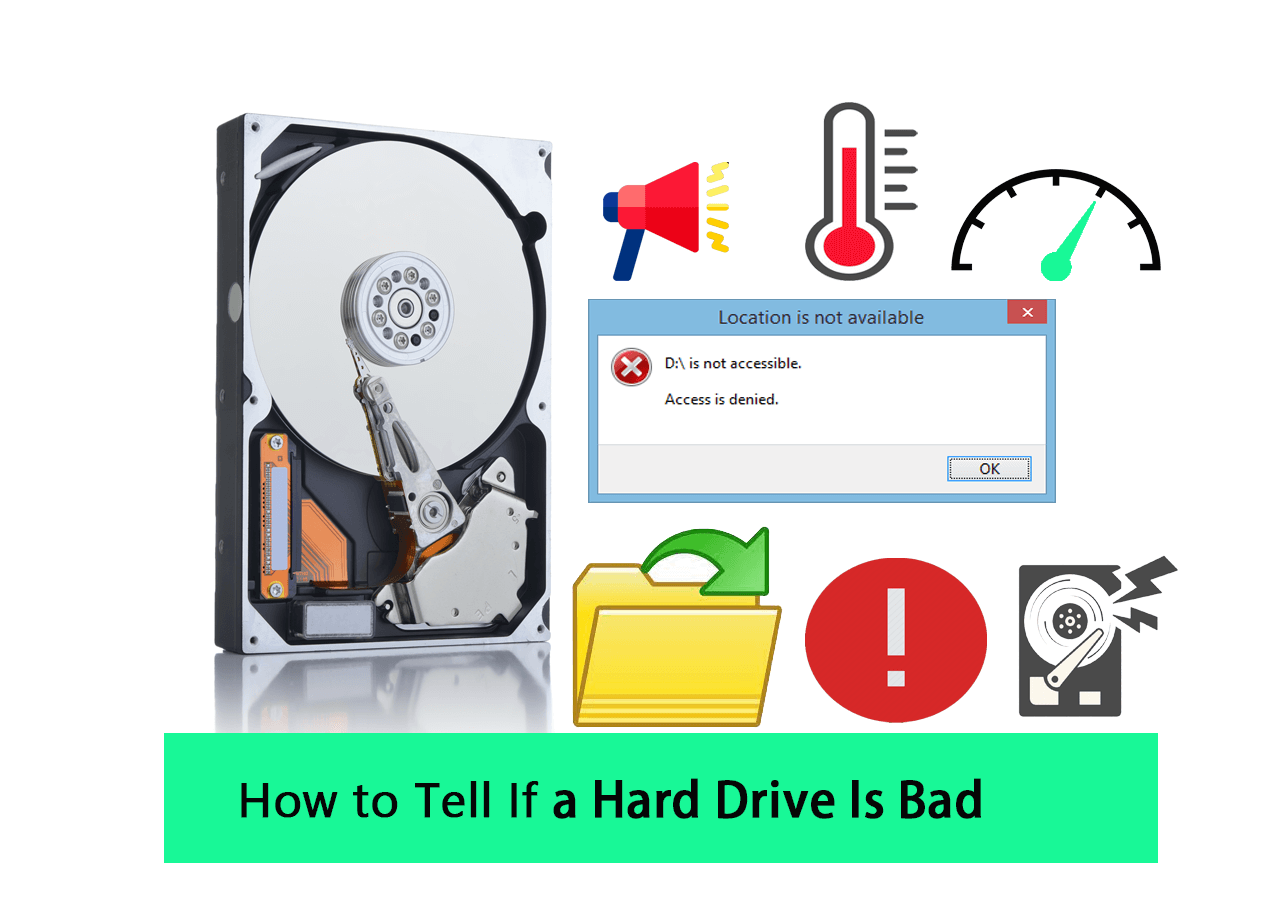
Note: To check if a hard drive or SSD is bad on your computer, you can try running a disk check on both Windows and Mac computers. This can be done by right-clicking on the drive in File Explorer (Windows) or Disk Utility (Mac), and selecting "Properties" or "First Aid" respectively. If the drive is bad, the check may identify errors or issues with the drive's formatting or structure.
Guide 1. Check If Hard Drive Is Bad Physically
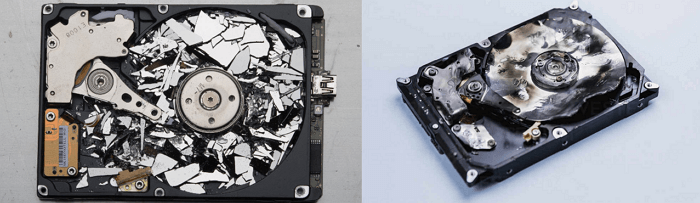
To check if a hard drive is bad or broken, inspect its physical components. Look for signs of physical damage, such as dents, scratches, or burns on the drive's casing or connectors.
#1. Check the Hard Drive Outlook: inspect if a hard drive has any physical damage.
If you notice any physical damage to your hard drive, such as dents, cracks, or burn marks, take immediate action to recover data from the damaged or broken hard drive. This is especially crucial if the drive has been dropped, exposed to water, or suffered other forms of physical trauma. Your first step should be to attempt to recover data from the damaged or broken hard drive.
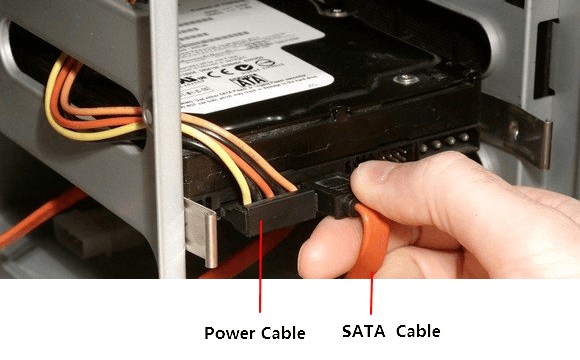
#2. Check the Hard Drive Connection Cables: confirm if the hard drive connection cable is broken.
If the connection cables between a hard drive and motherboard become loose or damaged, it may seem like the hard drive is faulty. However, the issue could be with the cables themselves. To troubleshoot, check the cables for any damage or looseness, and replace them if necessary. Reconnecting the hard drive with a new or repaired cable may resolve the issue and make the drive accessible again.
#3. Check if Hard Drive Makes Strange Sounds: Check if the hard drive is making strange sounds or loud spinning noises. If it is, it may be a sign of a mechanical failure or other issues with the drive.
If you hear unusual sounds or loud noises from your hard drive, stop using it right away. Power it down and disconnect it to prevent further damage and potential data loss. The spinning head could continue to cause harm to the disk platter.
#4. Check the Hard Drive Temperature: ensure that the hard drive is overheated or not.
If your hard drive temperature is higher than 45 degrees, stop using it or cool it down before using it again, as it can cause damage.
Qiling Disk Master allows you to easily monitor your PC's disk temperature using its Check Disk Health feature.
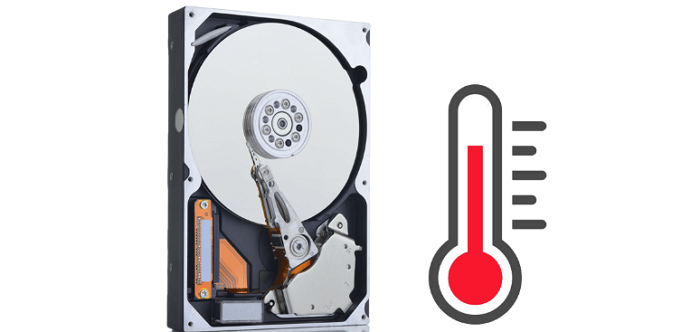
To check a hard drive temperature on Windows, follow this link and learn how to do it on your own.
Guide 2. Check If Hard Drive Is Bad Logically
Here are some tips to confirm if your hard drive is logically broken or failing:
#1. Check If Hard Drive Is Openable/Accessible: test if you are able to open or access the hard drive and its saved data.
If you're unable to open a hard drive or access its saved data and files, it could be a sign of a logical error on the disk. Before proceeding, double-check that the disk is properly connected to your computer. If it's still not working, you may need to run a disk check or repair tool to identify and fix the issue. This could involve running a built-in disk check tool, such as Check Disk (chkdsk) on Windows, or using a third-party utility like Disk Drill or Deep Data Recovery Wizard.
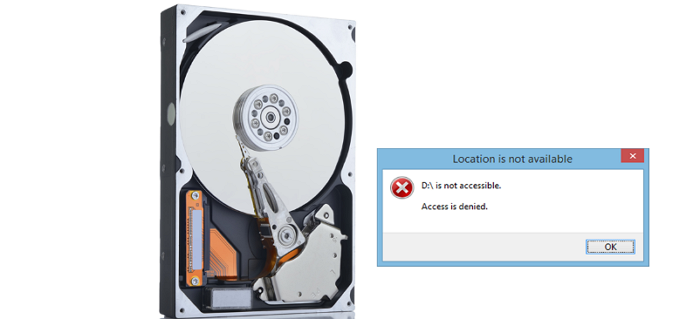
If your disk is still inaccessible or inaccessible after reconnecting it to your PC, you may need to try additional troubleshooting steps. You can follow the tutorials below for help.
#2. Check Hard Drive Read/Write Speed: To check if the hard drive's reading and writing speed is below the average, you can use a tool like CrystalDiskMark or HDTune. These programs will test the hard drive's sequential read and write speeds, as well as its random read and write speeds, and provide a score.
If you're experiencing slow disk performance when saving or transferring content, it's a good idea to check the read and write speed of your disk and compare it to the average speed. Qiling Disk Master offers a free feature called DiskMark that allows you to test your hard disk speed and export a test report with just a few clicks.
- Launch Qiling Disk Master, go to Discovery, and click "Surface test".
- Select the drive you want to test and click "Proceed".

After running the disk usage report, you can save it to your PC and compare your disk speed to the average level.
A standard hard disk drive can read and write data at speeds of 80MB/s to 160MB/s. If your hard drive speed is lower than this, you can follow the guide to speed up your hard drive in Windows 11/10/8/7.
#3. Check If Hard Drive Contains File System Error: To scan if a hard drive contains file system errors or bad sectors, you can use a built-in tool like the built-in Windows tool called "chkdsk" or the built-in Mac tool called "Disk Utility". These tools can scan the hard drive for errors and bad sectors, and repair them if possible.
When a hard drive has file system errors or bad sectors, you may not be able to access its content. Checking the disk and fixing file system errors is crucial. If a computer detects errors, it indicates that the disk is faulty.
Here are some tips to check and fix file system errors on your hard drive:
Qiling Disk Master with Check File System feature allows you to check and repair file system errors on a disk.
#4. Check Hard Drive S. M. A. R. T. Status: You can use S. M. A. R. T. (Self-Monitoring, Analysis, and Reporting Technology) to check if a hard drive contains any errors. S.
To check the S. M. A. R. T status of a hard disk, you'll need to use a reliable hard drive S. M. A. R. T. monitor or test tool to benchmark its performance and determine if the drive is technically healthy.
For those looking to quickly find the best S. M. A. R. T. test software, this guide provides a convenient resource.
Top 5 Best S.M.A.R.T Hard Drive Monitor Software Free Download
We've curated the top 5 best S. M. A. R. T hard drive monitor software for you to download and apply, making it easy to monitor your hard drive's health status in simple steps.
#5. Check If Hard Drive Crashes Frequently: identify if the disk crashes or stops working regularly.
If your computer's disk is crashing frequently or prompting a blue screen of death error (BSOD), it's likely that the disk is faulty or experiencing errors, indicated by signs such as frequent crashes.
- Computer crashes randomly
- Windows boots or prompts with BSOD error
- Laptop suddenly reboots
- Programs crashes or flashback by accidents
For some fixing tips, try the following tutorials provided by Qiling software, which offer helpful guidance on troubleshooting and resolving issues.
#6. Check If Hard Drive Ramdonly Slows Down: define if your hard drive slows down or freezes randomly.
A hard drive slow issue is often a sign that a disk is experiencing problems, which can be caused by file system errors, virus or malware infections, bad sectors, or disk fragmentation.
If you're experiencing issues, you can follow this guide for helpful tips to fix the problem.

How to Fix Hard Drive Very Slow in Windows 10/8/7
Here, you can fix a slow hard drive or USB external hard drive easily with eight solutions without worrying about data being corrupted or inaccessible.
Final Verdict
To determine if a hard drive is bad or experiencing issues, follow these 10 tips: check the physical condition of the disk, run a logical disk check, and follow tutorials to improve disk performance. This guide helps hard drive owners identify potential problems and take corrective action to ensure their disk is working properly.
FAQs About How to Tell If Hard Drive Is Bad
Here are some hot topics that users also asked online that are related to this topic. If you are interested, follow to find answers here:
1. How can I determine if my hard drive is damaged or not?
Here are some symptoms that may indicate your disk is getting damaged or corrupted: files become inaccessible, system crashes, disk space becomes limited, system freezes, applications take longer to load, and the disk is not recognized by the system.
- Stange sounds or noises
- Slow speed or performance
- Crashes frequently
- Reports file system errors
- Overheating or high temperature
For more details, follow this guide and learn how to tell if a hard drive is dead.
2. How to test my hard drive speed?
You can test your disk speed using a disk benchmark tool, such as Qiling Disk Master, which has a feature called DiskMakr. This tool allows you to run a quick test and measure your hard drive's speed with just a few clicks.
3. How long could a hard drive be? I mean, its lifespan?
The lifespan of a hard drive can vary from 3-5 years, but its durability can be impacted by various factors such as viruses, bad sectors, file system errors, power surges, and physical damage. To ensure your essential data remains intact, it's recommended to back up your valuable files to a safe location or an external hard drive. Additionally, using high-quality hard drives, keeping the disk cool, and avoiding power surges can help extend the lifespan of your hard drive.
Related Articles
- Full Guide: Check SSD Health in Windows 8 [Free & Efficient]
- How to Troubleshoot Critical Process Died Error in Windows 10/8/7 (10 Solutions)
- How to Fix "Unable to Convert Dynamic Disk to Basic"[2023 Newest Guide]
- How to Run SSD Performance Test on Windows 11/10 (with Pictures)
- USB Drive Is Write Protected, How to Fix
How to fix the USB drive is write-protected? What is write protection? This article will introduce what write protection is and how to deal with this problem by providing detailed steps. - Why I Cannot Extend C Drive with Unallocated Space?
Is your C drive out of storage space? Do you want to extend it but only find the Extend Volume option greyed out? Read this post, and you will find the answer to 'why I cannot extend C drive with unallocated space' and its solution.
Products
Articles & Tutorials
- Data Recovery
- Data Backup
- File Recovery
- File Backup
- System Backup and Restore
- Disk and Partition Clone
- Technical articles
- Mobile articles
- Disk Master Help
- Windows Data Recovery Tutorials
- Windows Secure Delete Tutorials
- Windows Partition Management Tutorials
- Windows File Backup and Restore Tutorials
- Windows System Backup and Restore Tutorials
- Windows Disk Backup and Restore Tutorials
- Windows Clone Tutorials