Why Does Computer Keep Crashing? 10 Instant Ways to Fix Computer Keeps Crashing
Computer keeps crashing Computer crashes are quite annoying to users, especially when playing games or working on important tasks. They often result in a blue screen of death, an unstartable system, a frozen screen with no response, and unresponsive mouse and keyboard. This can interrupt software operation and cause frustration.
Your PC or laptop may crash or freeze randomly due to various reasons such as overheating, outdated drivers, malware infections, and hardware issues. To fix the problem, try restarting your computer in safe mode, running a virus scan, updating your drivers, and cleaning dust from your computer's vents. Additionally, consider upgrading your RAM or replacing your hard drive with a faster one if necessary.
| Workable Solutions | Step-by-step Troubleshooting |
|---|---|
| 1. Cool the Computer | It is recommended to open one side panel of the case when using the computer in summer...Full steps |
| 2. Clean the Dust | You need to regularly dust off the hardware in your computer...Full steps |
| 3. Check the Hardware Connection | Vibration during the movement of the computer often causes the internal hardware to loosen...Full steps |
| 4. Check the Hard Disk Bad Sectors | Step 1. Open Qiling Partition Master. Right-click the disk that you want to check, and then click....Full steps |
Why Does My Computer Keep Crashing
Computer crashes can be caused by a combination of hardware and software issues. Some common reasons for frequent crashes include hardware problems such as faulty RAM, overheating CPU, or failing hard drives, while software-related issues like outdated drivers, malware infections, or corrupted system files can also contribute to crashes.
- The display, power supply, or CPU is overheating.
- The internal hardware of the computer is loose.
- Software and hardware are incompatible.
- The hard disk has bad sectors.
- The system partition is out of space.
- There is insufficient RAM capacity.
- The drivers are corrupted or out of date.
- Virus or malware attacks your computer.
10 Effective Ways to Fix Computer Keeps Crashing Problem
Solutions to computer crashes can be categorized into hardware-related fixes and software-related methods. To resolve the issue, try the following ten fixes: a combination of hardware and software-related troubleshooting steps that can help identify and address the root cause of the problem, whether it's a hardware or software issue. By attempting these solutions, you may be able to resolve computer crashes caused by hardware or software problems.
Fix 1. Cool the Computer
A computer crash can be caused by a motherboard, CPU overheating, or poor heat dissipation, which can be prevented by maintaining good ventilation, especially around the monitor, power supply, and CPU, as they generate a lot of heat during work.
The heat dissipation of the CPU is a crucial factor in maintaining a computer's stability, especially during hot summer months. To address this, it's recommended to leave one side panel of the case open to enhance airflow and heat dissipation. For laptops, using a cooling fan or cooling pad can be an effective solution to prevent overheating and ensure smooth operation.
Fix 2. Clean the Dust
Regularly dusting off computer and laptop hardware is crucial to maintain performance, as dust buildup can lead to decreased heat dissipation, read and write errors, and even system crashes.
Fix 3. Check the Hardware Connection
Vibration during computer movement can cause internal hardware to loosen, such as the memory bar, leading to poor contact and system crashes. To prevent this, it's recommended to minimize severe vibration when moving the computer.
Fix 4. Check the Hard Disk Bad Sectors
If your hard disk has bad sectors, your computer may crash randomly while running. You can use software like Qiling Partition Master to check for and potentially fix bad sectors.
Using the Qiling Windows 10 disk management tool, you can test for bad sectors on your hard drive. If there are too many bad sectors, it can prevent files from being read and written in that location, ultimately causing the hard disk to become stuck or even dead.
Step 1. Open Qiling Partition Master, right-click the disk you want to check, and then click "Advanced" > "Surface Test".
Step 2. The operation will be performed immediately and all bad sectors will be marked as red.
Fix 5. Replace or Upgrade Hard Disk
If the hard drive damage is severe with many bad sectors, the only solution is to replace the hard disk. Additionally, even if the hard drive itself is fine, but the available space is too small, the computer may crash during use, requiring an upgrade to a larger disk.
To switch to another disk, cloning is the easiest method. Qiling Partition Master can help you clone a disk with bad sectors to a new HDD or SSD, making the process easy. This partition manager also supports various other features, including merging partitions, splitting a partition, resizing/moving partitions, and allocating space from one drive to another.
Step 1. Select the source disk.
To clone a disk, go to the "Tools and utilities" page and select "Disk clone". Click on the disk you want to copy or clone.
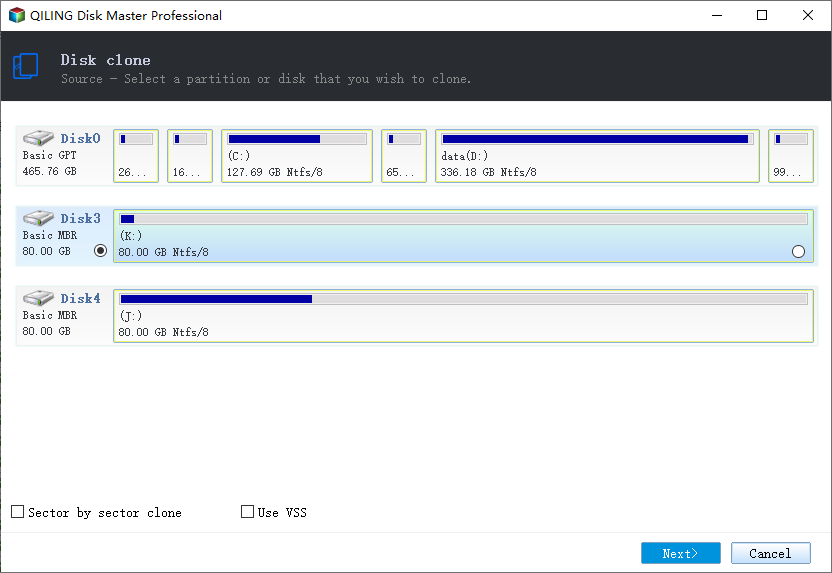
Step 2. Select the target disk.
Select the desired hard drive or solid-state drive (HDD/SSD) as the destination and click "Next" to proceed.
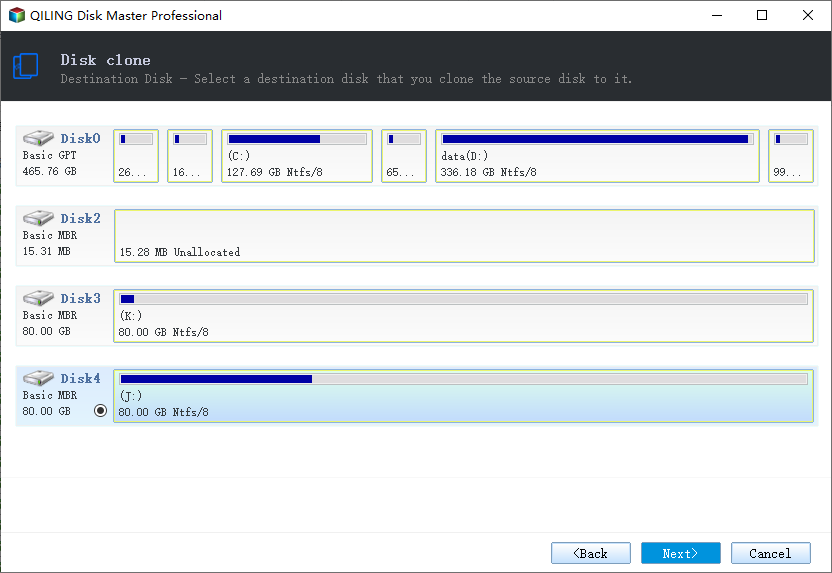
Step 3. View the disk layout.
To customize your disk layout, you can select "Autofit the disk", "Clone as the source", or "Edit disk layout". If you want to leave more space for the C drive, choose "Edit disk layout".
Click "Proceed" to start cloning process.
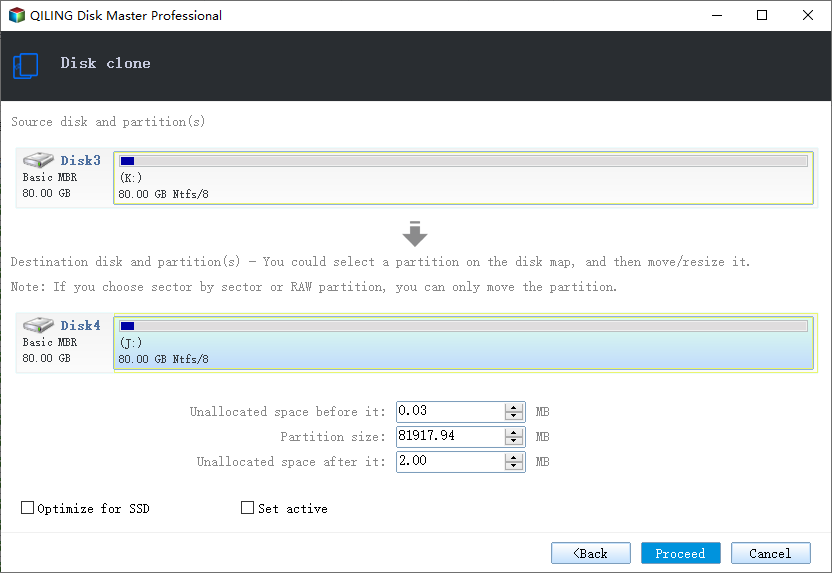
Step 4. Execute the operation.
Then click "OK" when the program warns it will wipe out all data on the target disk. (If you have valuable data on the target disk, back up it in advance.)
Fix 6. Upgrade RAM
If you're running out of RAM, your computer may freeze, but upgrading your RAM can help prevent crashes and improve overall performance.
Fix 7. Extend C Drive
If the free space in the system partition is too small, the computer may crash at runtime. To resolve this issue, you can extend your C drive using a power disk management software.
Option 1. Extend System C drive with unallocated space
- 1. Right-click on the System C: drive and select "Resize/Move".
- To resolve the issue, drag the system partition end into the unallocated space, effectively adding it to the C: drive. This will allow the system to utilize the newly freed space, increasing the available storage capacity of the C: drive.
- Click "Proceed" to execute the operations and extend the C drive.
Option 2. Extend System C drive without unallocated space
- 1. Right-click a big partition with enough free space on the system disk, select "Allocate Space".
- 2. To resize the system drive, select it at the "Allocate Space From (*) To" section and drag the end of the System C drive into the unallocated space.
- 3. Click "Proceed" to save the changes and extend the C drive.
Fix 8. Update Drivers
Corrupted or outdated drivers can cause computers to crash or freeze, so reinstalling or updating them may help resolve the issue.
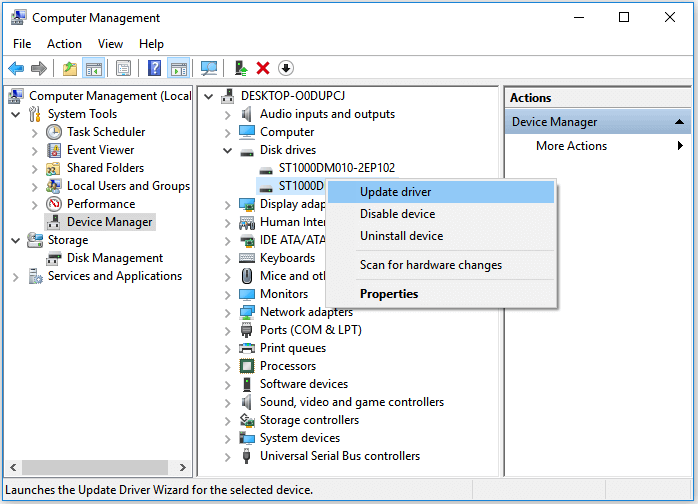
Step 1. Right-click "This PC > Manage > Device Manager".
Step 2. Expand "Disk drives".
Step 3. Right-click your hard disk and click "Update driver".
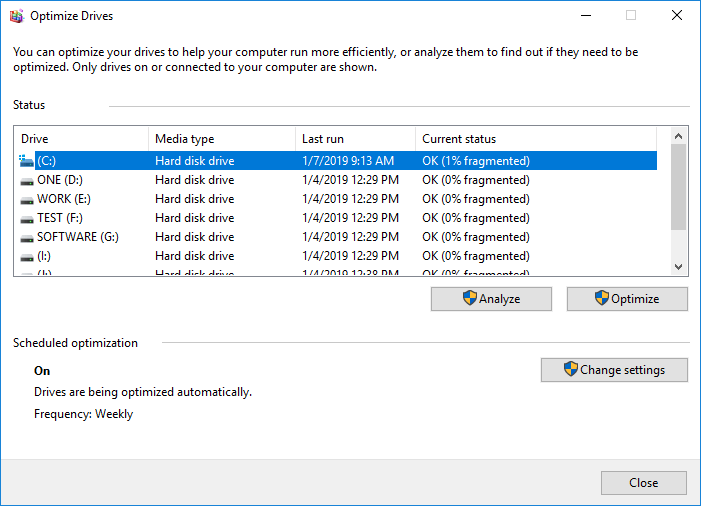
Fix 9. Defragment Your Hard Drive
Using your hard drive for an extended period can lead to significant fragmentation, which can be resolved by defragmenting it. This process can improve your computer's performance. Additionally, regularly deleting junk or large files from your hard drive is also recommended. By doing so, you can prevent your computer from crashing and maintain its overall health.
Step 1. Find and right-click the target disk in File Explorer.
Step 2. To optimize and defragment the drive, go to Properties, click on the Tools tab, and then click Optimize under the Optimize and defragment drive section.
Step 3. Click "Optimize" to defragment your hard disk.
Fix 10. Install or Upgrade Antivirus Software
Installing reliable security software and keeping it up to date can help protect your computer from viruses, malware, and other malicious software that could cause it to crash.
To Wrap Things Up
Many people experience computer crashes after prolonged use, which can be frustrating, especially for those unfamiliar with computers.
This post provides a guide on why your computer keeps crashing and offers nine useful ways to fix the issue. You can follow the steps and try to resolve the problem yourself, or contact our technical support team at support@idiskhome.com for further assistance if needed.
Additional Information: Tips for Avoiding Computer Crashes
While computer crashes are inevitable, there are some factors to consider that can help minimize the risk. By being mindful of these elements, we can take steps to prevent or at least mitigate the problem.
- Don't overclock CPU, graphics card, and other accessories too high, and be mindful of temperature, as excessive overclocking can be detrimental.
- Don't turn off the power when the application software doesn't finish normally, as it may cause damage or loss of system files and lead to system crashes or automatic startups.
- Be cautious when downloading software or files from the internet, and use anti-virus software to scan attachments from emails to prevent system crashes caused by viruses.
- In small memory situations, it's best to avoid running applications that consume a lot of memory.
- When replacing computer accessories, make sure to plug them in correctly to avoid system crashes caused by poor contact.
- Clean the chassis, power supply, fan, and other accessories frequently.
- When shutting down your computer, avoid using the power button directly, as it may cause file loss and prevent the system from starting normally in the future, potentially leading to a system crash.
Related Articles
- Add A Second Drive to Windows Server [Full Guide 2022]
- How Do I Make My Partition Bigger Than 2 TB?
- 6 Tips to Speed Up SD Card Transfer Speed and Fix Slow Micro SD Card
- Tips for Windows 11 Android Apps & How to Run Android Apps on Windows 11
- Newest Partition Magic Server Software Review and Download in 2022
Are you looking for a partition magic Server software to help you successfully partition hard drives. - Remove Virus That Slows Down the Computer On Your Own [2022 New]
Your computer's sudden slowdown is likely due to a virus or malware infection. To remove the virus and get your PC running smoothly again, follow this ultimate guide.
Products
Articles & Tutorials
- Data Recovery
- Data Backup
- File Recovery
- File Backup
- System Backup and Restore
- Disk and Partition Clone
- Technical articles
- Mobile articles
- Disk Master Help
- Windows Data Recovery Tutorials
- Windows Secure Delete Tutorials
- Windows Partition Management Tutorials
- Windows File Backup and Restore Tutorials
- Windows System Backup and Restore Tutorials
- Windows Disk Backup and Restore Tutorials
- Windows Clone Tutorials