How to Delete FAT32 Partition [Step-by-Step Guide]
To delete a FAT32 partition, you can use a disk management tool like Disk Management or a third-party software like Qiling Partition Master. These tools allow you to delete the partition and then format the remaining space as a new partition with a different file system, such as NTFS or exFAT. Alternatively, you can use the built-in command-line utility "diskpart" to delete the partition. However, be cautious when using these methods, as they can result in data loss if not done properly. It's always a good idea to back up your data before making any changes to your disk partitions.
Why Delete FAT32 Partition
FAT32 is an older file system that was first introduced in 1996. It has a maximum capacity of 2TB and was the first FAT file system to exceed the 1000GB mark. Prior to its existence, the maximum capacity was much lower. However, it has been largely replaced by newer file systems with more advanced features and greater capacity.
| Name | Pros | Cons |
|---|---|---|
| FAT32 |
|
|
FAT32 has limitations, including a maximum size limit, which is less than the exFAT format. If you need to store a file larger than 4GB, deleting the FAT32 partition is an option.
- To get more usable space
- To break the FAT32 file size limit
- To reduce partitions to better management
Windows users can delete FAT32 partitions to free up unallocated space, and this article will also cover three effective methods for deleting partitions. Let's continue to learn.
You may also like:
How to Delete FAT32 Partition - Three Ways
Deleting a FAT32 partition in Windows is a straightforward process that can be accomplished using either built-in tools or third-party software, depending on your specific needs.
Way 1. Delete FAT32 Partition Using Qiling Partition Master
Way 2. Delete FAT32 Partition Using Disk Management
Way 3. Delete FAT32 Partition Using Diskpart Commands
If you're confused about the ways to delete FAT32 partitions, you can choose the easiest option, Qiling Partition Master Free, which allows you to delete FAT32 partitions in a few simple steps.
| Features | Qiling Partition Master | Disk Management | Diskpart Commands |
|---|---|---|---|
| Suitable Users |
|
|
|
| Operation Difficulty |
|
|
|
| Data Safety |
|
|
|
The methods mentioned in this article can be used to delete partitions of various formats, including exFAT and NTFS, and are safe to use. For more information on deleting partitions in Windows 10/11, you can visit the provided link.

To remove or delete a partition in Windows 11/10, you can use the built-in Disk Management tool. Alternatively, you can use third-party software like Qiling Partition Master.
Users can manage partitions on Windows by deleting one and expanding another, giving them control over partition management.
Way 1. Delete FAT32 Partition Using Qiling Partition Master - Easiest
Qiling Partition Master is a professional disk manager for Windows users that supports all Windows versions, ensuring compatibility. It allows you to delete a FAT32 partition efficiently and safely, even if you're not a computing expert, thanks to its clear interface and prompts.
Now, download it and have a try.
Step 1. Launch Qiling Partition Master, and click "Partition Manager".
Before deleting any partition on your disk, make sure you've backed up any important data to prevent loss.
Step 2. To delete a partition or all partitions on a hard drive, select the appropriate option from the available choices. This will allow you to either remove a single partition or erase all data on the hard drive by deleting all partitions.
- Delete single partition: Right-click on a partition that you want to delete and choose "Delete".
- Delete all partitions: Right-click on a hard drive you want to delete all partitions from, and select "Delete All".
Step 3. Click "Yes" to confirm the deletion.
Qiling Partition Master has a variety of features to help with disk partition issues, including disk partitioning, disk wiping, disk cloning, and disk backup. It also allows for resizing, merging, and splitting partitions, as well as converting between different file systems. Additionally, it includes a built-in disk defragmenter and a tool for recovering lost partitions.
Features of Qiling Partition Master:
- Delete NTFS partition
- Resize or move partitions
- Merge or split partitions
- Convert FAT32 to NTFS and vice versa
- To resolve the "C drive full" error and extend the C drive, you can follow these steps:
If you are facing disk management problems, download it to help. It won't let you down!
Way 2. Delete FAT32 Partition Using Disk Management - Medium
What is Disk Management? It is a utility that comes with Windows and is used to manage your computer disks as well as partitions. To delete a FAT32 partition using Disk Management, follow the steps below.
Step 1. Press "Windows+R" and then type "diskmgtmt.msc" and hit "Enter."
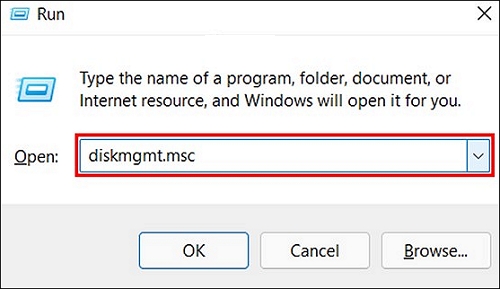
Step 2. You want to delete a FAT32 partition, but you're not sure how to do it. To delete a FAT32 partition, you'll need to access the Disk Management tool in Windows.
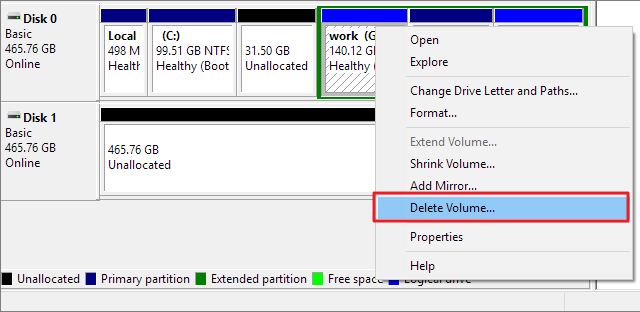
Step 3. Right-click on that partition and choose "Delete Volume".
Way 3. Delete FAT32 Partition Using Diskpart Commands - Difficult
To avoid any errors that may lead to data loss, pay close attention to the Diskpart commands when trying to delete a partition. If you're new to Diskpart, these commands may seem a bit tricky, but following the steps below can help you successfully delete a partition.
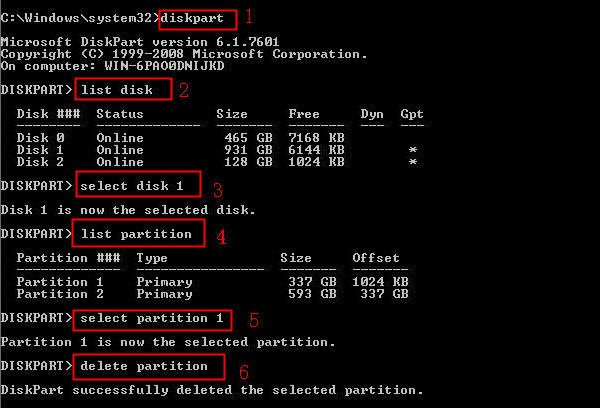
Step 1. Press "Windows+R" and type the command: CMD
Step 2. After opening CMD Window, type enter every time you type a command below:
- diskpart
- list disk
- select disk 1
- list partition
- select partition 1
- delete partition
Note: Please replace 1 with the correct number or letter to avoid data loss.
Step 3. Type exit to finish this action.
By the way, there is a link for you if you meet other problems when you are using Diskpart:
Conclusion
This guide explains why you should delete FAT32 partitions and provides three methods to do so. Qiling Partition Master is the easiest and safest way, allowing for easy deletion or resizing of FAT32 partitions. Alternatively, you can use Disk Management or Diskpart to delete FAT32 partitions. Additionally, the guide addresses three frequently asked questions about deleting FAT32 partitions, offering further information for those interested.
You may also like:
FAQs About How to Delete FAT32 Partition
This part may help if you have further questions about deleting a FAT32 partition. The three questions are as follows:
1. How do I delete a FAT32 partition on a USB?
Follow the steps and try deleting the FAT32 partition:
Step 1. Connect your USB to the PC and launch Disk Management.
Step 2. Right-click on the targeted FAT32 partition on your USB.
Step 3. Choose "Delete Volume."
2. How to delete undeletable partitions?
To troubleshoot the issue, open your Command Prompt (CMD) as an administrator and type the following command:
- list disk
- select disk 2
- list partition
- select partition 2
- delete partition
You need to replace 2 with the targeted disk number or partition number. For example, if you want to format the disk number 3, you would replace 2 with 3 in the command.
3. How do I fix the FAT32 volume is too big?
Follow the steps to try:
Step 1. Type PowerShell in the search box.
Step 2. Right-click PowerShell and select "Run as administrator."
Step 3. Type the command: Format /FS:FAT32 o:
Don't forget to hit enter after typing the command. The letter o represents the partition letter, so you can replace it with the correct one.
Related Articles
- Can I Install Windows 11 on Windows 10? Download Windows 11 Now
- Top Partition Magic Freeware/Best Partition Software
- How to Solve "Diskpart Failed to Extend the Volume" [3 Efficient Ways]
- Top 7 Best Drive Eraser Software For Your PC & Mac
- Can't Install Windows 7 on Dynamic Disk - 3 Fixes 🔥
To fix the error of installing Windows 7 on a dynamic disk, you can try the following methods. Firstly, you can convert the dynamic disk to a basic disk using the built-in Disk Management tool in Windows. - How to Change Boot Drive Windows 11 [Beginner's Guide]
There are many situations when you need to change the boot order, such as reinstalling the Windows OS, setting dual boot, or repairing errors. If you don't know how to operate it, this article will show you instructions to change boot drive Windows 11.
Products
Articles & Tutorials
- Data Recovery
- Data Backup
- File Recovery
- File Backup
- System Backup and Restore
- Disk and Partition Clone
- Technical articles
- Mobile articles
- Disk Master Help
- Windows Data Recovery Tutorials
- Windows Secure Delete Tutorials
- Windows Partition Management Tutorials
- Windows File Backup and Restore Tutorials
- Windows System Backup and Restore Tutorials
- Windows Disk Backup and Restore Tutorials
- Windows Clone Tutorials